In this article:
- Where is it?
- When is it useful?
- Enabling Profile Keywords
- Setting up Keywords
- Adding Keywords to Profiles
- What participants see
Where is it?
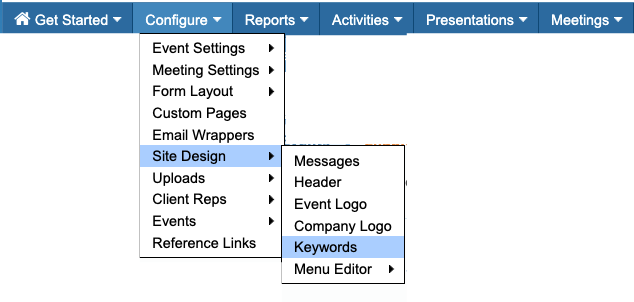
You’ll establish your event’s Keywords from the Configure tab:
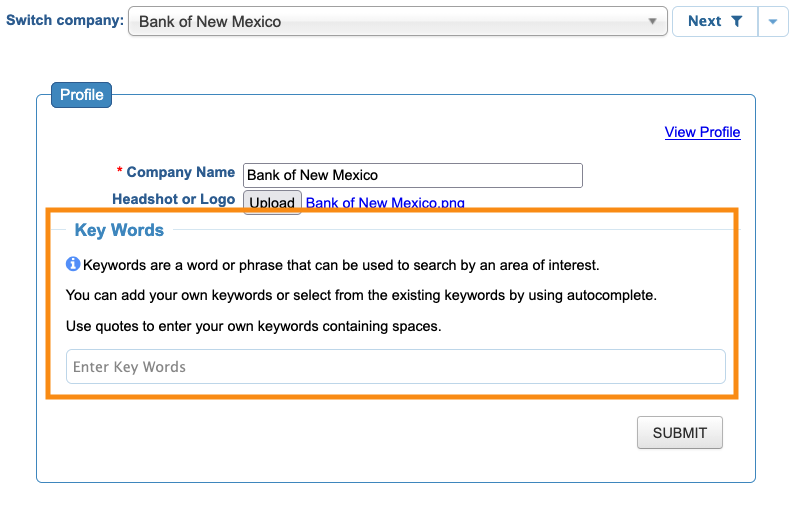
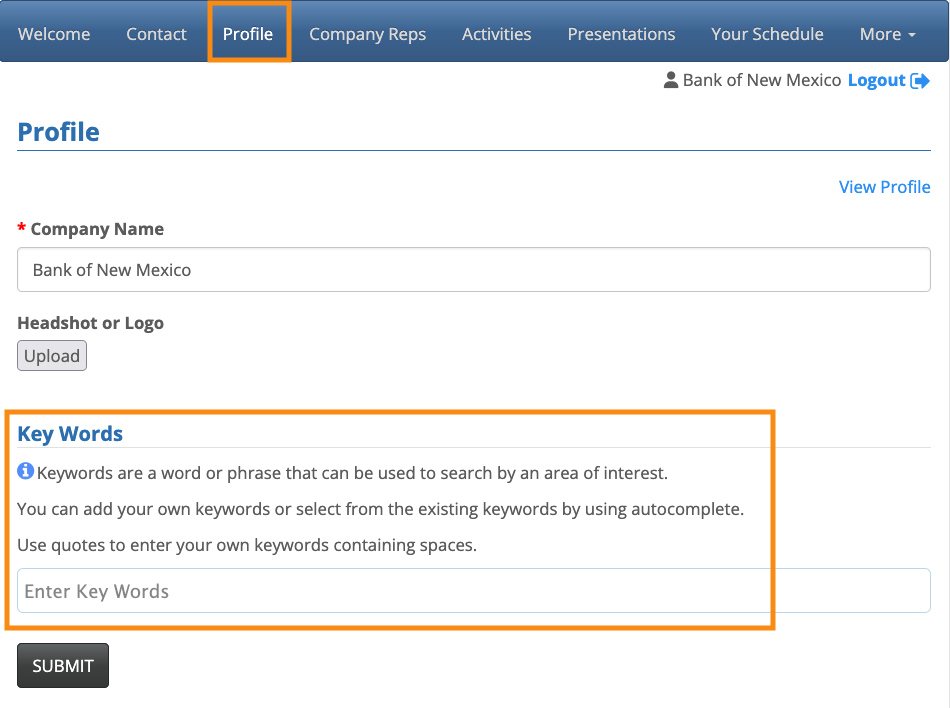
The Keywords feature is visible from the Profile form - both the Admin and participant versions:
When is it useful?
Keywords are handy for any event where participants can be organized into categories. Your event's participants can then use the keywords to filter the Request Meeting page.
Here are some examples:
- In an exhibitor event, the exhibitors might represent different types of services. If you add keywords to each exhibitor, it’s easier for Attendees to identify the ones they want to visit.
- In an event where participating Companies represent a variety of industries, you can add keywords to help Attendees request the meetings they’re most interested in.
- In an Unmoderated meeting program where Attendees represent a variety of geographic regions, you can add keywords to make it easy to find everyone from a specific region.
| MeetMax offers several ways to categorize participants. Our Support team is happy to help you find the best option for your event. |
Enabling Profile Keywords
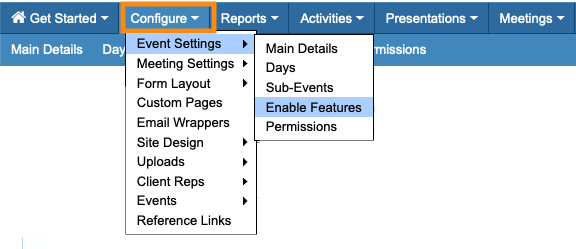
- Step 1. Head to the Configure tab. Choose Event Settings, then Enable Features:
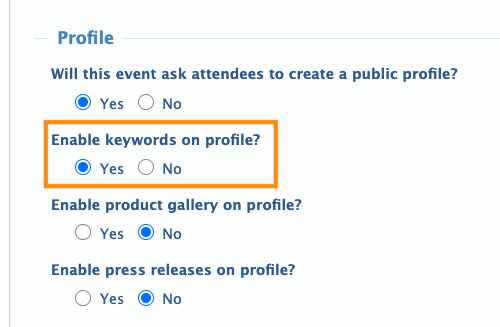
- Step 2. Scroll to the Profile section.
- For Enable keywords on profile, choose Yes:
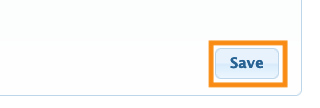
- Step 3. Scroll to the bottom of the page and click Save:
Setting up Keywords
Now that you’ve enabled Keywords, you’ll have access to create a set for your event.
You can add them individually or upload them in bulk - both options are below.
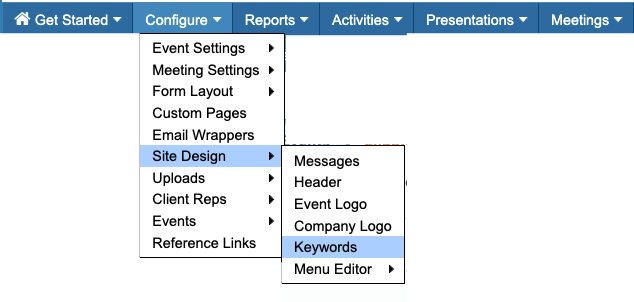
- Step 1. Head to the Configure tab. Choose Site Design, then Keywords:
- Step 2. Type in a keyword, then hit the space bar to turn it into a tag.
- If you need a tag with multiple words, put them in quotation marks:
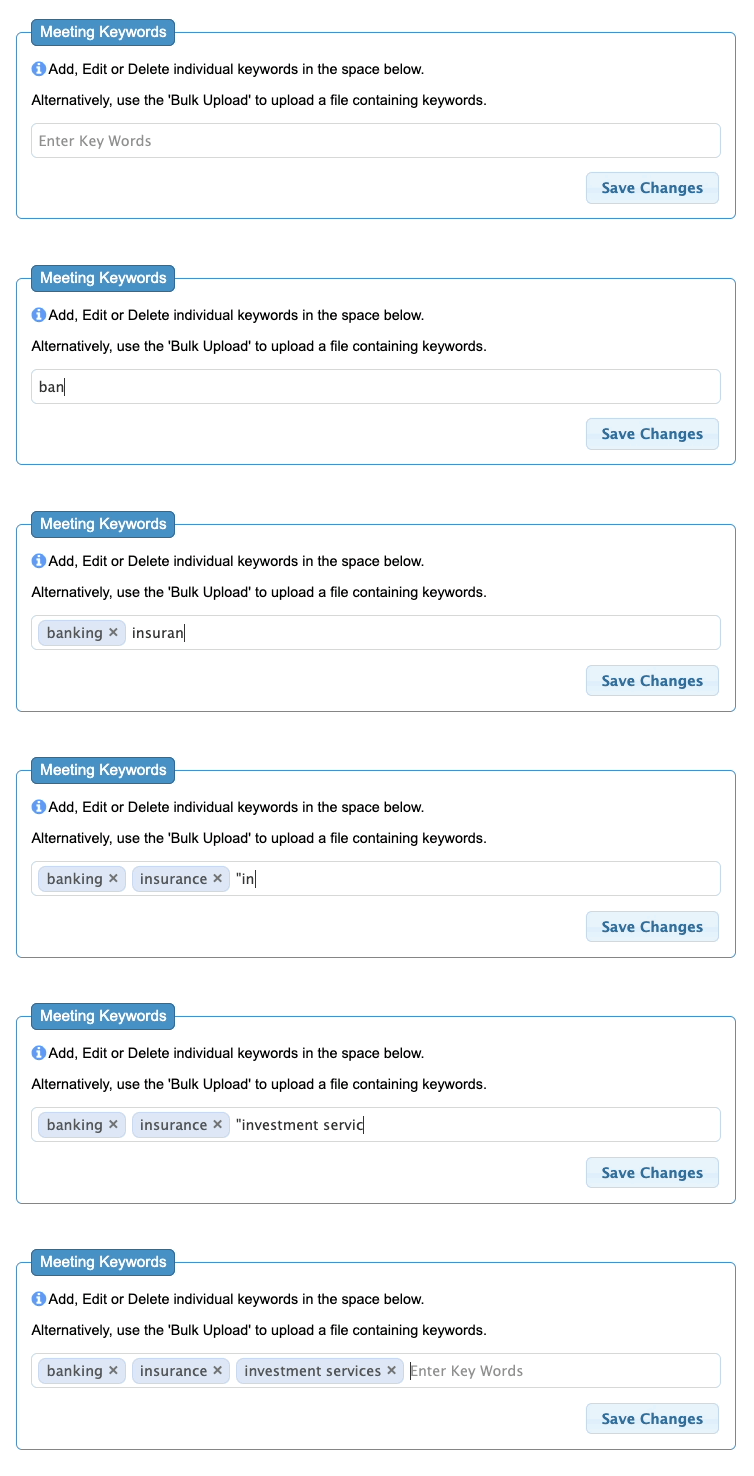
- Step 3. Click Save Changes to save the keyword set.
Bulk uploading keywords
If you have a long list of keywords, use these steps.
- Step 1. Prepare a list of keywords. You can either:
- • Use a plain text document, each keyword on a separate line.
- • Use a spreadsheet (one keyword per line), and export as a CSV file.
-
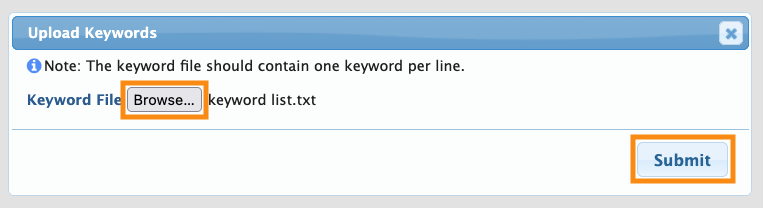
For uploading, don’t put multi-word keywords in quotation marks. If you’re using a text document, it must be in plain text (.txt) format. - Step 2. Click the Bulk Upload link:
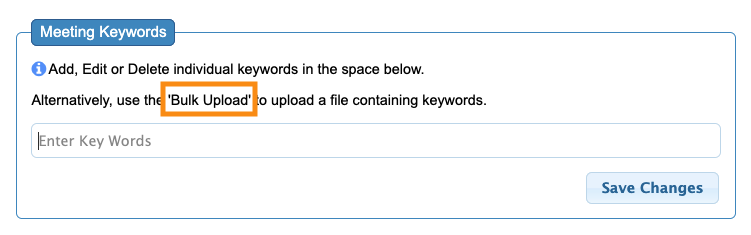
- Step 3. Click the Browse button and choose the file from your computer. Click Submit to import:
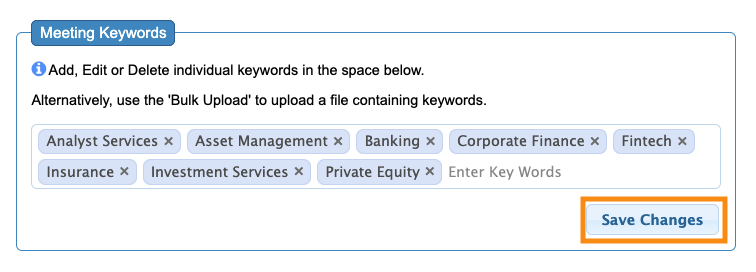
- Step 4. Click Save Changes to save this set:
Adding Keywords to Profiles
Your event’s Profile form now contains a new Keywords section. By default, both Admins and participants have access to add keywords.
| In MeetMax, Attendees and Companies use the same Profile form. So by default, everyone at your event has access to the Keywords section. If you need to hide this section for one or both groups, reach out to our Support team. |
How an Admin adds Keywords
- Step 1. Head to either the Attendee List or Company List, depending on who you need to add keywords for:


- Step 2. Filter the list to locate the participant you need. Use the Action menu to choose Profile:
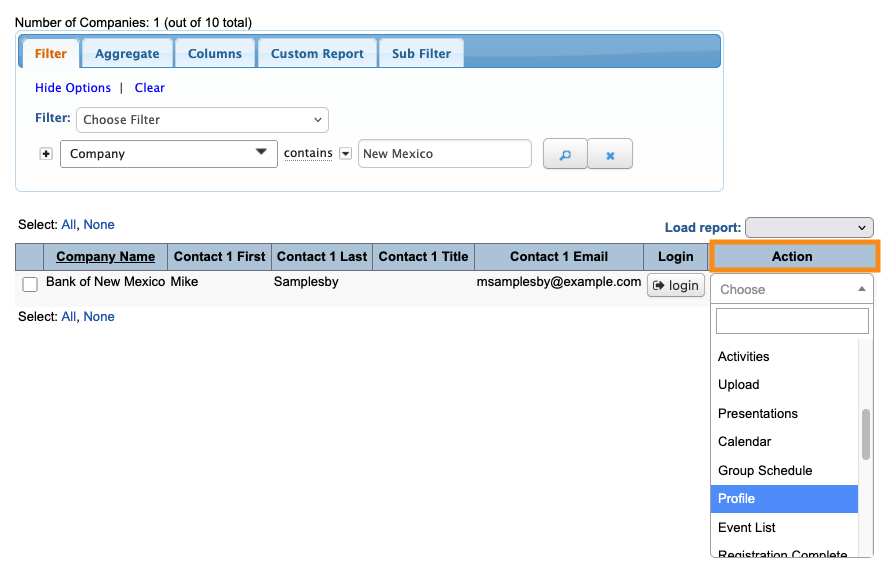
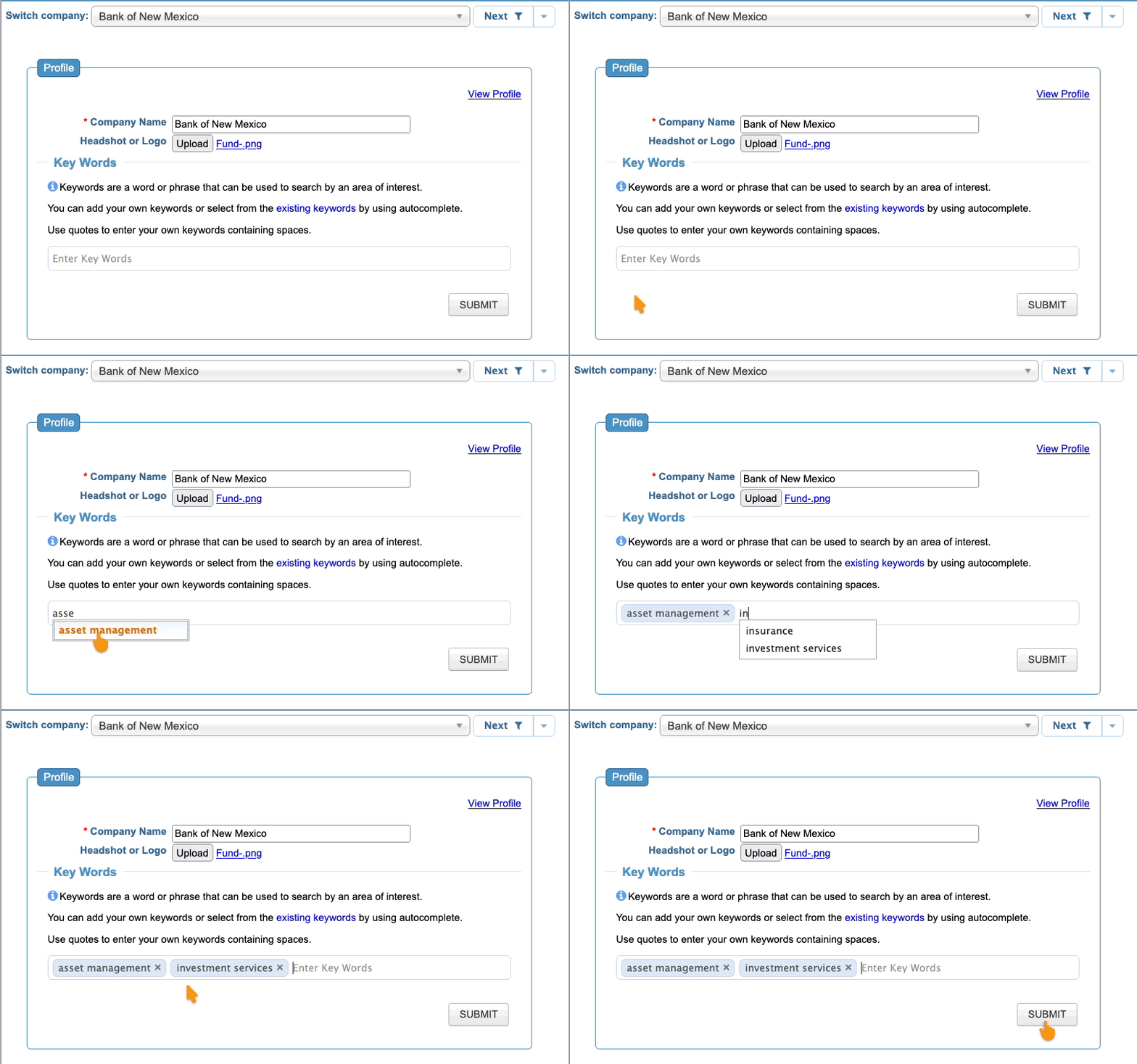
- Step 3. In the Keywords section, start typing in a keyword. MeetMax will display an existing one that matches. Click to select it.
- When you’re done adding keywords, click Submit:
How participants add Keywords
Attendees and Companies can also log into MeetMax, head to the Profile tab, and add their own Keywords.
As they start typing, MeetMax will offer existing keywords to select:
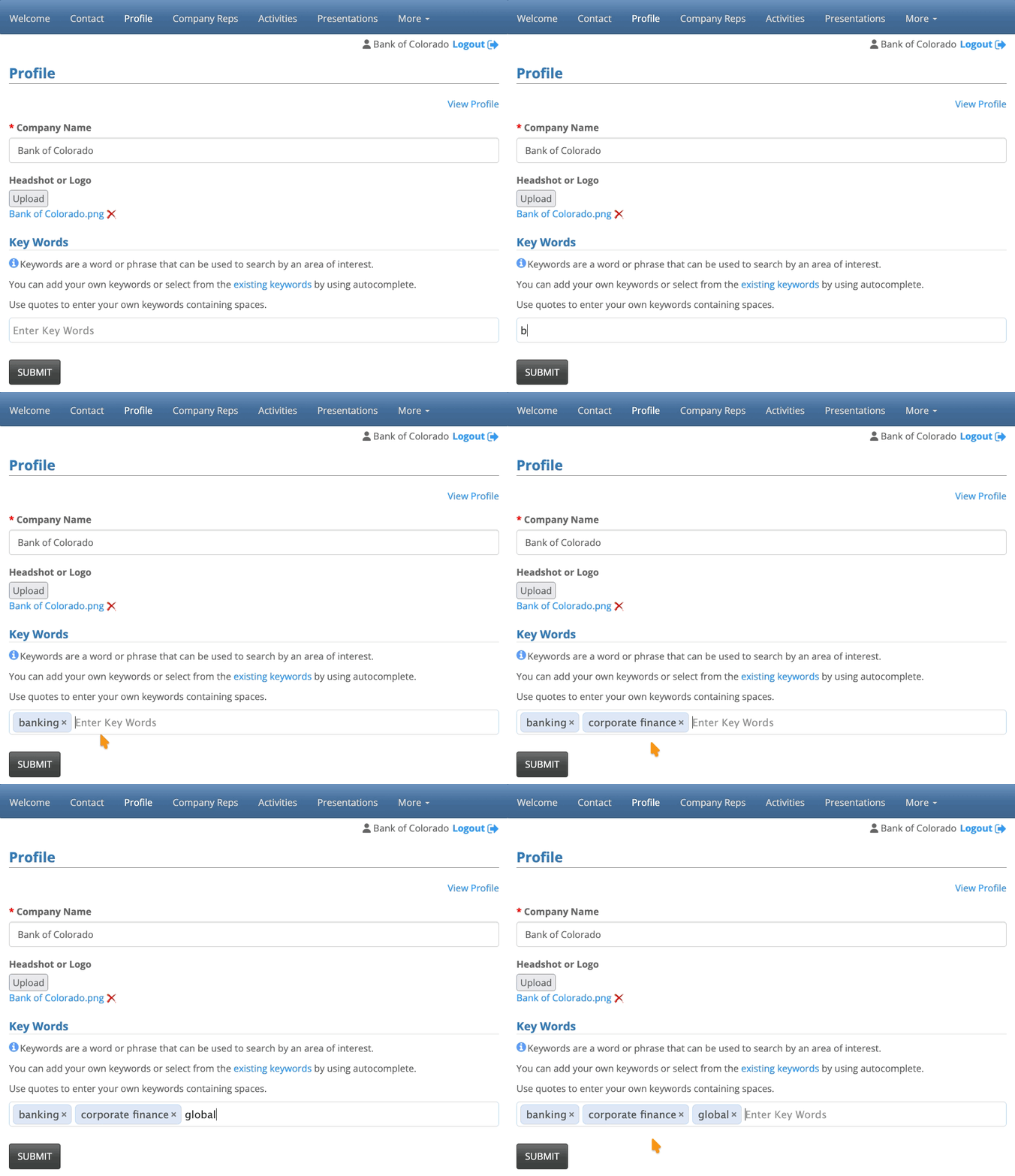
In the example above, a Company has added a keyword that isn’t on the main event list - global.
MeetMax accepts these added keywords, and displays them to other participants. See the section below for details.
What participants see
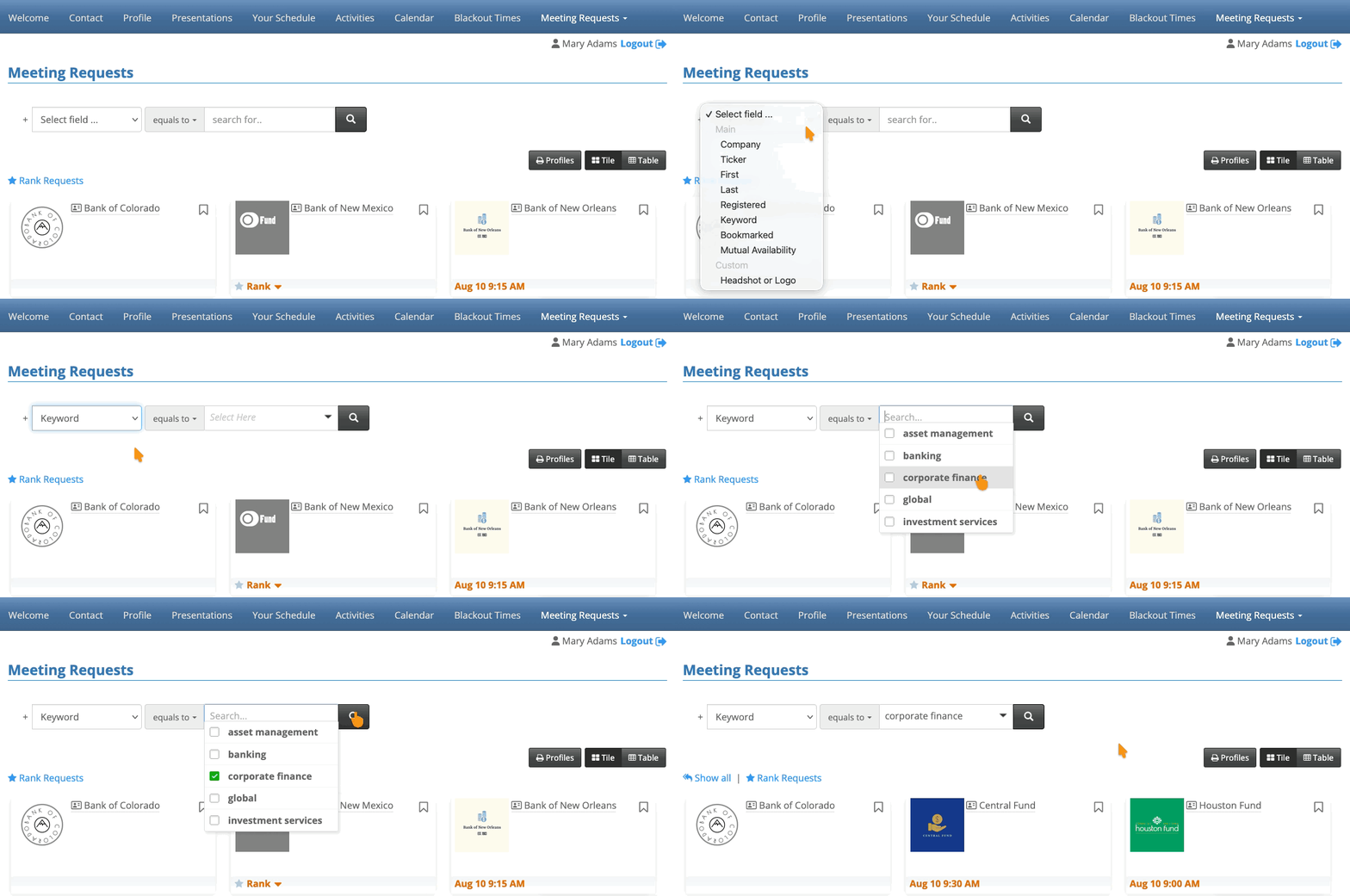
On the Request Meeting page, participants will now see a Keywords filter option.
The menu displays:
- Keywords from your main list that at least one participant has used.
- Keywords entered by any participant or Admin.
Participants can choose one or more keywords to narrow the list of potential meeting partners: