

Badging Express: Returning the equipment

Now that your event is over, here’s how to send the badging equipment back to TWST Events.
In this article:
- Unloading the badge stock
- Disconnecting power cords
- Nesting the equipment in the case
- Preparing to ship
Unloading the badge stock
| Please ship the equipment within 24 hours after your event's conclusion. | |
| Please don’t ship the printers back with label stock in them. That can damage the printers. |
- Step 1. Power the printers off. Disconnect the power cable from each unit.
- Step 2. On either printer, locate the yellow tabs on each side of the unit. Pull these tabs toward you. Then open the top of the printer.
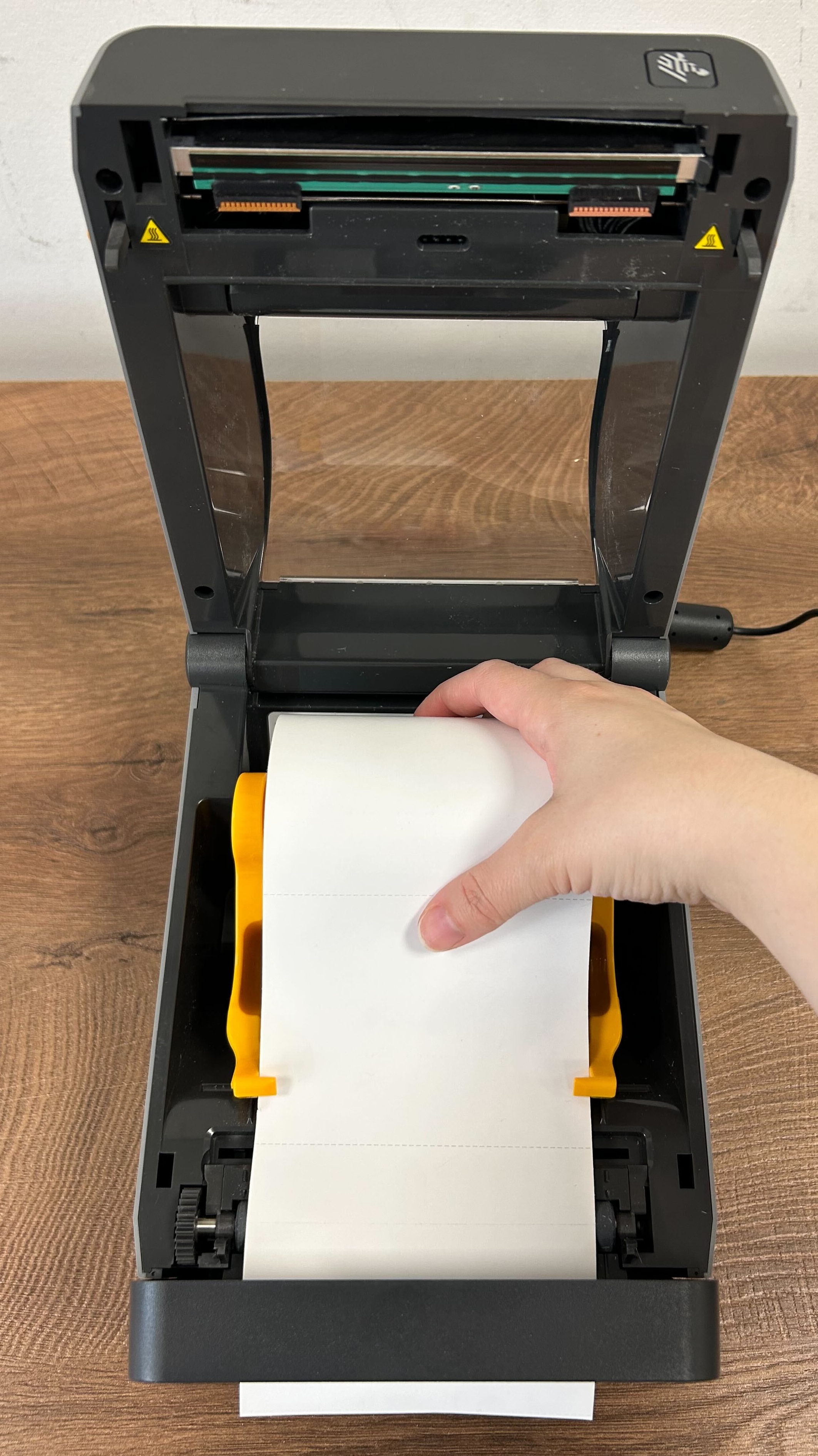
- Step 3. Remove the leftover badge stock. Rotate the yellow wheel to move the yellow prongs apart, releasing the roll: :
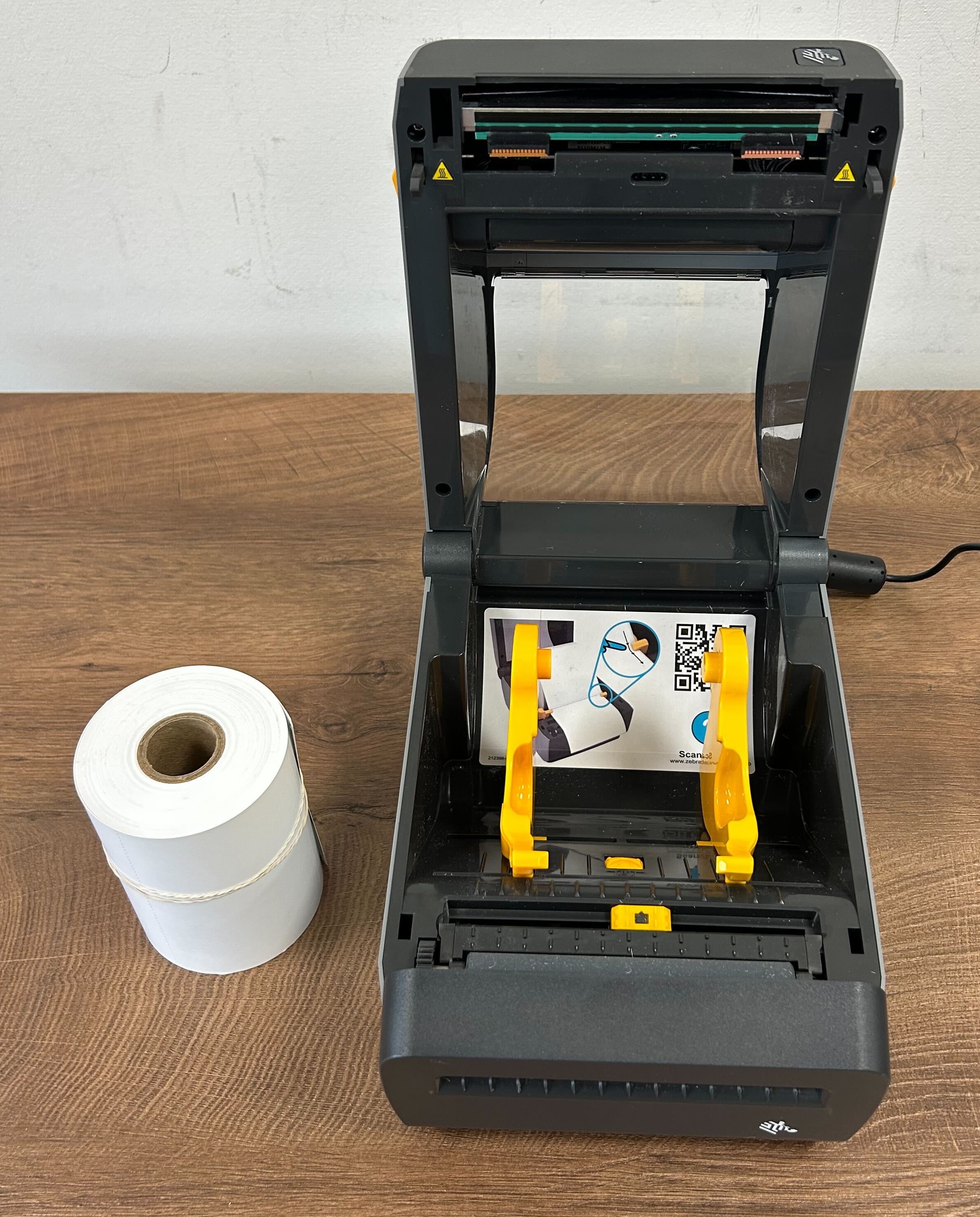
- Step 4. Secure the leftover badge stock with a rubber band:
- Step 5. Close the printer lid. Bundle the power cord up separately.
- Step 6. Repeat these steps with the other printer.
Disconnecting power cords
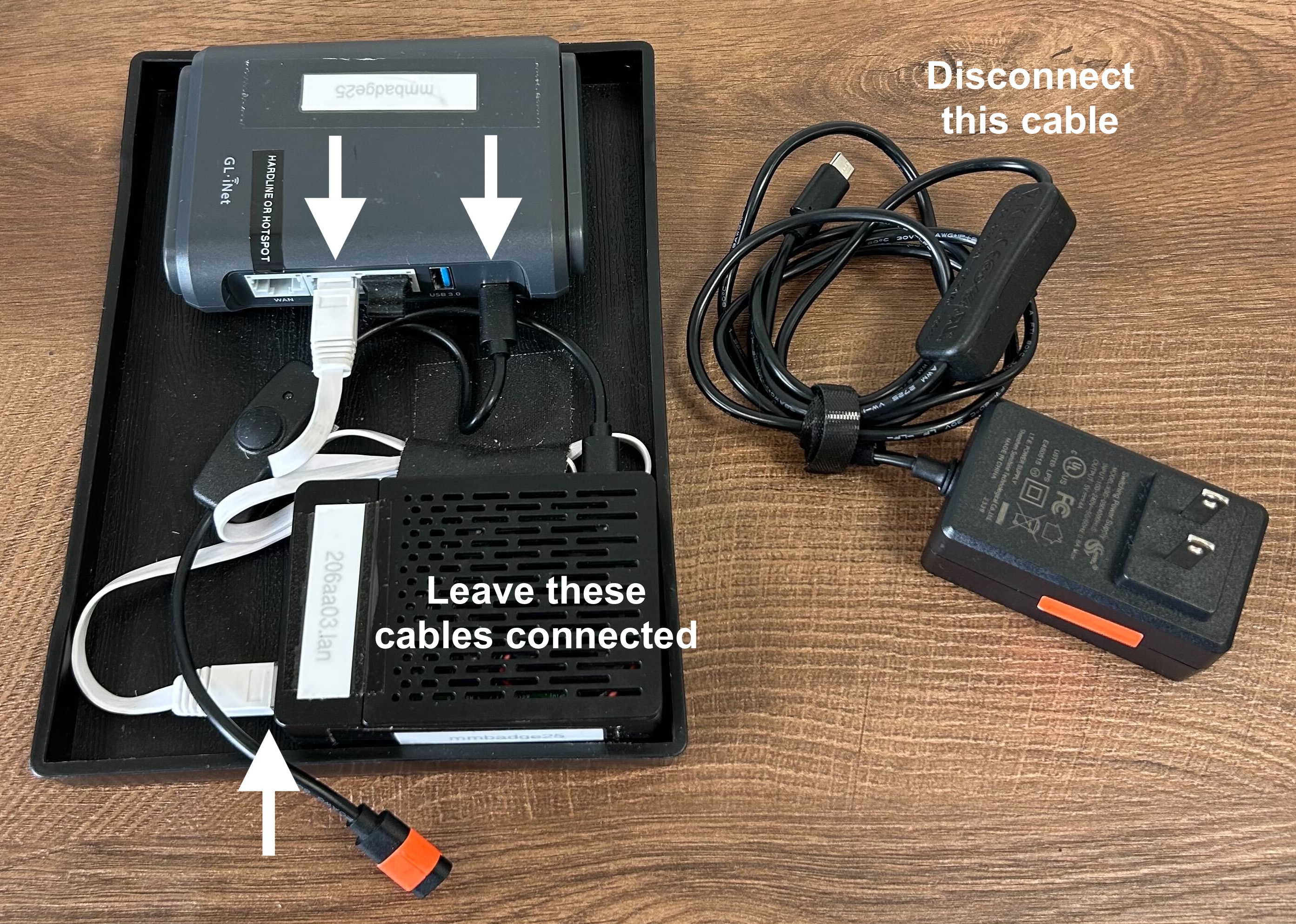
- Step 1. The Server Tray shipped to you with some cables already connected. Please leave these cables connected, but disconnect the power cord:
- Step 2. Disconnect the power cables from the Tablets.
- Please bundle each cord separately.
Nesting the equipment in the case
Make sure you have all of the components you originally received:
| Item | Qty |
| Zebra 620 Printer w/ 2-part power cord | 2 |
| Server Tray w/ power cord | 1 |
| Badge Stock (Leftover) | |
| Tablets w/ power cord and splitter | 2 |
| 12" Connector cable | 1 |
| AirTag (not pictured) | 1 |
The packing case has nests for each component. Return each item to its original location:
If you’re missing our original packing for any component, reach out to your Support representative.
Preparing to ship
- Step 1. Affix the return shipping label to the outside of the case.
- Step 2. Wrap the green zip serial tie around the closed case. Tighten it firmly.
- Step 3. Make sure the original shipping label (with your address) is removed or covered up.
- Step 4. Once you’ve either delivered the case to FedEx or had it picked up, reach out to your Support representative to let them know.

