In this article:
- Why is it useful?
- Uploading with private storage
- Changing security on existing uploads
- How Company uploads are affected
- Downloading private uploads
Why is it useful?
By default, files uploaded to MeetMax are stored in secure server locations. Links to these files can be shared outside of your event.
There might be uploaded files, however, where you want more security - either for compliance, or to protect sensitive Company-uploaded files. MeetMax offers optional private storage.
| Once you’ve added private file storage to any template event, the setting will copy over to new events. | |
| MeetMax keeps a few types of file uploads public, so they can appear in public emails and web pages. Your Event logo and Company logo are kept public, for example. Similarly, if you’re adding a custom Message to a public MeetMax web page, any images you upload to that Message are kept public. |
Uploading with private storage
- Step 1. Reach out to our Support team to enable private storage for uploaded files.
- Step 2. When someone on your Admin team uploads a file, they’ll now see the Private option:
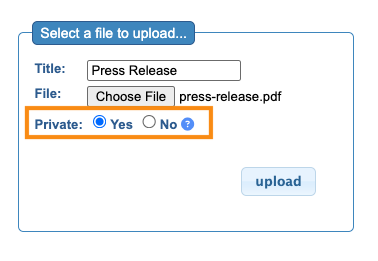
- • Yes (Default setting): This file will be stored in a private server location. It can’t be accessed outside of your MeetMax event. It can’t be shared externally.
- • No: This file will be stored in the default secure server location. It can be shared externally.
- Step 3. After the upload completes, you’ll see two things:
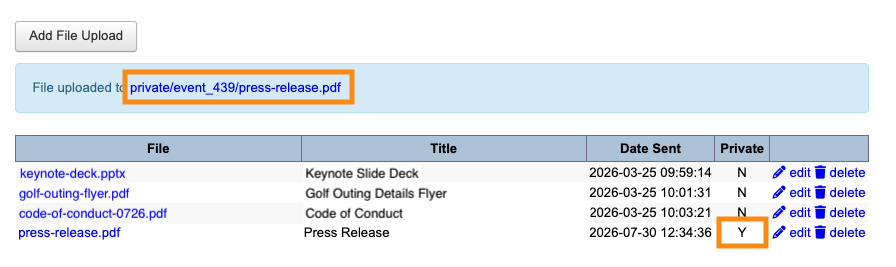
- • The URL of the uploaded file contains private, as shown above.
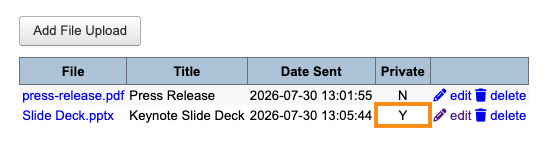
- • The Uploads List has a new Private column, where you can see which files are and aren’t currently private.
-
Once our team has enabled private storage, you can still set any file upload to be public.
Changing security on existing uploads
Once we enable your event for private file storage, it’s also available for existing uploads.
You can update a file’s status any time.
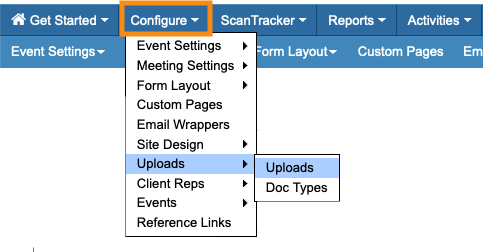
- Step 1. Head to the Uploads page:
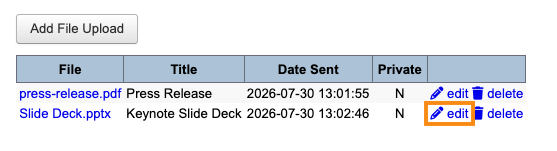
- Step 2. Locate the file you need to change. Click the Edit link:
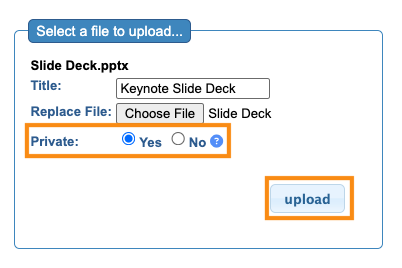
- Step 3. Set this upload to Private. Then click Upload to save:
- Step 4. Refresh the page. You’ll then see the privacy status change:
-
Remember, the file’s URL will update when you do this. If you’ve shared the link previously, it will break.
How Company uploads are affected
Once our Support team enables private file storage for your event, it automatically applies to all Company-uploaded files.
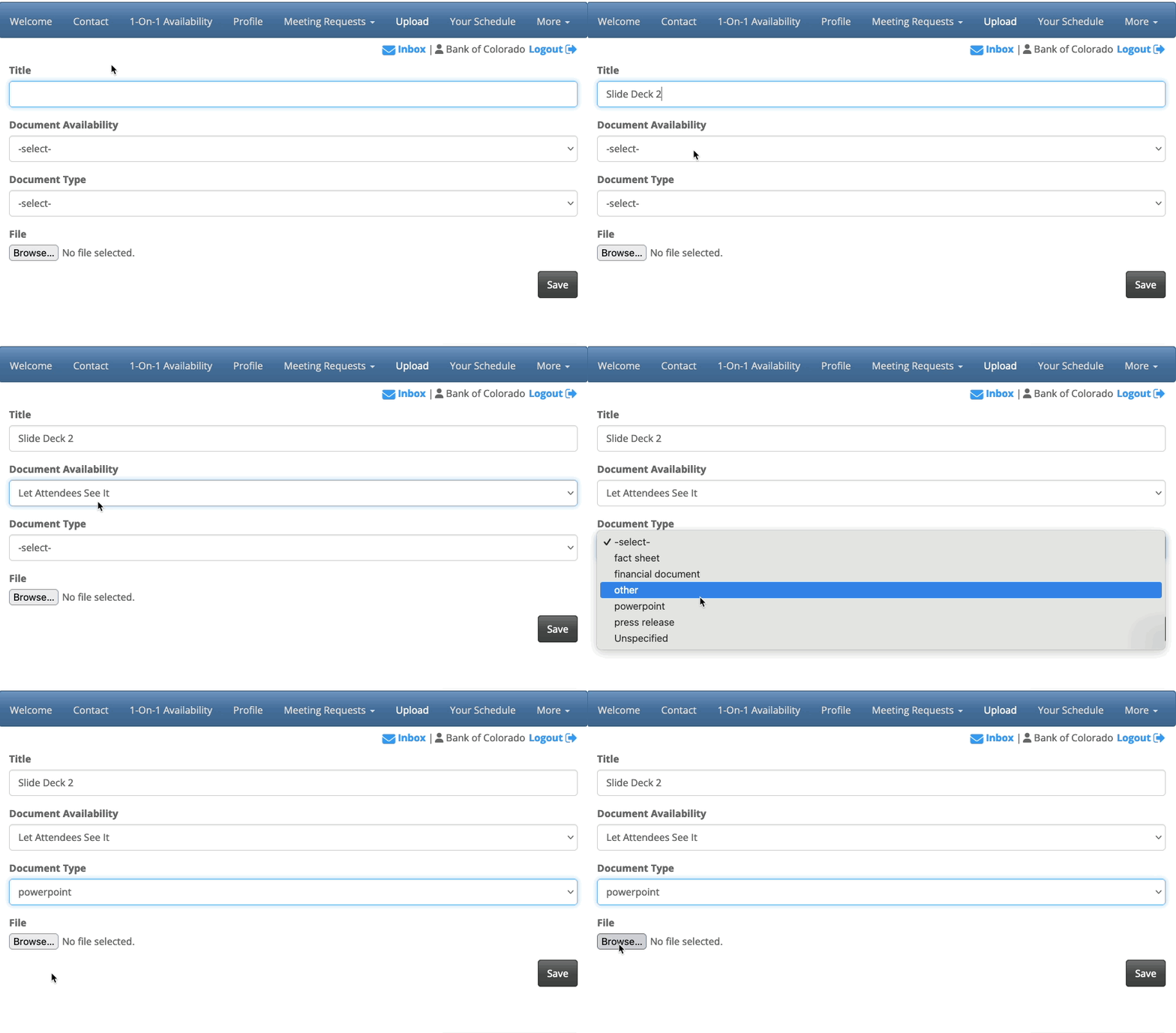
When any Company uploads a file, MeetMax automatically stores it in a private location. The Company can still choose whether to make the file visible to Attendees or not, but no one can access that file outside of MeetMax:
Downloading private uploads
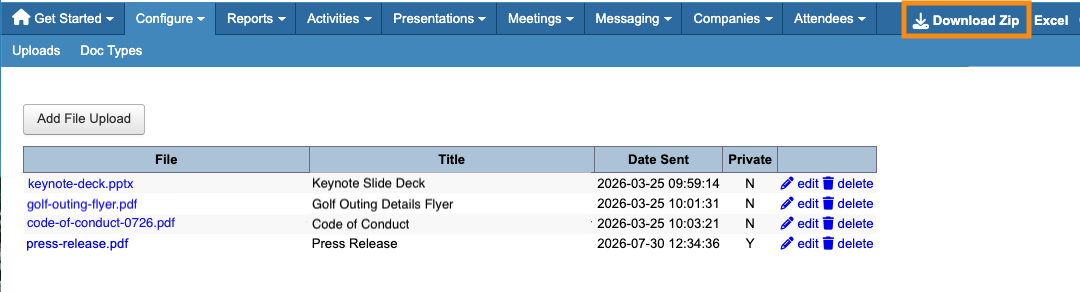
As an Admin, you can right-click on any uploaded file to download it to your computer - whether it’s public or private:
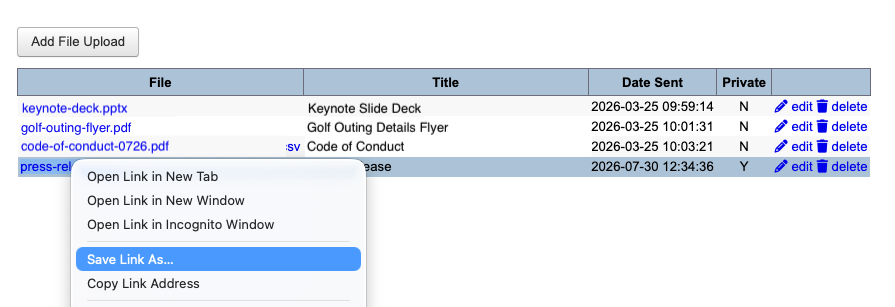
You can also download all uploaded files at once, as a ZIP file. It will include public and private files: