

Can I prevent Company Reps from setting their own availability?

Depending on your event, you might want certain Company Reps to set blackout times, when they aren’t available to meet. You might want other Company Reps not to see this option.
| By default, Company Reps are “tied” to their Company meeting schedules, meaning they’re automatically scheduled into all Company meetings. If your event uses this option, we hide automatically availability settings from all Company Reps. |
If you’re not using the “tied” option, you can restrict access to the availability setting in two ways:
Restrict some Company Reps
If you want to prevent certain Company Reps from setting their own blackout times, you’ll first need an internal form field. This lets you organize your Company Reps intro groups, so you can control access by group.
- Step 1. MeetMax has a default Group Name field that’s useful for this kind of organization. Learn how to set up this field and group participants here.
- This is usually added to the Admin version of your registration form.
- Keep in mind that when you add a selection field like this, you can set any of its choices as Default:
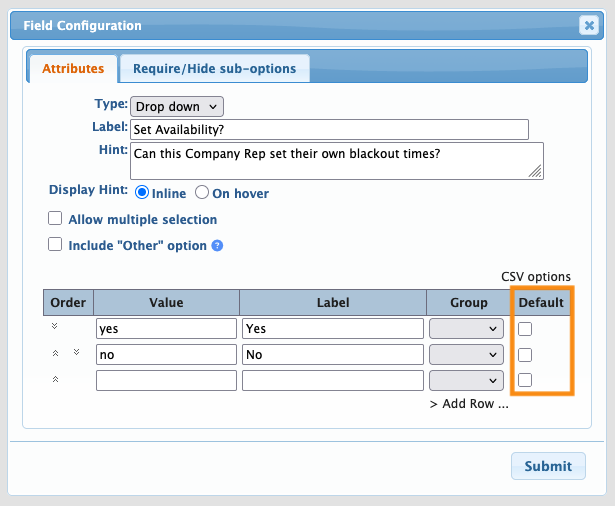
- This can save you time:
- • If most of your Company Reps should set their own blackout times and only a few should not, make the Yes response the default. Then you can update the few other Reps to No.
- • If most of your Company Reps should not set their own blackout times, set the No response to default. Then you can change the few who should have access.
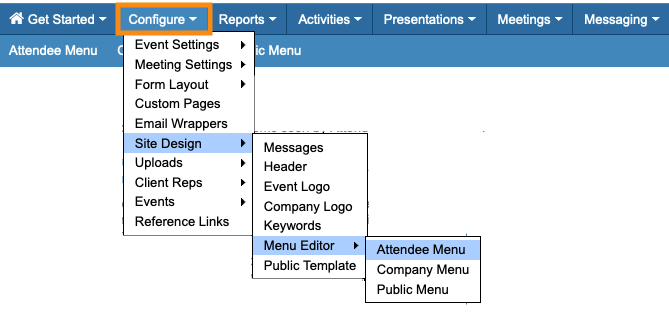
- Step 2. When you’ve organized your Company Reps into groups, head to the Attendee Menu Editor:
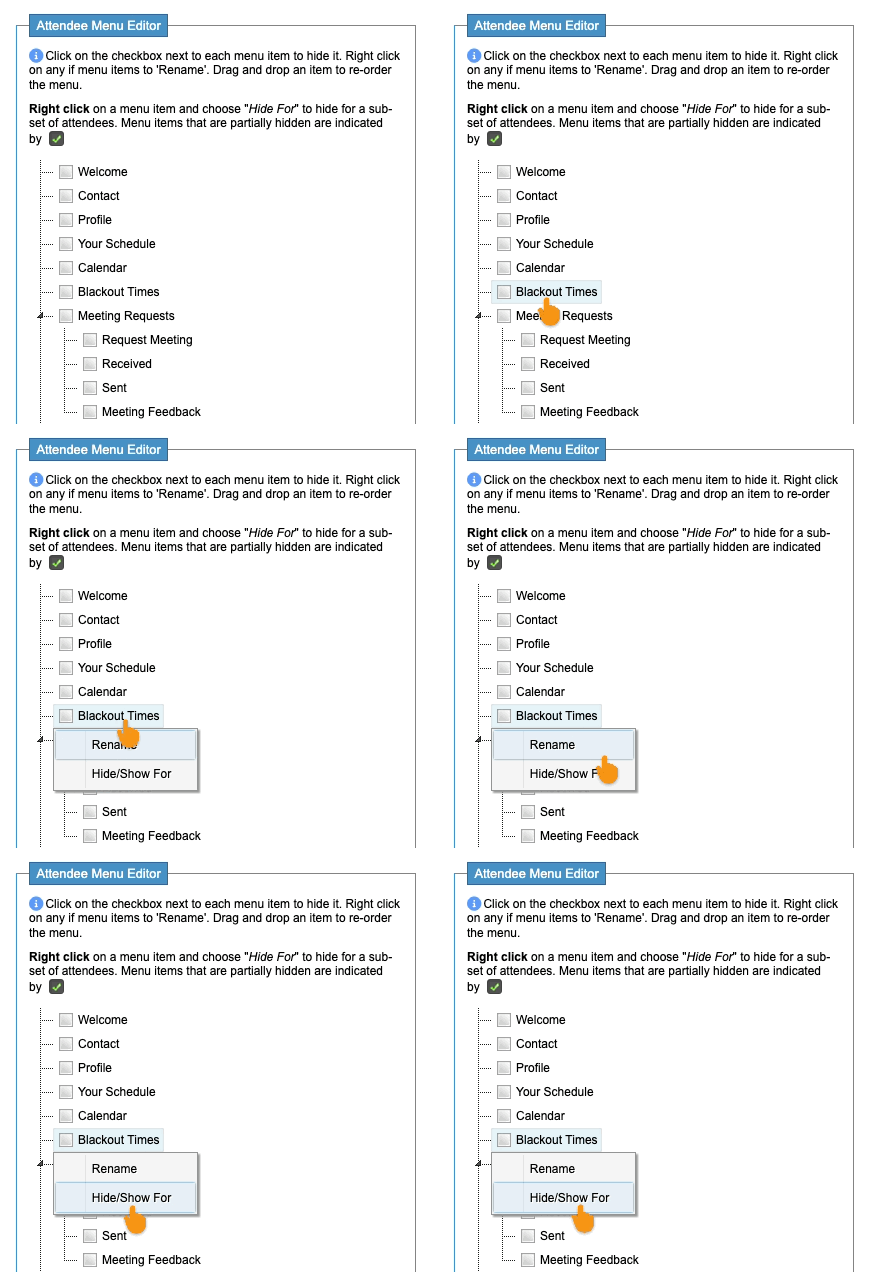
- Step 3. Locate the Blackout Times tab. Right-click on it, then choose Hide/Show For:
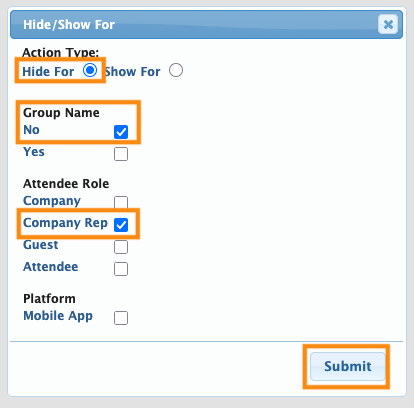
- Step 4. In the pop-up:
- • Choose Hide For.
- • You’ll see the Group Name field here, so you can choose the Reps whose response is No.
- • Then click the Company Rep checkbox.
- • Click Submit:
- Step 5. Back in the Menu Editor, be sure to click Save:
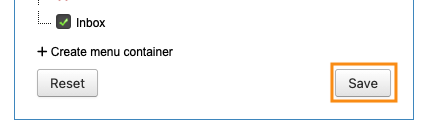
Now, any Company Rep you designated with the Group Name field has no access to set blackout times.
Reps you designated to have access to blackout times will still see that tab in their menu.
| If a Company Rep can’t set any blackout times, their availability will match your event’s time slots. |
Restrict all Company Reps
- Step 1. Head to the Attendee Menu Editor:
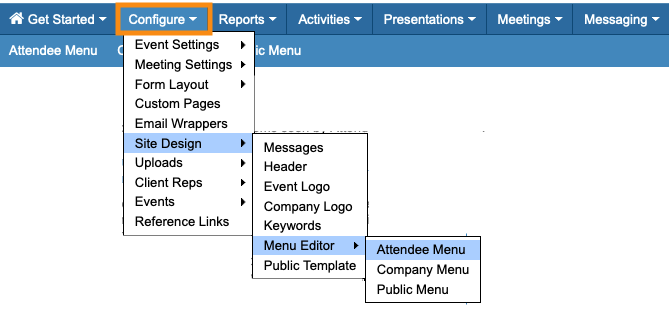
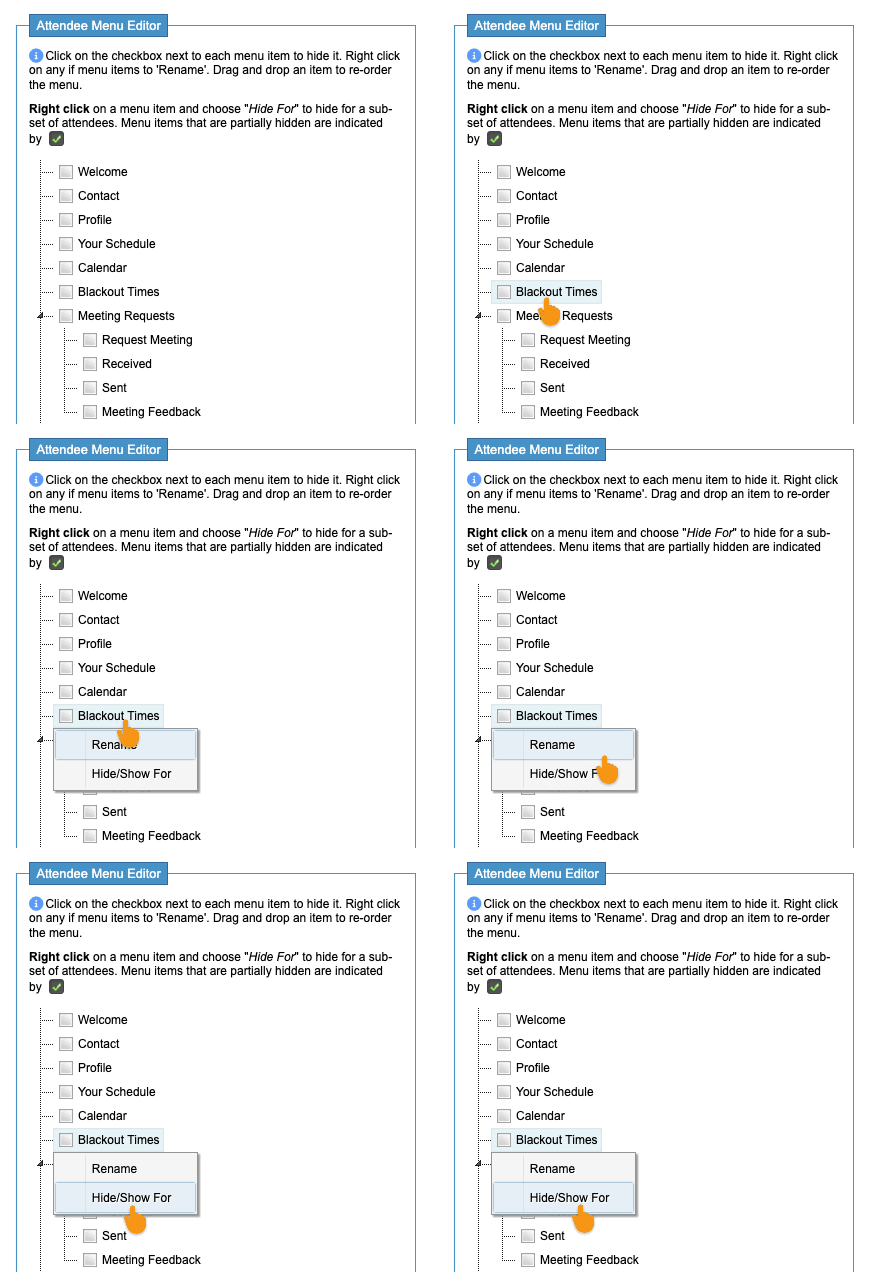
- Step 2. Locate the Blackout Times tab. Right-click on it, then choose Hide/Show For:
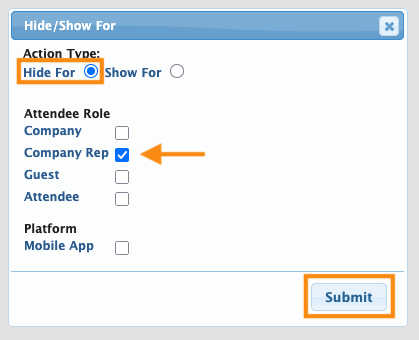
- Step 3. In the pop-up, choose Hide For. Then click the Company Rep checkbox.
- Click Submit:
- Step 4. Back in the Menu Editor, be sure to click Save:
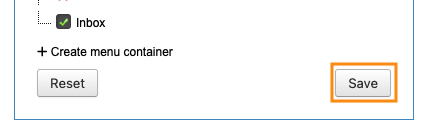
- Now, no one with the Company Rep role has access to set blackout times. Their availability is always the same as your event’s time slots.
Learn more:
- Adding Company Reps to MeetMax
- Using the Group Name field to organize participants
- Using the Menu Editor to show or hide options

