How do I opt a Company Rep or Attendee out of meetings?

At some events, you might have certain Company Reps who are there to present, but not participate in 1x1 meetings. You can remove the ability for anyone to send them meeting requests.
Similarly, in an Unmoderated meeting program you might need to opt certain Attendees out of meetings.
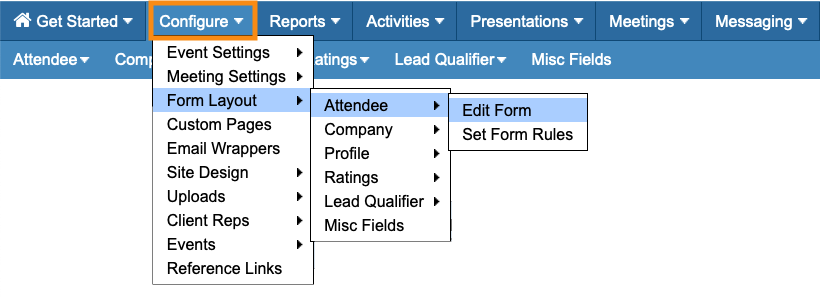
- Step 1. Head to the Configure tab. Choose Form Layout, then Attendee, then Edit Form:
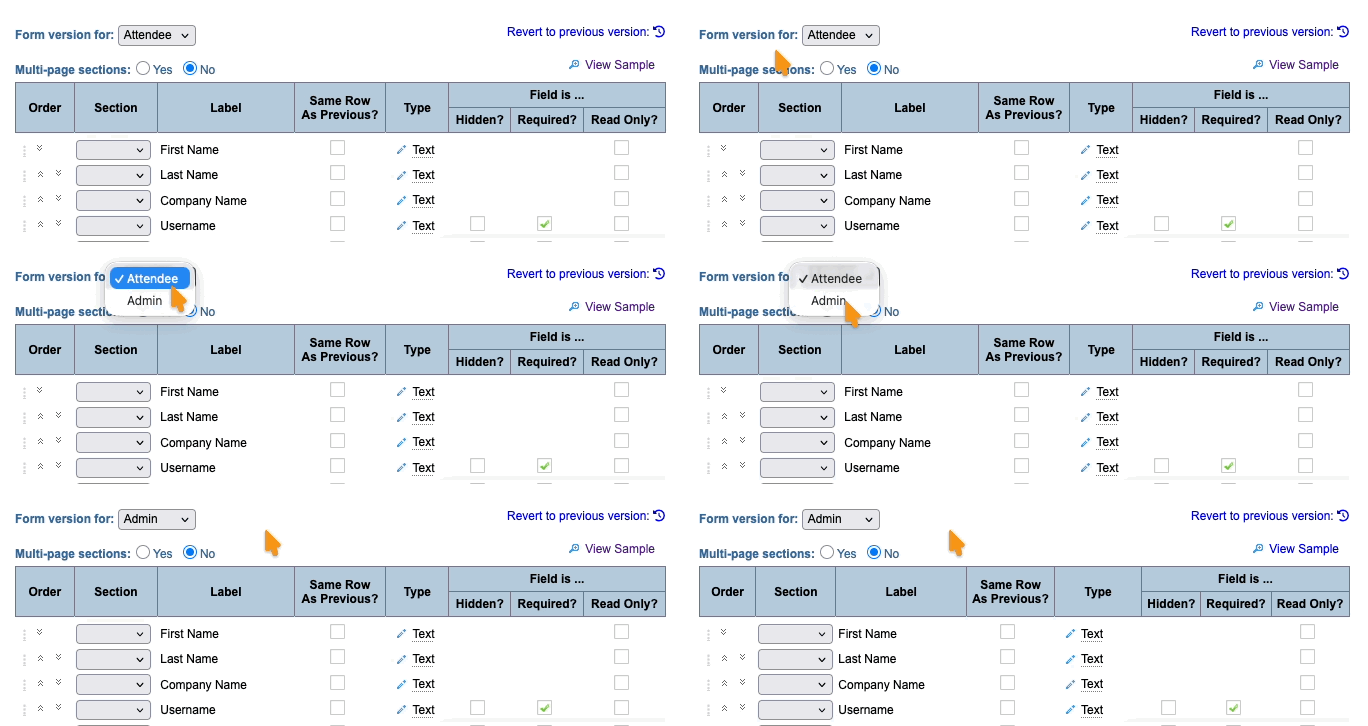
- Step 2. In the top left corner, use the Form version menu to choose Admin. Learn more about the Admin form here.
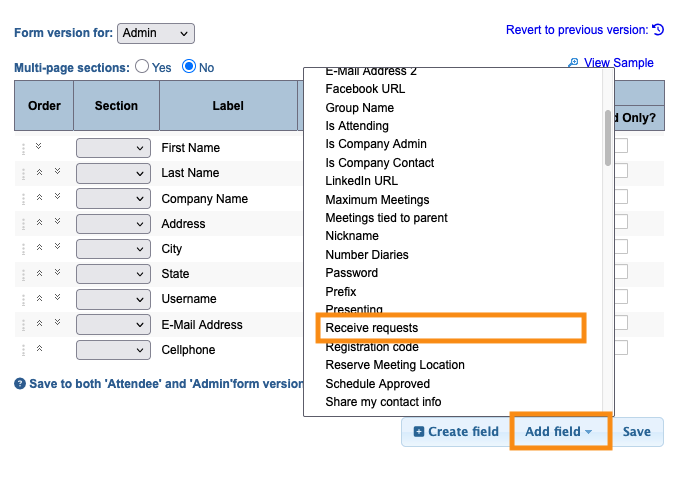
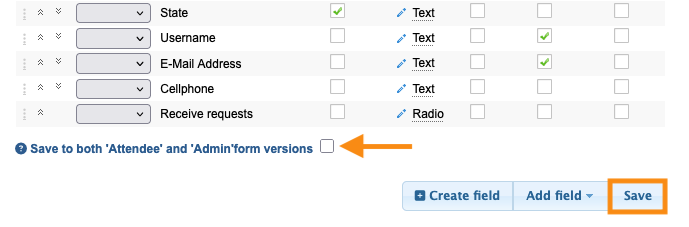
- Step 3. In the lower right corner of the Form Editor, click the Add Field button. Then choose Receive Requests from the menu:
- Step 4. Next, make sure the checkbox is unchecked, and click Save:
- Step 5. Now, head to the Attendee List:

- Step 6. Filter the list to locate a single Attendee or Company Rep you need to exclude from meetings.
- Alternatively, set the filter to Role and choose Company Rep. That way you can make adjustments to all of your Company Reps.
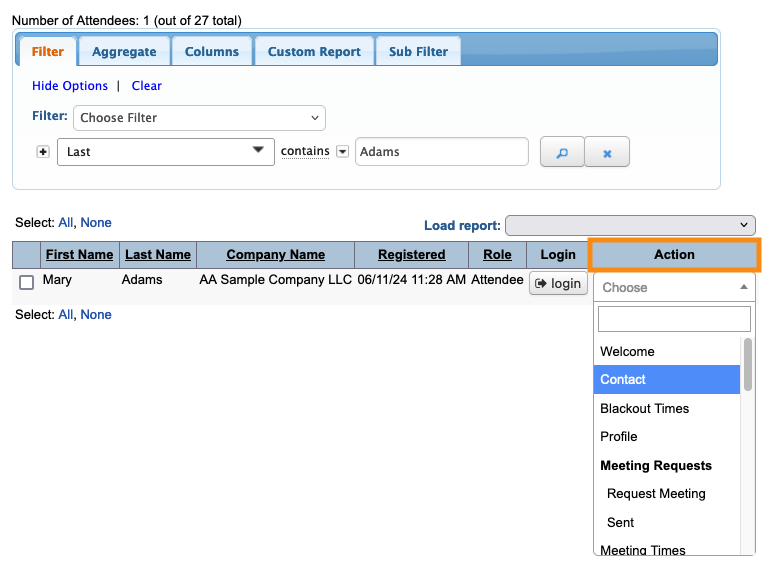
- Then, use the Action menu and choose Contact:
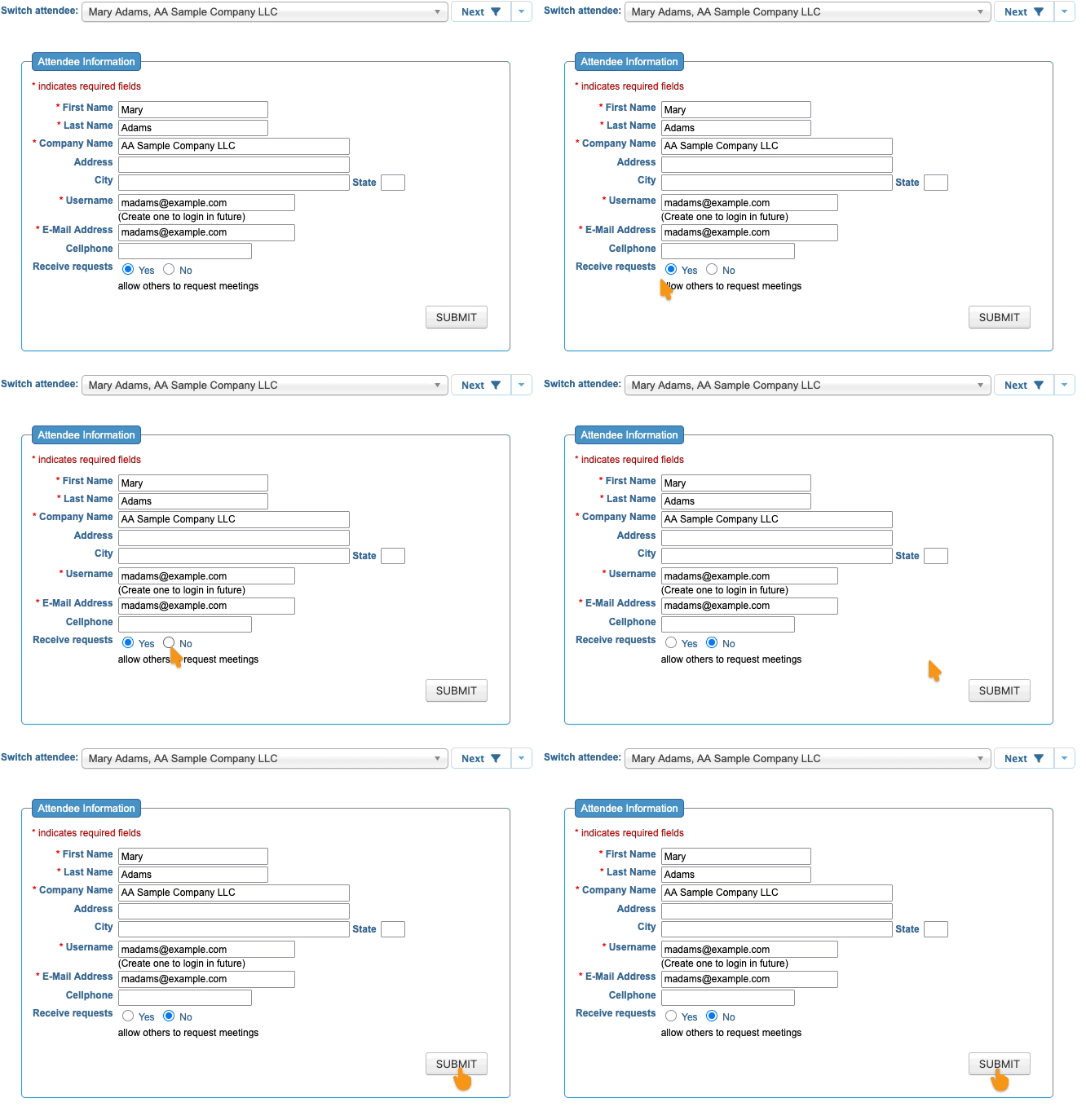
- Step 7. You’re now in the Admin view of this participant’s registration form.
- The Receive Requests field defaults to Yes. To opt this person out of meetings, choose No.
- Click Submit:
Now, this Attendee or Company Rep is visible as a participant in your event, but they won't be available for your meeting program.
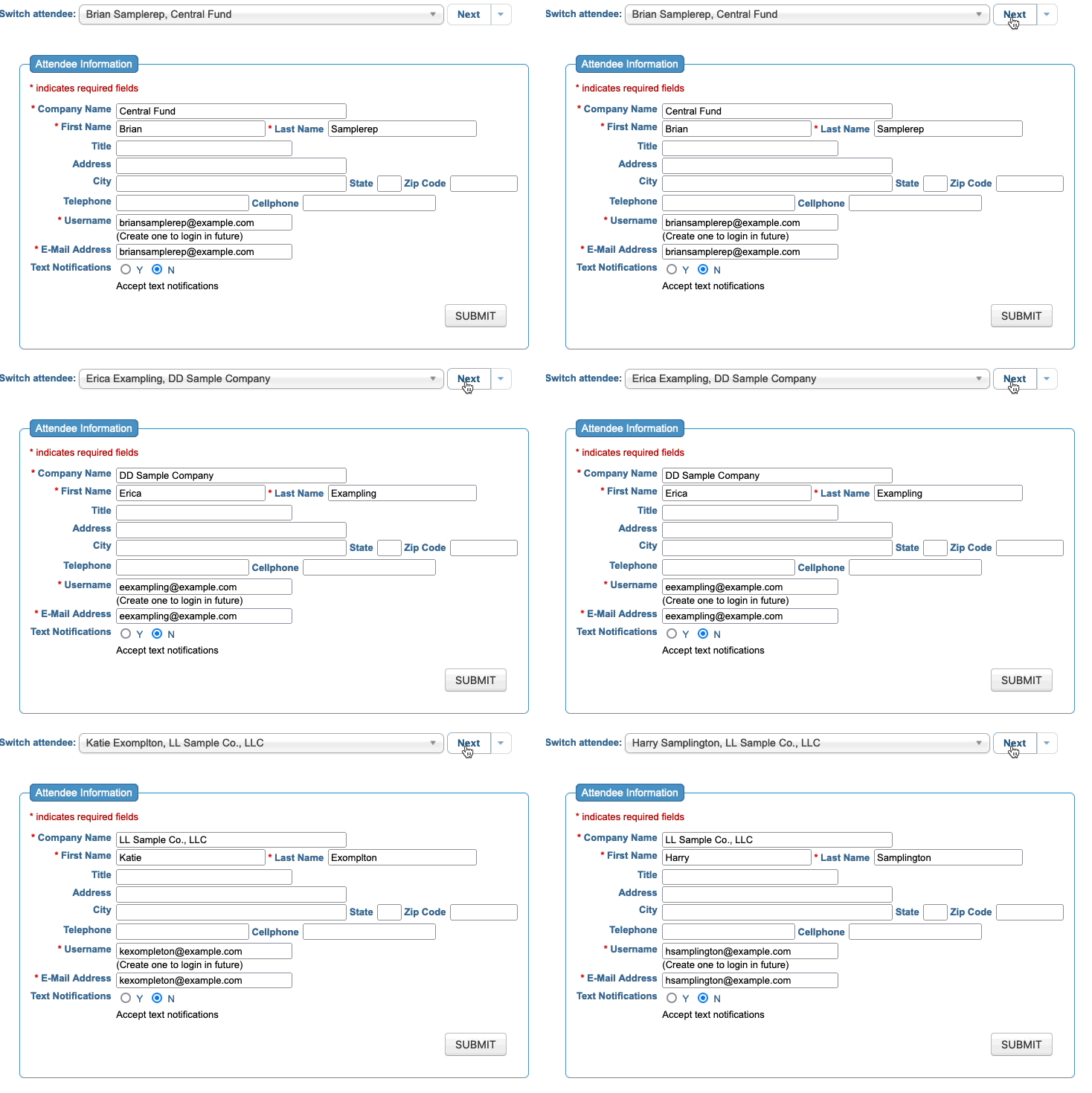
If you’re working in a filtered list of your Company Reps, use the Next button at the top of page to advance to the next Rep: