

How do I move this field from the Admin form to the public one?
The Admin version of any MeetMax form is designed for your internal team. Occasionally, you might want to move one of your Admin fields to the public version of the form, so participants can fill it out.
| We’ll show the Attendee form here, but this process works the same on all MeetMax forms. |
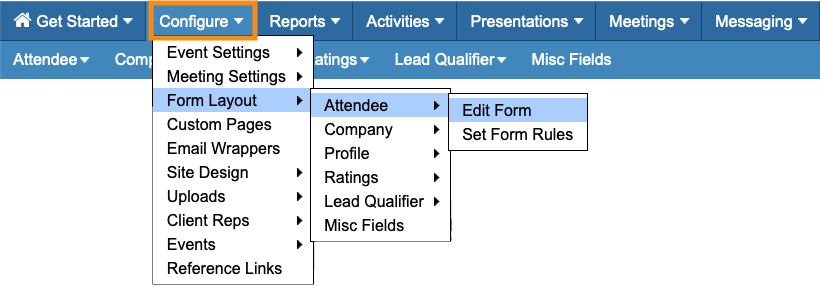
- Step 1. Head to the Configure tab. Choose Form Layout, then choose the form you need to edit:
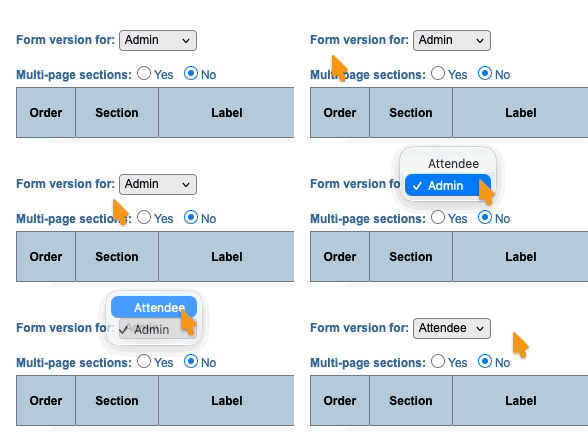
- Step 2. Use the Form Version menu to choose the public version of the form:
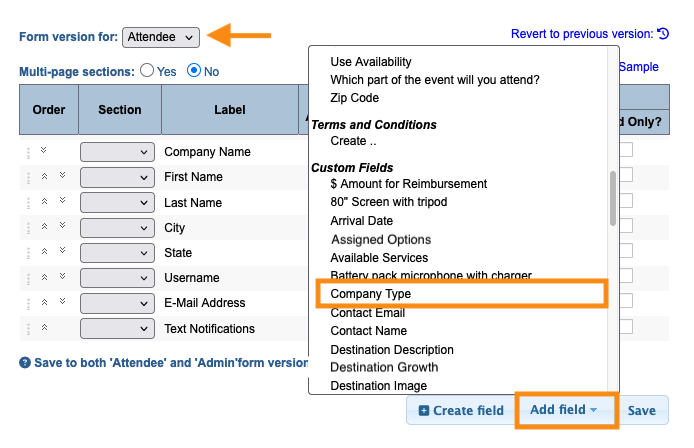
- Step 3. Use the Add Field menu to choose the field you need:
-
We’re choosing one of our custom form fields here, but you can also do this with any of the default fields. - Step 4. If you want to make this a required field, click the Required checkbox:
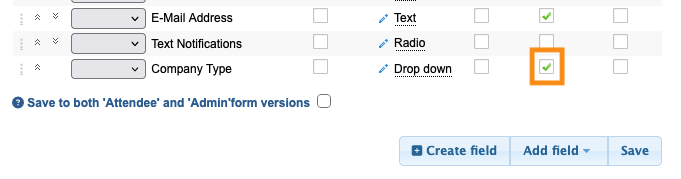
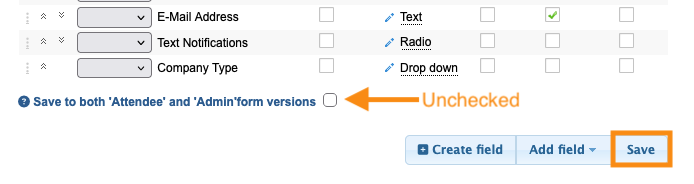
- Step 5. Make sure the box is unchecked, so you’re only saving this change to the current form. Then click Save:
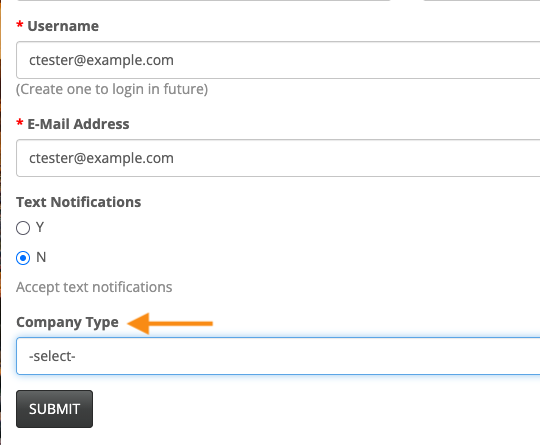
- Step 6. The field is now visible to participants:
-
The field is now on both the Admin and public versions of the form. It’s usually useful to leave it this way.
If you prefer, you can edit the Admin version and delete the field there.
Impacts of this change
If your team has already completed this field on the Admin side for some participants, keep in mind that:
- Participants will now see how your team originally set the field.
- Participants can set the field differently.
- If you leave the field on both versions of the form, any changes your team makes are visible to participants.

