

Can I get a notification when someone submits my Custom Form?
When you create a Custom Form for your participants, you can set it to email you each time someone submits their response.
- Step 1. Build and save your Custom Form.
- Alternatively, you can open an existing Custom Form for editing:
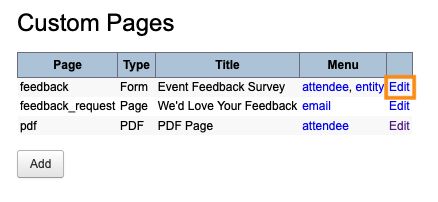
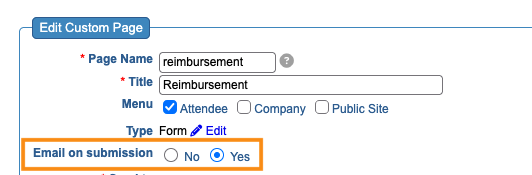
- Step 2. You’ll see a new field: Email on submission.
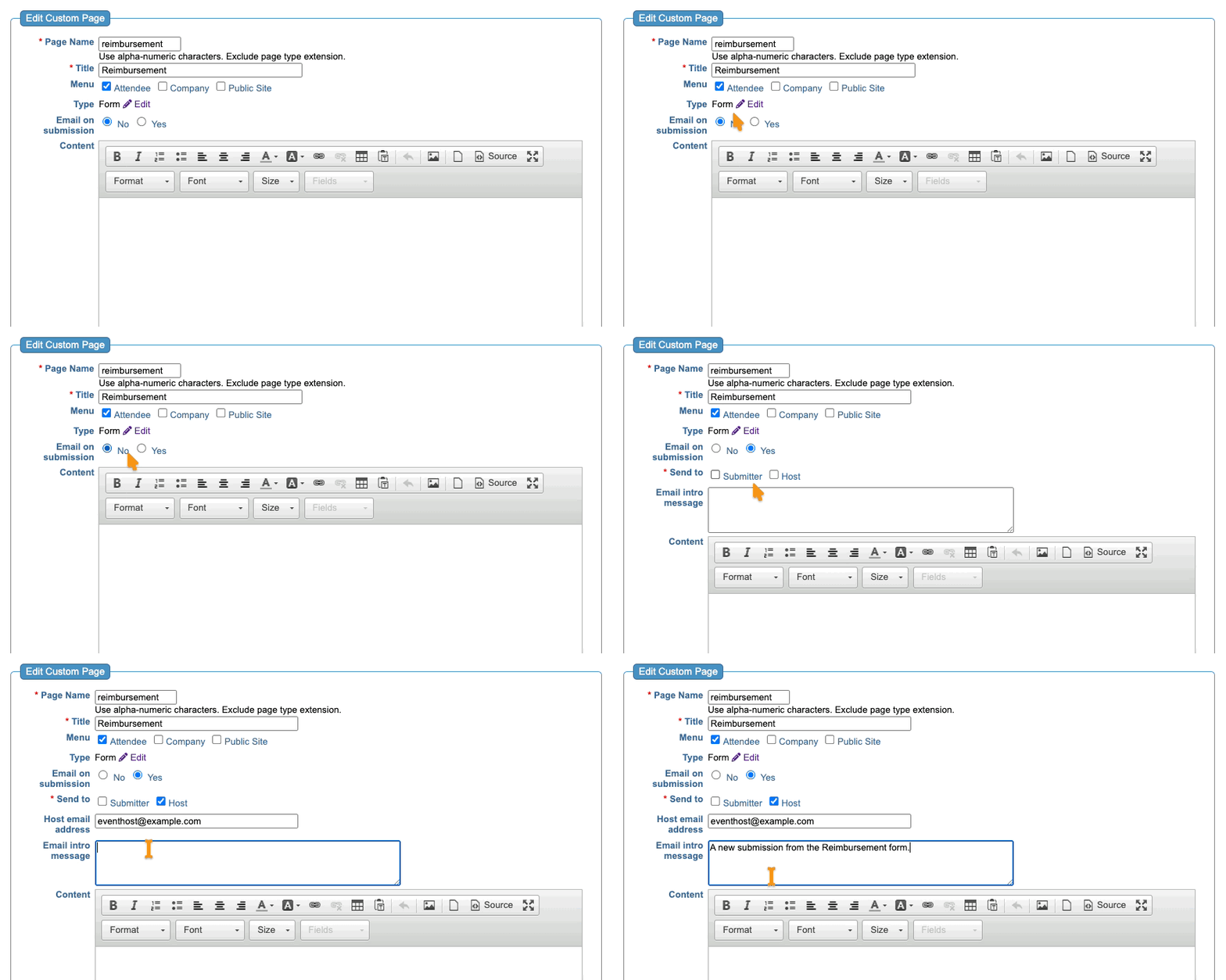
- If you want to send an email notification each time someone submits the form, set this to Yes:
- Step 3. In the Send to field, choose who should receive notifications:
- • Submitter: Check this if you want the person submitting the form to get a summary of their responses.
- • Host: Check this to send notifications to your team. MeetMax auto-fills the field with the event host’s email address. You can change this or add more recipients, separated by commas.
- Step 4. If you want to add a custom message to the email notification, add it to the Email intro message field.
- This message appears on all submission emails to all recipients.
- Step 5. Click Save:
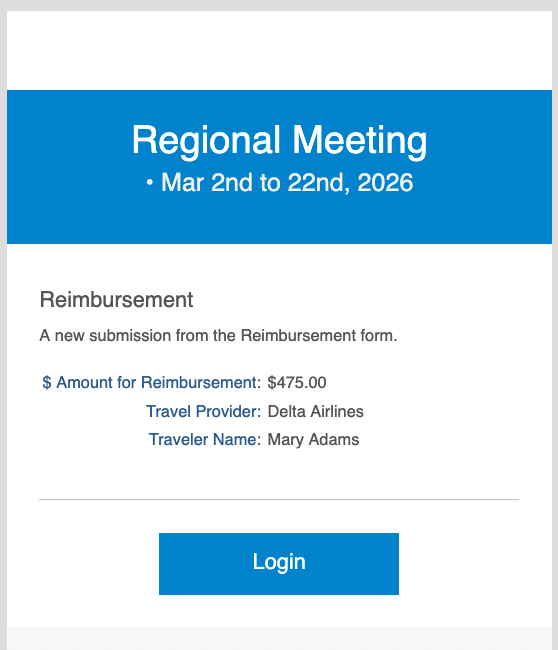
The email notification looks something like this. It uses your event’s email wrapper.
- The Custom Form's title is the email's title and subject line.
- If you used an Email intro message, it appears above the form responses:
| If someone submits the form and then updates their responses later, MeetMax will notify everyone you specified of the updated response. |

