


In this article:
- Where is it?
- Adding and removing columns
- Filtering the list
- Exporting the list
- Saving custom reports
Where is it?
Once you’ve enabled payments for your event, you’ll find the Transactions List in the Accounting tab:

The Transactions list is a record of your event’s payment transactions. You’ll be able to:
- Track revenue from:
- Credit card payments
- Credit card refunds
- Check or money order payments
- Track other manually-posted balance adjustments
- Generate spreadsheet reports
Adding and removing columns
By default, the Transactions List contains these data columns:

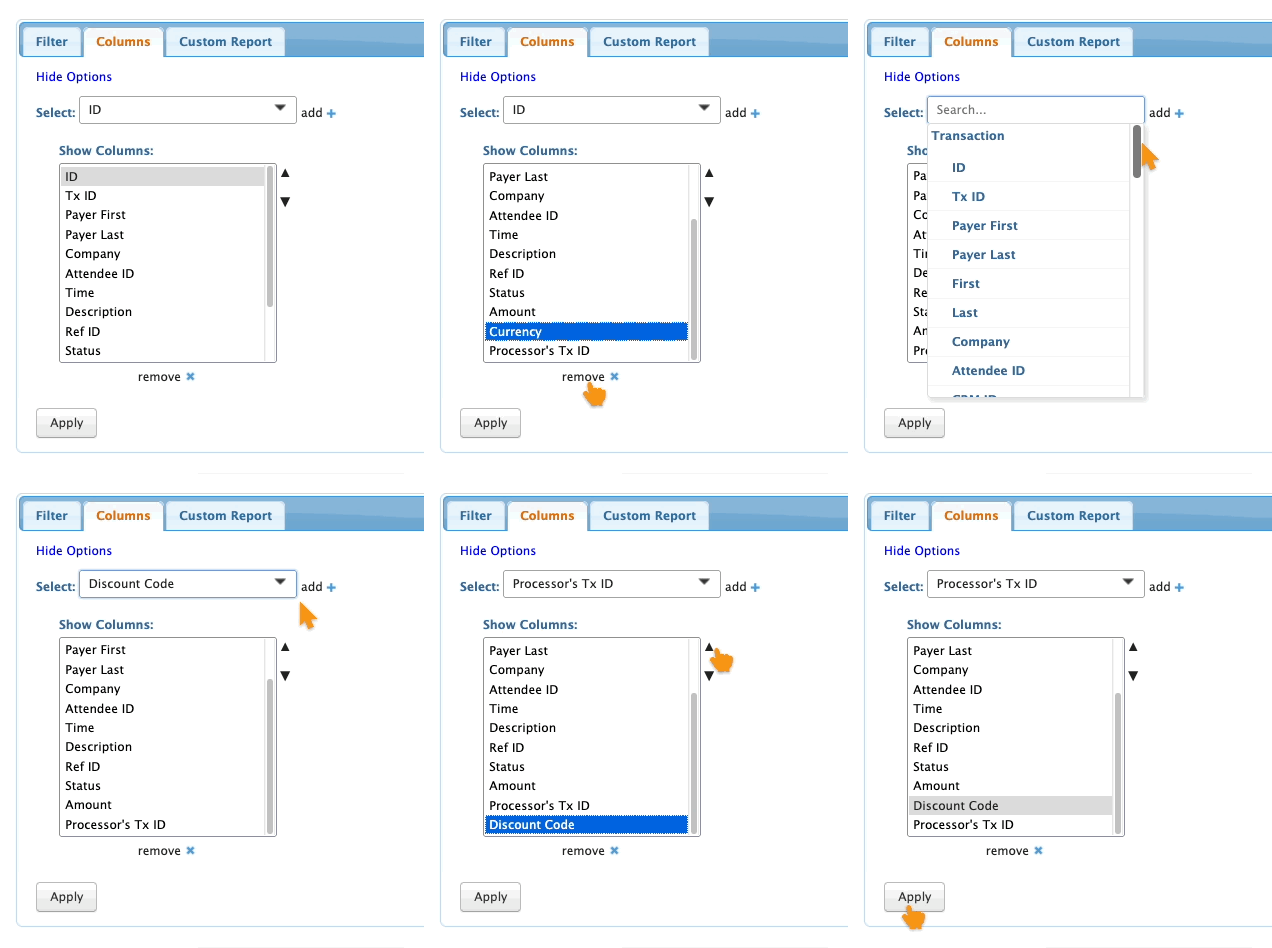
In the Columns tab, you can add, remove, and re-order columns:
Filtering the list
By default, the list is in date order, most recent first. The Filter tab lets you locate specific transactions quickly:

You can filter the list by one or more of these criteria:
- Company: Use this filter to see all transactions posted for a particular company.
- First/Last: The name on the Attendee record where the transaction was made
- Payer First/Last: The name on the credit card that was used to pay
- Tx ID: MeetMax applies this ID to each transaction. Then we transmit it to your payment processor so you can reference it there.
- Status: S = Success, F = Fail, P = Pending, V = Void
- Processor's Tx ID: Your payment processor assigns this ID to each transaction. Use this column if you want to reference this ID in MeeetMax.
- Tx Type: This filter lets you isolate specific types of transactions.
- ID/Attendee ID: The Attendee record ID number in MeetMax
- Live Mode: This filter lets you display transactions that were made in either Live mode or Test mode.
- Discount Code: This filter lets you find all transactions made under a specific discount code.
You’ll also have access to your custom form fields in the Filter tab.
Exporting the list
You might want to export your Transactions List in spreadsheet format. You can export the full list, or customize the columns and filters to create a specific report.
When you have the list displaying the data you need, head to the top right corner of the page. Click Excel:
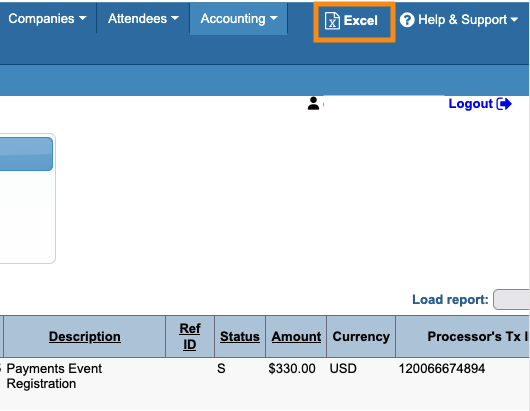
You can open the downloaded in any spreadsheet software.
Saving custom reports
If you have a customized view that you want to access later, head to the Custom Reports tab.
Give your report a name, choose whether to share it with your team, and click Save:
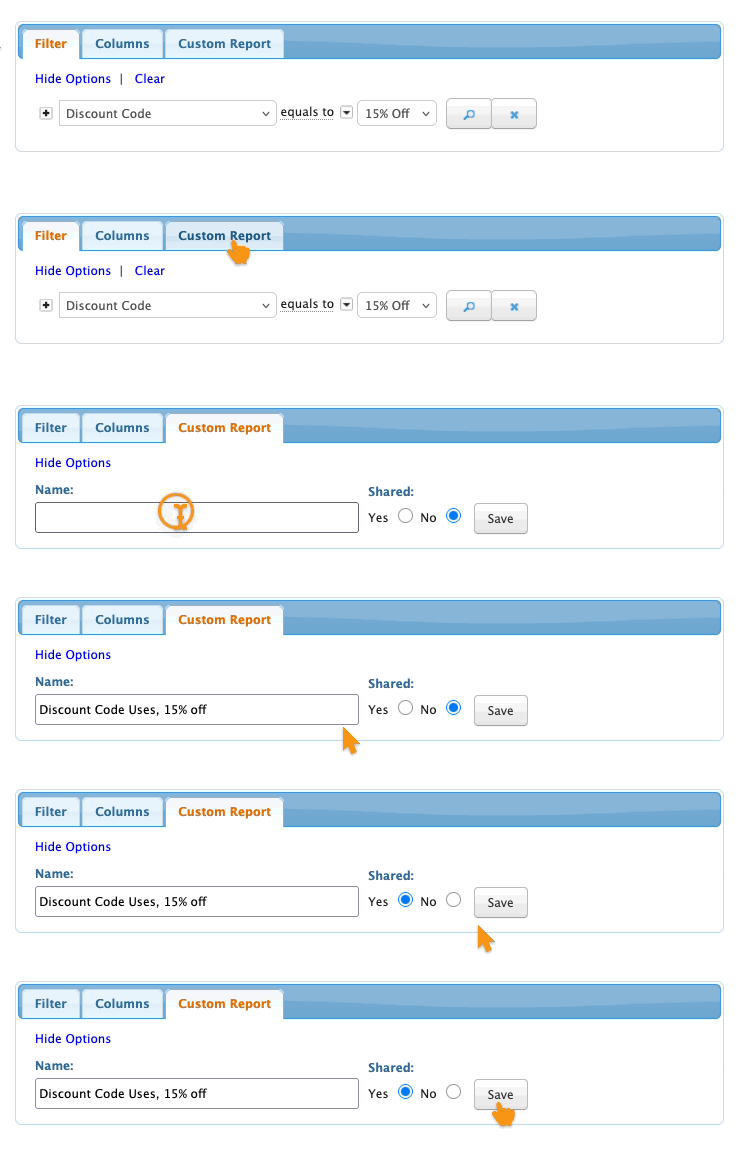
You can then access your custom report any time.

