


In this article:
- Where is it?
- Enabling joinable group meetings
- Creating a joinable group meeting
- Adding Attendees to the joinable group meeting
- How an Attendee signs up
- Approving a sign-up (optional)
Where is it?
Once you’ve enabled this meeting type, you’ll administer joinable group meetings from the Company List:

| This is a unique type of meeting that gives Attendees sign-up access. As an Admin, you can also add multiple Attendees to a meeting yourself, through the Meeting Times page. |
Enabling joinable group meetings
- Step 1. Head to the Configure tab. Choose Meeting Settings, then General Settings:

- Step 2. Under Enable joinable group meetings, choose Yes:

- Step 3. Scroll down and click the Save button:

Creating a joinable group meeting
First, you’ll set up some general types of group meetings for your event. Then you'll use those to schedule the specific sessions.
- Step 1. Head to the Configure tab. Choose Meeting Settings, then Group Meeting Types:

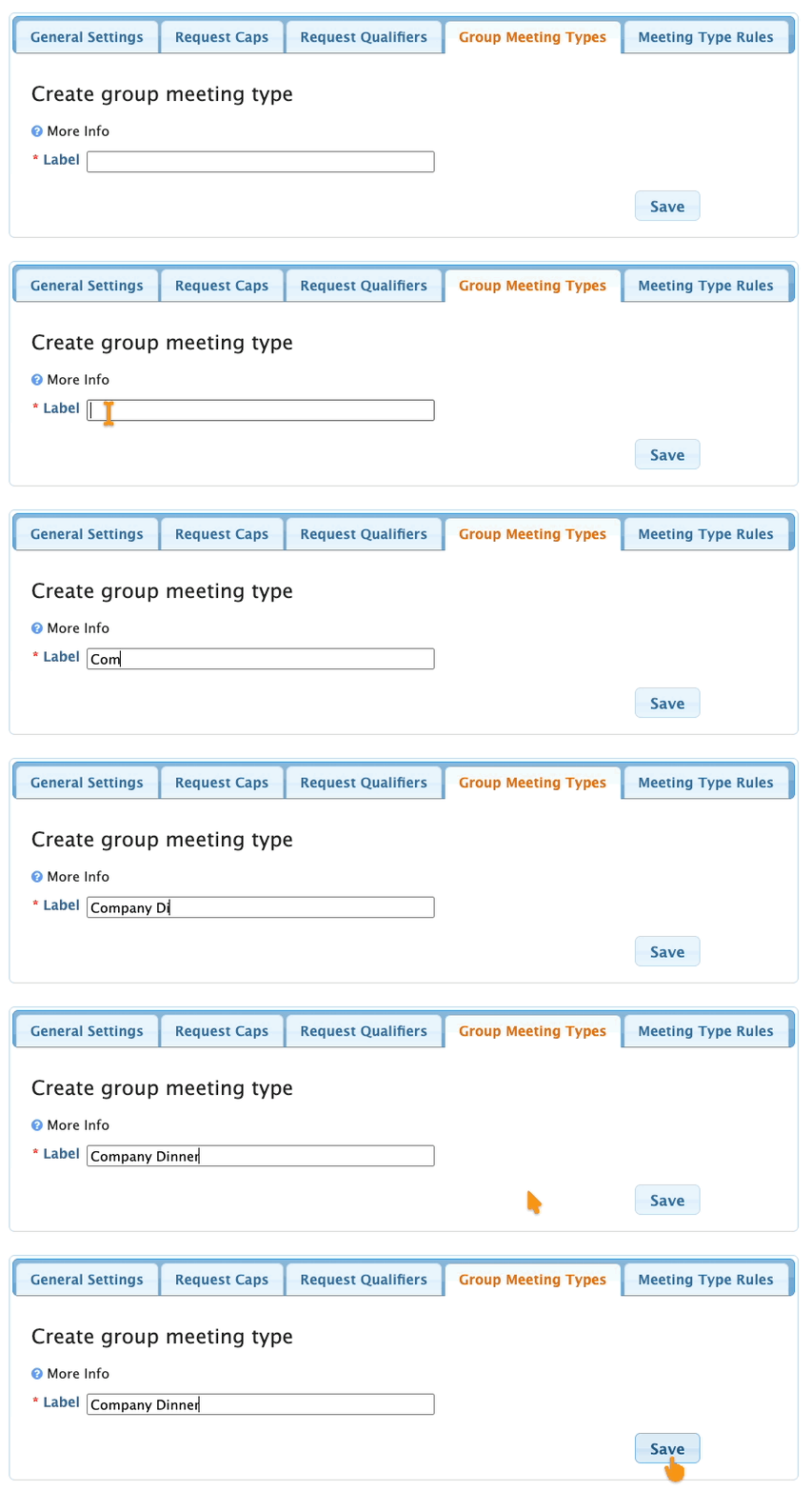
- Step 2. Enter the name of the type of meeting, and click Save:
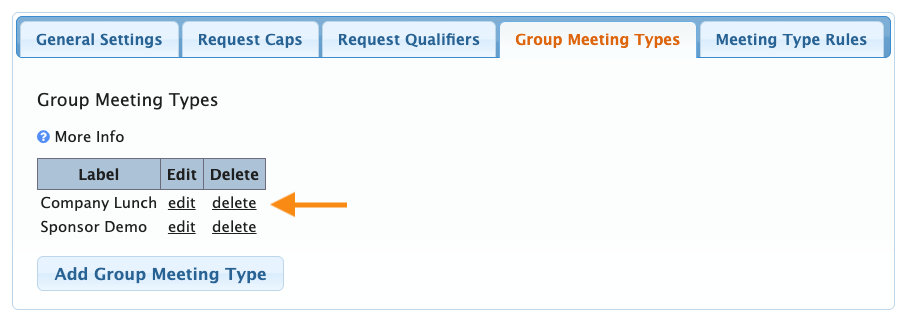
- You can create as many Group Meeting Types as your event needs:
You can now use your new Joinable Group meeting types on each Company's Meeting Times page.
- Step 1. Head to the Company List:

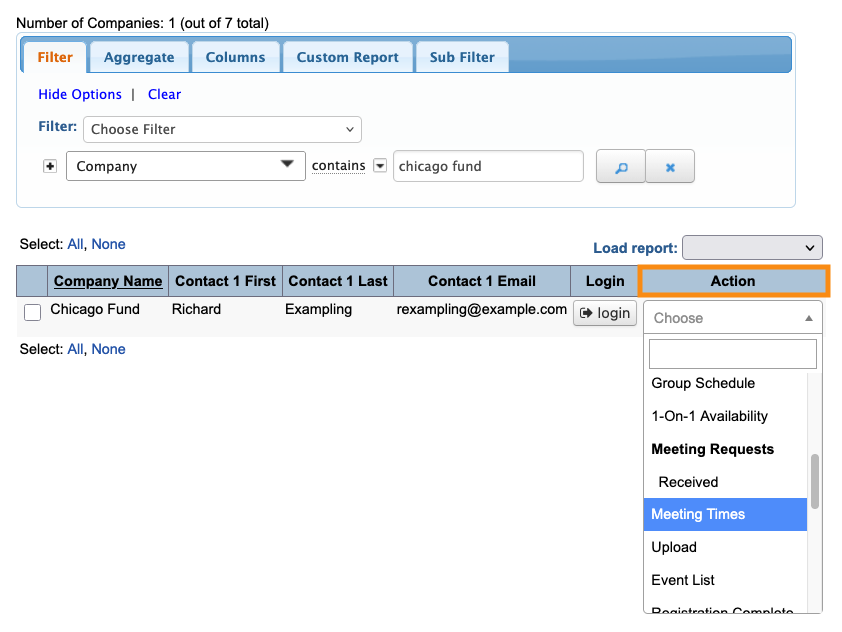
- Step 2. Filter the list to find the Company who’ll host one of these meetings. Then use the Action menu to choose Meeting Times:
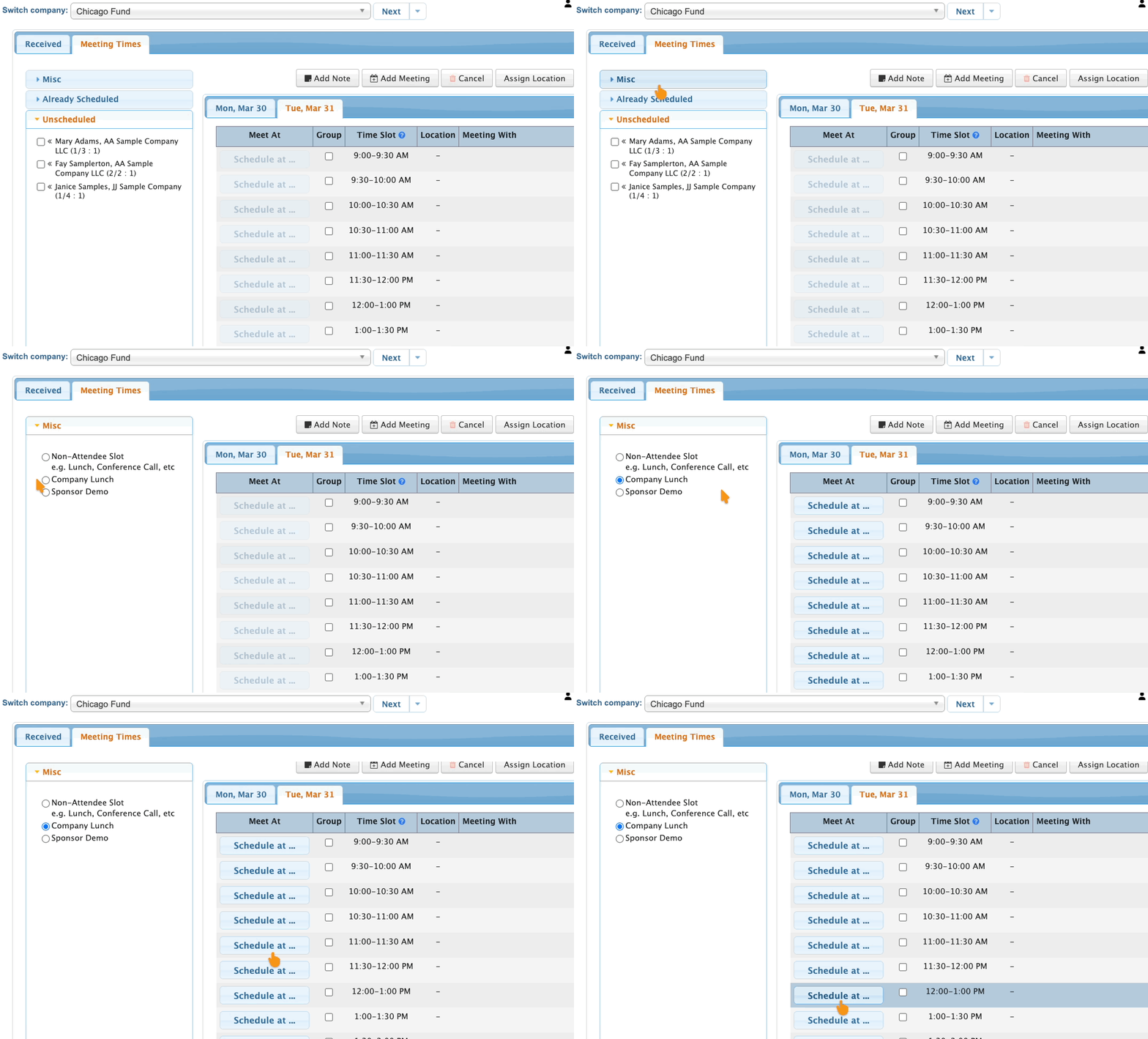
- Step 3. On the Meeting Times page, head to the left column. Click on the Misc segment. That will display all of your joinable group meeting options.
- Choose one, and then locate a time slot. Click Schedule at:
-
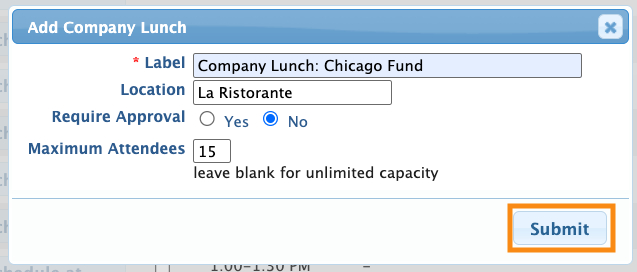
The Non-Attendee Slot you see above is a miscellaneous meeting type you can use for coffee meetings, calls, and other gatherings that don’t fit your meeting program. You can also use our Calendar Items feature for these. - Step 5. In the pop-up, add all the specifics of this meeting.
- • Label: Enter the name of the hosting Company and any other specifics you need.
- • Location: The menu displays available locations, or you can add a new one.
- • Require Approval: Choose Yes to approve each Attendee who signs up. If it’s fine for any Attendee to sign up, choose No.
- • Maximum Attendees: You can enter any number here, or leave it blank for unlimited sign-ups. It’s usually wise to consider the seating capacity of your location.
- Click Submit to save the meeting:
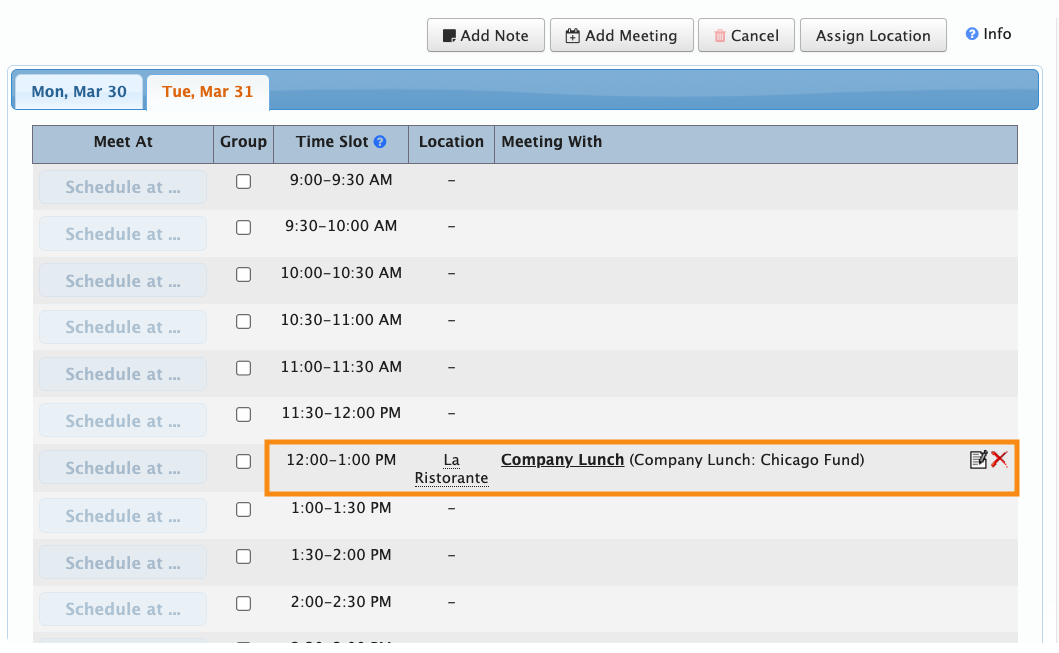
- Step 7. This joinable group session is now listed on the Company’s meeting schedule. You can edit or delete this meeting like you would any other meeting.
- We haven’t added any Attendees to this meeting yet. See the next section for that.
Adding Attendees to the joinable group meeting
Now that the meeting is listed on the Meeting Times page, you can add Attendees and keep track of who’s signed up.
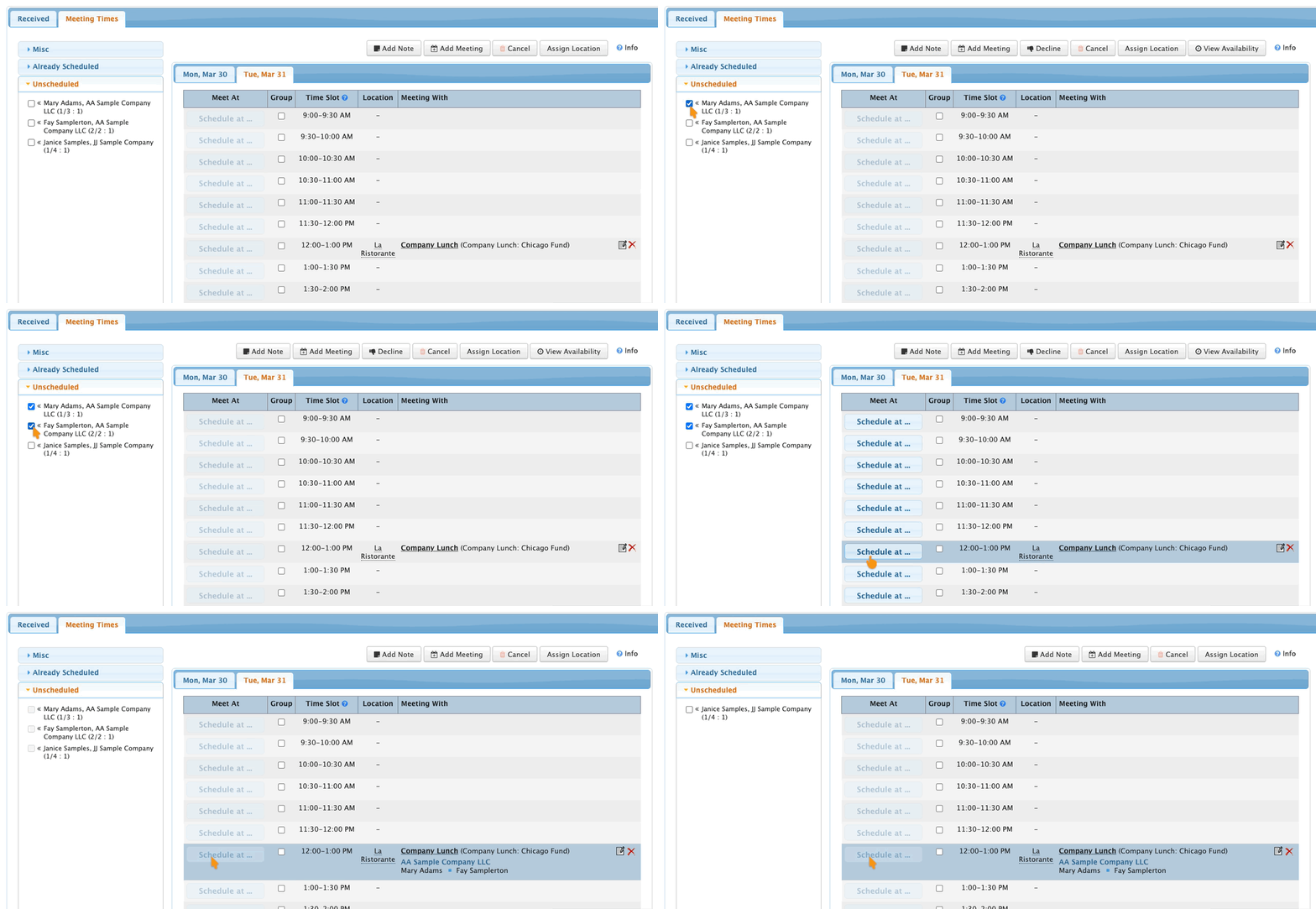
Scheduling Attendees into a joinable group meeting is exactly like scheduling any other meeting. Choose the unscheduled Attendees from the left column, then click Schedule at:
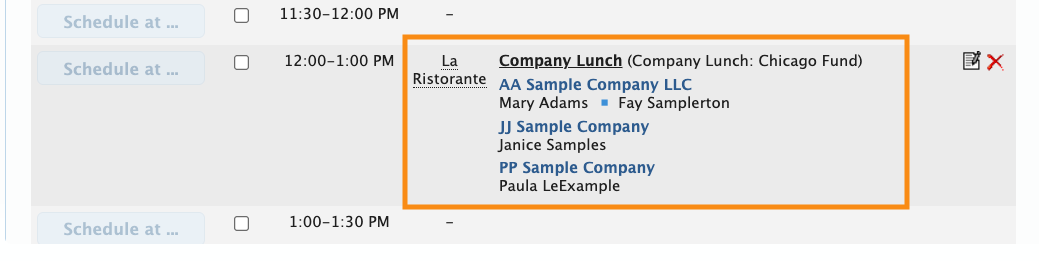
On the Meeting Times page, you’ll see a current list of the Attendees scheduled for this meeting. Depending on your set-up, the list can include people you’ve scheduled, and those who signed themselves up:
How the Attendee signs up
If you’ve enabled Attendee sign-ups for this meeting, then Attendees will log into MeetMax and head to the Meeting Requests tab.
In this example, Chicago Fund has a joinable Company Lunch available. Hal Exampleton will see this option as he makes a meeting request:
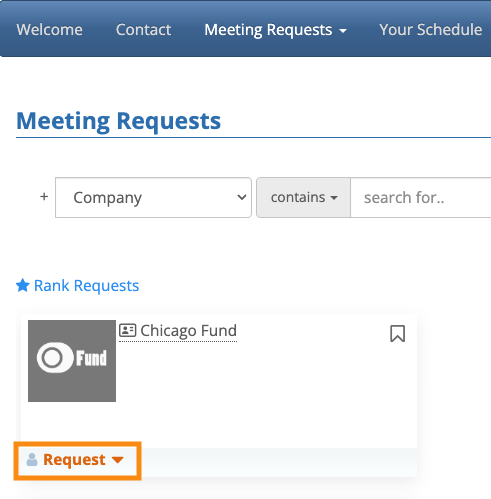
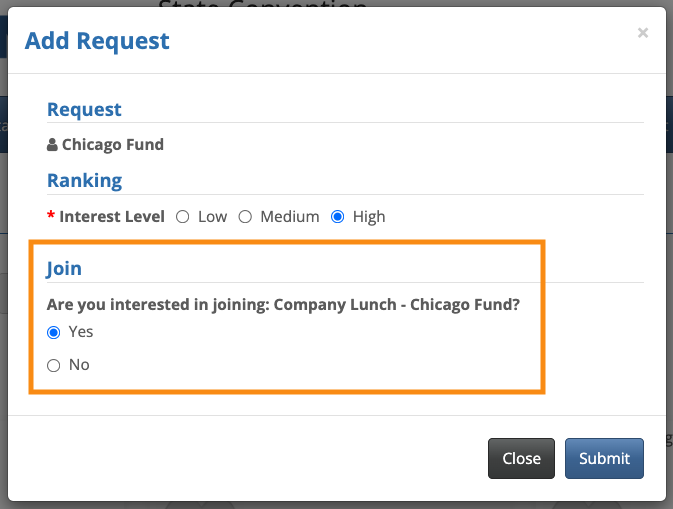
When Hal clicks the Request button, in the pop-up he’ll see the option to join the group meeting instead.
- If Hal clicks Yes, he’ll sign up for the group session instead of requesting a 1x1 meeting.
- If he clicks No, he’ll request a 1x1 meeting instead of the group session.
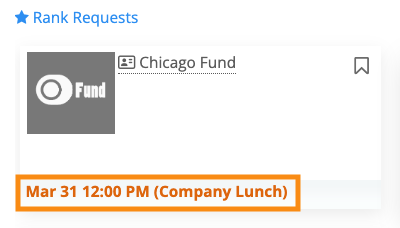
Once an Attendee is scheduled into a joinable group meeting, their Request Meeting page will reflect this:
Approving a sign-up (optional)
If you’ve enabled approvals for joinable group meetings, then each Attendee who signs must be approved. The Company hosting the meeting can do this, or you can as an event admin.
Company approvals
When the Company logs into MeetMax, they’ll go to the Meeting Requests tab. There, they can approve or decline this sign-up:

Admin approvals
You can also approve sign-ups from your Admin account. Head to the Company List, and filter it to locate the company you need to enter an approval for.
Then, use the Action menu and choose Meeting Requests Received:

You’ll then see the same Meeting Requests view the Company sees, here in your Admin account. You can approve sign-ups from here:


