

In this article:
- Where is it?
- Enabling Calendar Items
- How an Admin adds a new Calendar Item
- How a participant adds a new Calendar Item
- Updating a Calendar Item
- Calendar Items on schedules
Where is it?
Once Calendar Items are enabled for your event, you’ll administer them from the Calendar page:
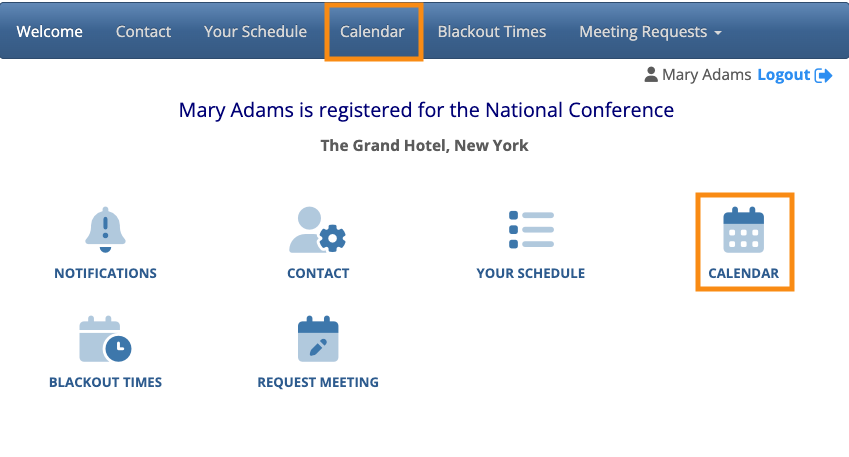
Your participants will have the same access when they log into MeetMax:
Enabling Calendar Items
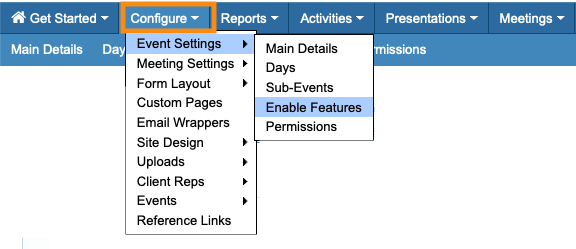
- Step 1. Head to the Configure tab. Choose Event Settings, then Enable Features:
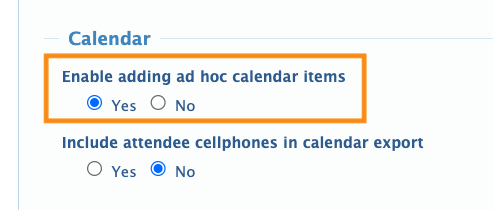
- Step 2. Under Enable adding ad hoc calendar items, choose Yes.
- Step 3. Scroll to the bottom of the page and click Save:

Enabling the participant’s menu item
Attendees and Companies will log into MeetMax, and access Calendar Items from the Calendar tab. So you'll want to make sure it's visible to everyone.
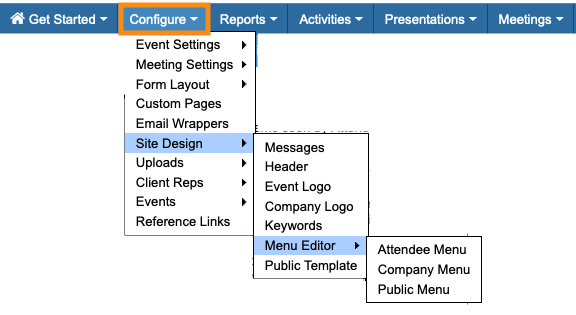
- Step 1. Once you’re ready for participants to see this tab, head to the Menu Editor. Learn more about the Menu Editor here.
- Depending on your event, you might make this adjustment in the Attendee Menu, or Company Menu, or both:
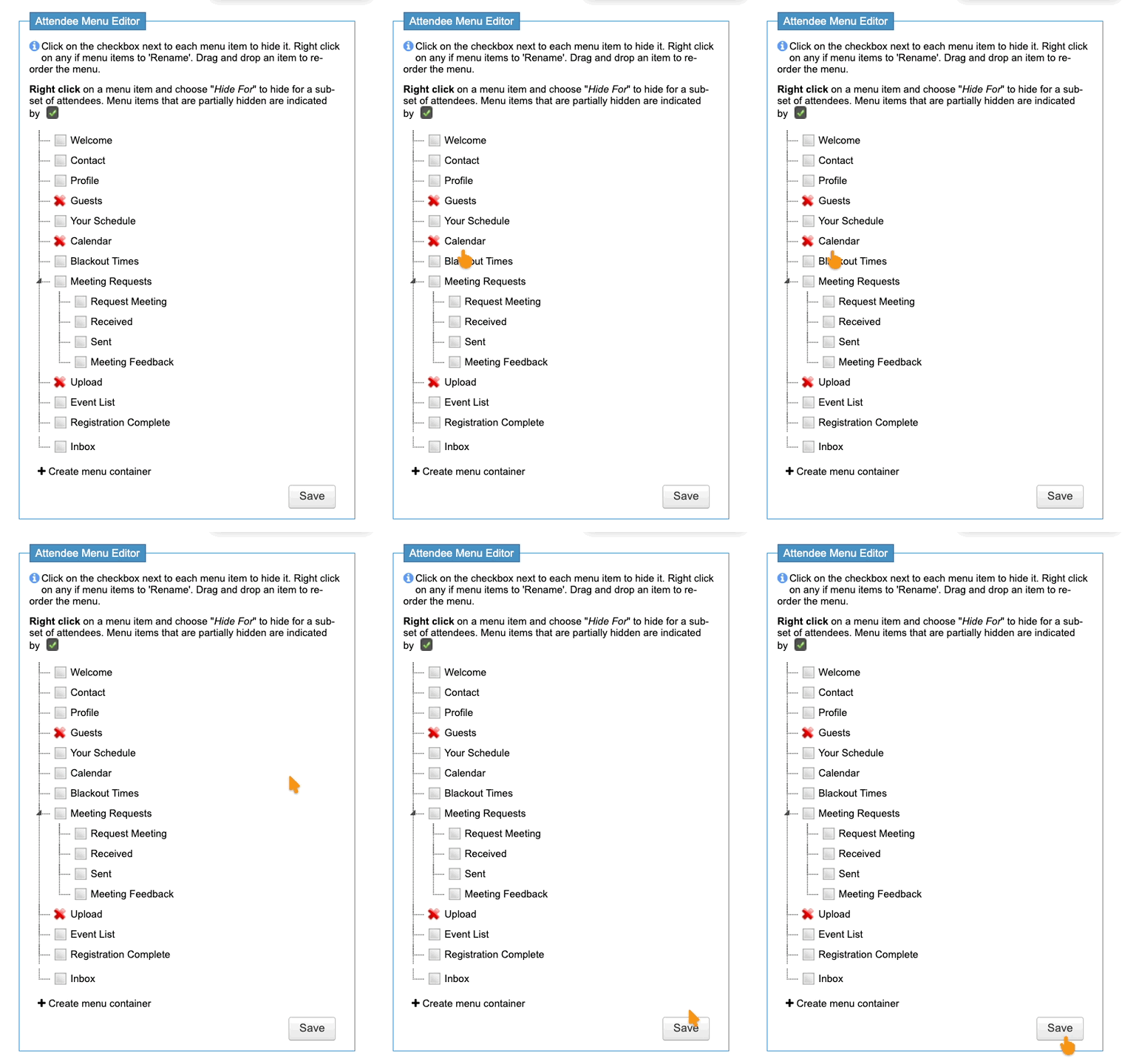
- Step 2. Make sure the Calendar option is not checked. Then click Save:
-
If you don’t see the Calendar option, reach out to our Support team.
How an Admin adds a new Calendar Item
Event Admins can add a Calendar Item to any participant’s schedule. (Participants can add their own Calendar Items as well - see the section below.)
- Step 1. Head to the Attendee List or Company List. (We’ll show the Attendee List here):

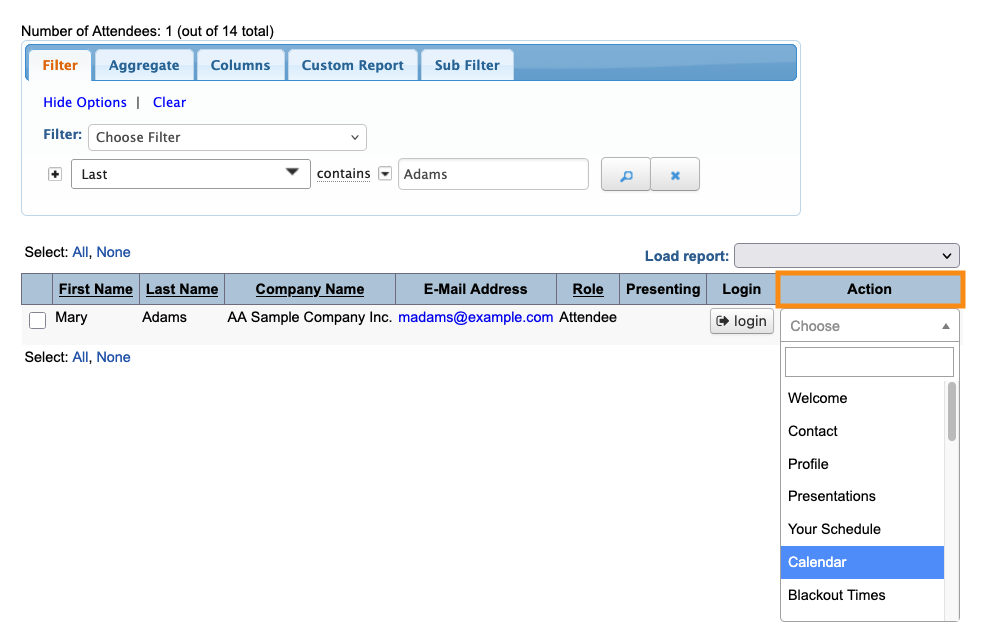
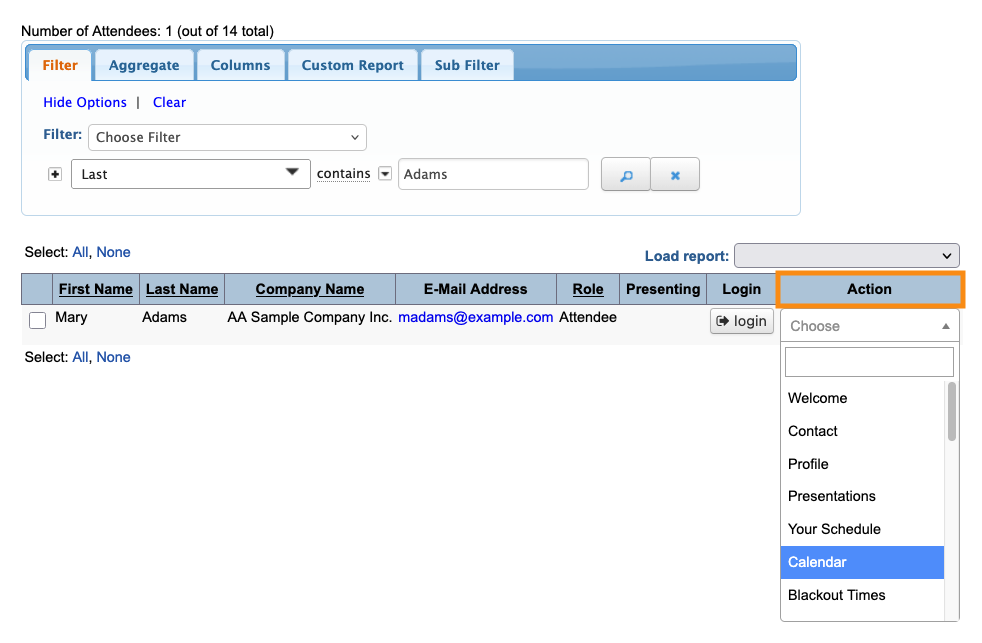
- Step 2. Filter the list to find the participant you need. Then use the Action menu to choose Calendar:
-
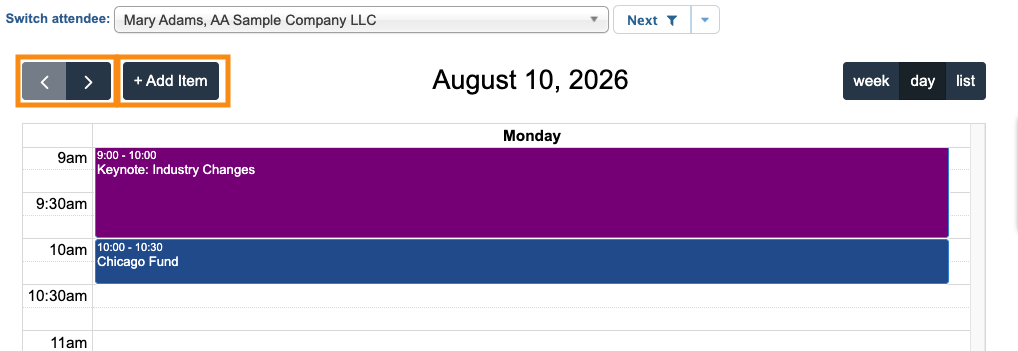
When your team views the Calendar from your Admin interface, it reflects your current configuration for the Admin version of the schedule. - Step 3. Once you’re on the participant’s Calendar page, navigate to the event day you need.
- Then click the Add Item button:
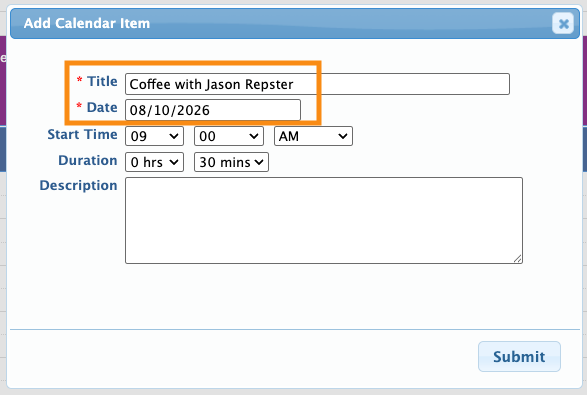
- Step 4. Add a Title, which appears on the Calendar and event schedule.
- MeetMax fills in the Date automatically, but you can change it here if needed:
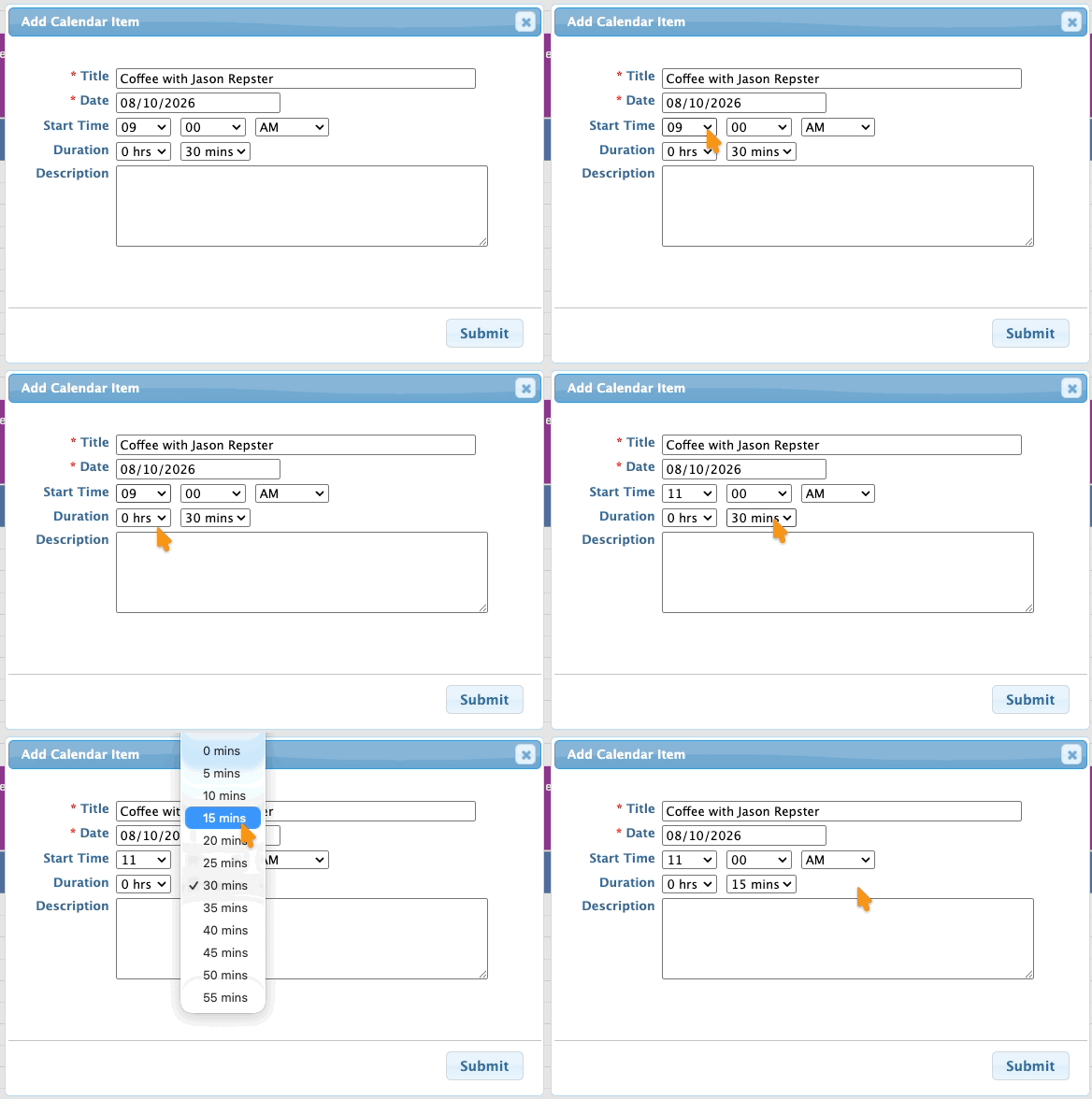
- Step 5. Add a Start Time and Duration.
- If this event doesn’t have any duration (like an airport pick-up), you can set the Duration to zero:
-
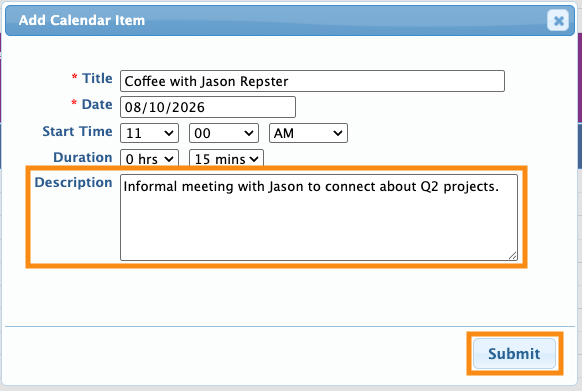
You can even schedule Calendar Items outside of your event days. That’s handy for travel-related events. - Step 6. Add a Description. It appears on the Calendar and on schedules. It also appears if a participant exports their schedule to a personal calendar.
- Click Submit to save:
How a participant adds a new Calendar Item
Attendees and Companies can add Calendar Items to their own schedules.
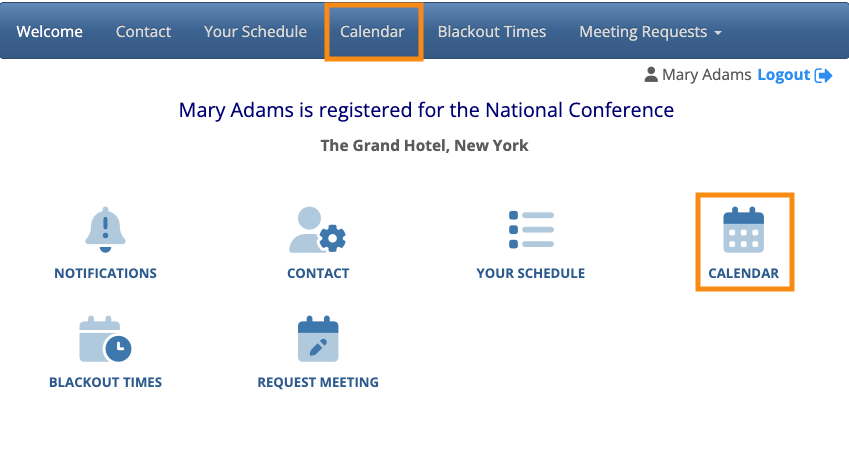
- Step 1. An Attendee or Company logs into MeetMax, and heads to the Calendar tab:
- Step 2. On the Calendar page, they’ll navigate to the event day they need. Then click the Add Item button:
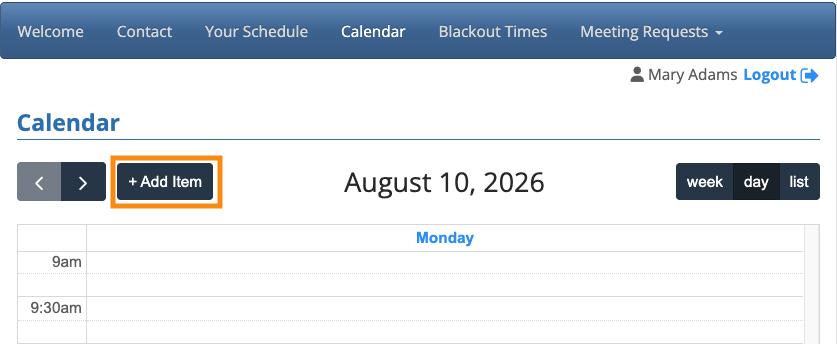
- From there, the process is exactly the same as for Admins. See the section above.
-
These pages will be branded for your event, and contain the menu items you’ve enabled. When a participant views their Calendar page, it follows your current configuration for public event schedules. If you need to see what participants see, log in as a test user.
Calendar Events and Time Zones
- Calendar items use your event’s Time Zone. If you’ve enabled Time Zone conversions, MeetMax converts the time to a participant’s preferred time zone.
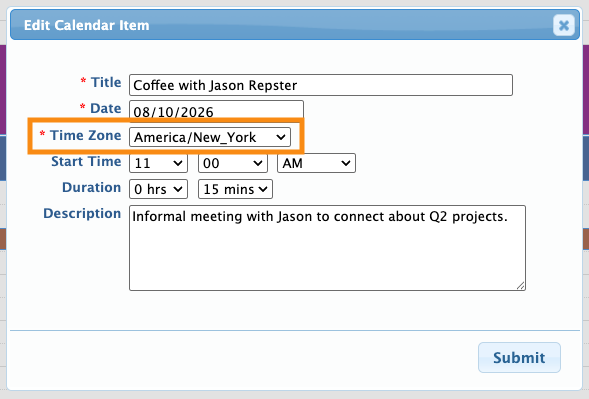
- If your event uses different time zones on different days, the Calendar Item form will also have a Time Zone field as shown below, so you can choose the correct one.
Updating a Calendar Item
Both Admins and participants can edit existing Calendar items, no matter who created them.
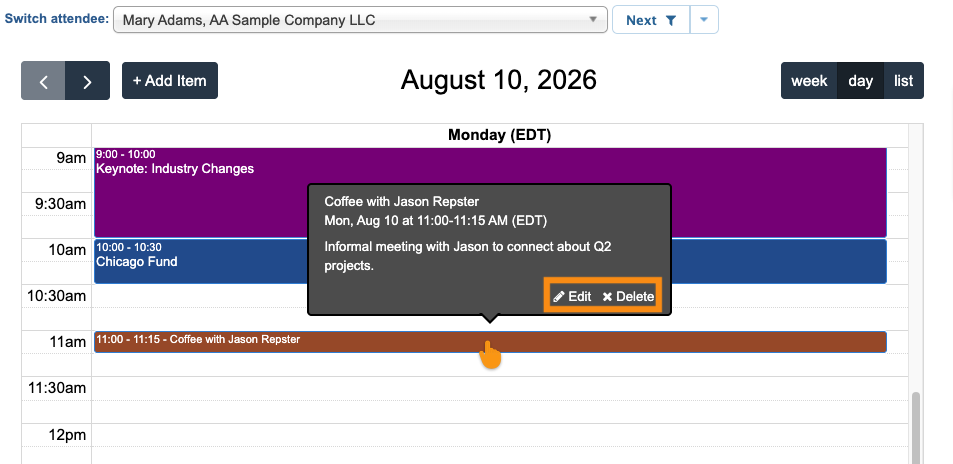
Whether you’re in the Admin view or participant view, click on the item you need to update.
In the pop-up, click Edit or Delete:
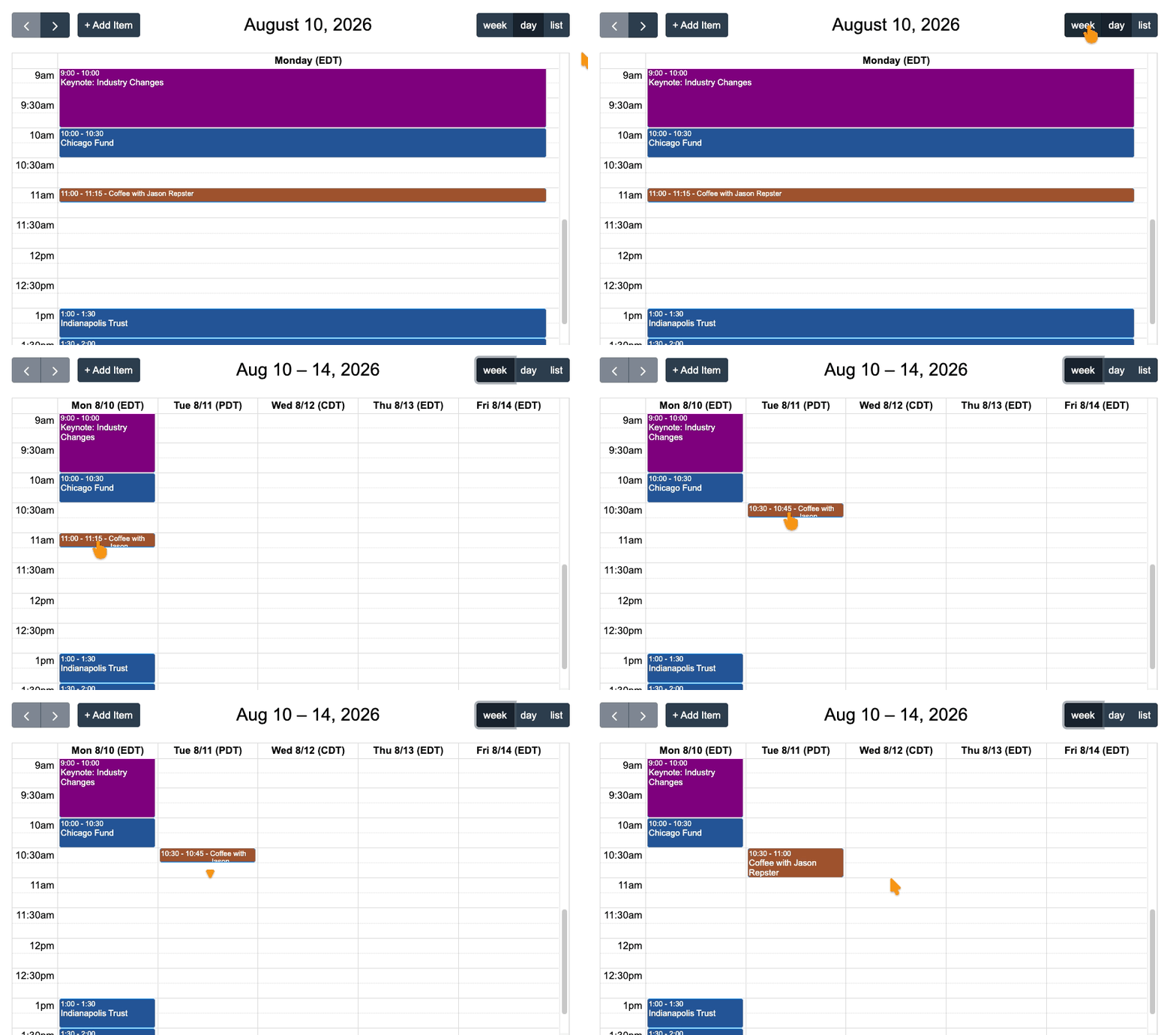
You can also drag and drop items to reschedule. To move an item to another day, set the view to Week first.
Need to change the duration of a Calendar Item? Click the bottom edge and drag it:
| If you create a Calendar Item with no duration, it displays on the calendar as a 30-minute block, and displays no end time. |
Scheduling conflicts
MeetMax doesn’t include Calendar Items in scheduling conflict management, since they aren’t part of your meeting program or your event’s programming.
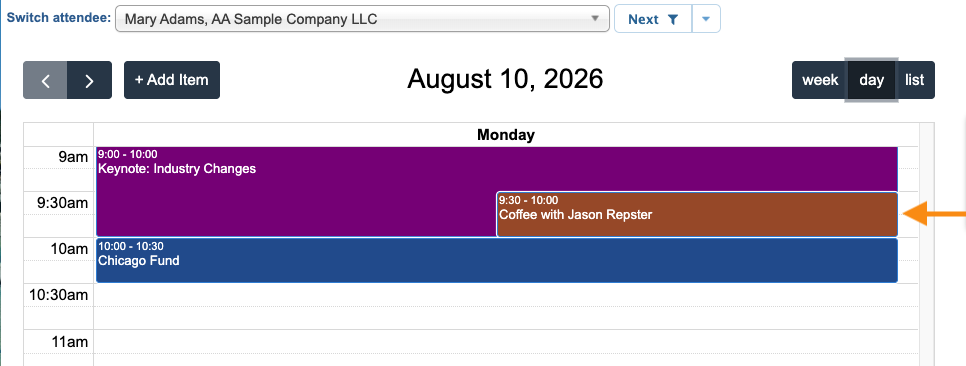
A Calendar Item can be scheduled to overlap with meetings, activities, and presentations. You and your participants can see that overlap on the Calendar tab:
Calendar Items on schedules
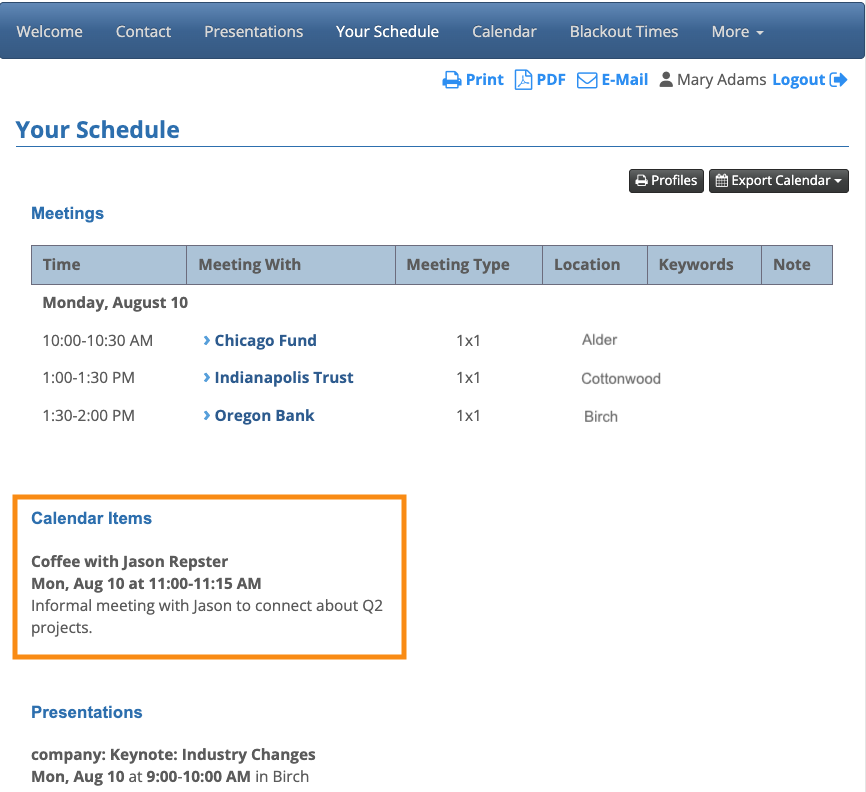
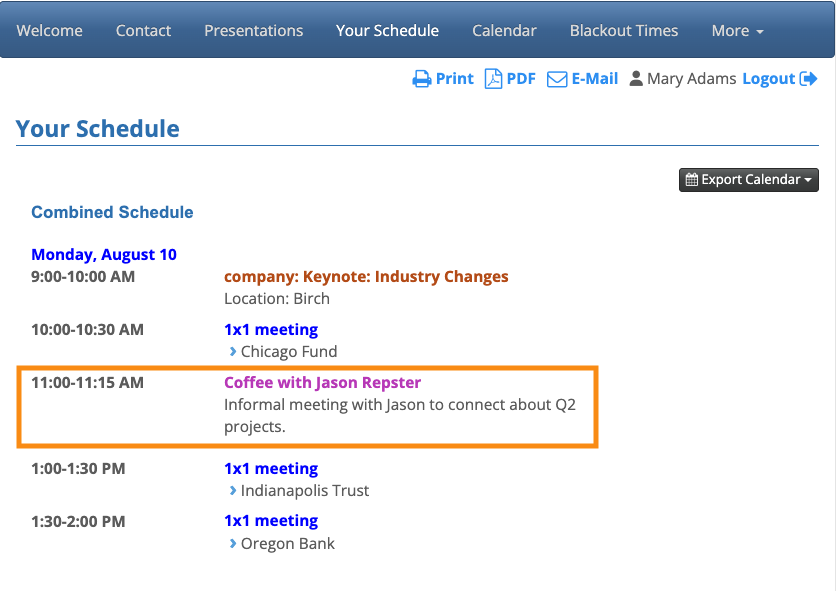
You and our team have customized the participant schedule layouts for your event. Those customizations affect how Calendar Items display on schedules.
Here are two examples:
| If a participant exports their event schedule to a personal calendar, Calendar Events export along with it. |

