


Login options for participants

Each time you add an Attendee or Company to your event, MeetMax sets up a user account. So each user also needs their login details.
In this article:
- Primary option: Confirmation numbers
- Second option: Social media logins
- Can login details be recovered?
Primary option: Confirmation numbers
With confirmation numbers, you simplify the login process for your participants.
Instead of a password, they’ll enter their registration confirmation number to log in. And if someone loses their confirmation number, you’ll be able to provide it.
| If you'd prefer to have participants create their own passwords, reach out to our Support team to set that up. |
Enabling confirmation number login
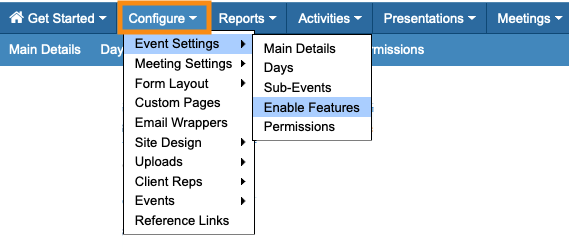
- Step 1. Head to the Configure tab. Go to Event Settings, then Enable Features:
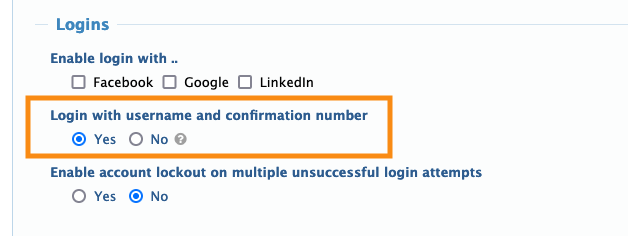
- Step 2. Scroll down the page to the Logins section (which is near the bottom).
- Under Login with username and confirmation number, choose Yes:
- Step 3. Be sure to click the Save button at the bottom of this page!
Creating and delivering logins
| If a participant registers for your event via a public registration page or an invitation, MeetMax will automatically email them their confirmation number. | |
| If you're an event Admin who's registering participants, use the process below. |
- Step 1. Add or import your participants to MeetMax.
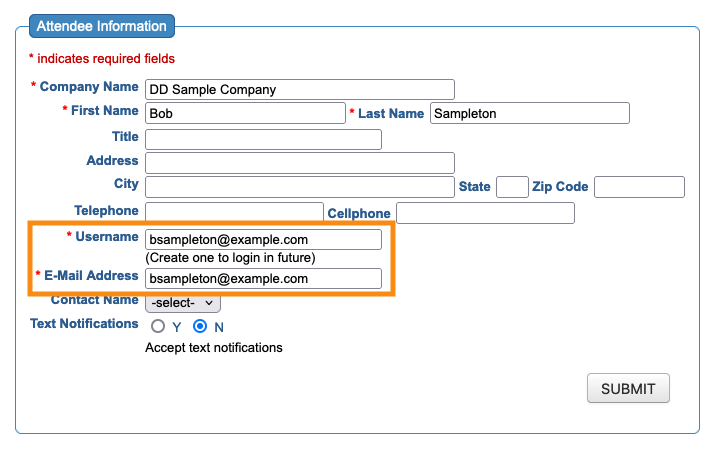
- In the Attendee and Company registration forms, we recommend using each participant’s email address as their username:
- Step 2. Once you’ve added one or more participants, you can use the batch emailer to send out confirmation emails.
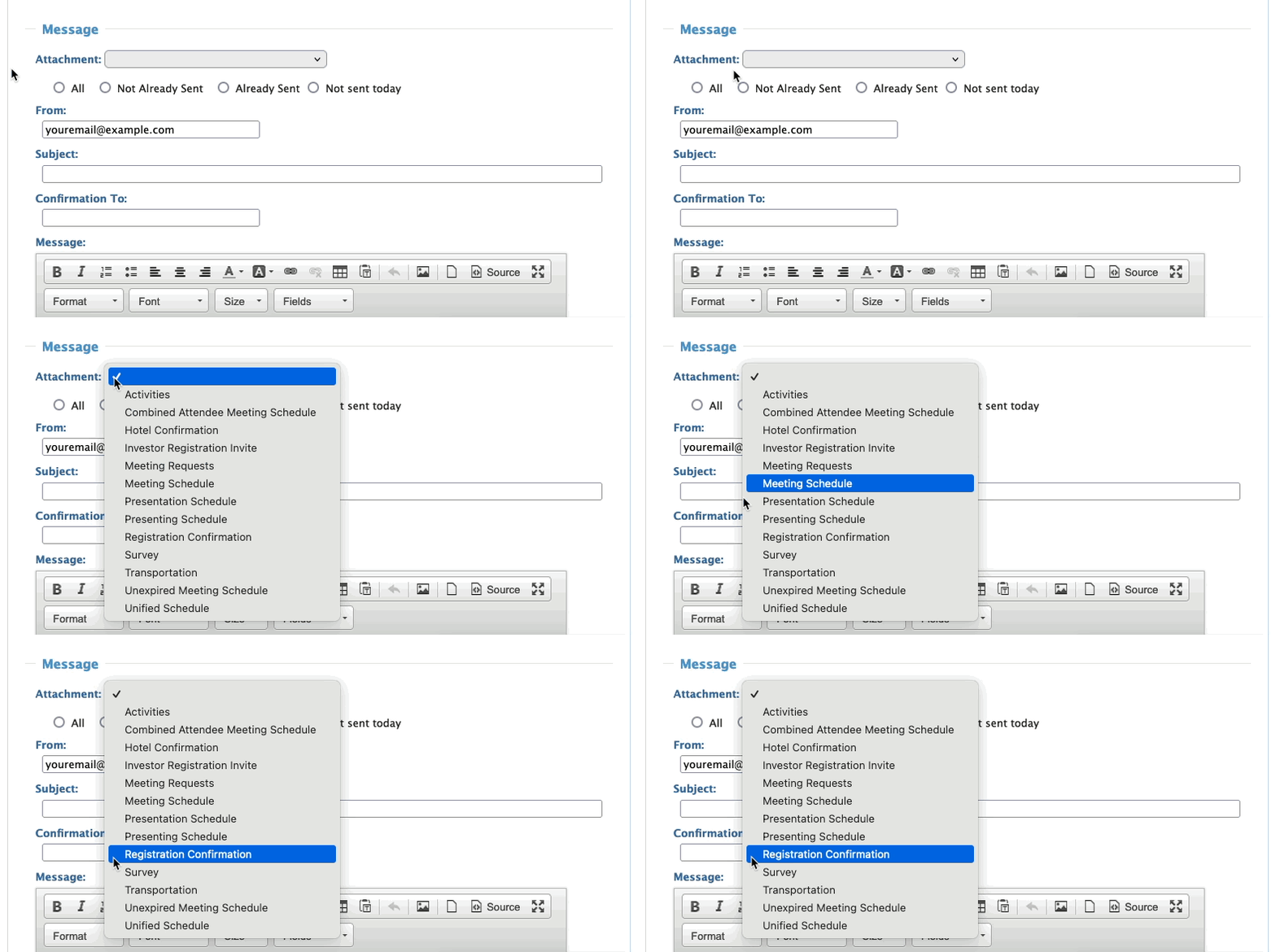
- Step 3. In the Attachment menu, choose Registration Confirmation. This attachment generates a unique confirmation number for each person in the batch:
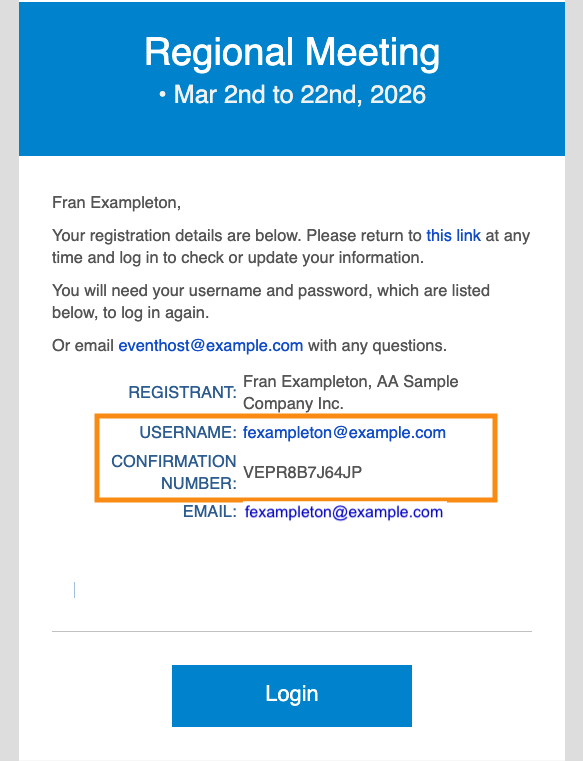
- Step 4. When each participant gets their email, it contains a unique confirmation code:
When the participant follows the link in this email, they’ll be on their MeetMax login page. They'll add their username and confirmation number to log in:
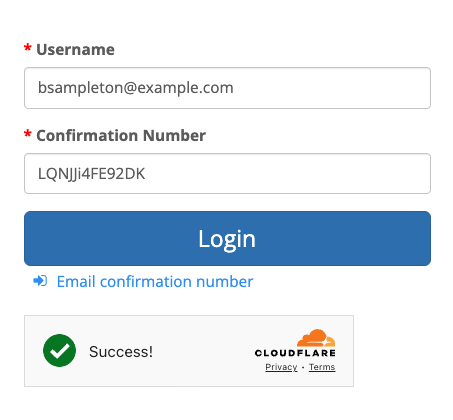
| You might want to recommend that your participants copy/paste the confirmation number to save time. |
Secondary option: Social media logins
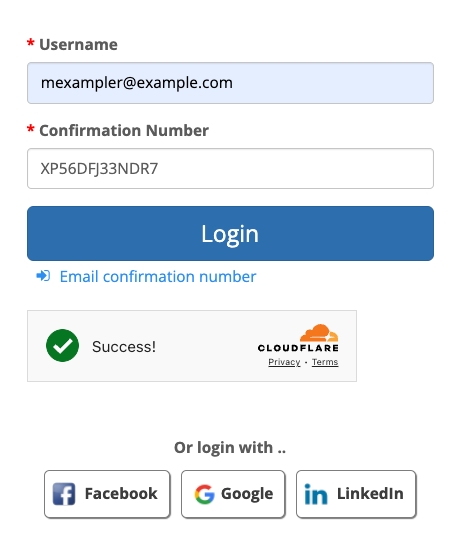
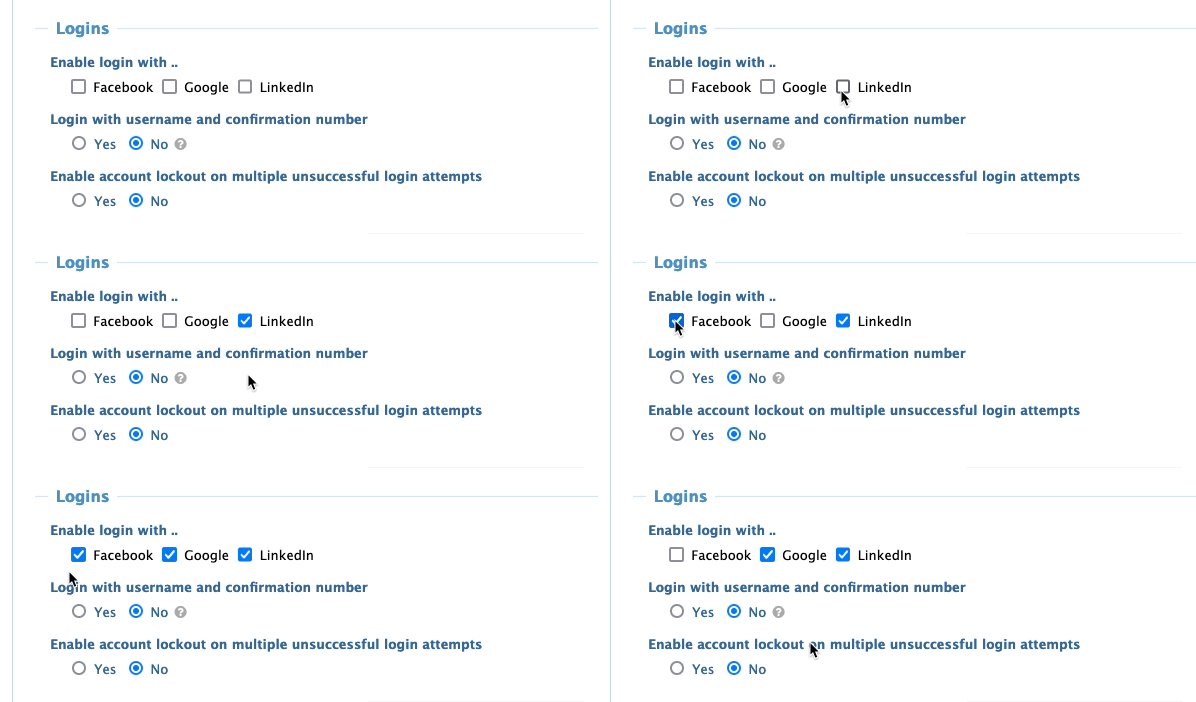
You can add this option to the standard confirmation number login. Participants will also be able to log in using their Google, Facebook, and/or LinkedIn credentials:
- Step 1. Head to the Configure tab. Go to Event Settings, then Enable Features:
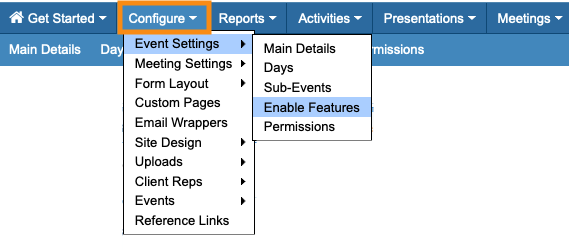
- Step 2. Scroll down the page to the Logins section (which is near the bottom).
- Step 3. Under Enable login with, choose any or all of the options:
- Step 4. Be sure to click the Save button at the bottom of this page:
Can login details be recovered?
- If one of your participants loses their confirmation number, you’ll have access to it in your Admin account.
- If you're having participants create their own passwords, MeetMax fully encrypts those passwords. A user can always reset their password.
- MeetMax has no access to social media login credentials.

