

In this article:
- Where is it?
- Why are profiles important?
- Enabling profiles
- Customizing the Profile form
- What Attendees see
- What Companies see
Where is it?
You’ll customize your event's Profile form in the Configure tab:

When Companies and Attendees log into MeetMax, they'll see the Profile tab and icon:
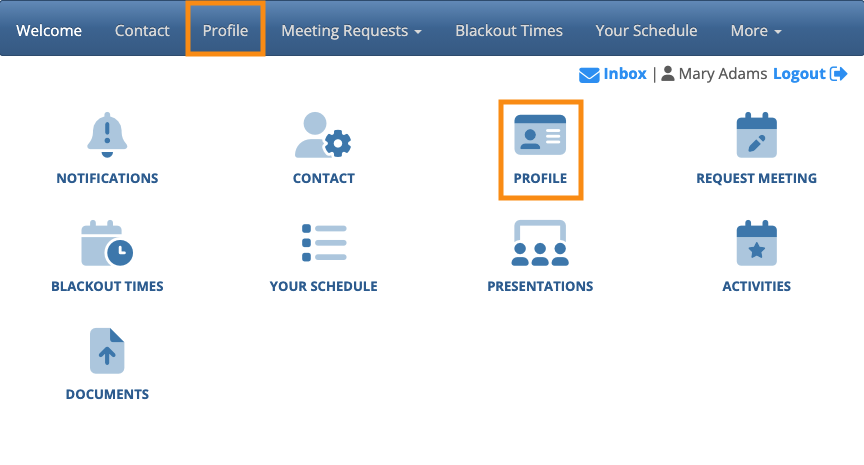
| This page will be branded for your event, and contain the menu options you’ve enabled. |
Why are profiles important?
Profiles do a number of helpful jobs in your event.
- Attendee and Company profiles help create better 1x1 meetings. When an Attendee logs into MeetMax, they’ll see details about each Company they can meet with. Companies can also access Attendee profiles. These details help everyone understand which meeting requests to prioritize.
- You can also display presenter profiles with your event’s presentations.
- If you add any Custom List pages to your event, you can display profiles there, too.
Enabling profiles
- Step 1. Head to the Configure tab. Choose Event Settings, then Enable Features:

- Step 2. Scroll to the Profiles section. Under Will this event ask Attendees to create a public profile, choose Yes.
- Step 3. Several other Profile-related settings will open. For now, leave these in their default state:

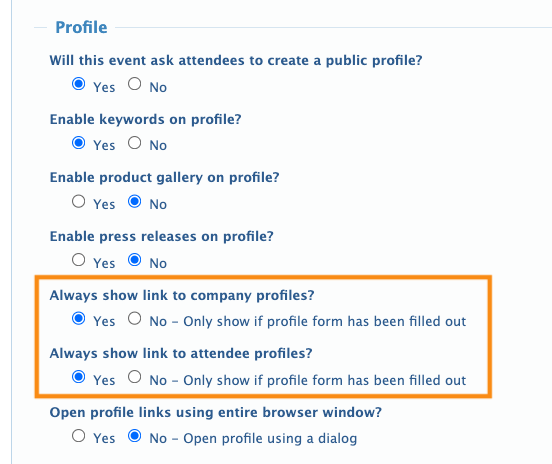
- Step 4. By default, MeetMax only displays a Profile once the participant has filled out the Profile form.
- As an option, you can override this setting as shown below. MeetMax would then display a few default registration details even if the participant hasn’t completed their profile:
- Step 5. Scroll to the bottom of the page and click the Save button:

Customizing the Profile form
The default Profile form is fairly minimal. You can add more fields depending on the needs of your event.
Learn about customizing the Profile form here.
| Attendees and Companies use the same Profile form. You can, however, set any field to be visible only to specific user types. |
What Attendees see
After they register, Attendees and Companies can log into MeetMax and see the Profile tab:
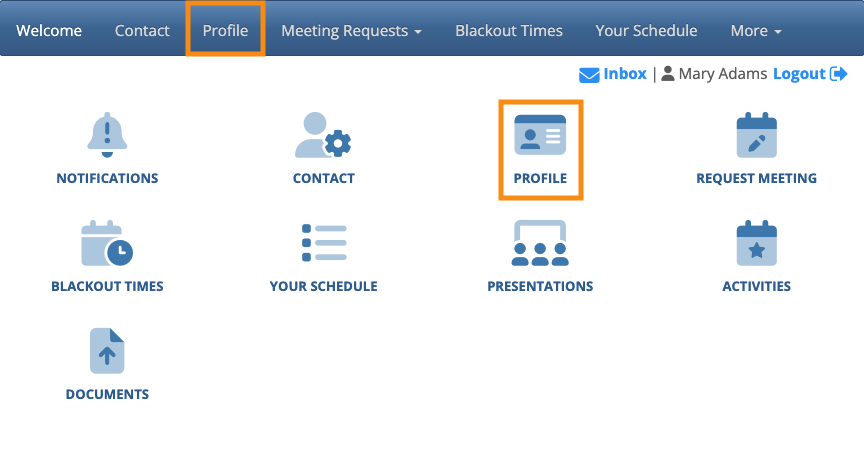
The Profile page displays the Profile form, where the Attendee can enter their details. If you’ve added the Profile Picture field, as shown below, they can also upload a headshot or logo:
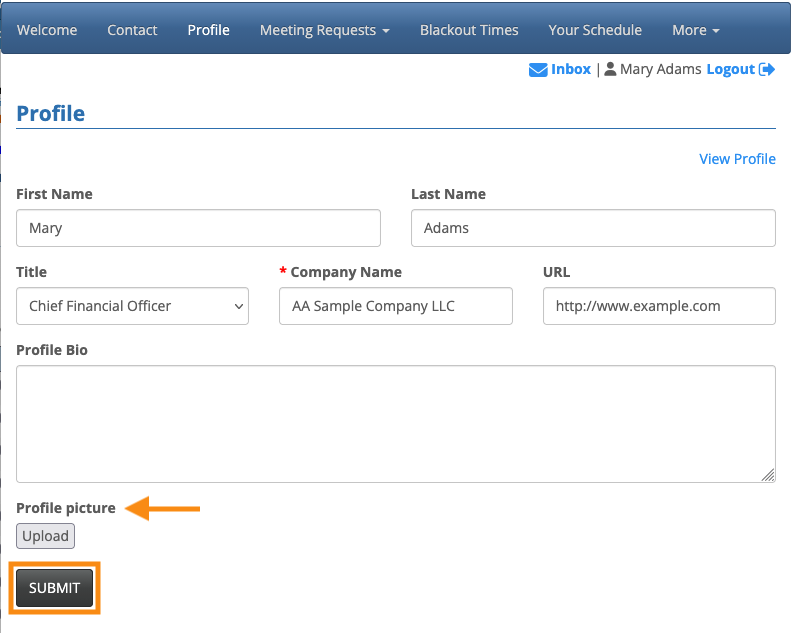
| Attendees can return to this page and update their Profile any time. | |
| If an Attendee leaves any non-required field blank in the Profile form, MeetMax will leave that field out of the profile. If the Attendee fills this field out later, it’s automatically added to the profile. | |
| Your Admin team can also update any Profile on behalf of an Attendee. |
How Attendees use Profiles
When an Attendee is ready to make meeting requests, they’ll head to that tab in MeetMax
On the Meeting Requests page, they’ll see all Companies that have set their meeting availability. Assuming a Company has uploaded a logo or other profile picture, it displays here:

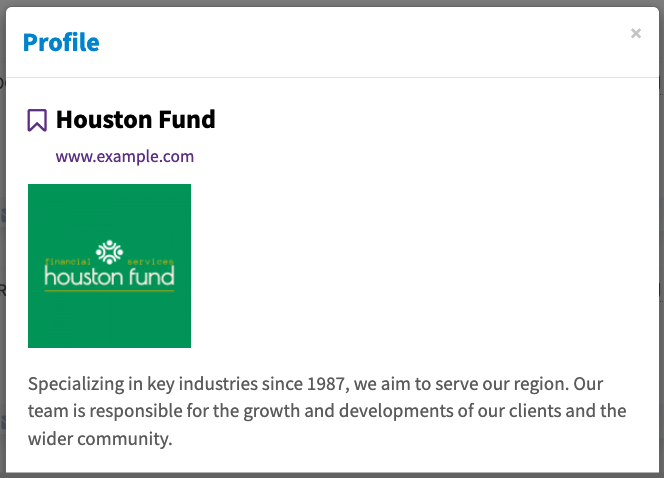
The Attendee can click on any Company's tile to see all the profile details:
| By default, Company Reps have no individual profile pages. They’re represented by the Company profile page. If you'd like to have individual Company Rep profiles enabled for your event, reach out to our Support team. |
What Companies see
After registration, a Company’s main contact can access the Profile tab in the company account:
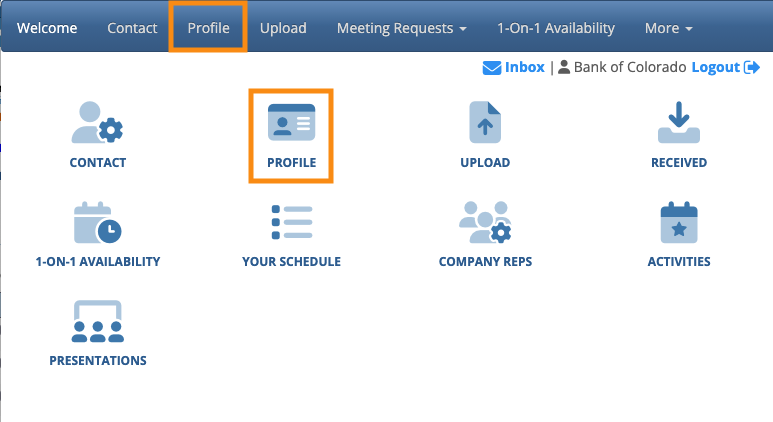
On the Profile page, they’ll see the same Profile form shown for Attendees above. If there’s a Profile Picture field, they can also upload a company logo.
| As with Attendee profiles, Companies can update theirs any time. Your Admin team can also complete or edit a profile on behalf of any Company. | |
| If a Company leaves any non-required field blank in the Profile form, MeetMax will leave that field out of the profile. If the Company fills this field out later, it’s automatically added to the profile. |
How Companies use Profiles
When a Company starts receiving meeting requests, they can use the Attendee profiles to help them decide which ones to accept.
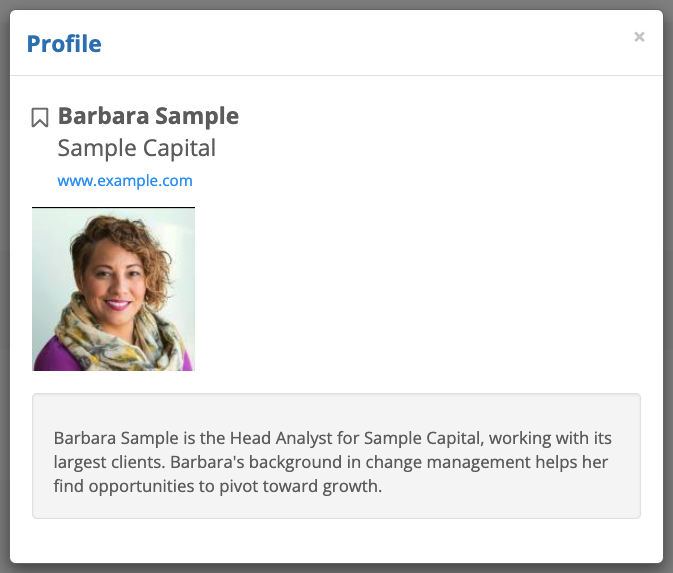
On the Meeting Requests Received page, each Attendee’s name is a link to their profile. If an attendee has uploaded a headshot, that appears here too:

The Company admin can click the Attendee’s name to see their profile details:
| You can customize the Profile display in many ways. Learn more about customizing here. |

