In this article:
- Before registration
- How a Company adds Company Reps
- How an Admin adds Company Reps
- Receiving a registration confirmation
- What the Company Rep does next
- Accessing a registered Company Rep
Before registration
The registration process in MeetMax is highly customizable. Our team will help you choose the best registration method for your event, and design registration forms to capture all the data you need.
In this article, we’ll show a general overview of how Company Reps get registered for your event. Depending on how your event is set up, this process might look slightly different.
| In MeetMax, a Company Rep is a type of Attendee. Their attendance is tied to their registered parent Company. So in most cases, Company Reps don’t register themselves for your event. That’s usually handled by the main Company contact, or your Admin team. |
How a Company adds Company Reps
If Companies are adding their own Company Reps, the main Company contact logs into MeetMax and heads to the Company Reps tab. There, they’ll fill out the registration form for each Company Rep, and add a contact email address for confirmation and login:


| We recommend using the Company Rep’s email address as a username - it simplifies the login process. |
How an Admin adds Company Reps
There might be events where your participating Companies don’t want to enter their own Reps.
In that case, they’ll send you a list of Reps to import into MeetMax. Learn more about importing here.
Receiving a registration confirmation
Whether the Company adds its own Reps or your Admin team adds them, each Rep needs a confirmation email. That’s how they get their login credentials.
If the Company is adding Reps
Once the Company has added their Reps, they’ll see the Send Welcome Emails link:

Clicking that link, they can choose who to send to and add a personal message:

If an Admin is adding Reps
After importing, you can notify the Reps on behalf of the Company. The simplest way is send a batch email from the Attendee List.
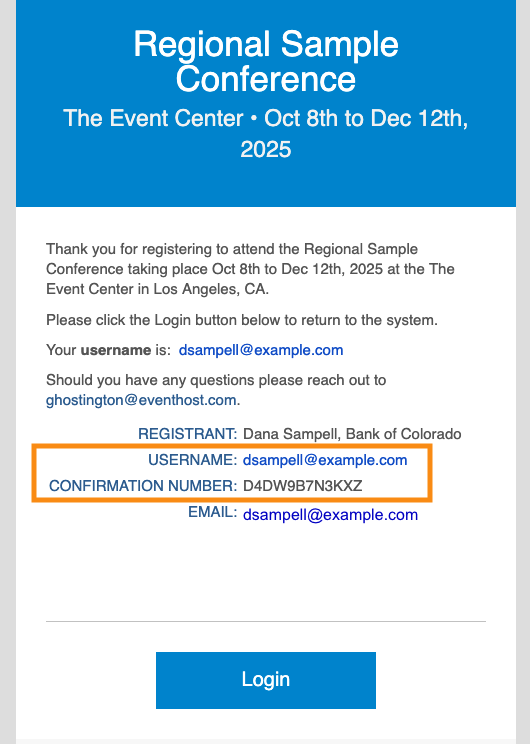
No matter who generates the emails, each one contains the Rep’s login details and a link to their account page. It looks something like this:
- You can resend a Company Rep’s confirmation email any time.
- If they lose their confirmation number, you can retrieve it for them.
What the Company Rep does next
When a Company Rep logs into MeetMax, they’ll see features relating to their own event schedule. A Company Rep doesn’t have access to the Company’s MeetMax account.
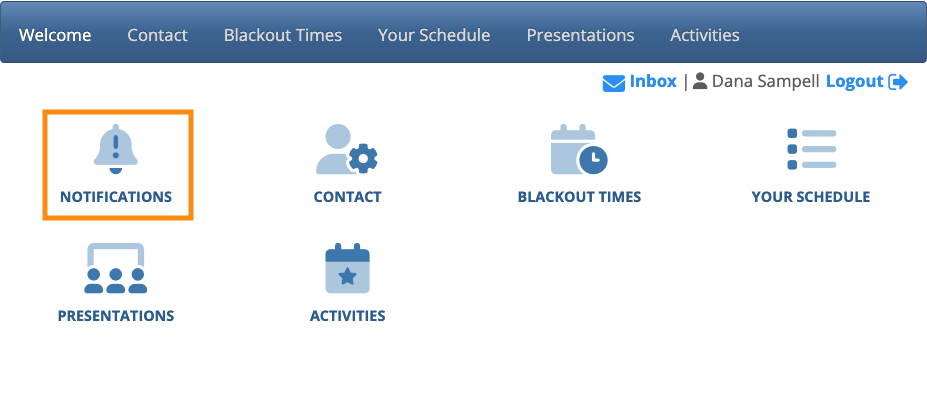
On the MeetMax Welcome page, they’ll see a Notifications icon. This is the quickest way to see what actions they need to take:
| Remember, this experience will be branded and customized for your event. |
See more details on each action below.
Blackout Times
Since Company Reps will be participating in 1x1 meetings, it’s important that MeetMax has accurate availability details.
“Blackout times” or “Blackouts” are time slots when the Rep isn’t available for meetings. In the Blackout Times tab, each Company Rep can set any unavailable times they need:

Presentations
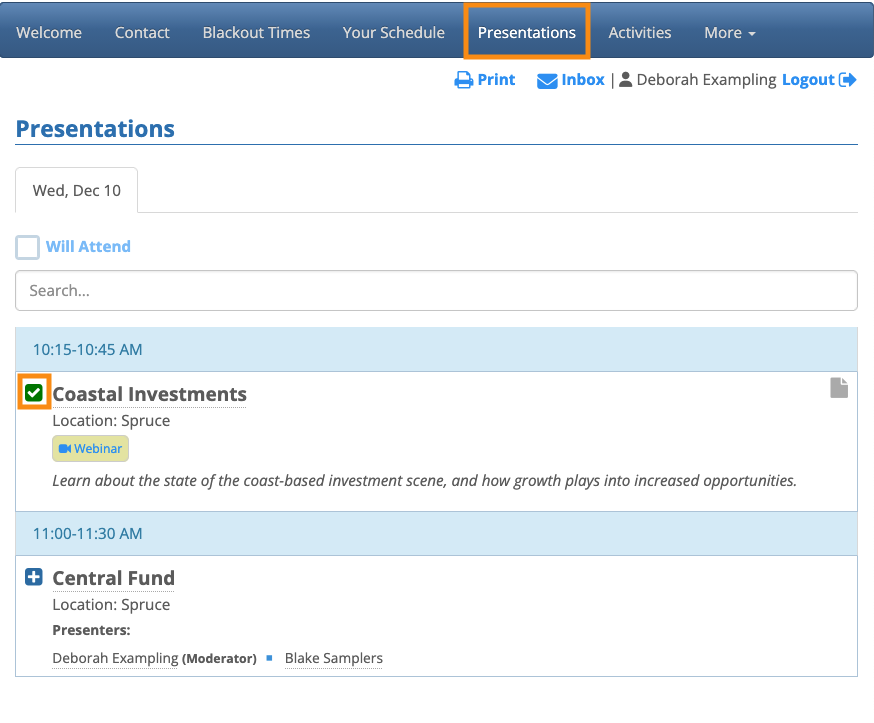
On the Presentations tab, the Company Rep can sign up to attend presentations:
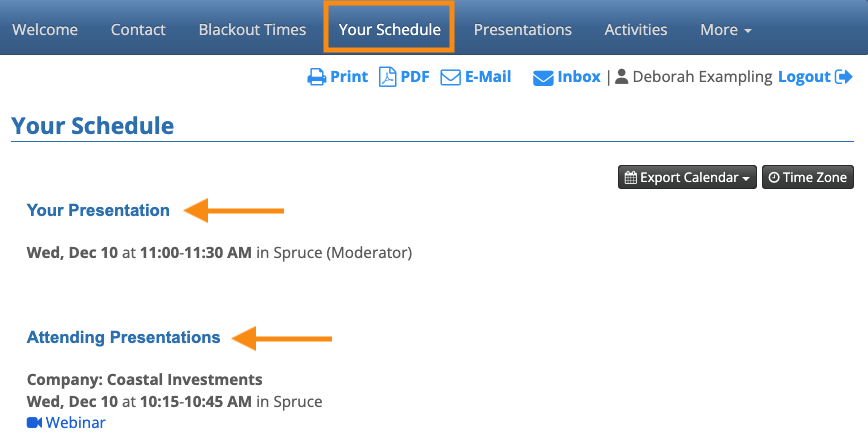
If they’re presenting, they’ll see the details of their session on the Your Schedule tab:
Activities
On the Activities tab the Company Rep can sign up for business and social events, such as meals, workshops, receptions, tours, and so on:

Schedule and Calendar
In the Your Schedule tab, the Company Rep can see their scheduled 1x1 meetings, along with a list of the Activities they’ve signed up for:

The Calendar tab has the same information, but in a calendar format.
Accessing a registered Company Rep
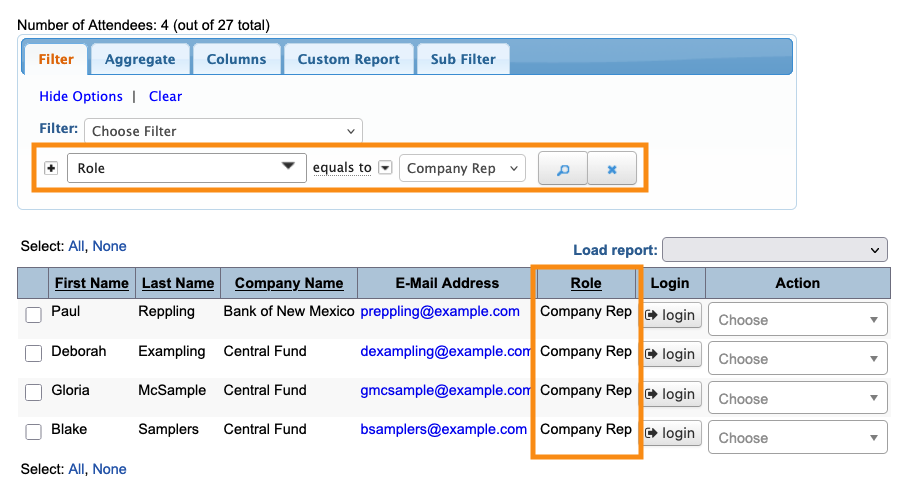
Once an Company Rep is registered, your Admin team can locate them in the Attendee List:

You can filter the list to display only Company Reps: