


In this article:
- Where is it?
- When to use this method
- Customizing the registration form
- Adding Attendees to MeetMax
- Notifying Attendees to complete registration
- What the Attendee does next
- Monitoring who’s completed registration
Where is it?
You’ll work in two main areas here:
In the Form Editor, you’ll customize the Attendee registration forms. You’ll be sending this form to all participants:
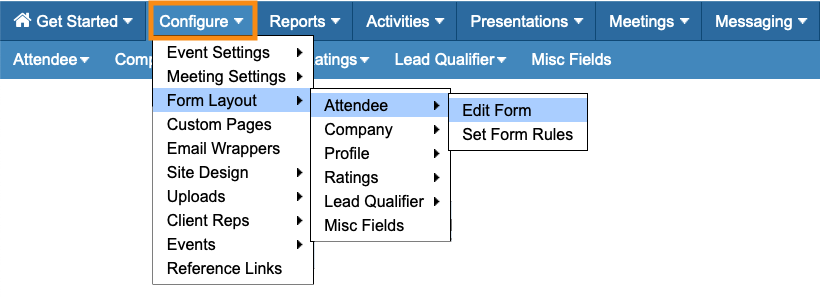
In the Attendee List, you’ll keep track of who’s responded to your request for information:

When to use this method
You’ll find this registration process useful if:
- You’re handling event registration with a third-party app, and you just need to give some or all Attendees access to MeetMax to use the meeting tools.
- You’ve already received a commitment to attend from your Attendees, and you just need to complete their registration process.
- You want all participants to be able to proceed with meeting requests while people are finalizing their registrations.
- You need to capture specific information from each Attendee before they gain access to MeetMax.
Customizing the registration form
Since this method is designed for capturing information from your Attendees before they access MeetMax, you’ll probably want to customize the Attendee registration form.
Depending on what you need to capture, you can add, remove, and reorder fields, or create your own custom fields:
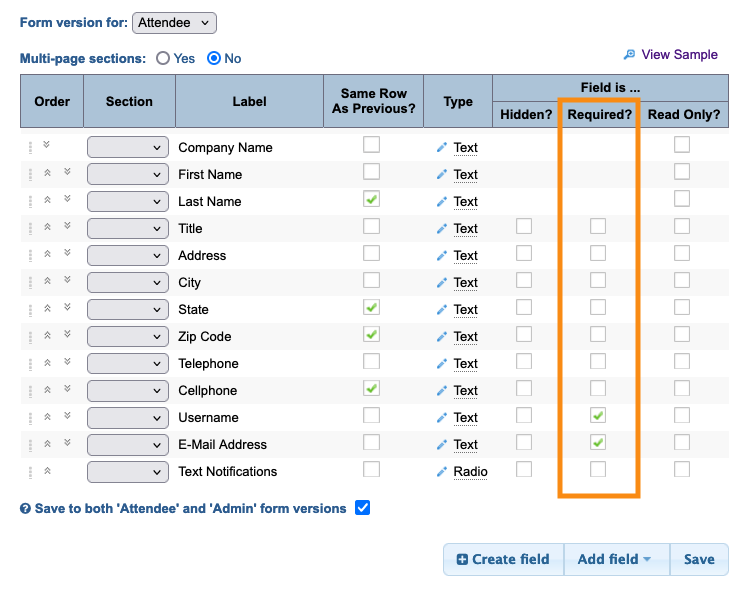
Required fields
You can set any form field as Required (as shown above). When you add or import your Attendees to MeetMax, you’ll need to enter information in all of the required form fields. So you’ll want to set the Required fields based on the details you have now.
Before you share the form with your Attendees, you might even want to set a few more fields as Required, so you make sure everyone completes them.
Adding Attendees to MeetMax
There are two ways to add your Attendees:
Those links will show you how to do each. You can also use a combination of the two, depending on the needs of your event.
Notifying Attendees to complete registration
Once you’ve added the Attendees to MeetMax, they can be considered as pre-registered for your event.
Next, you’ll email everyone an invitation to complete their registration.
- Step 1. Go to the Messaging tab. Choose Send Batch Email, then Attendees:

- Step 2. You're now in the batch emailer. Head to the Attachment menu. Choose Investor Registration Invite:
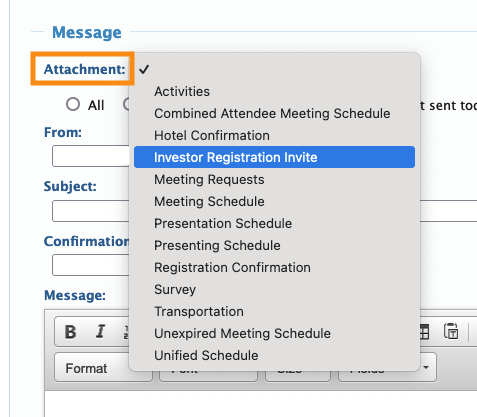
- Step 3. The Attachment is a complete, personalized email on its own.
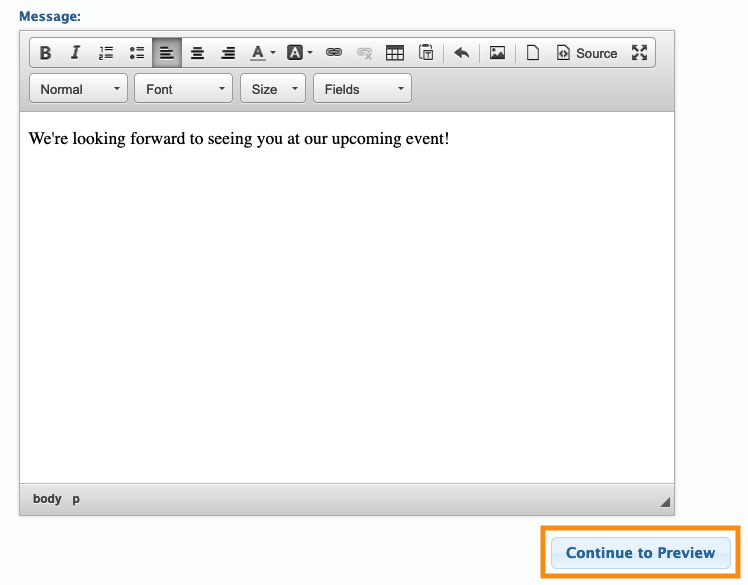
- If you prefer, you can also add a note to the Message field. Your message will appear above the Attachment content.
- Click Continue to Preview:
- Step 4. If all looks correct, click Begin sending emails:
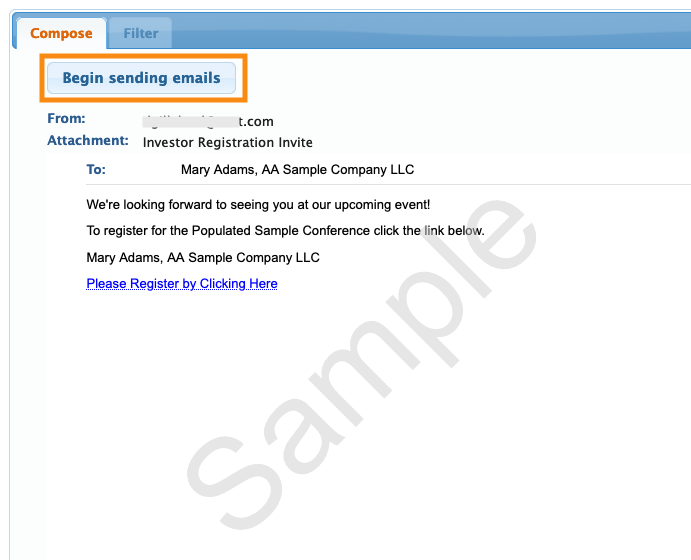
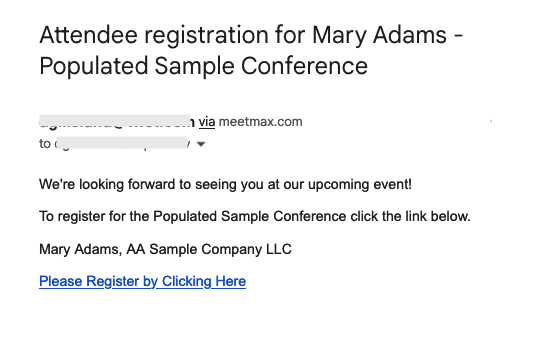
- Step 5. MeetMax will generate a unique email for each Attendee you’ve pre-registered, containing a link to complete their registration. The email looks something like this:
-
What the Attendee does next
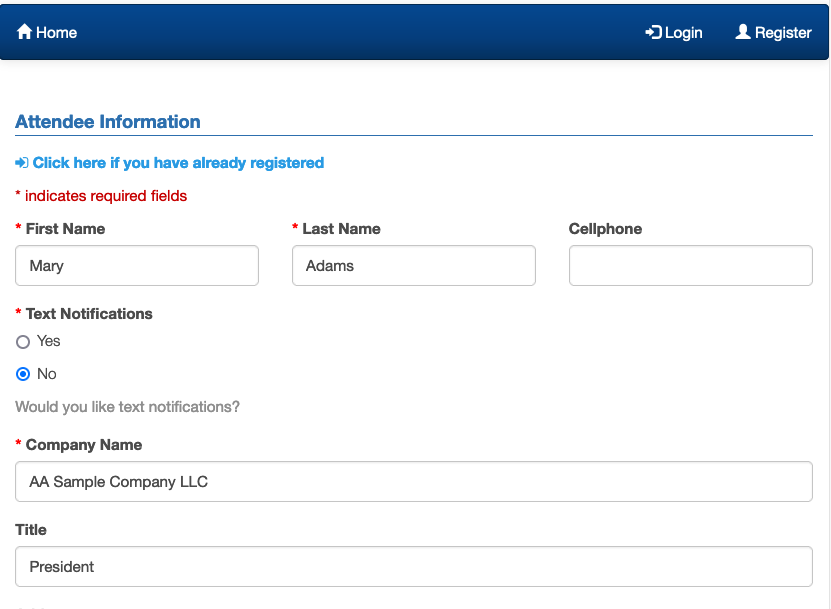
When the Attendee clicks the email link, they’ll go to their registration form.
It’ll be filled out with the details you’ve already added. The Attendee will complete the rest of the fields:
Once they’ve completed the registration form, the Attendee will have access to their MeetMax account.
Then they can start requesting meetings, signing up for presentations and activities, or other functions you’ve set for your event. Learn more about the Attendee next steps here.
Monitoring who’s completed registration
Because you've pre-registered everyone, all Attendees will now appear on the Attendee List.
You can change the layout of this list to help you keep track of the Attendees who’ve actually completed their registration.
In this example, we’ll use one of the form fields we've set as Required as a way to monitor registration.
- Step 1. Head to the Attendee List:

- Step 2. Click on the Columns tab.
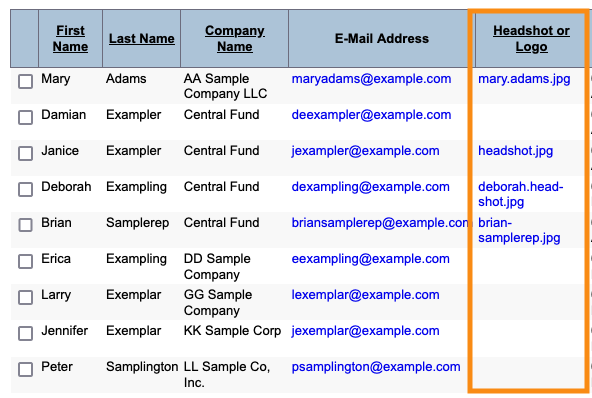
- Locate one of the required form fields you asked Attendees to fill out as they completed registration. In this example, we added a field for Attendees to upload a headshot.
- Add your chosen column to your Attendee List view. Click Apply to save:
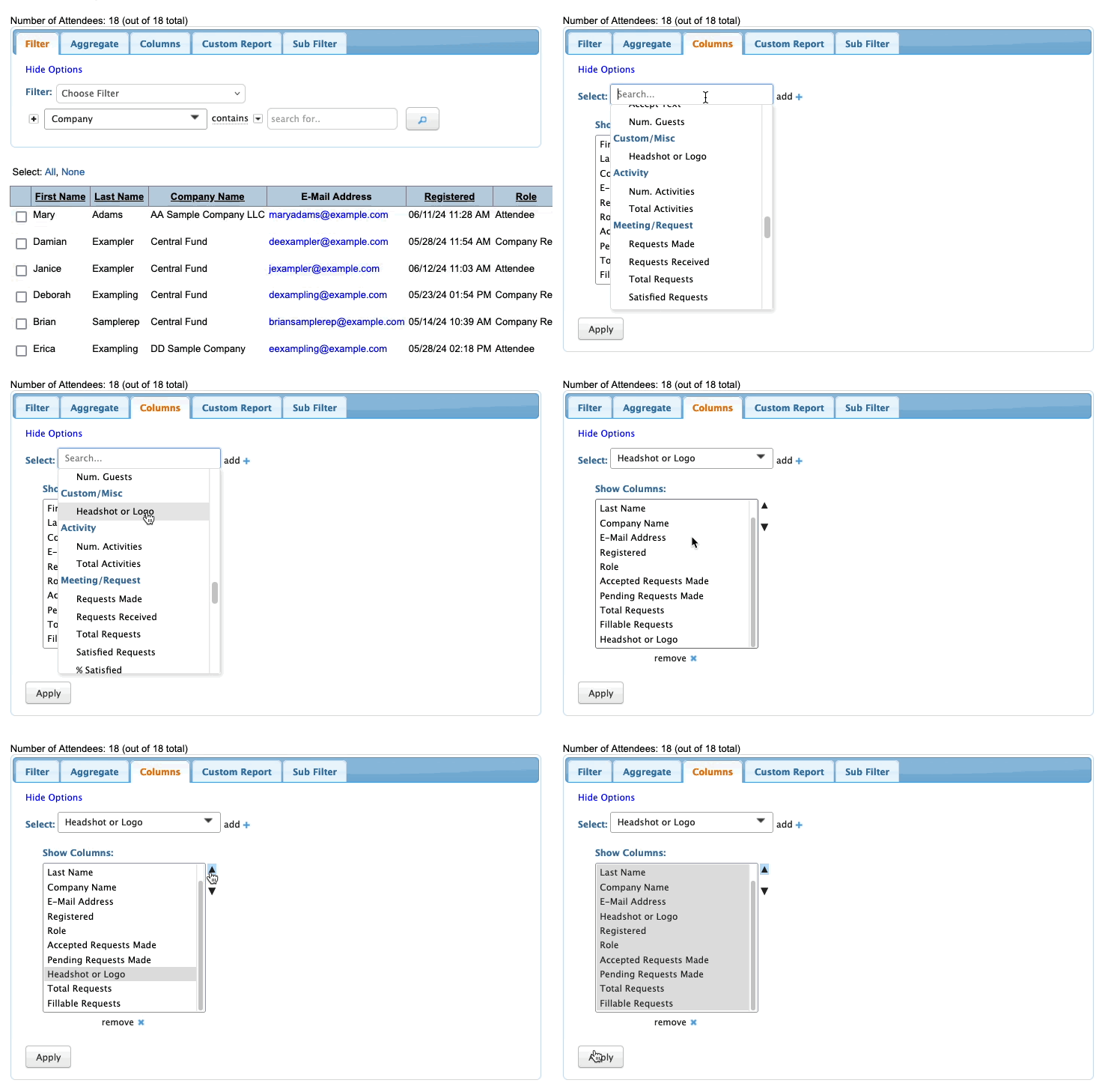
- Step 3. Now, the Attendee List shows us who has uploaded a headshot and who hasn’t. Since that’s a required field, this also tells us who’s completed registration:
-
You can use this method with any required field in your Attendee registration form. Once the Attendee has entered information, you’ll see it here in the Attendee List. Learn more about the Attendee List here.

