


Adding more participants to a meeting

MeetMax offers two ways to grow a meeting: you can add people from the same company, or you can add people from different companies.
In this article:
- Where is it?
- Adding Colleagues to a meeting
- Adding unaffiliated Attendees to a meeting
- Showing or hiding other Attendees on schedules
Where is it?
You’ll manage scheduled meetings through the Company List or Attendee List:


On either page, you’ll use the Action menu to choose Meeting Times:
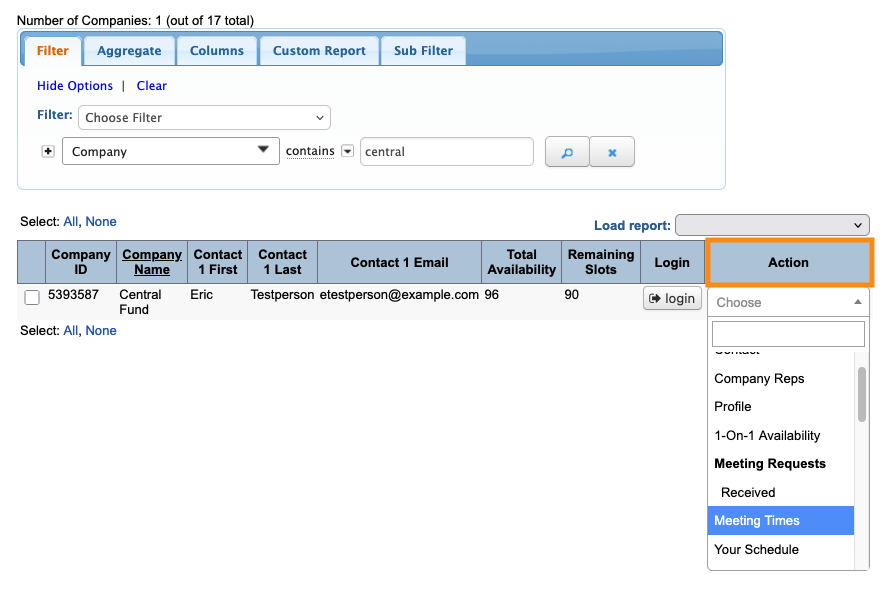
Adding Colleagues to a meeting
In MeetMax “Colleagues” are registered participants from the same company. You can add an Attendee’s Colleagues, or a Company’s Colleagues.
Learn how to add Colleagues to a meeting here.
Adding unaffiliated Attendees to a meeting
Sometimes, you'll want to add Attendees from different companies to the same meeting.
- Step 1. Head to the Company List:

- Step 2. Filter the list to find the company whose meeting you need to update. Then use the Action menu to choose Meeting Times:

- Step 2. Locate the meeting where you need to add more Attendees. Click the Edit button:

-
You can also add more Attendees while you’re creating a new meeting from this page. - Step 3. You’ll now see a pop-up with the meeting details.
- Head to the top right corner and click the Add Attendee link:

- Step 4. From here, start typing the first, last, or company name of any Attendee. When they pop up, click to add them to the meeting. You can add as many as needed.
- You’ll then be prompted to re-choose the meeting location:

-
Another easy way to do this is to check who’s available in a specific time slot. - Step 5. If you want to generate an email notice to the added Attendees, choose Yes. You can also add a personal note if you like.
- Click Submit to save the changes and send the emails:

- Step 6. If you’ve opted to send email, each of the added Attendees will get a message something like this:

Showing or hiding other Attendees on schedules
By default, Attendee schedules will display the names of all the other Attendees scheduled for the same meetings.
Want to hide those names? Use the Hide “Other” Attendees setting.

