In this article:
- Where is it?
- How a Company uploads a file
- How an Admin uploads a file for a Company
- Managing uploaded files
- Linking to an uploaded file
- Downloading an uploaded file
Where is it?
When a Company logs into MeetMax, they'll use the Upload tab:

Event Admins can also upload files on behalf of any Company. That happens through the Company List:

| MeetMax supports file uploads up to 100MB. | |
| Learn more about Admin upload options here. |
How a Company uploads a file
We're assuming here that you've already used the Company Menu Editor to give your Companies access to the Upload tab:

- Step 1. When a Company logs into MeetMax, they’ll head to the Upload tab. Then, they’ll click the Add File Upload button:

-
This page will be branded for your event, and contain the menu options you’ve enabled. - Step 2. Next, the Company names the file and chooses who can access it. An upload can be visible to all Attendees, or only the event’s host (Admin).
- Step 3. The Company then chooses a Document Type for this upload. Learn more about document types here.
- Step 4. Click Browse to choose a file to upload, then click Save:

How an Admin uploads a file for a Company
Sometimes, an event Admin might need to upload a file to a specific Company’s account.
Managing uploaded files
Once a Company starts uploading files, a list displays on the Upload page.
The Company can return to this page any time, and use the Edit or Delete links to manage their uploaded files:


Linking to an uploaded file
On the Uploads page, the Company can get a link to any of their uploaded files.
| Admins can also create links. Learn more about that here. |
The Company contact right clicks on the name of the file. Their browser will open a menu, where they can choose Copy Link.
This menu might look slightly different in different browsers:

The file’s link is now copied. It looks something like this:
https://www.meetmax.com/upload/event_XXXXXX/inv/1234567/slide-deck.pptx
Downloading an uploaded file
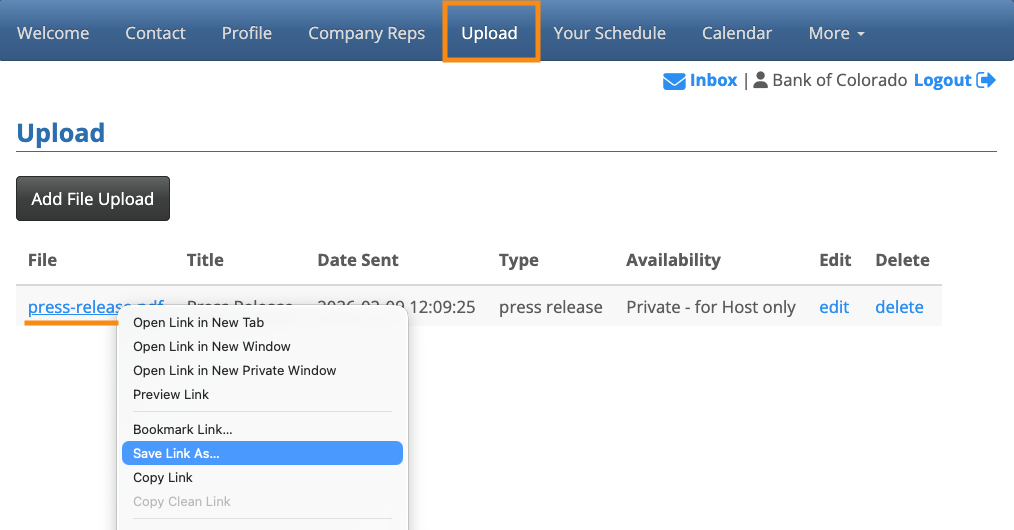
If a Company needs to download a file they’ve uploaded to MeetMax, they can log in and head to their Uploads page.
There, they can right-click on the file name. The browser will display a menu where the Company can download the file: