

How do I add notes to meetings?
In this article:
Internal notes for your team
When your team is scheduling 1x1 meetings, it can be useful to share internal notes.
Or, if only one person is doing the scheduling, it’s helpful to add reminders to certain Company or Attendee records.
You can post internal notes to any Attendee’s or Company’s Meeting Times page.
| By default, anyone on your team with either 1x1 Coordinator or Event Administrator permissions will be able to access internal notes. Reach out to our Support team if you need help with permissions. |
Posting and viewing internal notes
- Step 1. Filter either the Attendee List or Company List to locate the participant you need.
- Then use the Action menu to choose Meeting Times:

- Step 2. On the Meeting Times page, click the Add Note button:

- Step 3. Add your note, then click Submit:

-
The notes you post here won’t appear on the Meeting Times page for any other Attendee or Company. - Step 4. This Meeting Times page now displays a link for the new note. You’ll see when it was created, and which Admin created it:

- Click the link to open the internal notes:

Editing or deleting an internal note
| Anyone on your team who has access to internal notes can edit or delete notes posted by anyone else. |
To update a note, click the Edit icon:

To delete a note, click the Delete icon. You’ll be prompted to confirm the deletion:

Notes for participants
For some events, you might want to add notes to individual scheduled meetings, so the participants can see them on their schedules.
- Step 1. You can add notes from the Meeting Times page. You can work from either the Attendee List or Company List.
- For this example, we’re starting in the Attendee List:

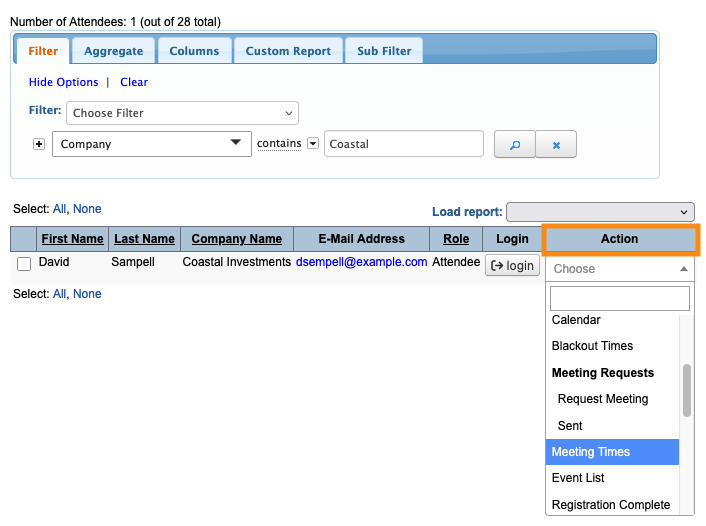
- Step 2. Filter the list to find the Attendee you need. Use the Action menu to choose Meeting Times:
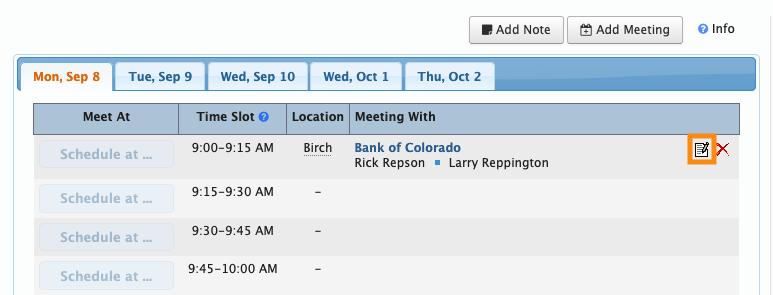
- Step 3. Locate the meeting where you want to add notes. (If you’re creating a meeting, add the main details and save it.)
- Click the Edit icon for this meeting:
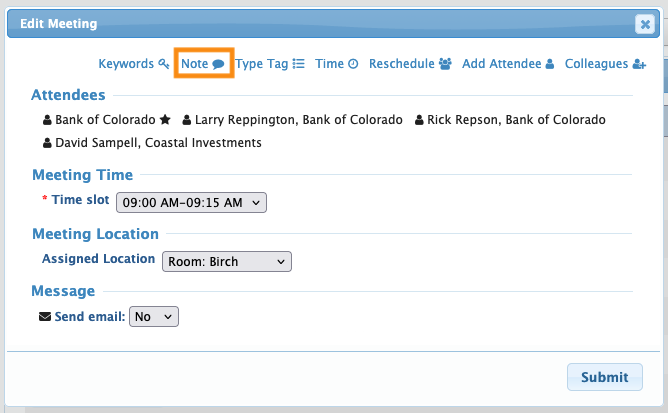
- Step 4. In the pop-up, click the Note link:
- Step 5. You’ll then see the Note field. Enter your note. Then click Submit:
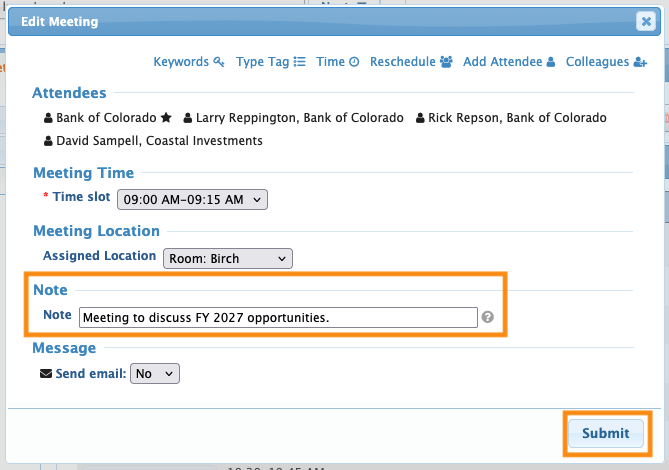
- Step 6. The new note appears on the schedule of everyone who’s scheduled in this meeting.
- In this example, we have a Company meeting with an Attendee. See below for examples of both schedules:
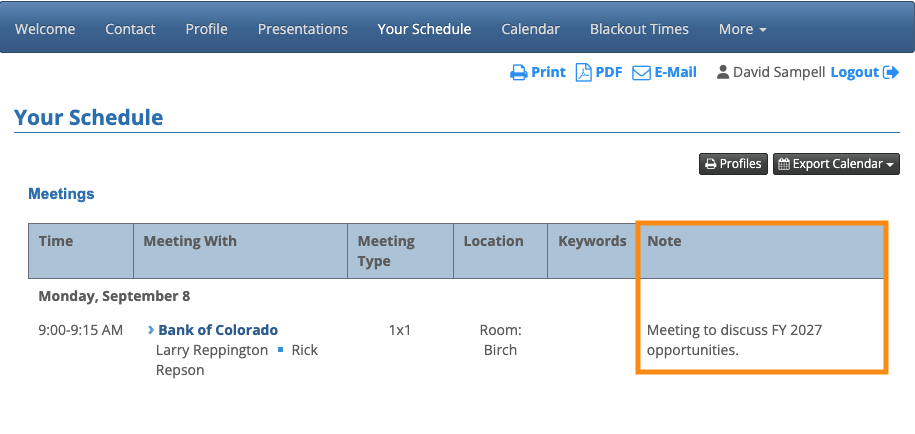
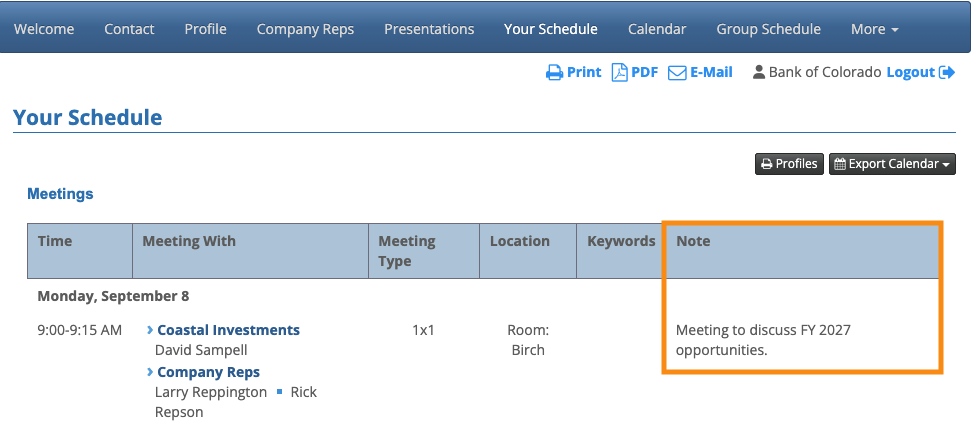
- As an Admin, you’ll also see the note in your view of all involved schedules:
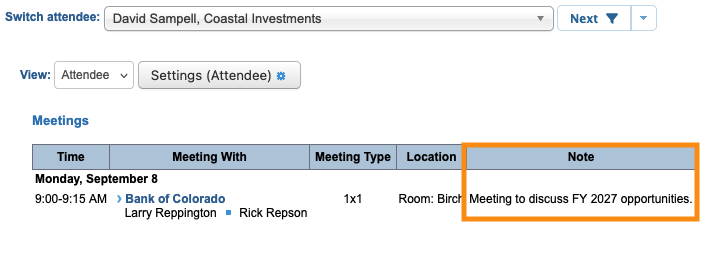
-
If you need to edit a note later, open the meeting for editing again. You can make changes in the Note field.

