In this article:
- Where is it?
- Switching between List and Calendar views
- Logging into events
- Event details in the list
- Customizing the columns
- Filtering your event list
- Adding a new event
- Accessing archived events
Where is it?
From within any event, you can always get back to your full Event List from the Configure tab:

The Event List works much like other MeetMax lists you use every day, such as the Attendee List or Company List.
Switching between List and Calendar views
By default, you’ll see the List view, as shown below. To switch to the calendar, click the Calendar button:
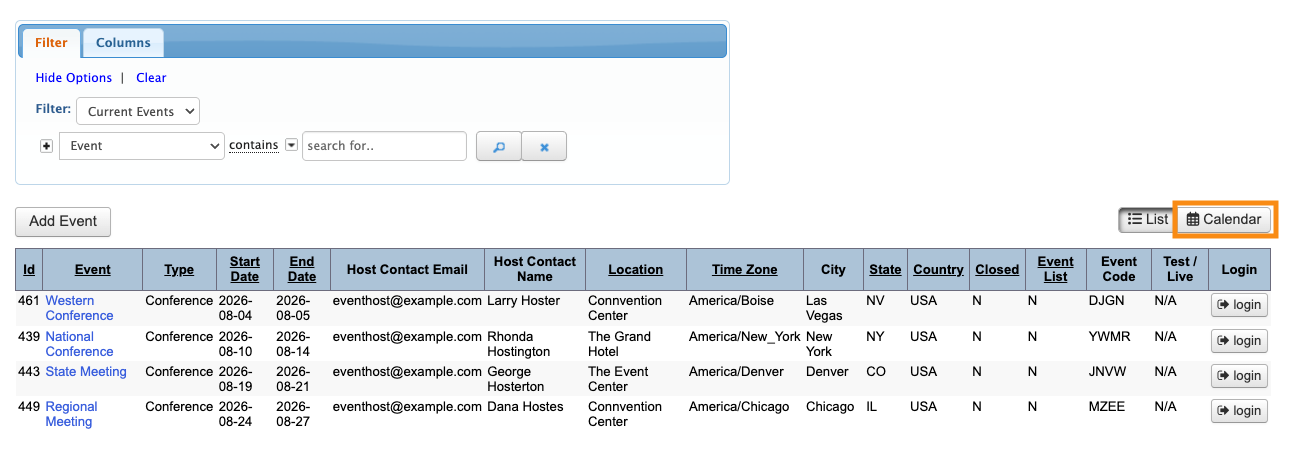
| If you’ve filtered your event list to show a narrower view, the calendar view will also reflect those filters. Learn more about filtering below. |
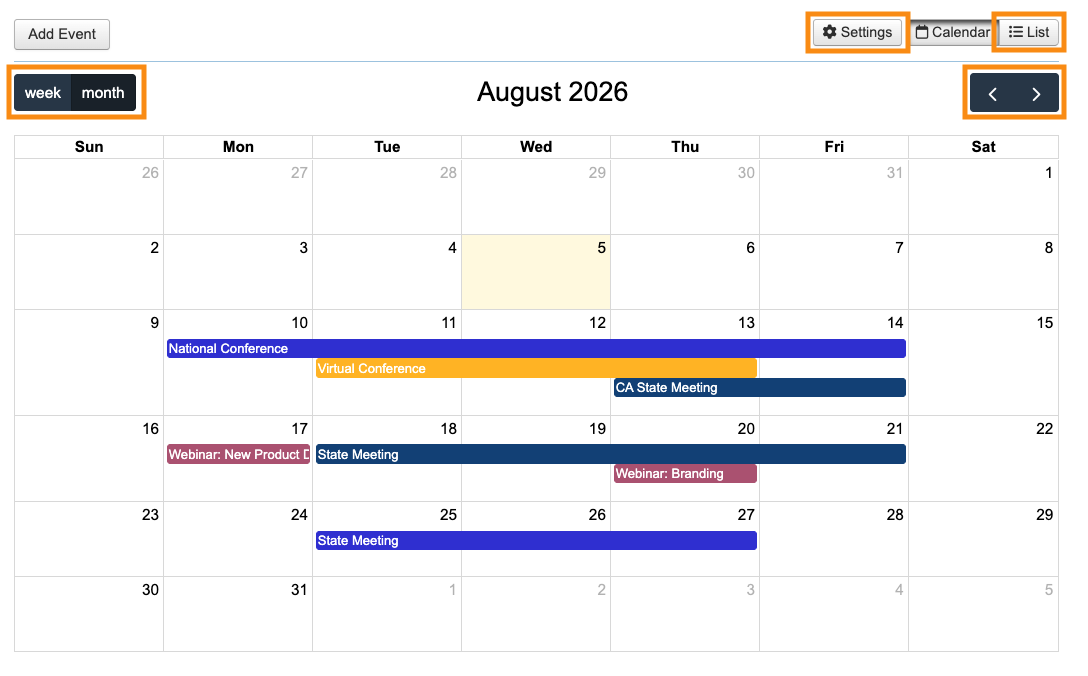
In the Calendar view, each type of event is a different color.
- Use the buttons to change the view between Week and Month.
- Use the arrow buttons to page between weeks or months.
- Click the List button to toggle back to that view any time.
- Anyone with Admin or Event Administrator permissions will also see the Settings button:
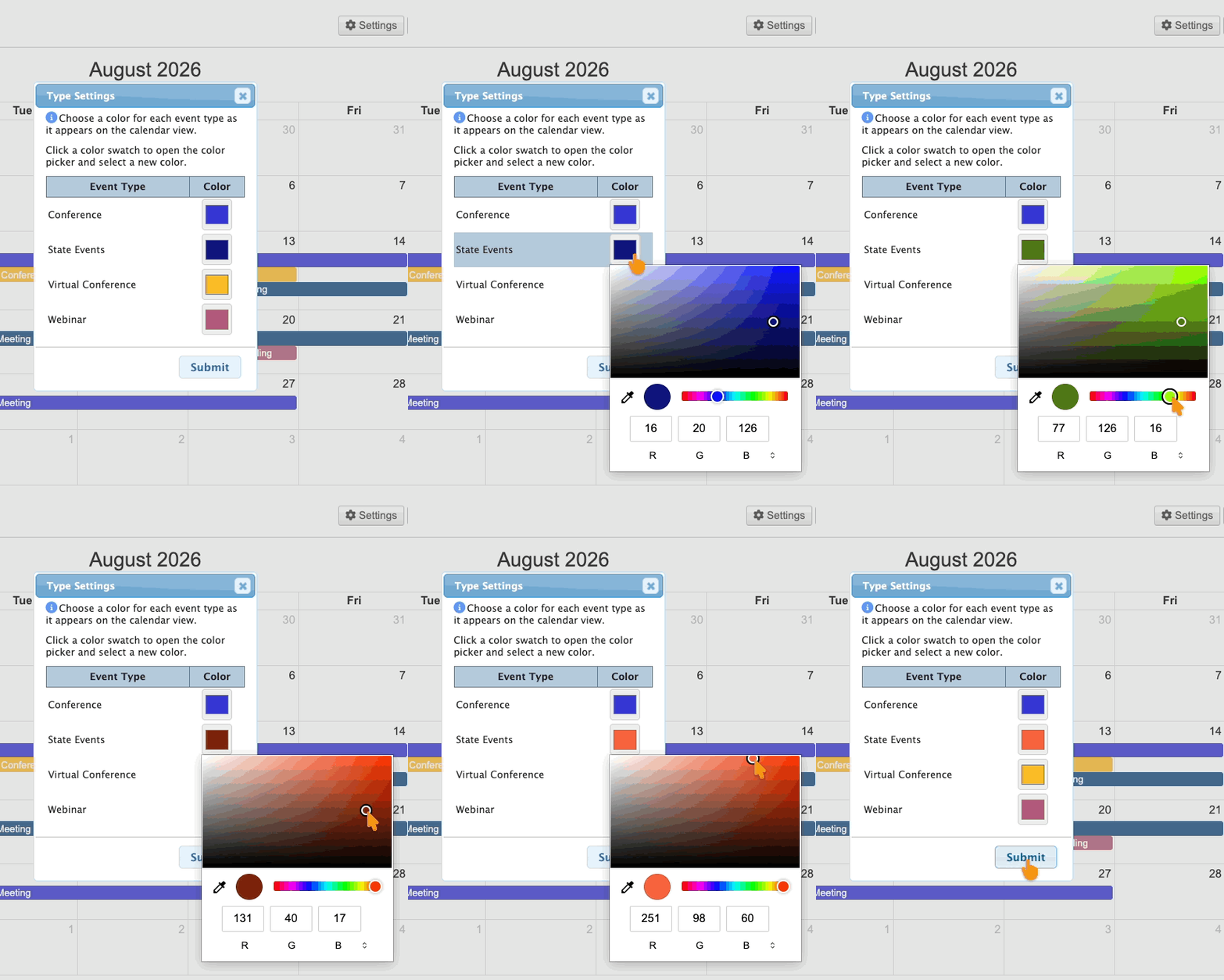
To change any colors, click the Settings button. In the pop-up, you can update the colors MeetMax has assigned.
Either use the sliders as shown below, or type in your RGB values. (Next to the R G B, click the menu icon to access hex codes and other forms of color designations.)
Click Submit to save. All other Client Reps will see the changes:
Logging into events
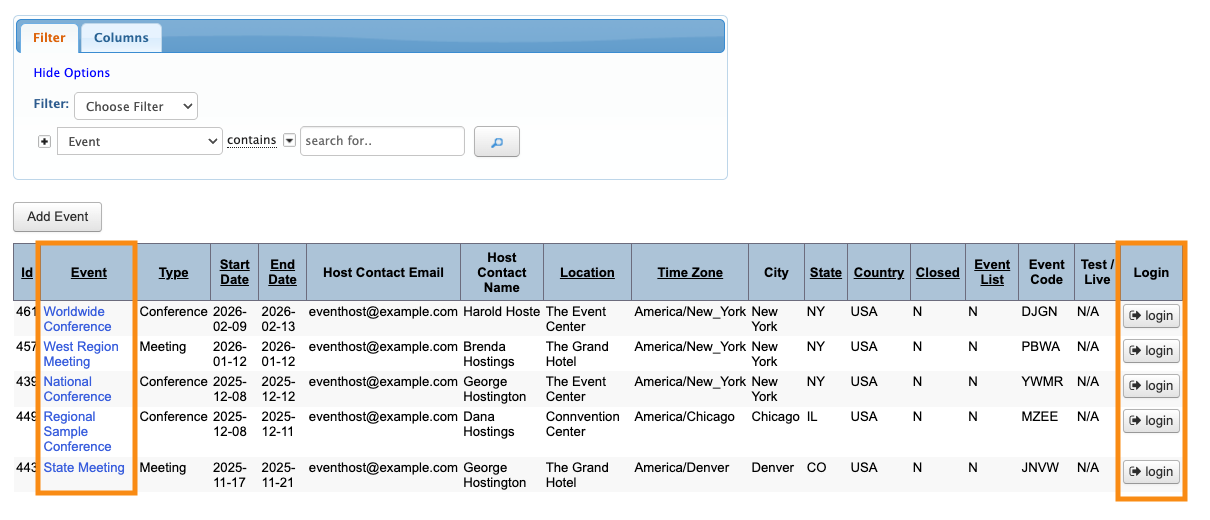
From the List view, you can open any event in two ways. Use these interchangeably:
- Click on the linked event name
- Click on the Login button
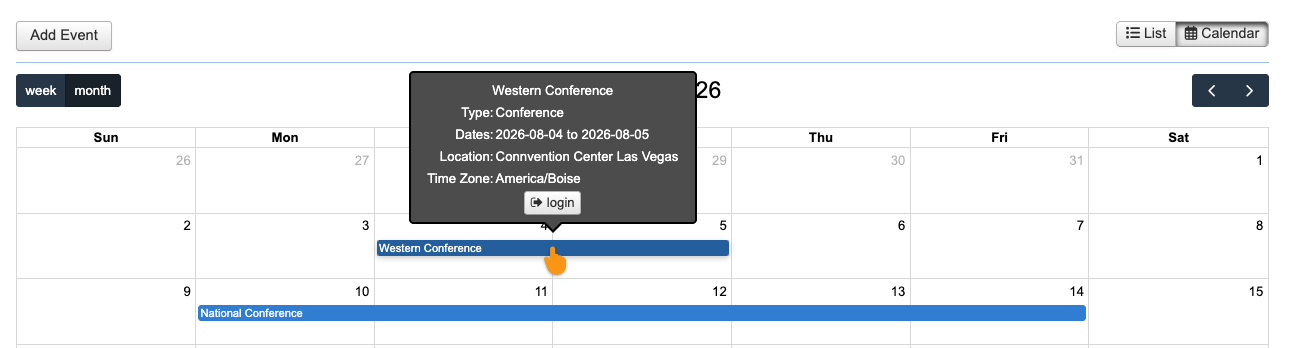
In the Calendar view, click on any event to see more details and its Login button:
Event details in the list
The columns of the Event List contain the details you’ll need for quick reference. (See below to customize this display.)
In addition to date, location, and host details, you’ll find:
- Type: If you host different types of events, you can organize them by type here.
- Closed: This column tells you whether registration has been closed for each event.
- Event List: If you’re using the public Event List feature, this column tells you which events you’ve included in that list.
- Event Code: This column has each event’s unique code, which is useful for some integrations and our mobile app.
- Test/Live: If you’re processing payments for your event, this column tells you which events are still in Test mode.
Customizing the columns
In the Columns tab, you can change which columns appear in your list of events:
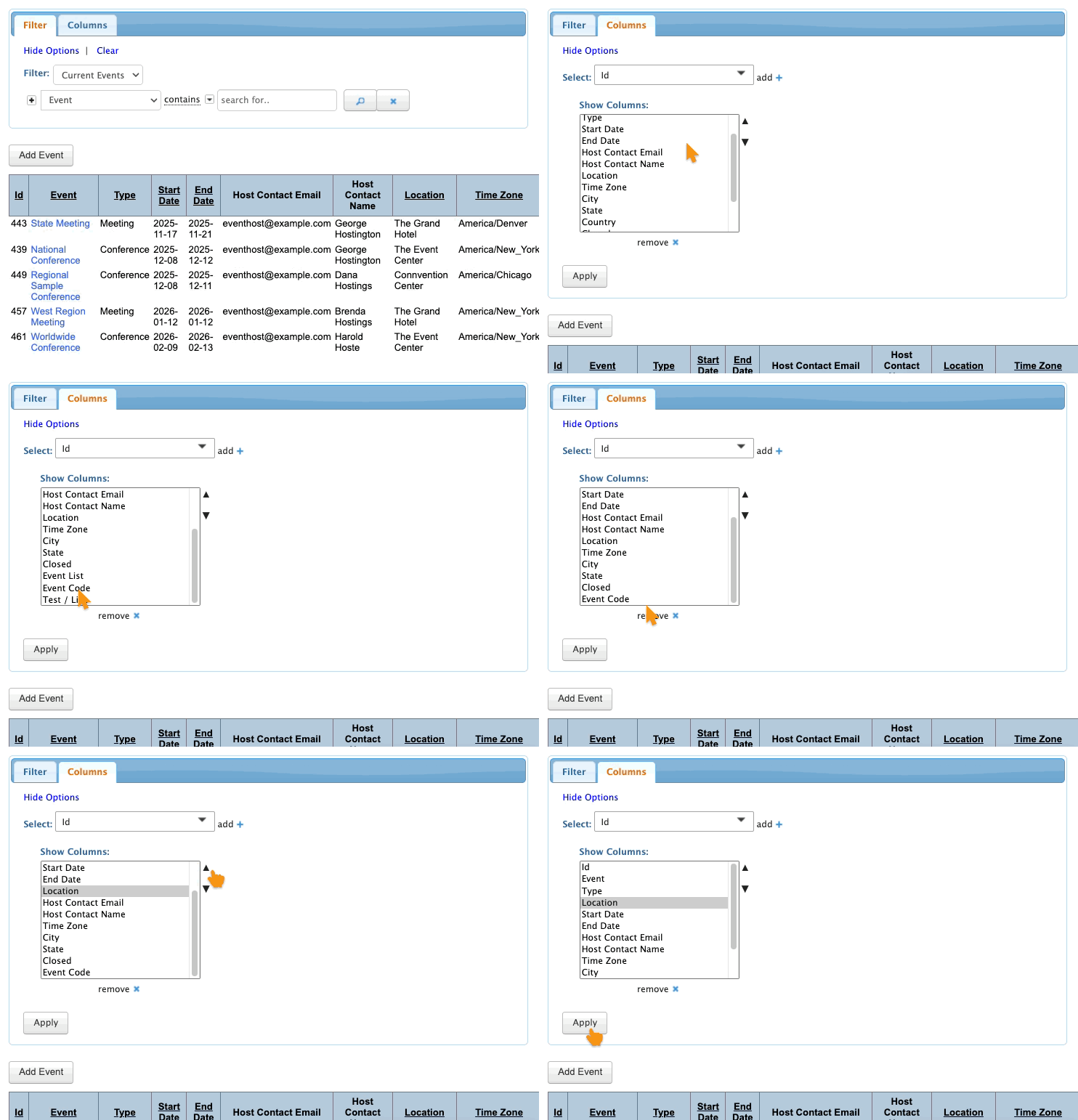
When you set your preferred columns, MeetMax remembers your settings across all events and browsing sessions.
Filtering your event list
By default, the Event List is filtered to show only Current (upcoming) events.
If you want to see past events, change the top filter to Expired Events:
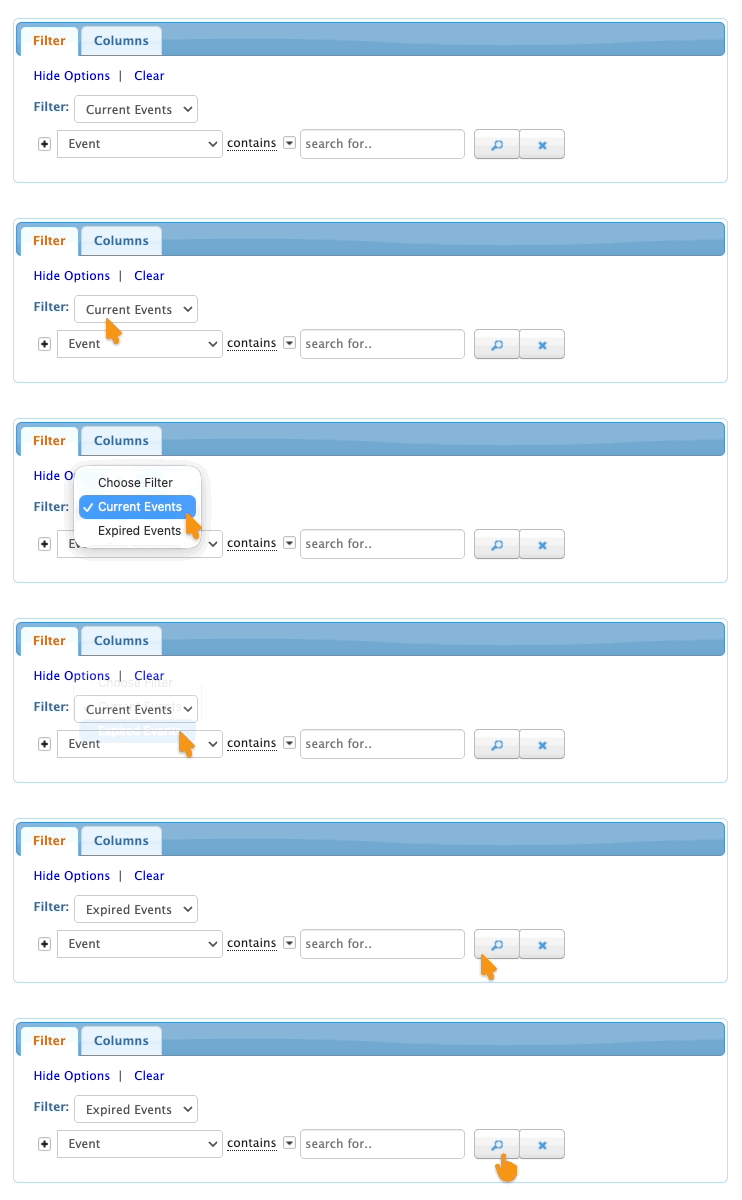
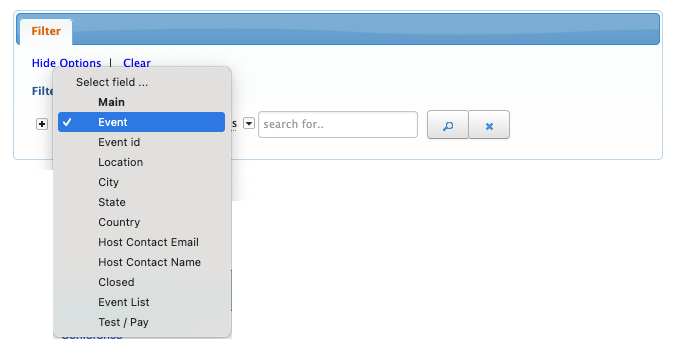
The second filter menu gives you more criteria for filtering, so you can locate specific events quickly:
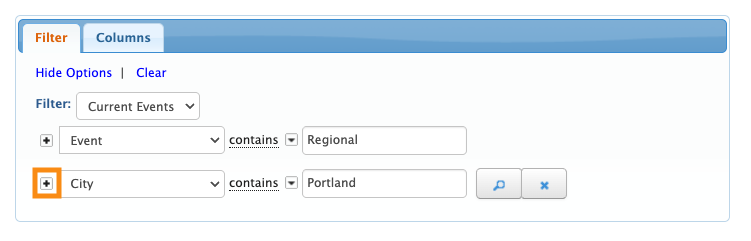
You can also use the + button to apply multiple filters. In the example below, we’ve done that. We’re searching our expired events for a specific city, with a key word in the event name:
Removing filters
Need to delete filters? There are two ways:
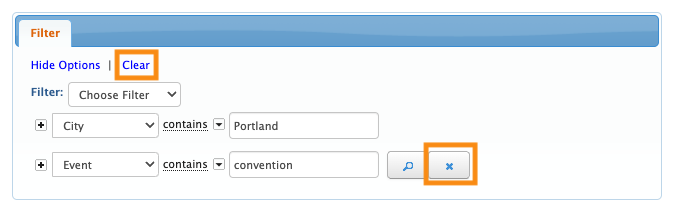
- Click X to remove a single filter.
- Click Clear to remove all current filters.
Adding a new event
From either view, create a new event any time using the Add Event button:

You can:
Accessing archived events
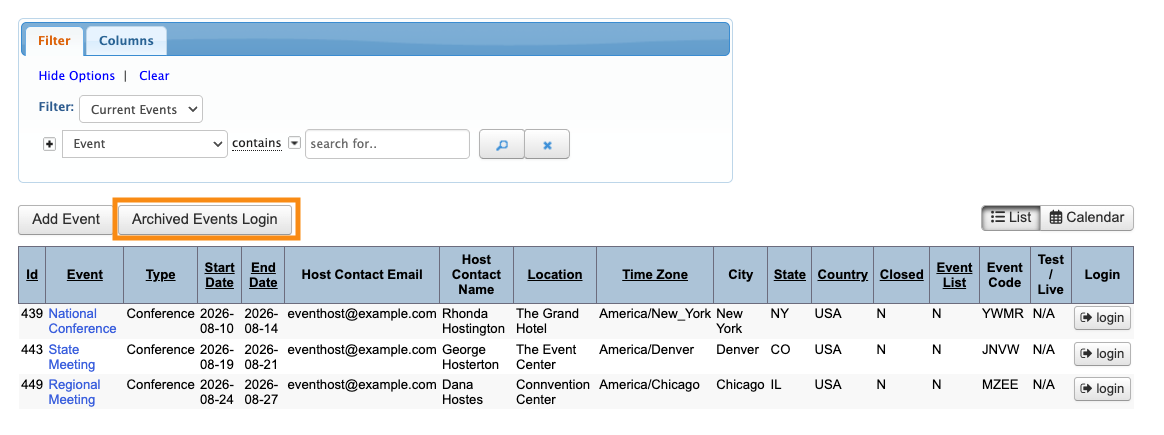
If you’re subscribed to our Event Data Archive service, you’ll also see the Archived Events Login button: