


How do I customize the Unified Schedule attachment?

The Unified Schedule is an Attachment you can use in batch emails. This schedule combines 1x1 meetings, presentations, and activities.
MeetMax also lets you insert some custom content above or below this schedule.
- Step 1. First, you’ll set your event’s meeting schedule to the Combined Schedule format.
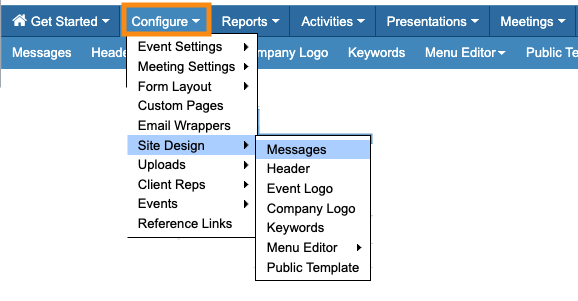
- Step 2. Next, head to the Messages page:
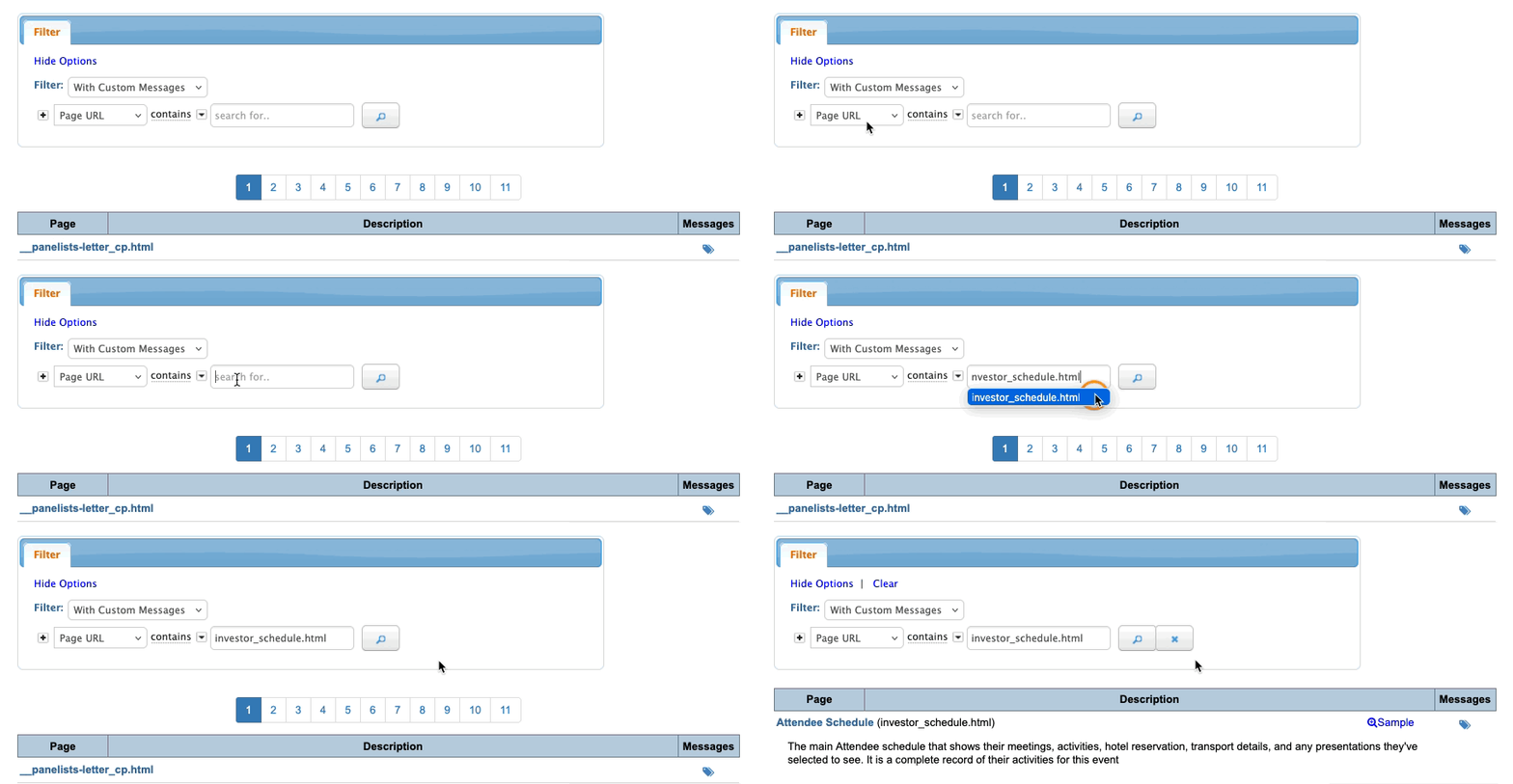
- Step 3. On the Messages page, filter by Page URL. Paste in investor_schedule.html:
- Step 4. Now you’re in the Message editor. Add any custom content to this Attachment you need.
- Step 5. When the Message is customized, head to the batch emailer and start your email.
- In the Attachments menu, choose Meeting Schedule. This Attachment will use the schedule format and custom content you just updated:
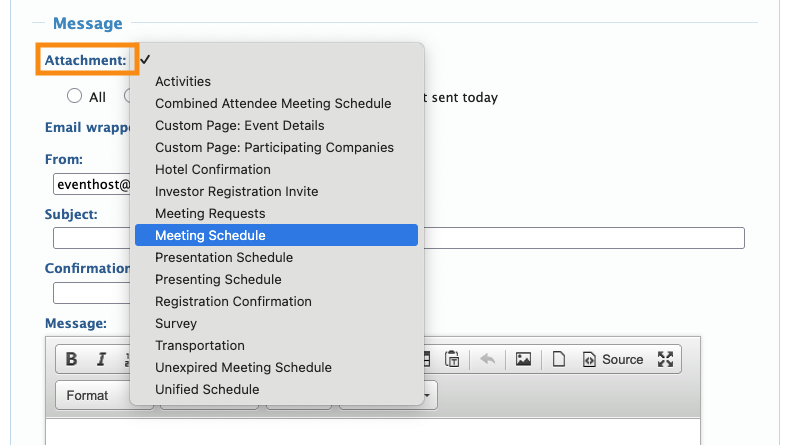
| The Unified Schedule Attachment will also display a combined schedule of meetings, presentations and activities. But it can’t have a custom Message inserted. You can use either Attachment, but if you need to add a custom Message, use Meeting Schedule. |

