


How do I test this batch email?

Before you send a batch email, you can send a test email to check its content.
With this process, you can test your Email Wrappers, Attachments, and Custom Page emails.
- Step 1. Add a test user account to MeetMax:
- • Give it the same user role (Attendee, Company, etc.) as the recipients of the batch email.
- • Don't use your MeetMax account email address for this user. Use a different address where you can receive emails.
- Step 2. Now, head to the Attendee List or Company List - whichever one this test user appears on:


-
Your event might have different names for these roles. - Step 3. Filter the list so only the test user shows. (Filtering by Last name usually works well):
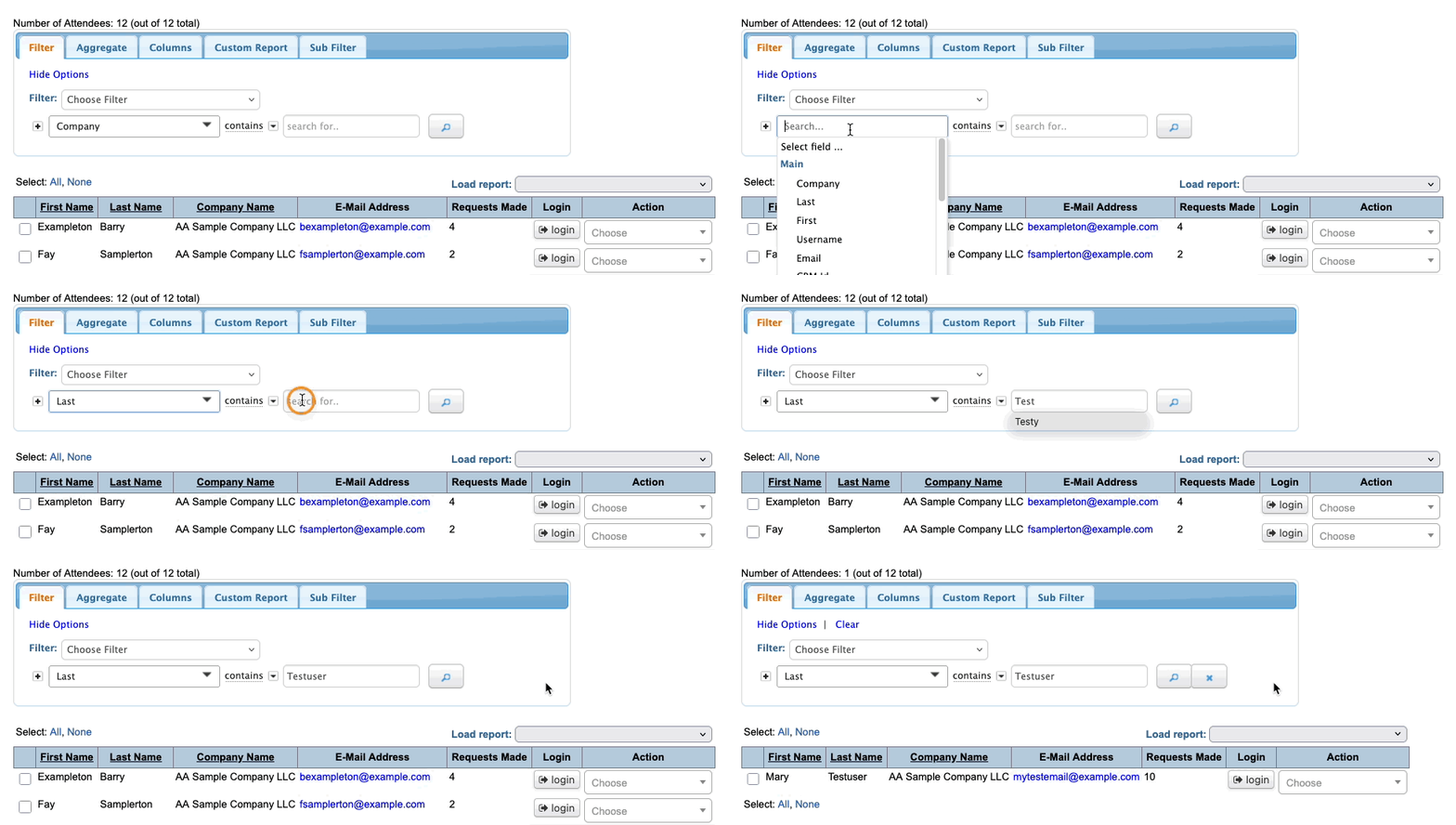
- Step 4. Now that only the test user is displaying, head to the top right corner of the page.
- Click on Bulk Actions, then choose Batch:
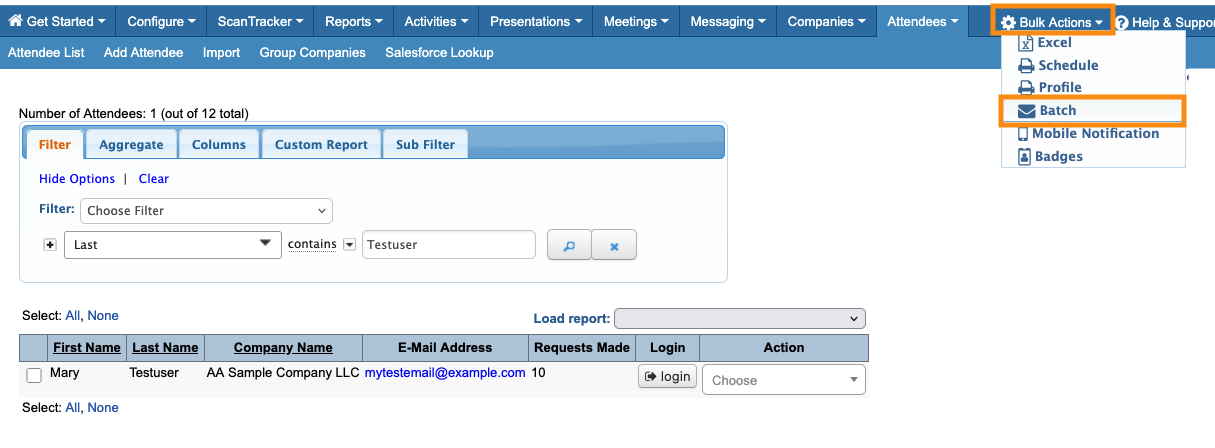
- Step 5. You’re now in the batch emailer. Scroll to the Attachment menu and choose the one you want to test. (Remember, your Custom Page emails also appear in this menu.)
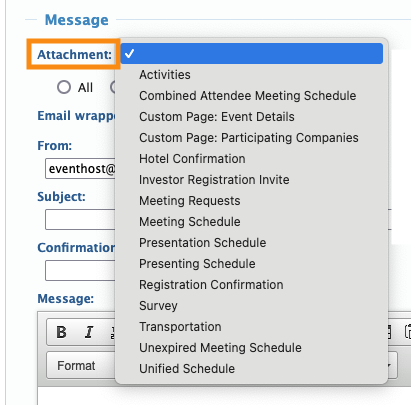
- If you’re testing an email wrapper, choose it from the Email Wrapper menu:
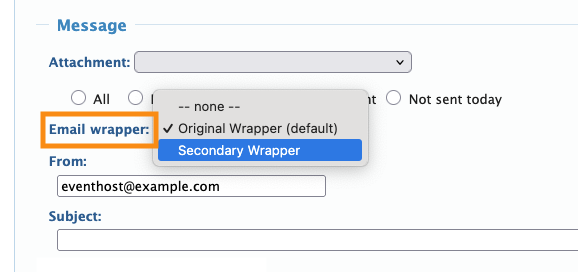
- Step 6. Proceed with sending the batch of one.

