


Report: Number of meeting requests per Company

How it’s used:
• This report is helpful for comparing the demand for meetings with different Companies.
• You can run the report for all Companies, or filter it to a specific group of Companies.
In this article:
Running the report
- Step 1. Head to the Companies tab. Choose Company List:

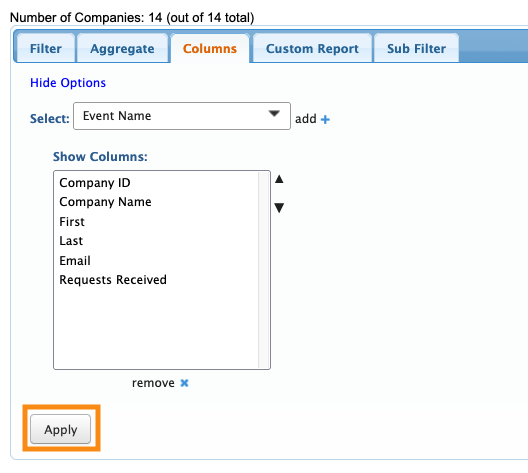
- Step 2. Go to the Columns tab. Here, you can add and remove columns. Click Apply to save the changes.
- We recommend including these columns:
-
Your event might have slightly different names for these columns. - Step 3. At this point, you can export the full list. It will also include Companies with zero meeting requests.
- If you’d rather focus the report on Companies that have meeting requests, head to the Filter tab. Set the top Filter menu to With Requests:
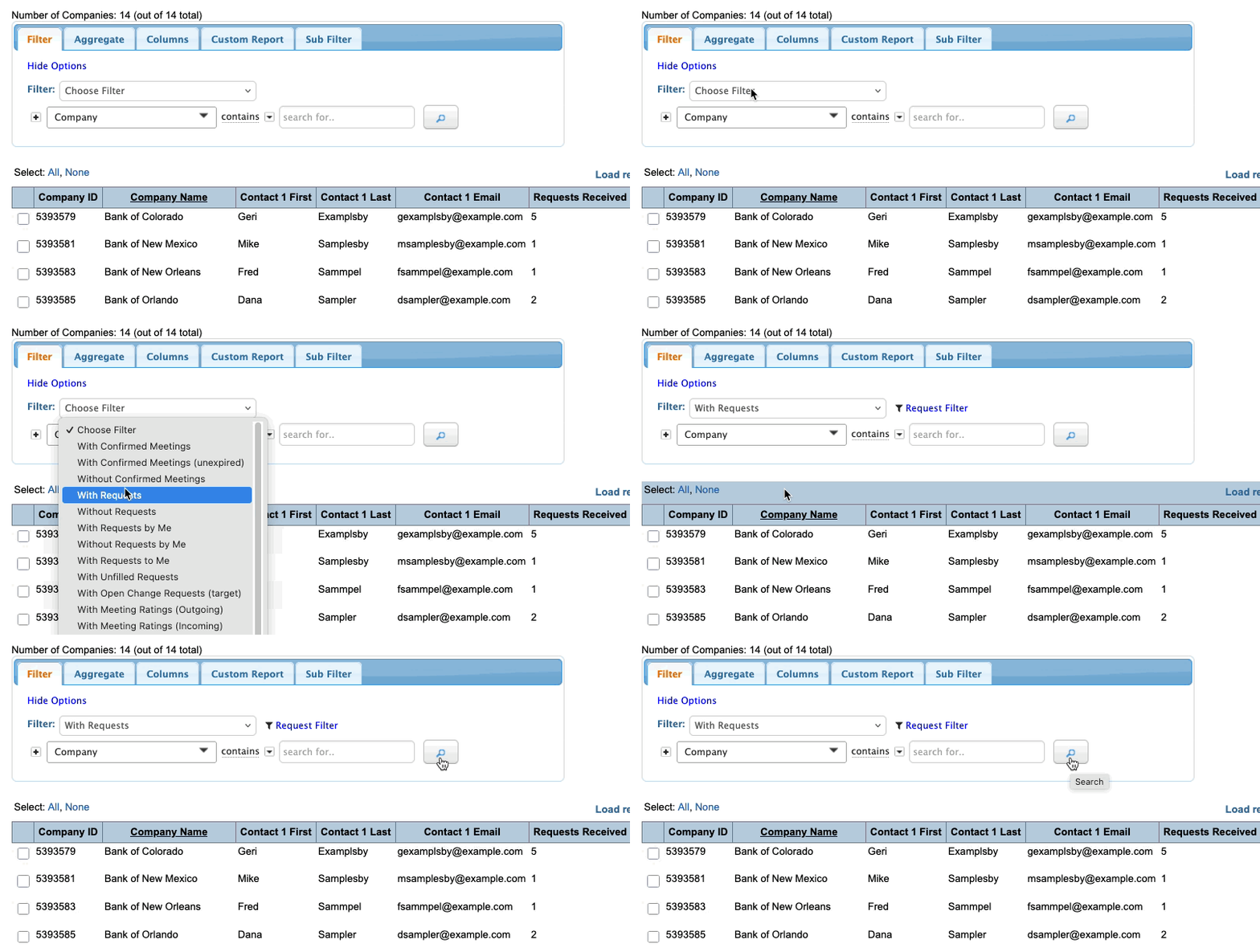
- You can also apply any other filters here to narrow the list to a specific group of Companies.
Exporting the report
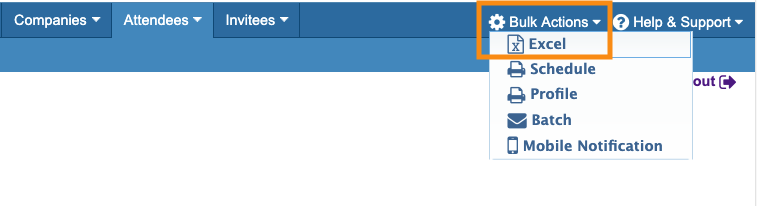
To export the report in spreadsheet form, head to the top right corner of the page. Click on Bulk Actions, then choose Excel.
You can open the exported file in any spreadsheet software:
Saving the report
Want to save this report so you can quickly access it later?
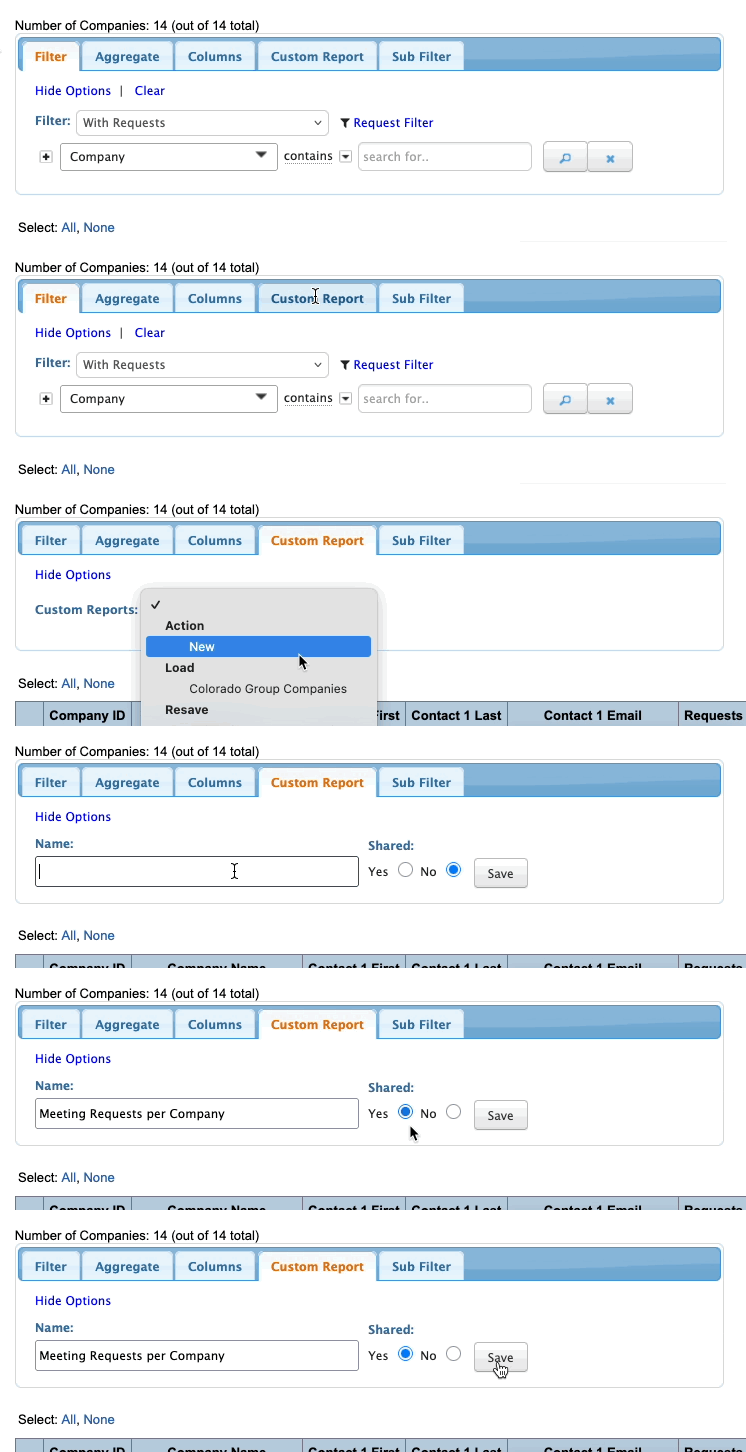
Head to the Custom Report tab. Choose New from the menu.
Then give the report a title, choose whether to share it with your team, and click Save:
Learn more:

