In this article:
How an Admin declines
From your Admin account, you can decline meeting requests on behalf of any Attendee or Company. You’ll use the menu of decline reasons for your event.
In this example, we’ll decline a meeting request on behalf of a Company.
- Step 1. Head to the Company List:

-
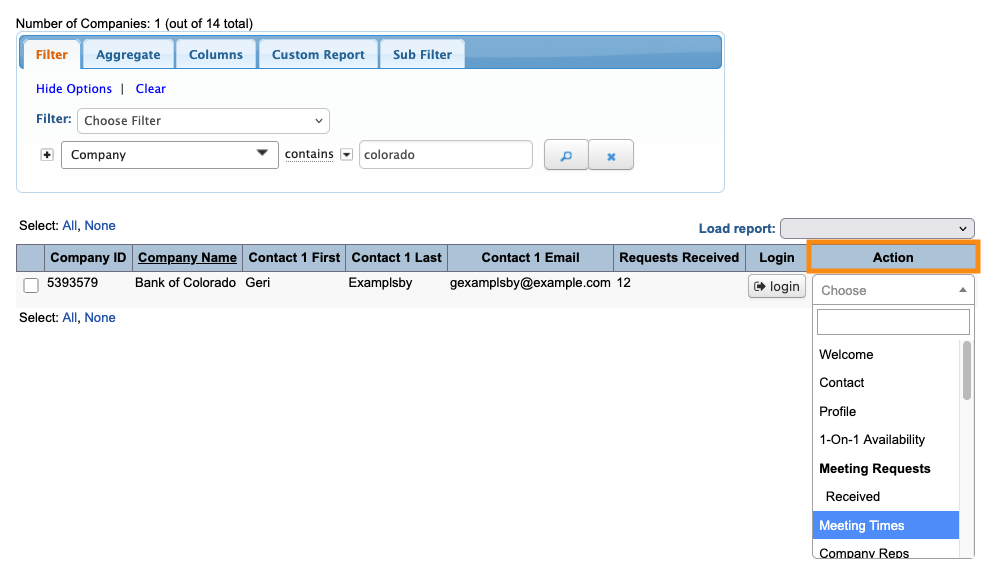
The process for Attendees is the same; you’d just start in the Attendee List instead. - Step 2. Filter the list to locate the Company you need to work with. Then use the Action menu to choose Meeting Times:
- Step 3. In the left sidebar, select one or more meeting requests you need to decline. A Decline button will appear:
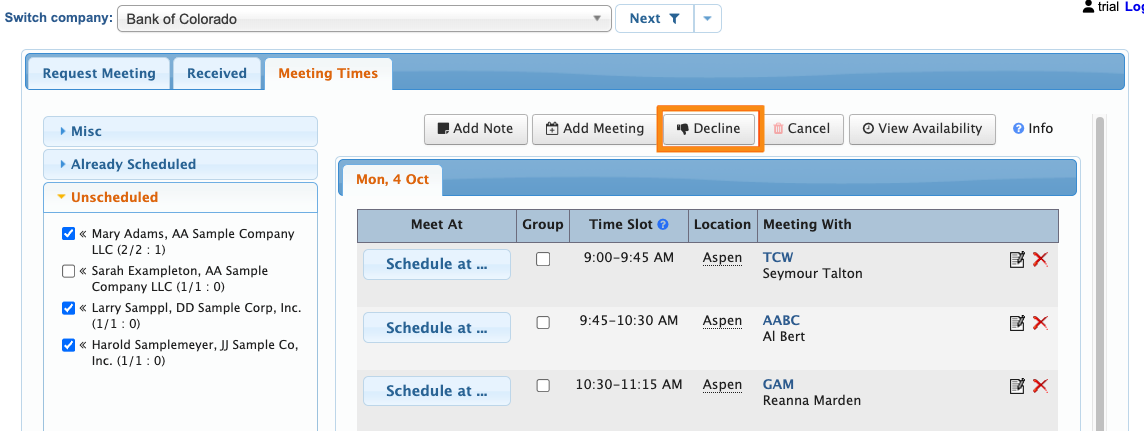
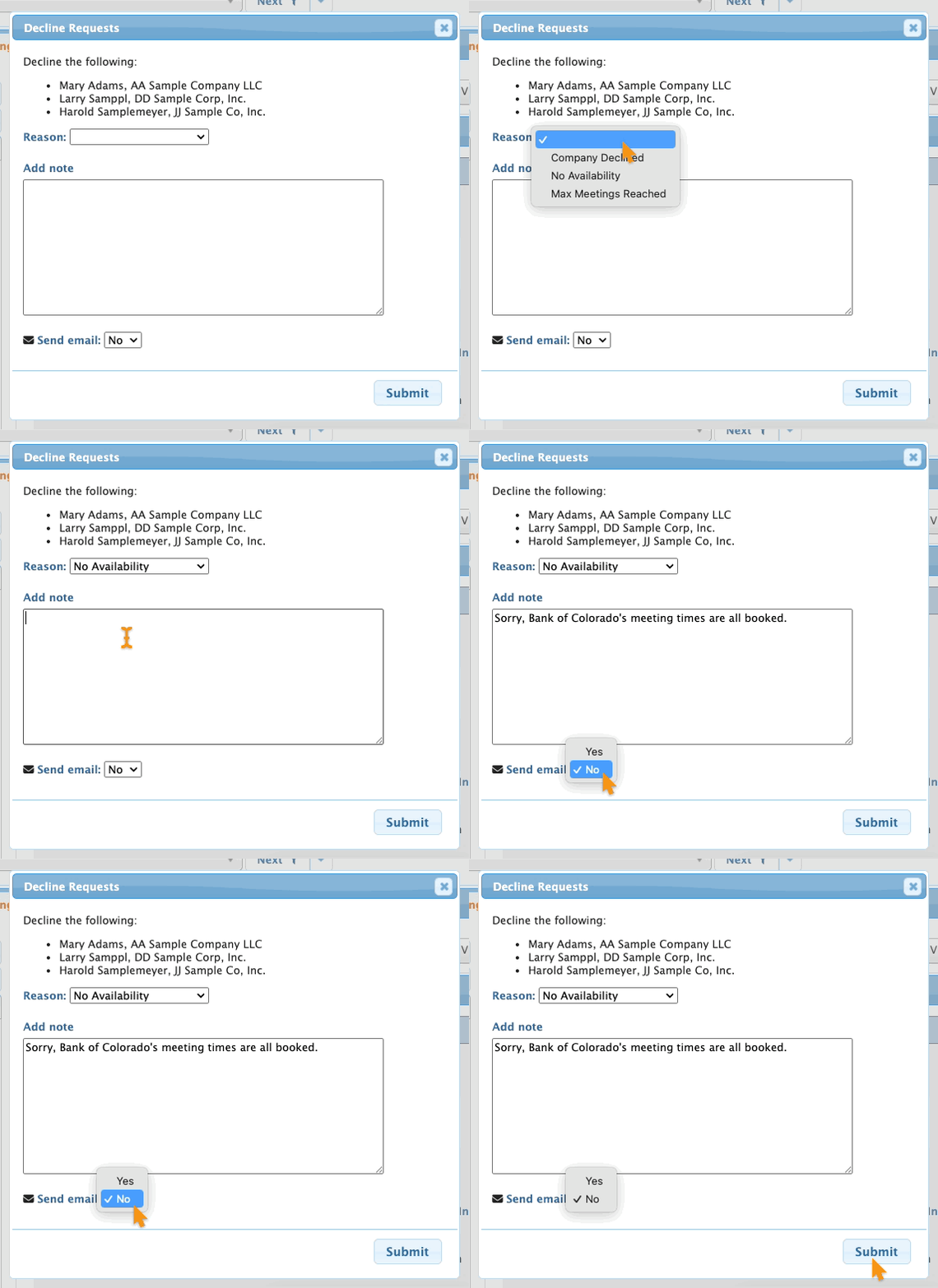
- Step 4. Click the Decline button. In the pop-up, choose one of your decline reasons from the menu.
- You can also add a note, and choose whether to send an email notification to the requestor.
- Click Submit to save:
-
MeetMax offers several ways to organize and view declined meeting requests on the Meeting Times page.
How a Company declines
If you’re running a Moderated meeting program, Companies might approve or decline meeting requests they receive from Attendees. (Not all meeting programs use this step.)
When a Company logs into MeetMax, they’ll head for the Meeting Requests Received tab:

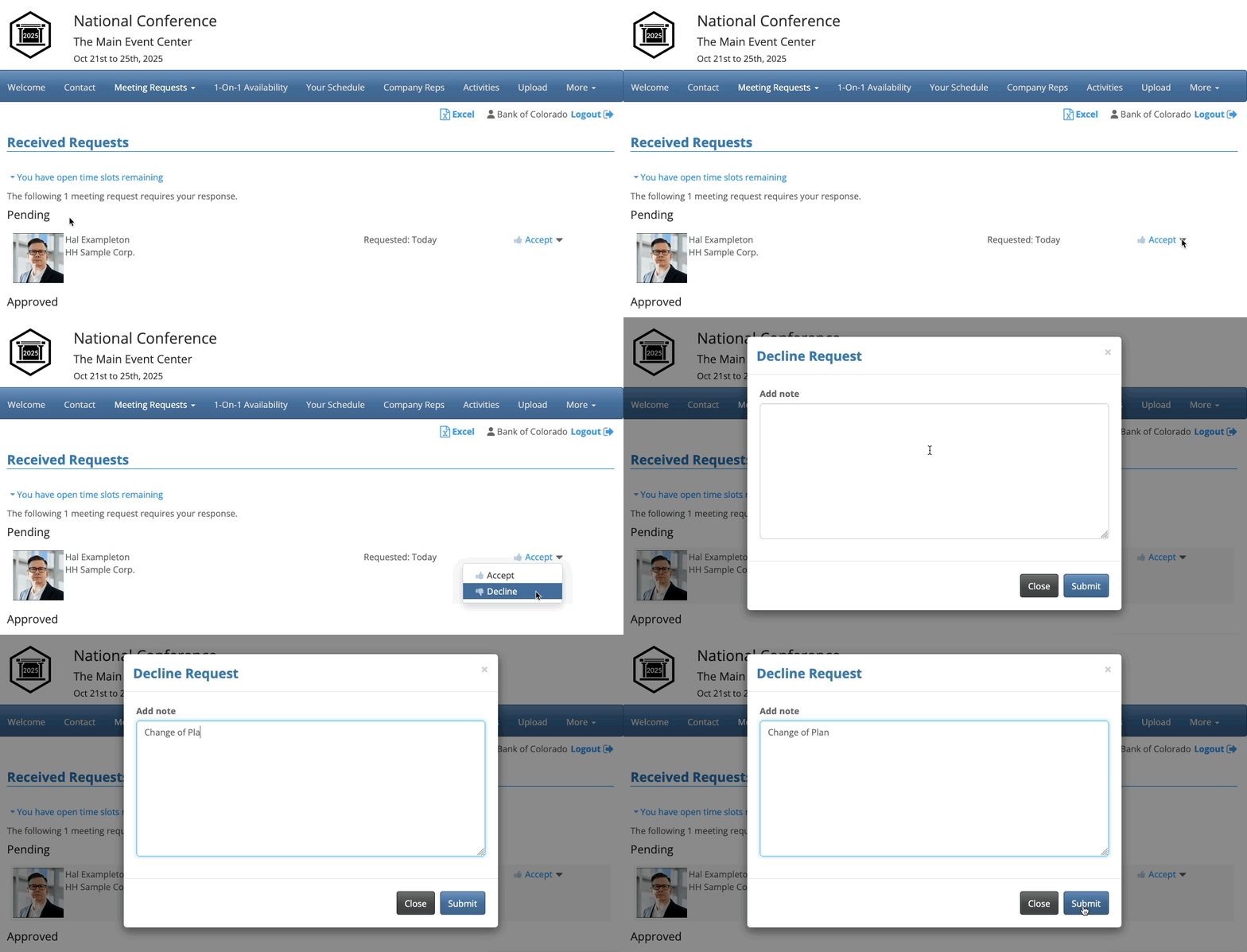
In the Pending section of the page, the Company can use the menu to Decline any request.
They can add a reason, which appears on the email notification the requestor receives. Click Submit to save:
How an Attendee declines
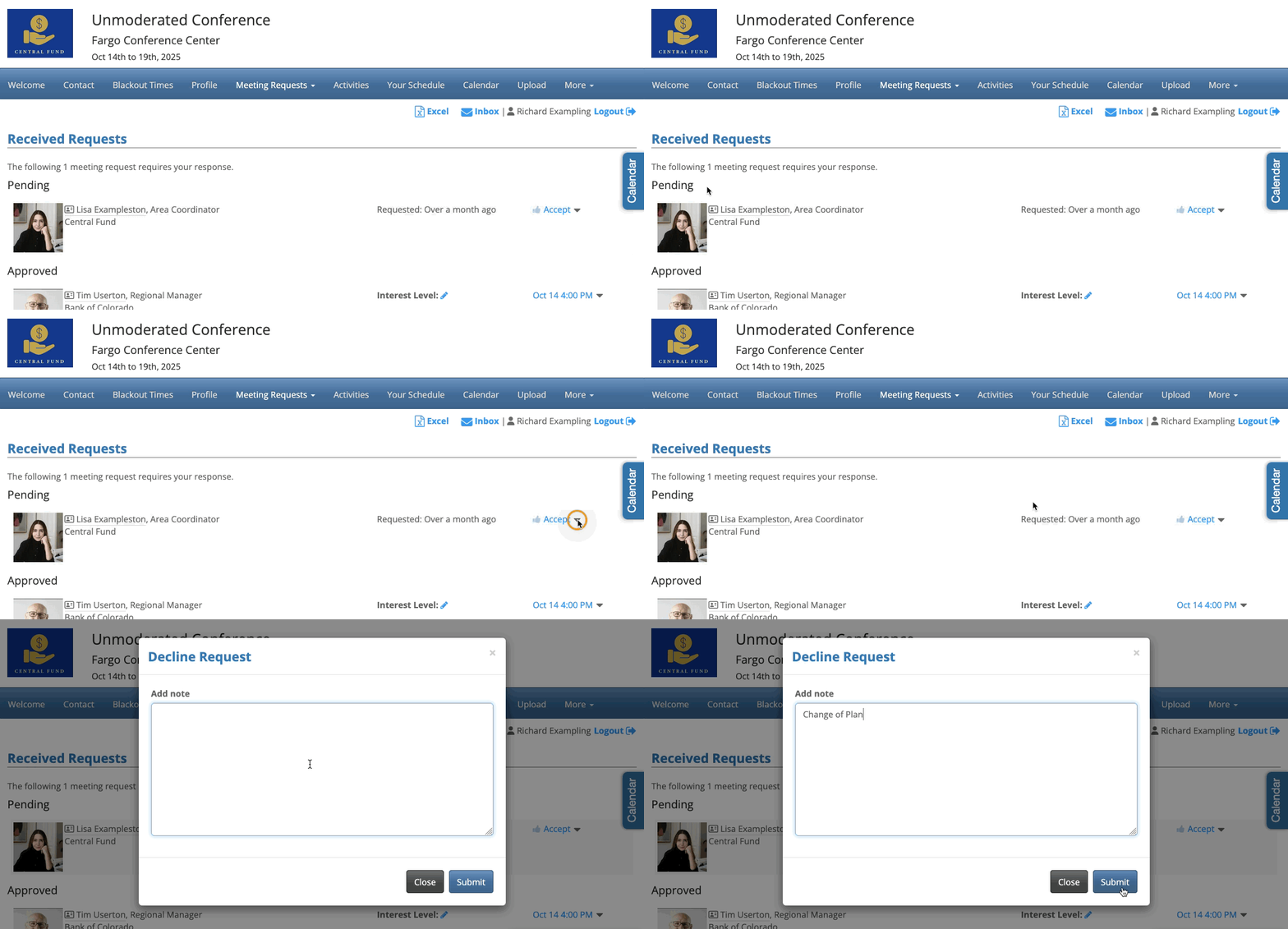
If your meeting program is Unmoderated, Attendees will receive meeting requests from other Attendees.
To view these requests, they’ll log into MeetMax, then go to the Meeting Requests Received tab:

On the Meeting Requests page, they’ll work in the Pending section. To decline a request, they’ll use the menu to choose Decline.
They can then add a reason, which appears on the email notification the requestor receives. Click Submit to save: