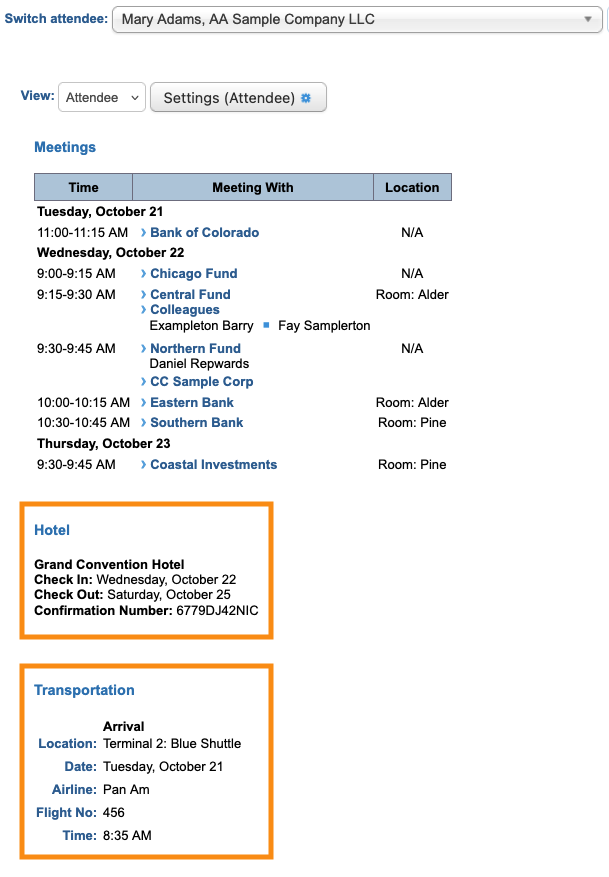
Schedule Setting: Hotel and Transportation details

If you’re using MeetMax’s Hotel or Transportation modules, you can add reservation details to each Attendee’s event schedule.
| This option is available if you’re tracking Attendee hotel and transportation reservations through MeetMax. If your Attendees are reserving and paying for their own hotels and transportation, MeetMax can’t access those details. |
- Step 1. We’re assuming here that you’ve already enabled the modules you need and collected reservations from your Attendees. Use the links above for more details.
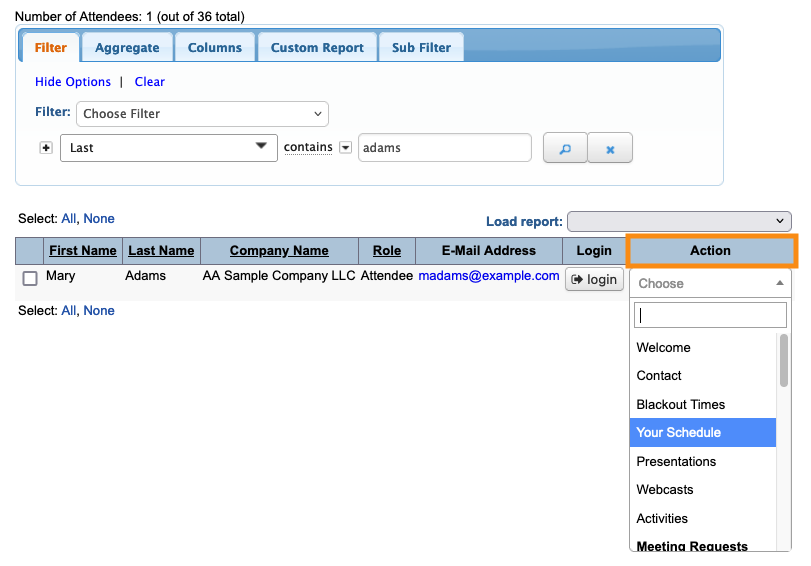
- Step 2. Head to the Attendee List:

- Step 3. Use any Attendee’s record. Changes you make here will apply to all Attendee schedules.
- Use the Action menu to choose Your Schedule:
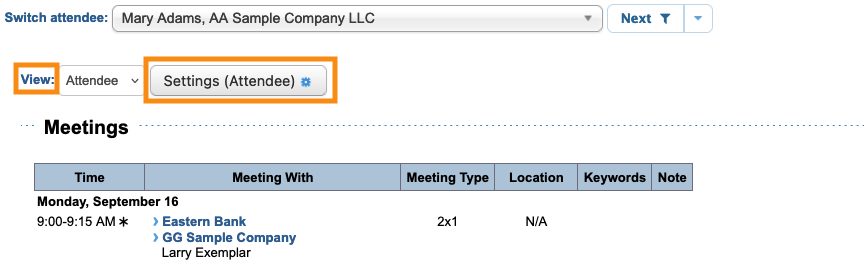
- Step 4. On the Your Schedule page, make sure the View menu is set to Attendee.
- Then, click the Settings button:
- Step 5. In the Attendee Settings pop-up, scroll down to Hide Section.
- The Hotel and Transportation options are hidden by default. Un-check the boxes for either or both:
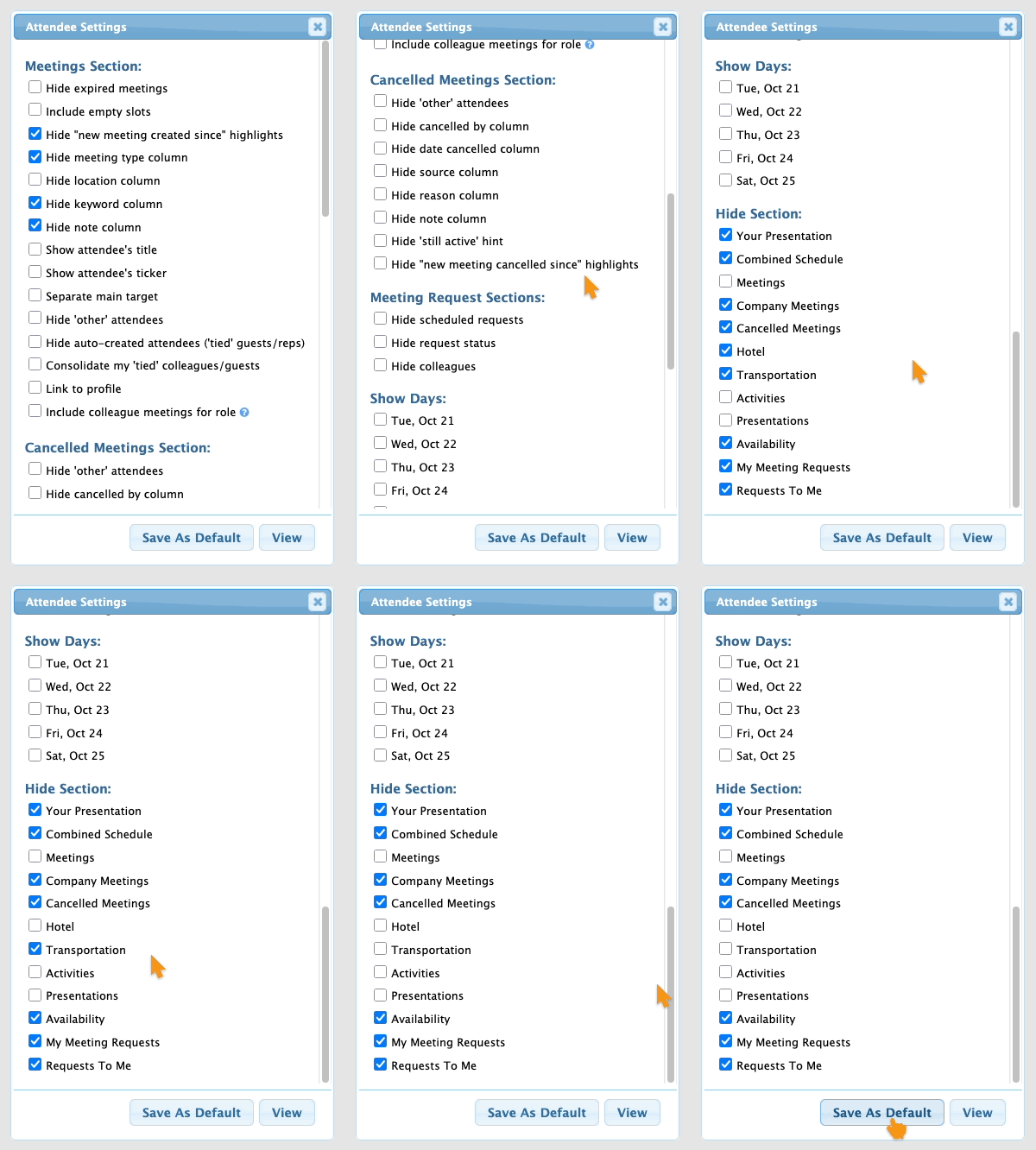
- Step 6. Click Save as Default.
- The schedule now includes the reservation details tracked in MeetMax: