

In this article:
- Where is it?
- Why customize the schedules?
- Accessing the schedule customization settings
- Meetings details
- Event days
- Hiding sections
Where is it?
You’ll access the schedule settings from the Attendee List or Company List:


| We'll show the Attendee schedule here, but customizing a Company schedule works exactly the same way. |
Why customize the schedules?
The default schedule settings will display everything a participant has committed to - 1x1 meetings, presentations, activities, hotel and transportation, and so on. But different events require different schedule formats:
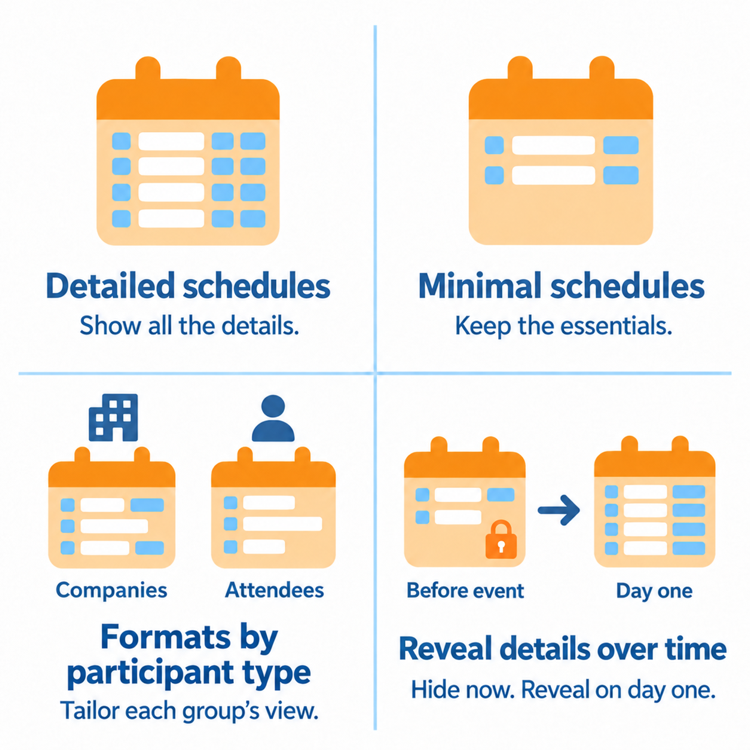
As an event Admin, you can update the schedule display at any time. Your changes will apply to:
- The schedules participants see in MeetMax
- Printed schedules
- Emailed schedules
- Schedule exports to personal calendars
See the sections below for more details on the available settings.
Accessing the schedule customization settings
- Step 1. Head to the Attendee (or Company) List. Use any record - changes you make here will apply to everyone else on the list.
- Step 2. Use the Action menu and choose Your Schedule:

- Step 3. You’ll now see the Admin view of this participant’s event schedule.
- Click the Settings button to access the customization options:

| You can also set up your own Admin version of the schedule. Learn more about this here. |
Meetings details
Most of the schedule customizations have to do with adding or removing the details of 1x1 meetings.
There are three sections of settings. See details on each one below.
| See this page for examples of many of these settings. |
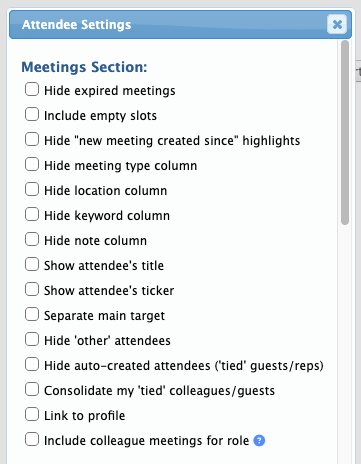
Meetings section
With this section, you can show or hide information in the list of scheduled meetings.
You can also change how the list displays the names of participating Attendees and Companies:
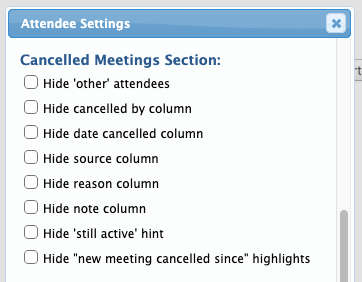
Canceled Meetings section
If you want to include canceled meetings in your schedules:
- Enable this display, using the Hide Sections setting in the section below.
- Use the Canceled Meetings settings to choose which details to include in the display:
Meeting Requests section
If you want to include each participant’s meeting requests on their schedules:
- Enable this display, using the Hide Sections setting in the section below.
- Use the Meeting Requests settings to choose which details to include in the display:
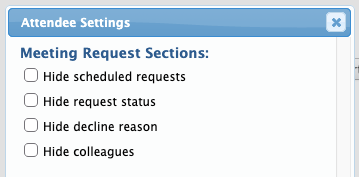
| If you want to show only pending (unscheduled) requests, click the Hide scheduled requests checkbox. |
Event days
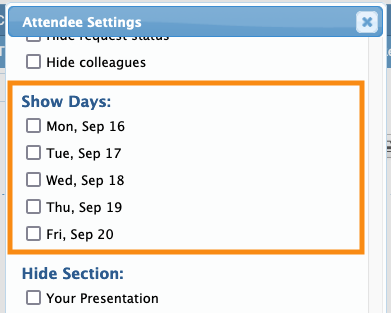
By default, Attendee and Company schedules include all days of your event.
If you want the schedule to reflect only certain days, you can check those boxes:
Hiding sections
MeetMax schedules are organized into sections. You can hide or show any of these.
What you show or hide here depends on your event's programming, and what information your participants need to see on their schedules.
| If you’ve enabled a section for display but there’s no data, that section won’t appear on anyone’s schedule. For example, if you enable the Presentations section but you haven’t yet added any presentations, this section won’t be visible until you do. |
Click the check box for anything you want to hide:

| You can preview any change you make by clicking the View button. Click the Save As Default button, and these settings will save for all Attendees. |
Combined Schedule setting
The Combined Schedule setting works a little differently. When it’s enabled, that automatically disables other sections, as shown below:
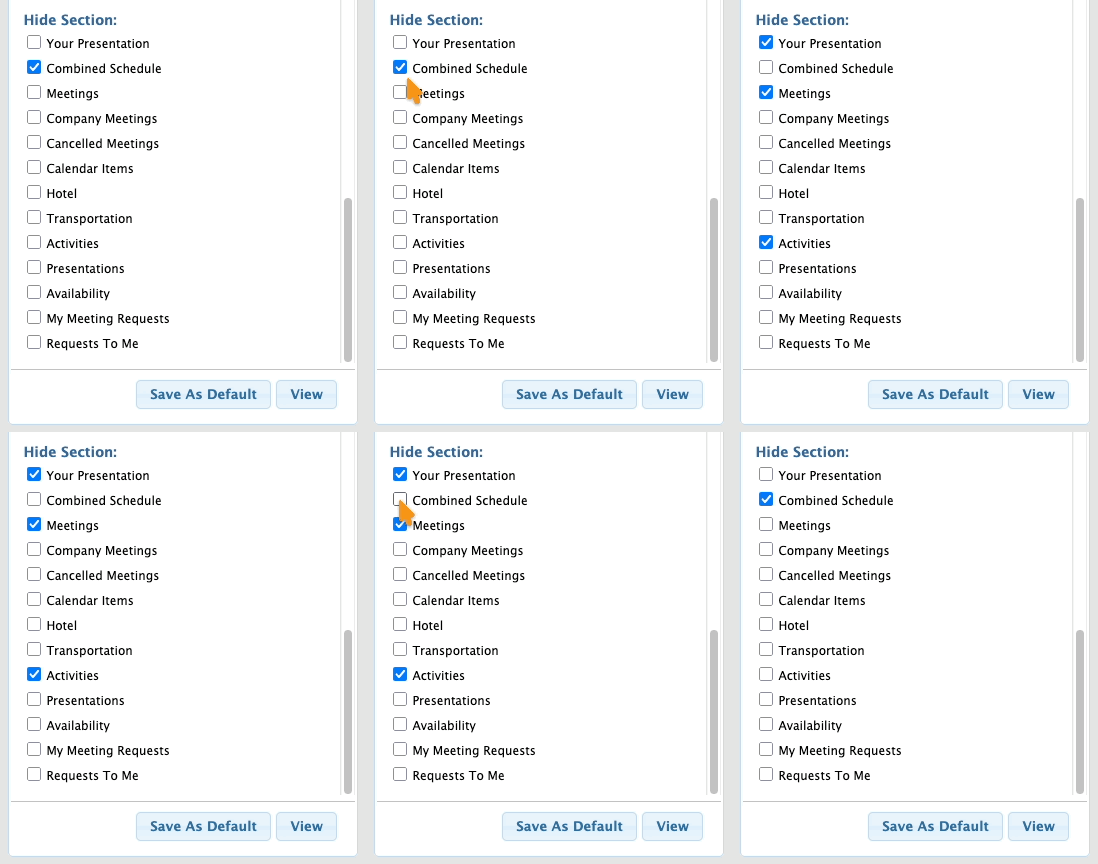
The reason this happens is that the Combined Schedule section automatically includes:
- Meetings
- Presentations for presenters
- Activities
MeetMax automatically hides these sections to avoid duplication.
More customization options
These articles offer more details on some of the available settings:

