


How do I simplify the display on the Meeting Times page?

If your event’s meetings involve multiple Attendees from multiple companies, the Meeting Times page can look a bit cluttered:
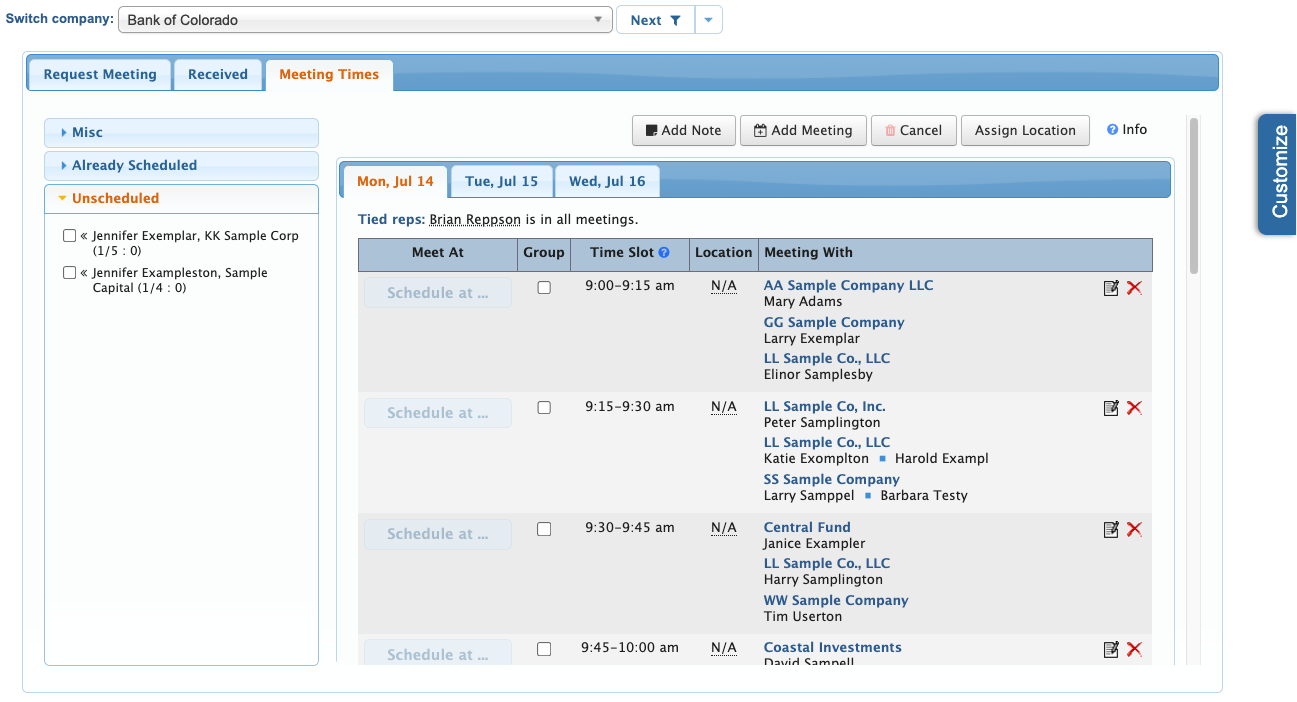
With so many Attendee names, your team has to do a lot of scrolling to locate time slots. It can also be hard to locate specific company and Attendee names.
You can simplify this display any time.
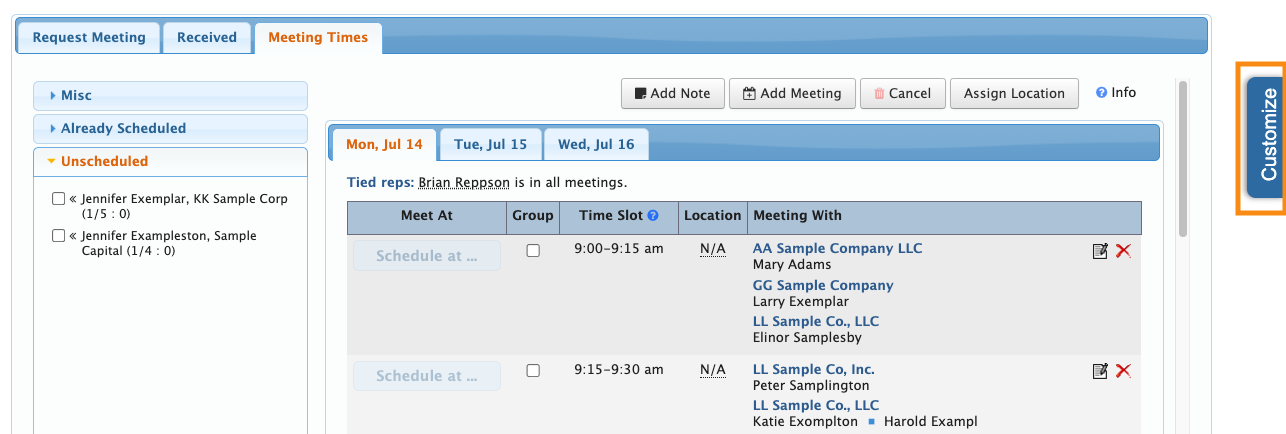
- Step 1. Head to the right edge of the page and click the Customize button:
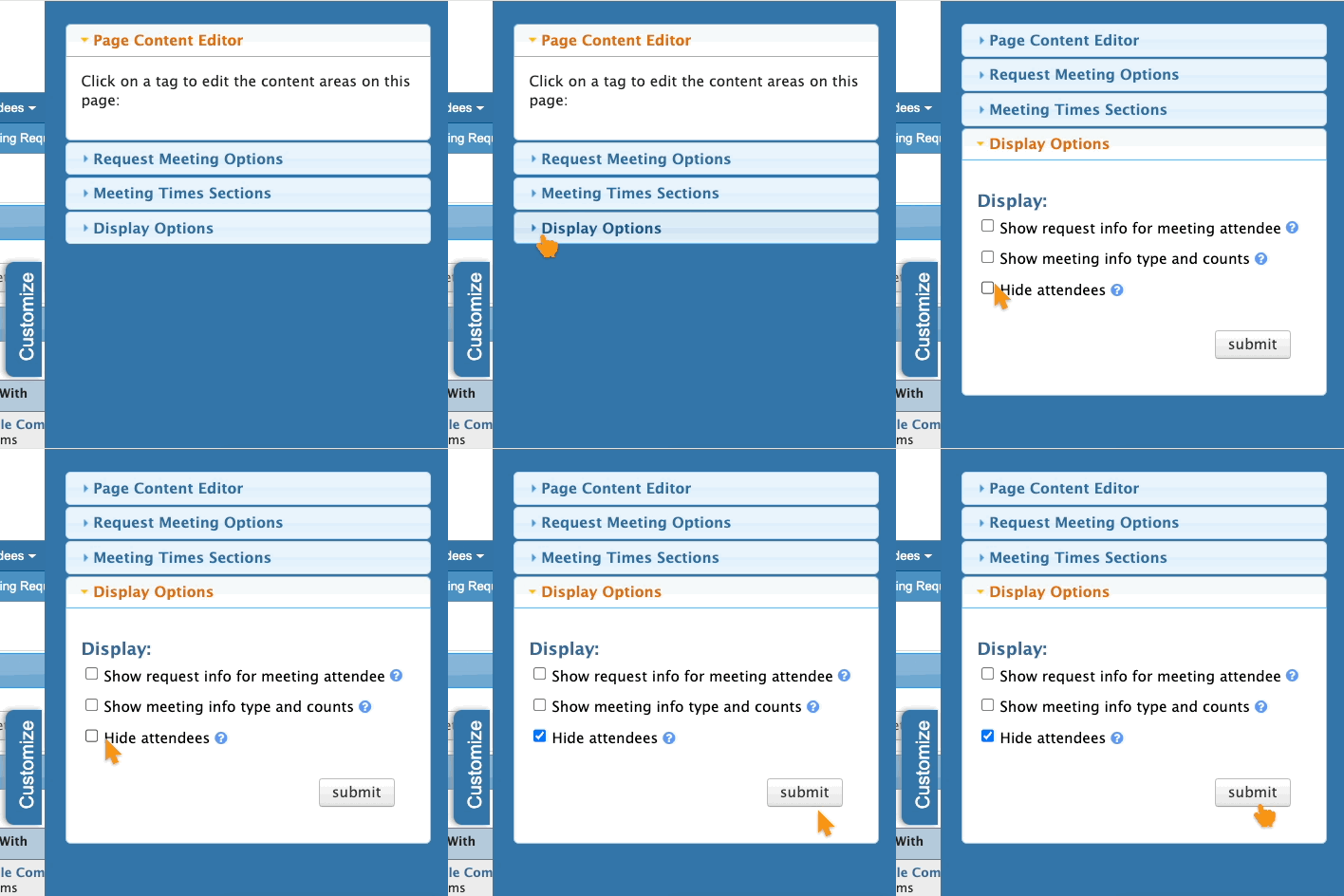
- Step 2. Open the Display Options section. Choose Hide Attendees, then click Submit:
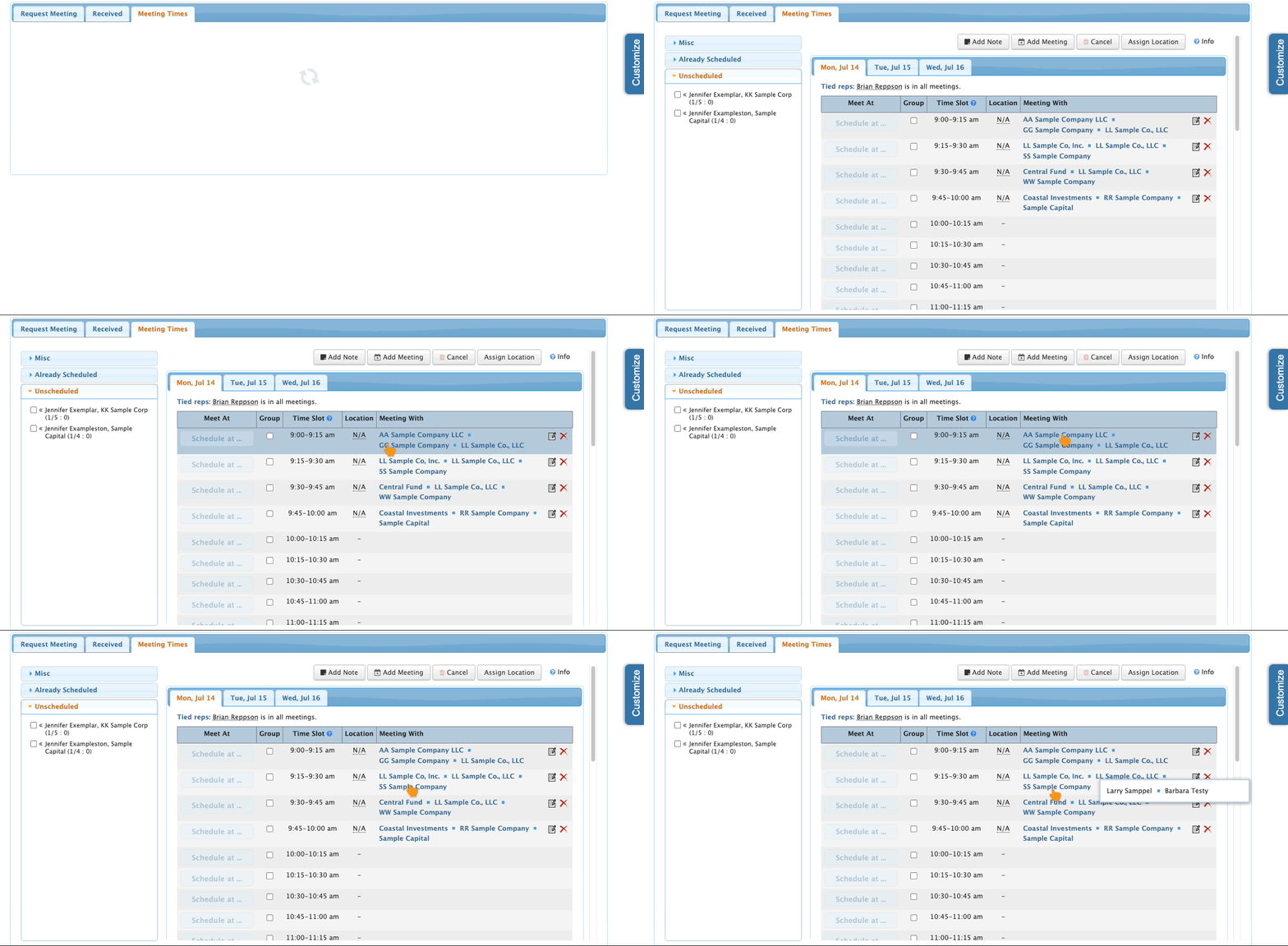
- Step 3. The Meeting Times page will change to a more compact display. It now shows only company names, which are now arranged in horizontal rows.
- You can hover over any company name to see the list of the associated Attendee names:
- Step 4. Revert to the original display any time by repeating these steps. You might even find it helpful to switch back and forth as you’re scheduling.

