


In this article:
Where is it?
Once you’ve enabled presentation ratings, your Attendees can log into MeetMax and head to the Presentations tab. That's where they'll submit feedback:
Enabling presentation ratings
You can enable ratings once you’ve added your first Presentation.
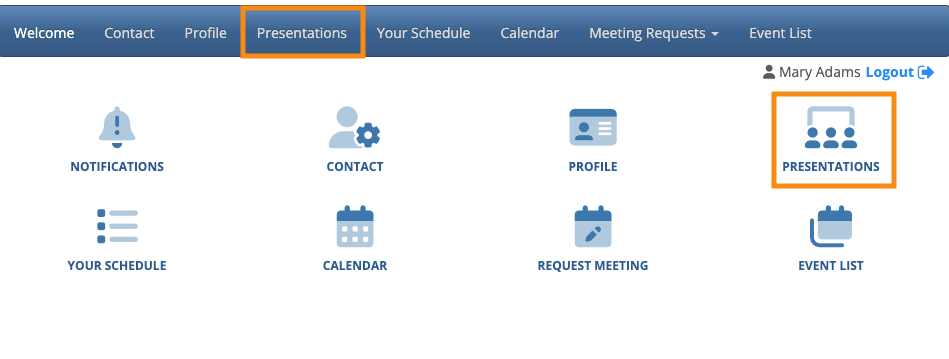
- Step 1. Head to the Presentations tab, then choose Grid:

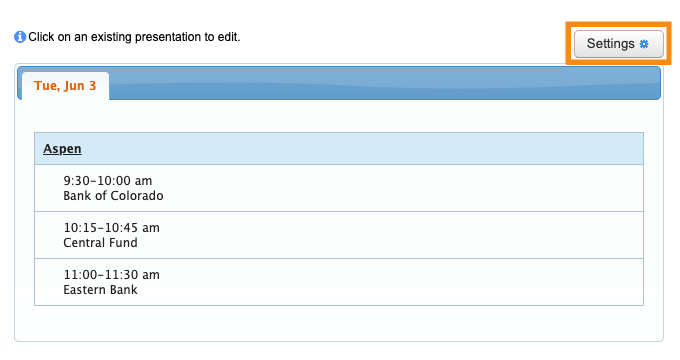
- Step 2. On the Grid page, click the Settings button:
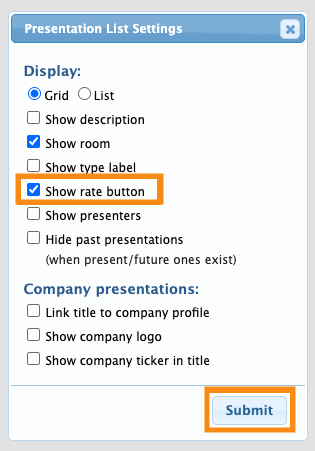
- Step 3. In the Settings pop-up, click the checkbox for Show Rate Button. Then click Submit:
- Attendees can now rate presentations.
What Attendees see
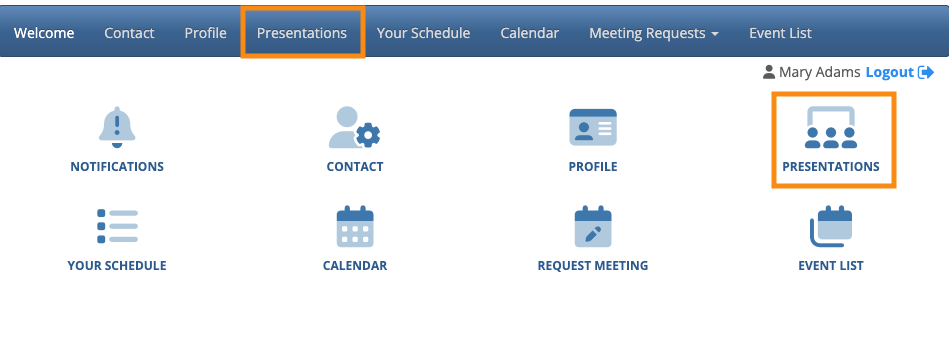
When an Attendee logs into MeetMax, they’ll head to the Presentations tab. This is where they sign up to attend presentations:
Once a presentation has started, Attendees will also see a Rate button. They can click that to leave feedback:
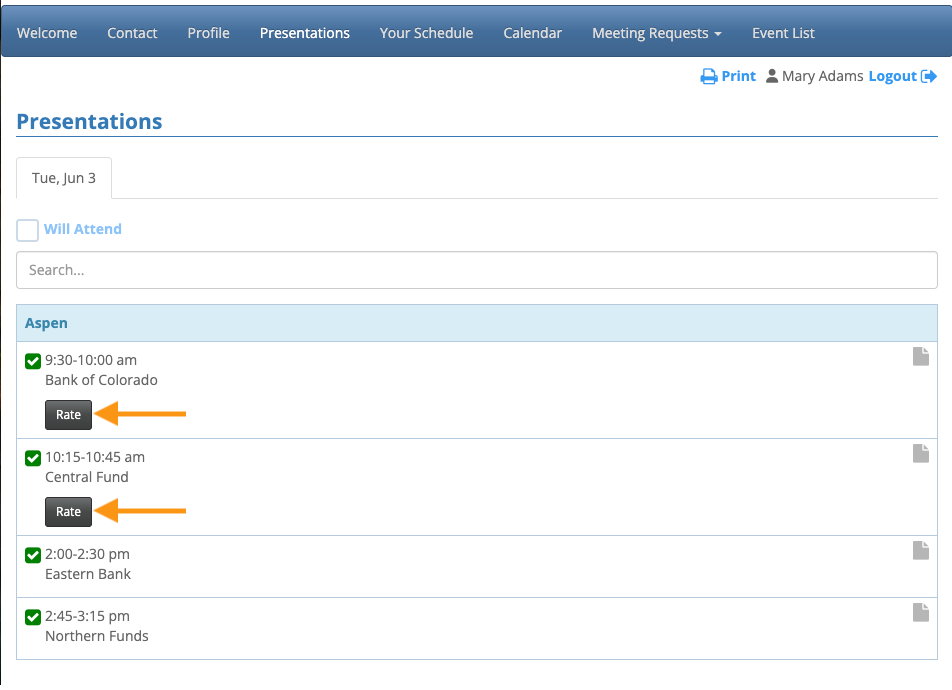
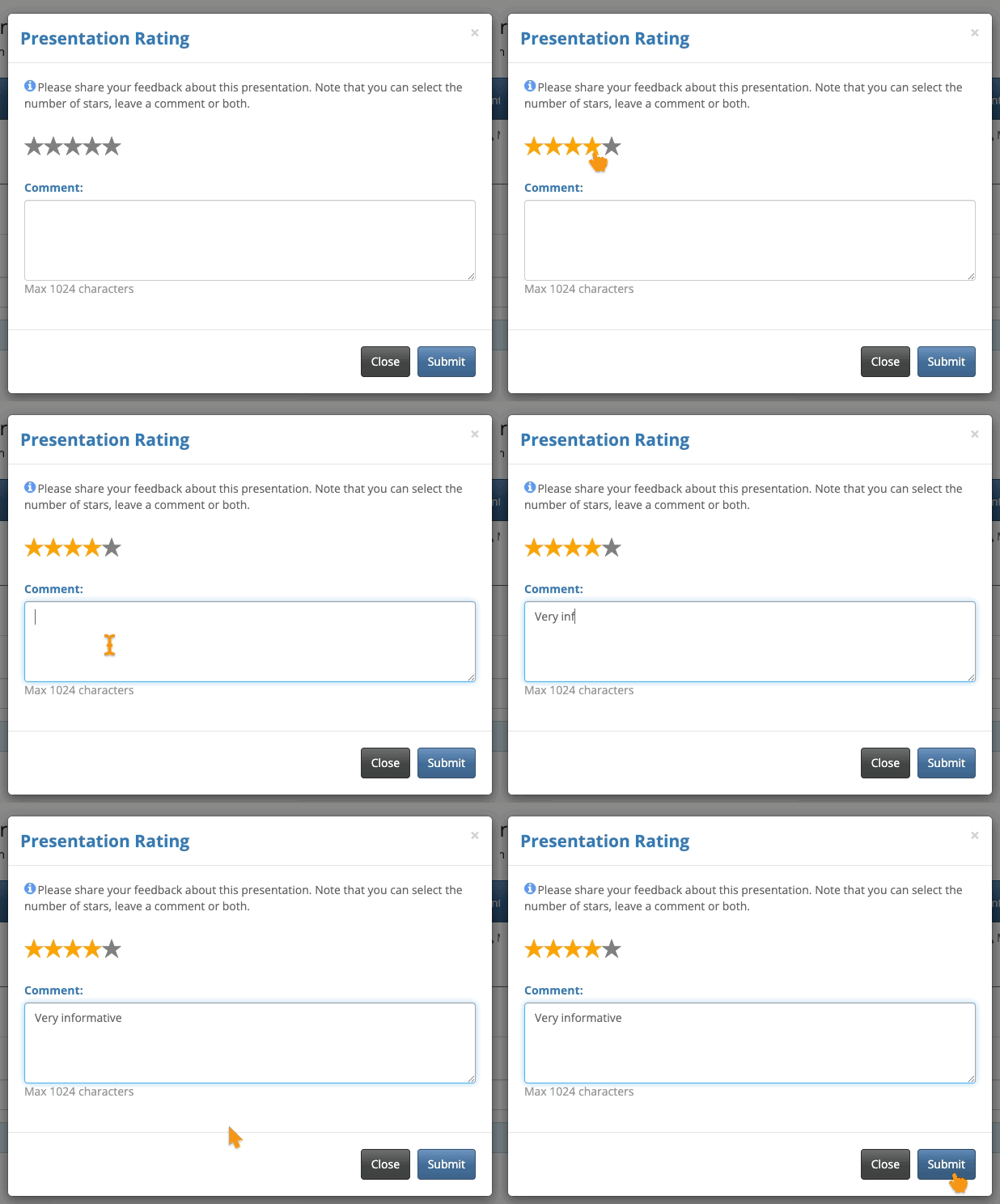
When the Attendee clicks the Rate button, they can access two ways to leave feedback. They can use either or both:
- A star rating of 1-5
- Text feedback
Editing a rating
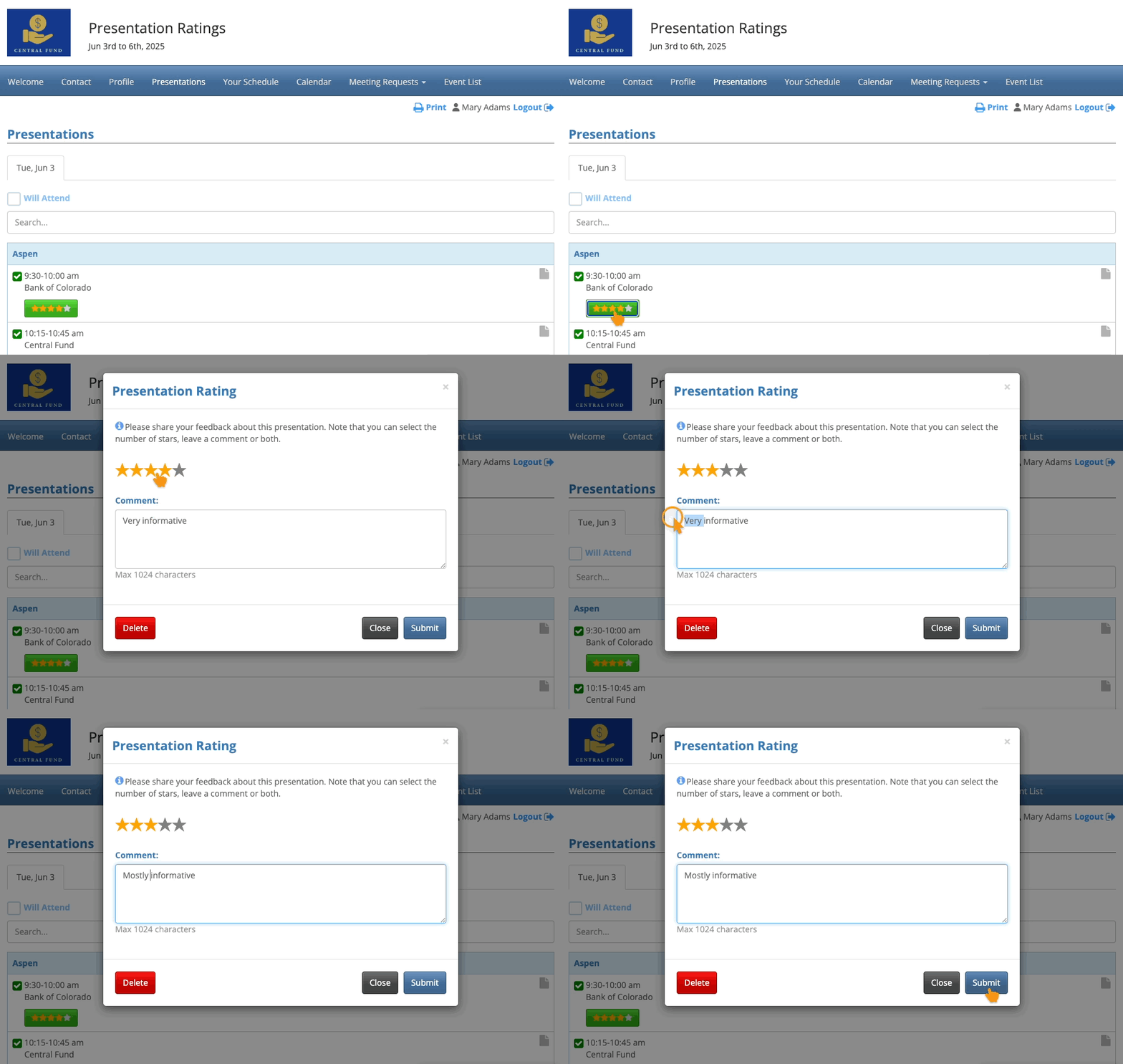
Once the Attendee saves some feedback, the Rate button changes as shown below.
The Attendee can click this button again any time to update their rating or edit their text feedback:
Deleting a rating
If they want to delete their feedback, they’ll click on the existing rating and then click the Delete button:
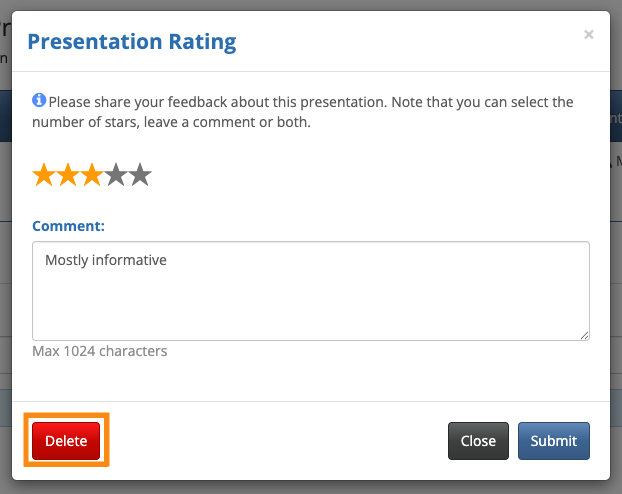
After a deletion, the Rate button returns. That way the Attendee can re-submit feedback later if they wish.
Accessing the collected feedback
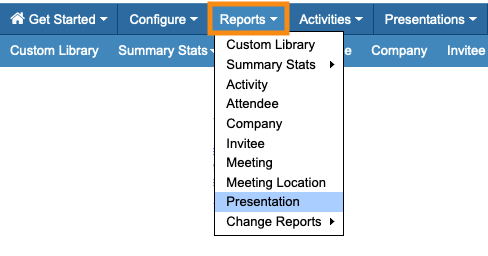
When you’re ready to download all presentation ratings, head to the Reports tab. Choose Presentation:
On the Presentation Reports page, click the Presentation Ratings link:
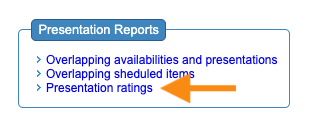
The report automatically downloads to your computer in spreadsheet format:


