


In this article:
- Where is it?
- Why is it useful?
- Setting up your event’s meeting tags
- Tagging a meeting
- Using tags on the Meeting Times page
Where is it?
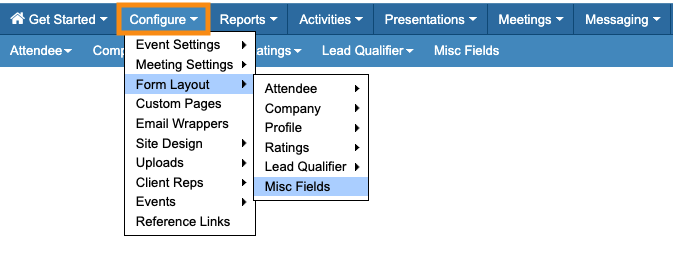
You’ll set up your event’s meeting tags from the Configure tab:
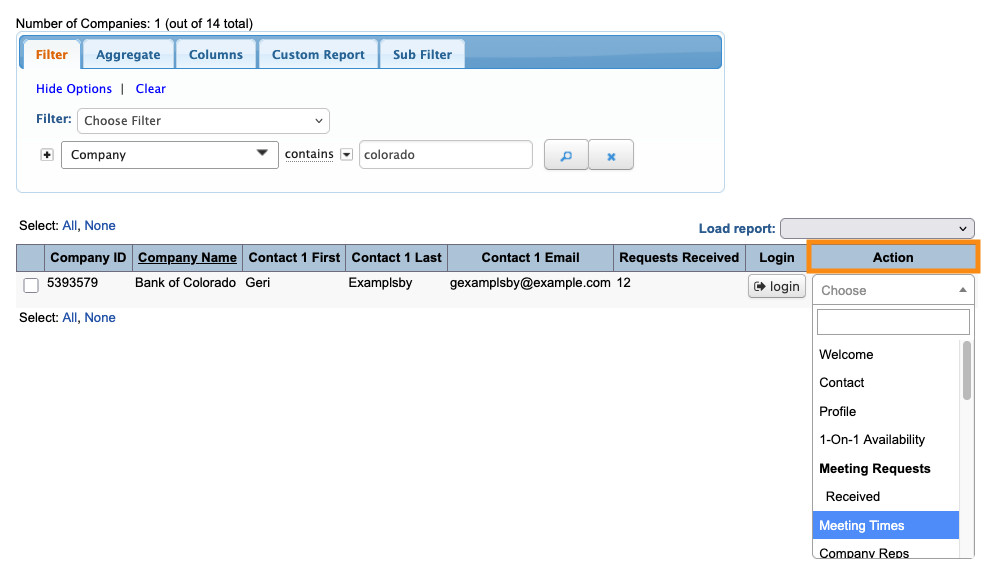
You’ll add tags to individual meetings from the Meeting Times page:
Why is it useful?
Tagging helps your team manage complex scheduling. Depending on your meeting program, you might have certain meetings with special requirements, such as:
- A maximum number of companies that can be involved
- A restriction on who can attend, like “No Private Equity” or “Banker’s Meeting Only”
- Meetings that must be group meetings
- Small-group lunch or dinner meetings
You can create any tags that will help your team keep track of details and constraints. You can add new tags throughout your event.
Your team can tag any meeting on the Meeting Times page, and then see those tags throughout scheduling.
| You can use this feature with Moderated and Unmoderated meeting programs. | |
| MeetMax also has a Keywords feature for meetings. You can add these Keywords to participant schedules. The Meeting Type Tags we're discussing here are internal only. |
Setting up your event’s meeting tags
You can create as many tags as your event needs. Tags are event-specific, but you can easily move your list of tags between events.
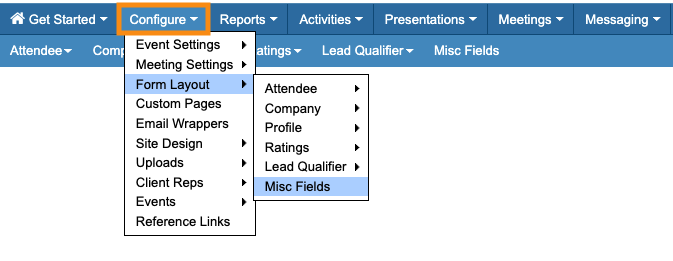
- Step 1. Head to the Configure tab. Choose Form Layout, then Misc Fields:
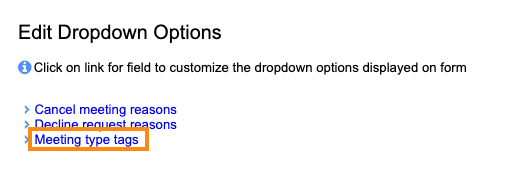
- Step 2. Click the Meeting Type Tags link:
- Step 3. You’ll now see the settings for a drop down form field.
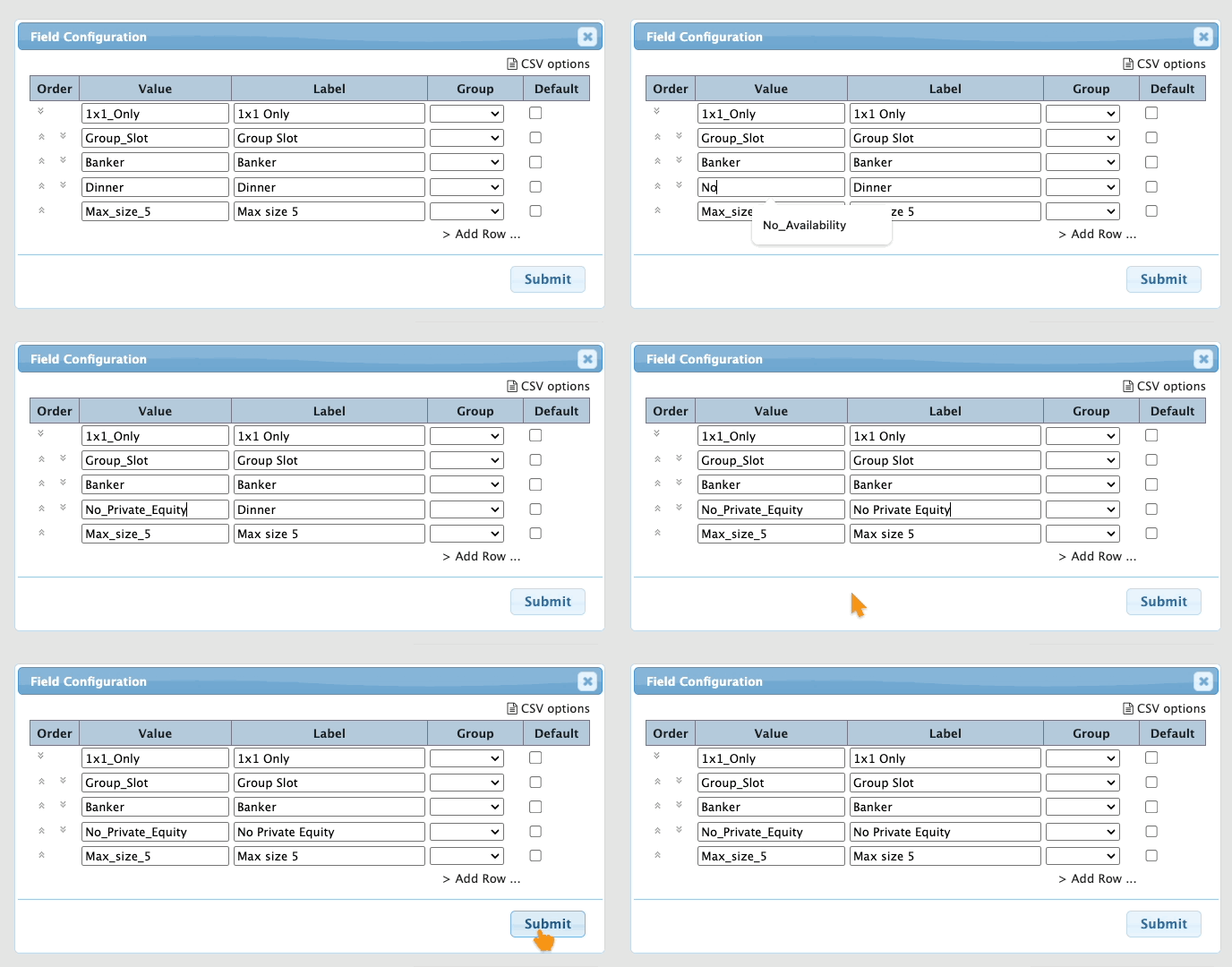
- MeetMax has several default options here. You can update any of these. For each option, you’ll add a Value (internal, no spaces) and a Label (visible to your team).
- Click Submit to save your changes:
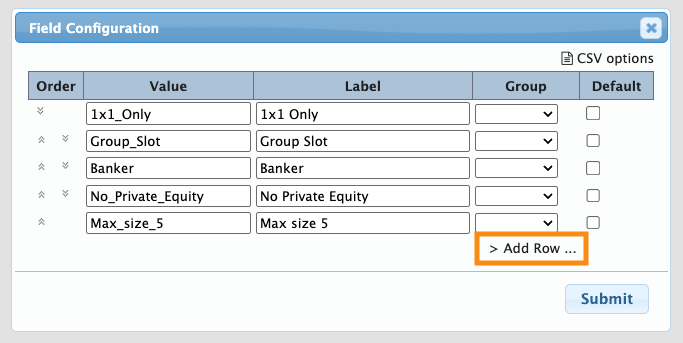
- Need to add more tags? Click the Add Row link:
- Once you’ve created your tags, you’ll access them as a menu from the Meeting Times page.
Tagging a meeting
You can apply tags to a meeting while you’re scheduling it, or you can edit an existing meeting to add tags.
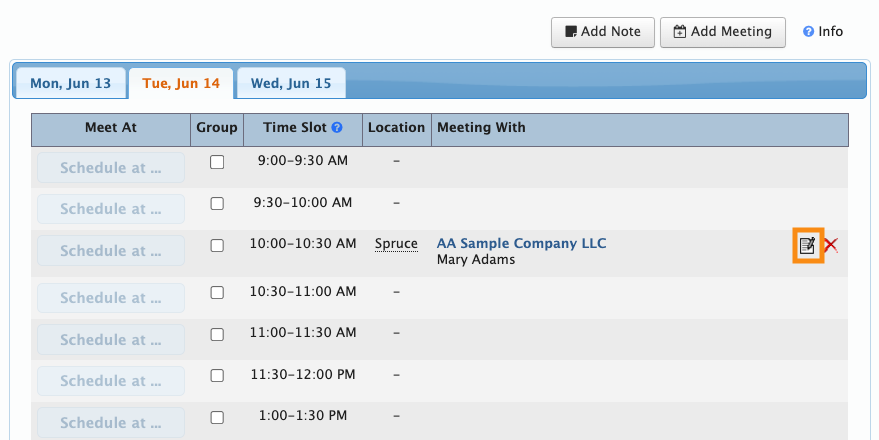
- Step 1. Click the Edit icon for the meeting:
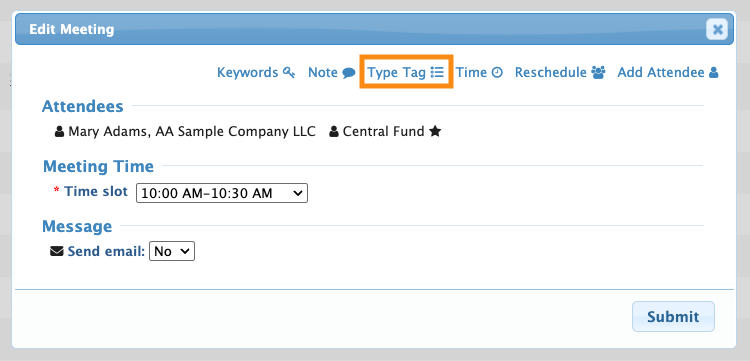
- Step 2. In the Edit Meeting pop-up, click the Type Tag link:
- Step 3. Choose one or more tags from the menu. Then click Submit to save:
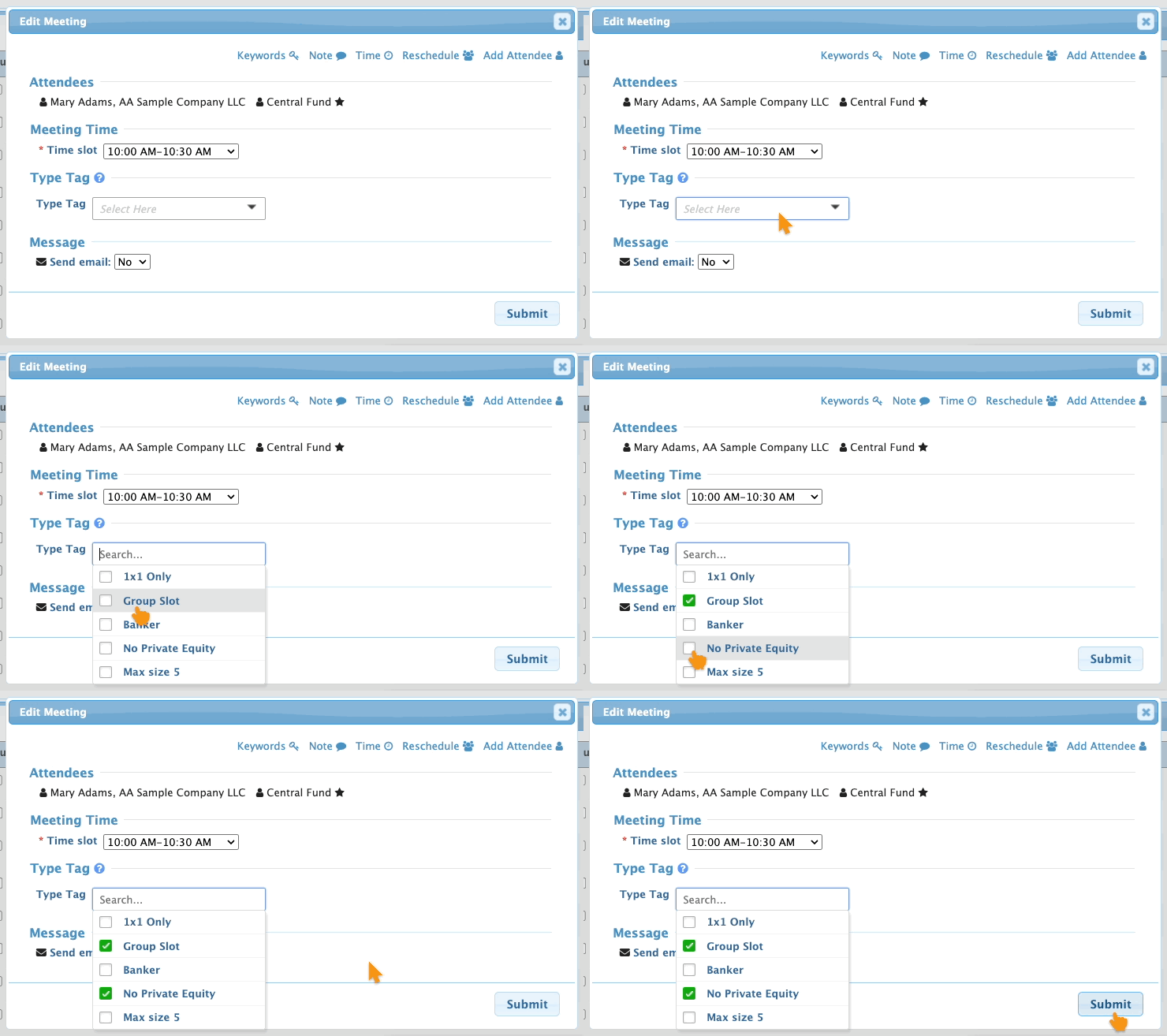
-
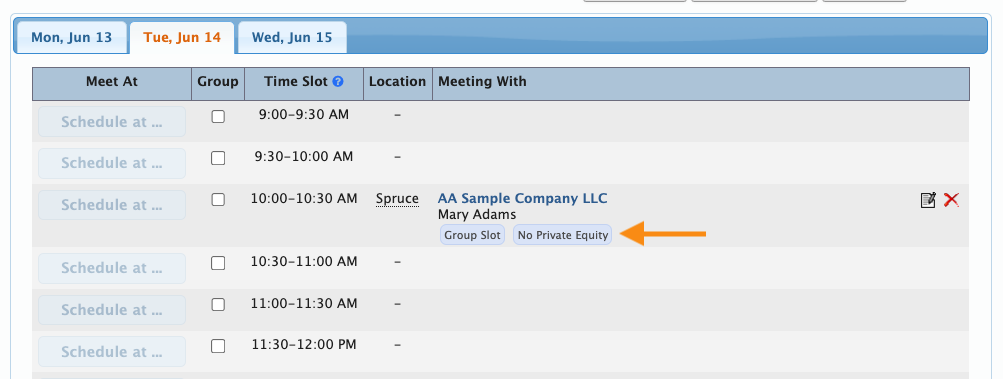
If you need to update the tags later, repeat these steps and change your selections. - The added tags display alongside the meeting:
Using tags on the Meeting Times page
In this example, we’re in the middle of scheduling meetings for an event. There are a few meetings that have special characteristics, so we’ve added tags to them:

It can be helpful for your team to be able to compare a meeting’s tags against its current scheduled state. To make this easier, you can add an extra column to the Meeting Times page.
- Step 1. Head to the right edge of the page. Click the Customize tab:
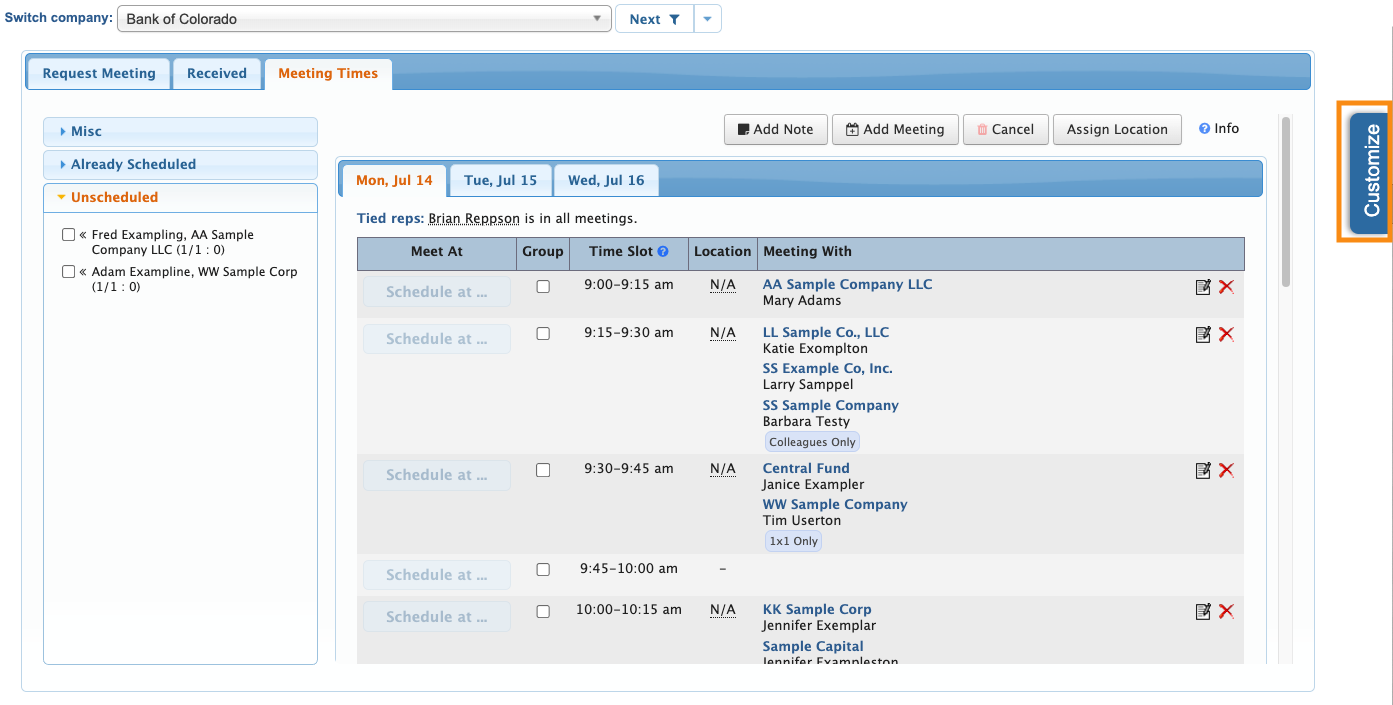
- Step 2. A menu will slide out. Click on Display Options.
- Step 3. Then choose Show meeting info type and counts. Click Submit to save:
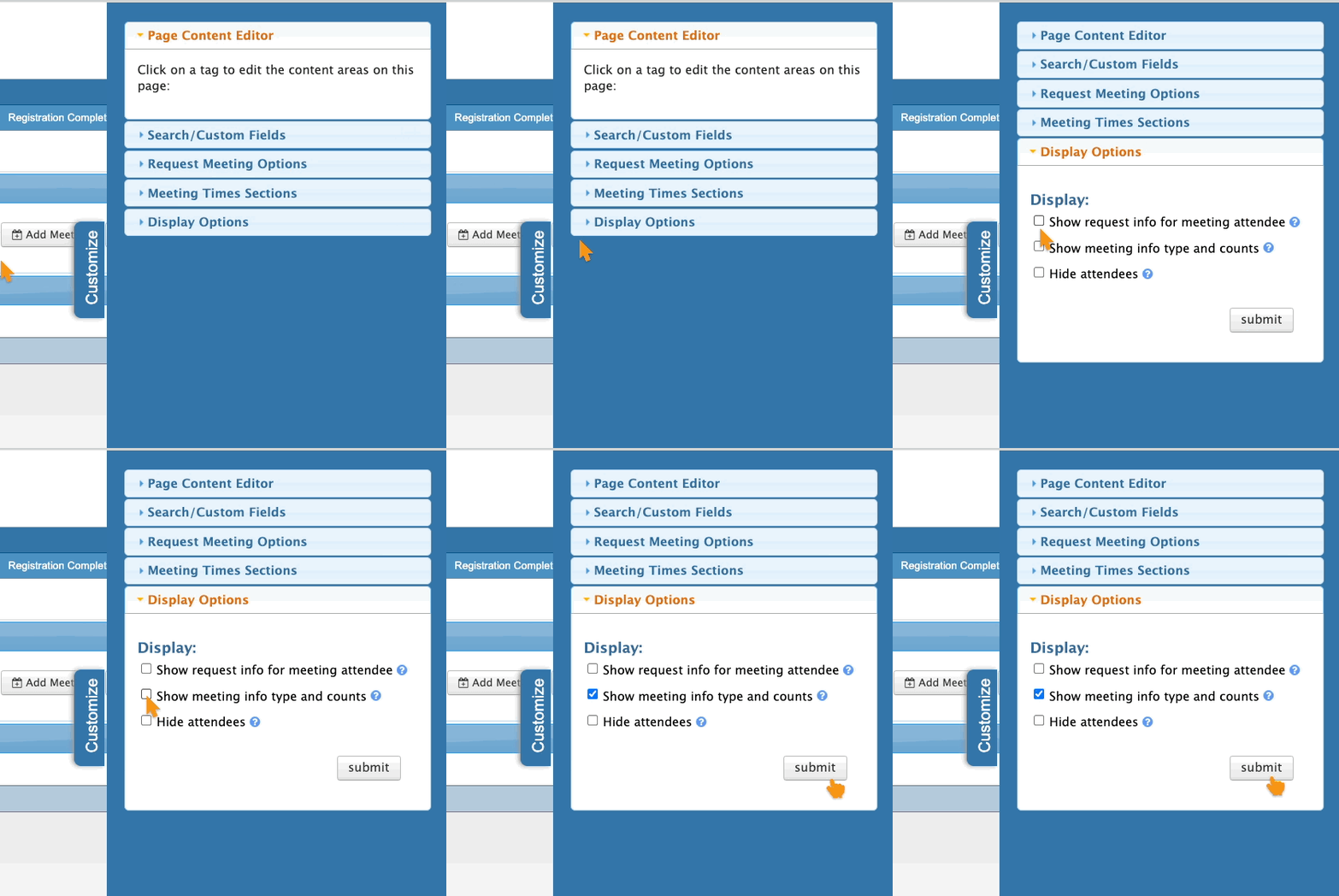
- The Meeting Times page now contains a new Info column:
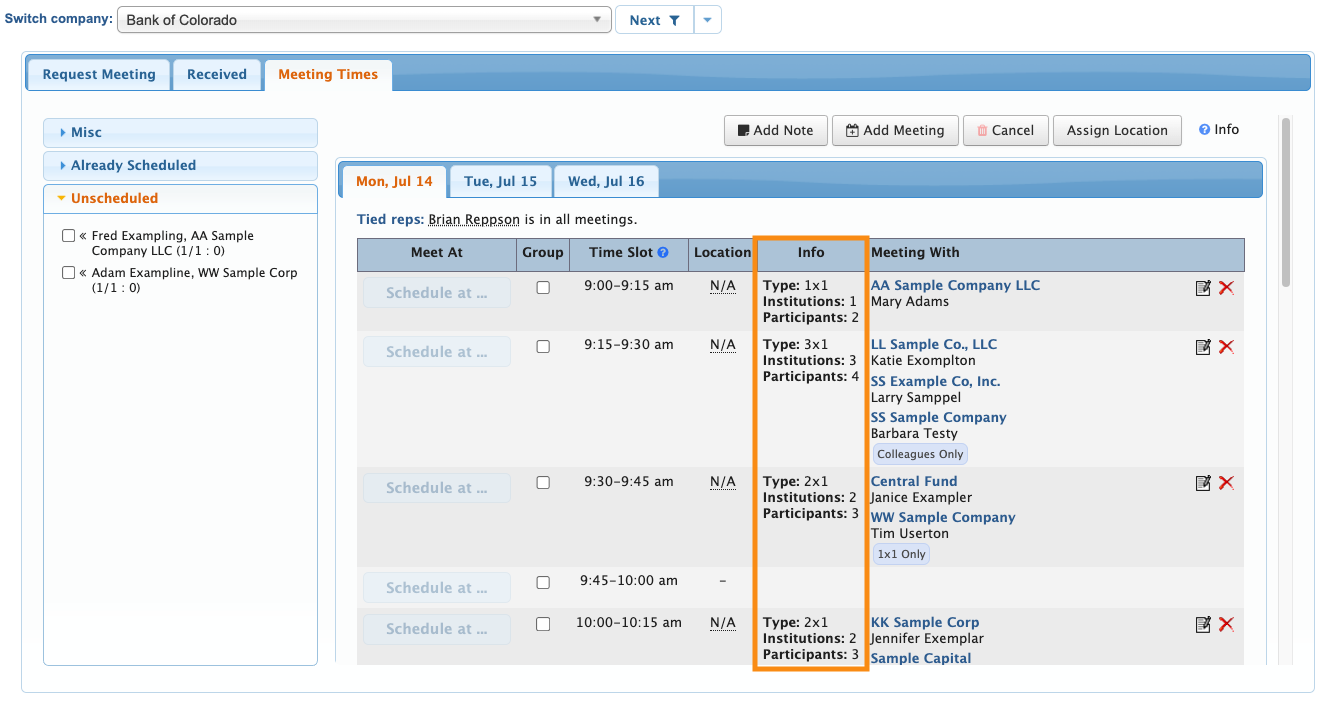
- The Info column shows:
- • The current meeting Type (based on your event’s Meeting Type Rules)
- • How many Institutions are part of the meeting (not including the Company hosting the meeting)
- • How many Participants are part of this meeting (including the Company hosting the meeting, and all Attendees)
- These counts will update automatically as you make changes to scheduling.
Examples of using tags with the Info column
In this example, we’ve created a Colleagues Only tag. Our event has certain meetings where we only want people from the same company to attend.
The meeting below has this tag, so our scheduling team doesn’t forget this detail:

From the Info column, we can see that there are too many Institutions in this meeting. A meeting of all Colleagues would have just one Institution represented.
Since the tag tells us the meeting should be only Colleagues, our scheduling team will reschedule Katie Exompleton, who’s from a different company.
Here’s a second example:
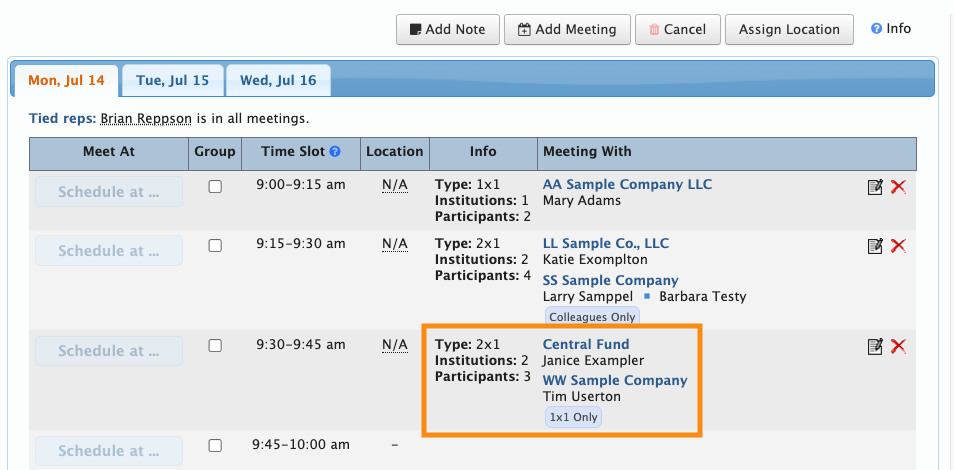
This meeting has a 1x1 Only tag. (Our event has a few VIP Attendees, and as a courtesy we’re scheduling them into 1x1 meetings only.)
The Info column shows us that this meeting has 3 participants, which is too many. So we’ll reschedule Janice Exampler.

