


How do I publish a Company’s cancellation to Corpaxe?

If you’re publishing your event to Corpaxe calendar 2.0, you’ve also published each participating Company’s current status: Tentative or Confirmed.
If a Company has to cancel, follow the steps below to represent that cancellation in Corpaxe.
In this article:
If the Company was confirmed
If you’ve already published the Company’s confirmed involvement in your event, you’ll likely want to keep them visible in Corpaxe with their new Canceled status, at least for a time.
- Step 1. Head to the Company List:

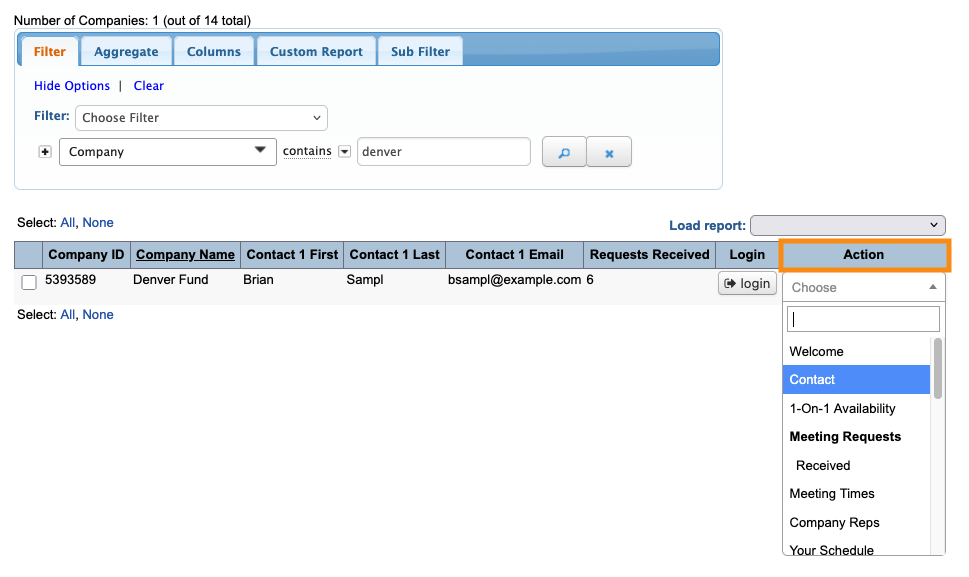
- Step 2. Filter the list to locate the company. Use the Action menu to choose Contact:
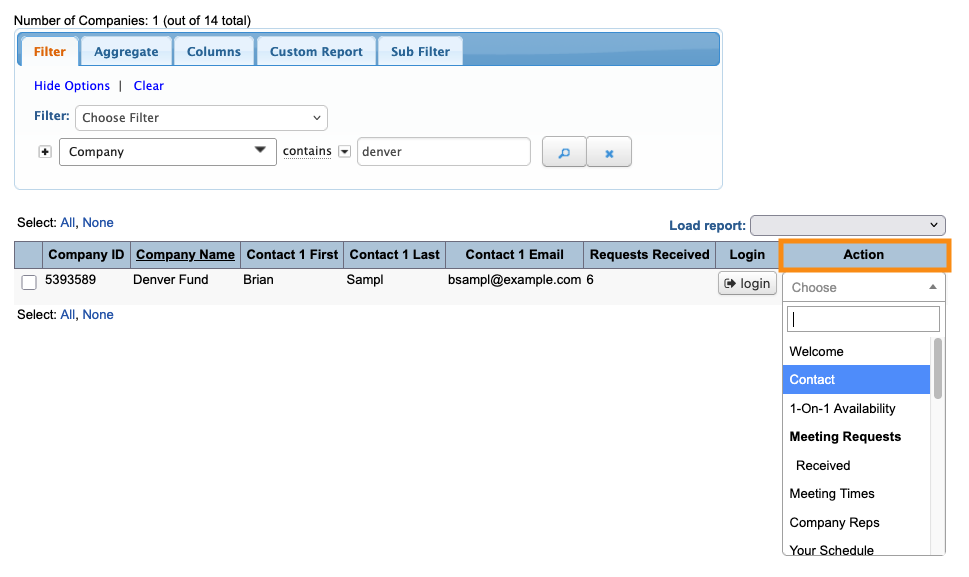
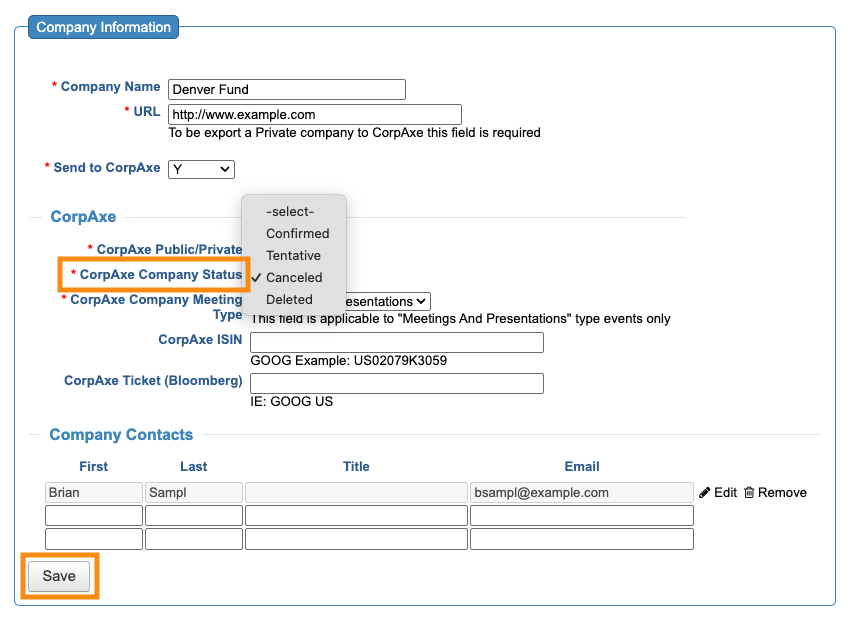
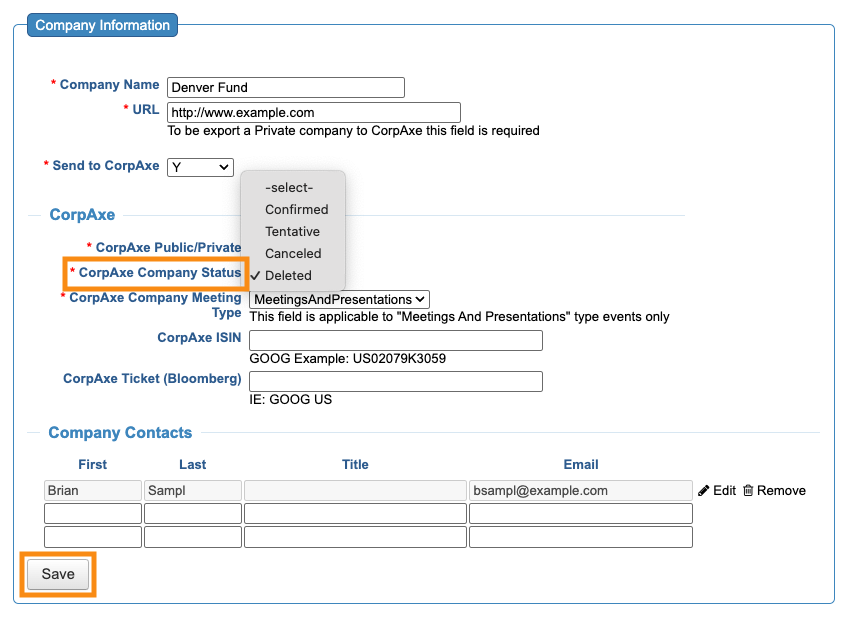
- Step 3. In the Corpaxe Company Status menu, choose Canceled. Then click Save:
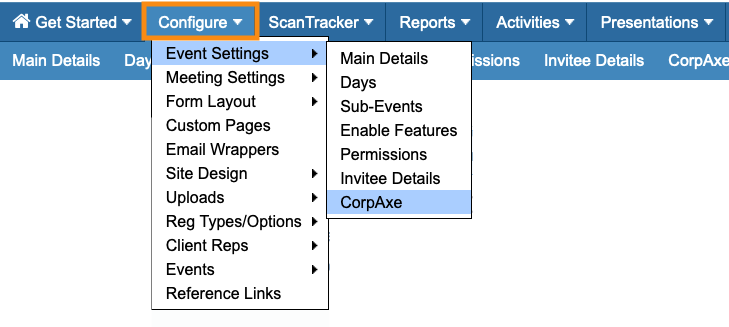
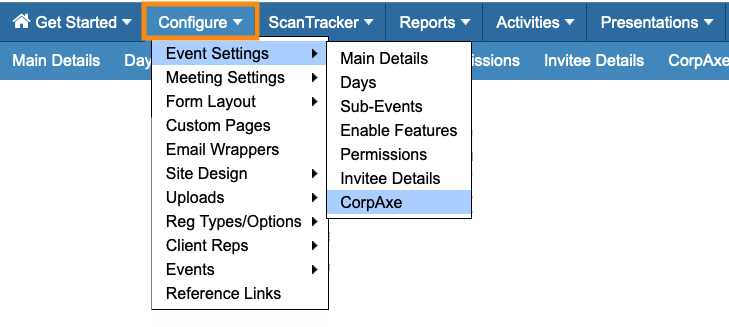
- Step 4. Head to the Corpaxe Settings page:
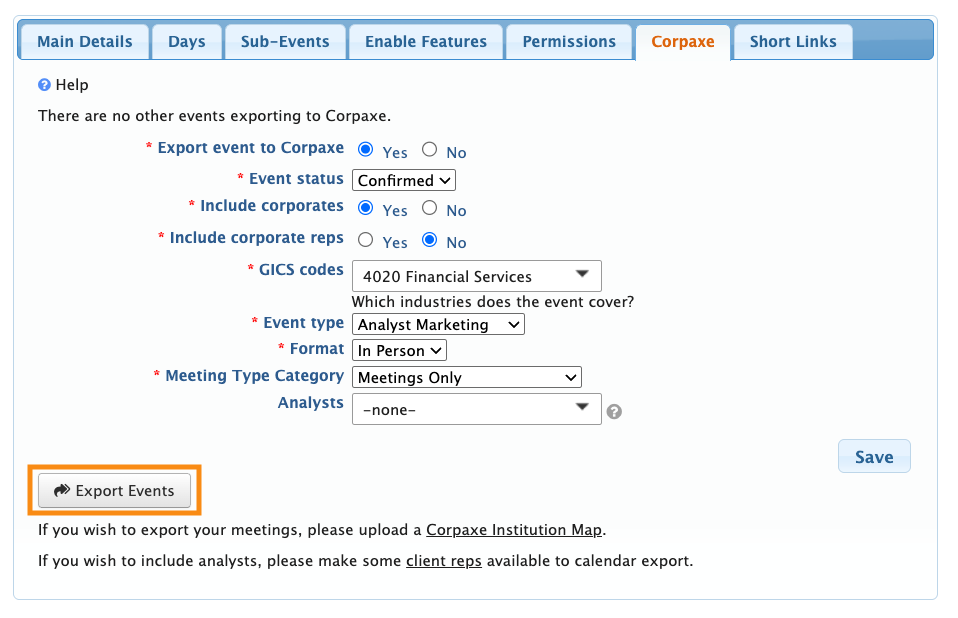
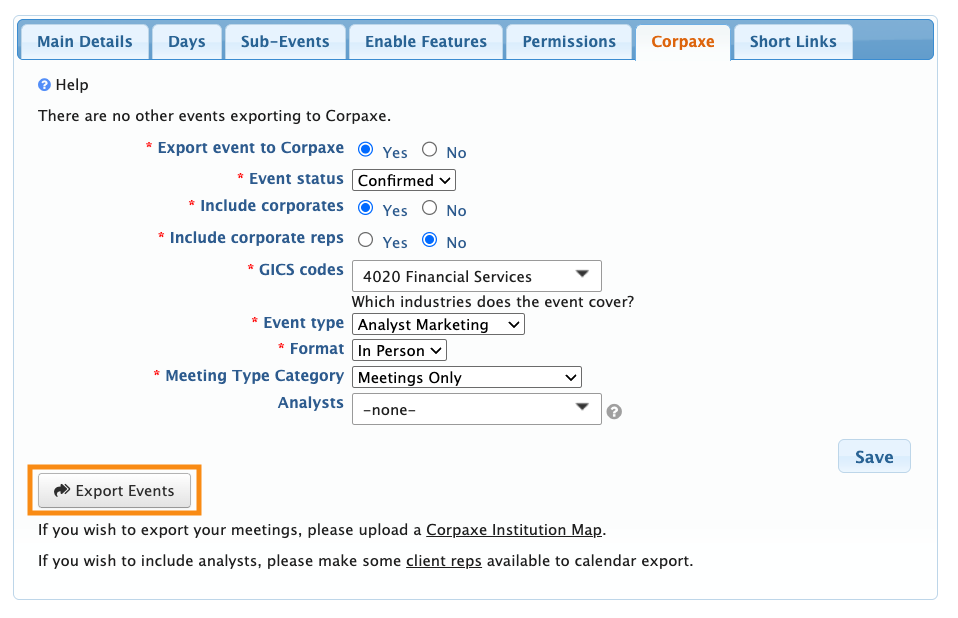
- Step 5. Click the Export Events button to publish the status change:
- Step 6. The Company now shows as Canceled in Corpaxe. When you’re ready, you can cancel the Company’s MeetMax registration.
If the Company was not confirmed
If you originally published the Company to Corpaxe with a Tentative status, you might not need to keep their updated status visible.
- Step 1. Head to the Company List:

- Step 2. Filter the list to locate the company. Use the Action menu to choose Contact:
- Step 3. In the Company Corpaxe Status menu, choose Deleted. Then click Save:
- Step 4. Head to the Corpaxe Settings page:
- Step 5. Click the Export Events button to publish the status change:
- Step 6. Cancel the Company’s MeetMax registration.

