How do I add more Companies to a reserved location?

If you’ve reserved a meeting location for one Company’s use, you can always add another Company to that same reservation. You can also designate which days and times each Company can use the location.
| We’re assuming here that you’ve already created the reservation for the first Company. |
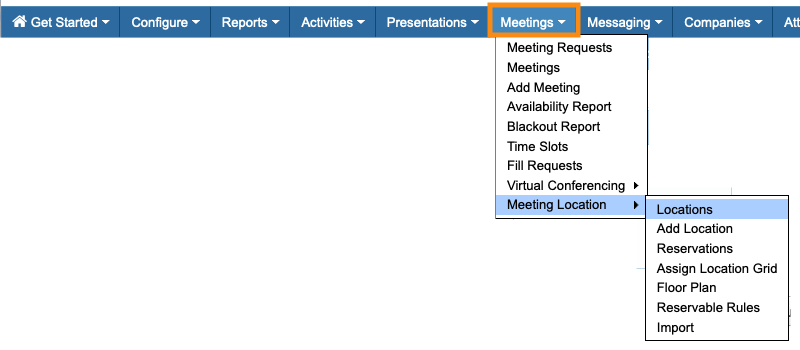
- Step 1. Head to the Location List:
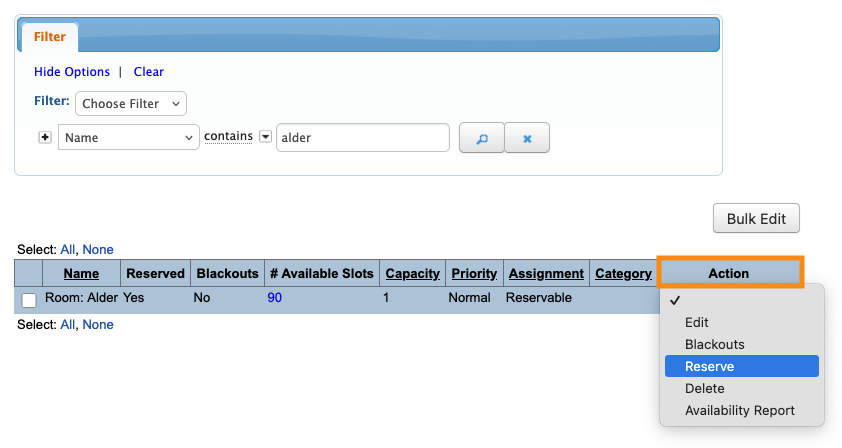
- Step 2. Locate the reserved location. Then use the Action menu to choose Reserve:
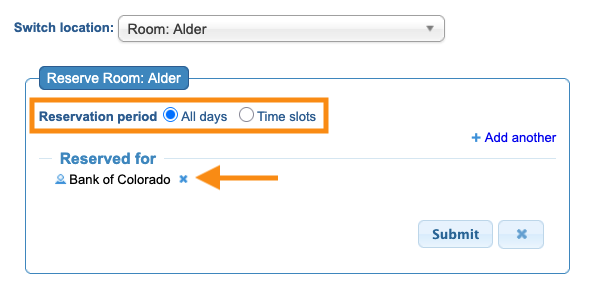
- Step 3. You’ll now see the original reservation. In this example, Bank of Colorado currently has this location reserved for all days and time slots:
Shared reservation with time slot assignments
Let’s say we want to add a second Company, Southern Bank, to this location reservation.
We want each Company to have assigned time slots where they’ll use the location - that way they aren’t in the location at the same time.
- Step 1. Change the Reservation period setting to Time slots.
- Then, select the time slots when the original reservation, Bank of Colorado, will be using this location:
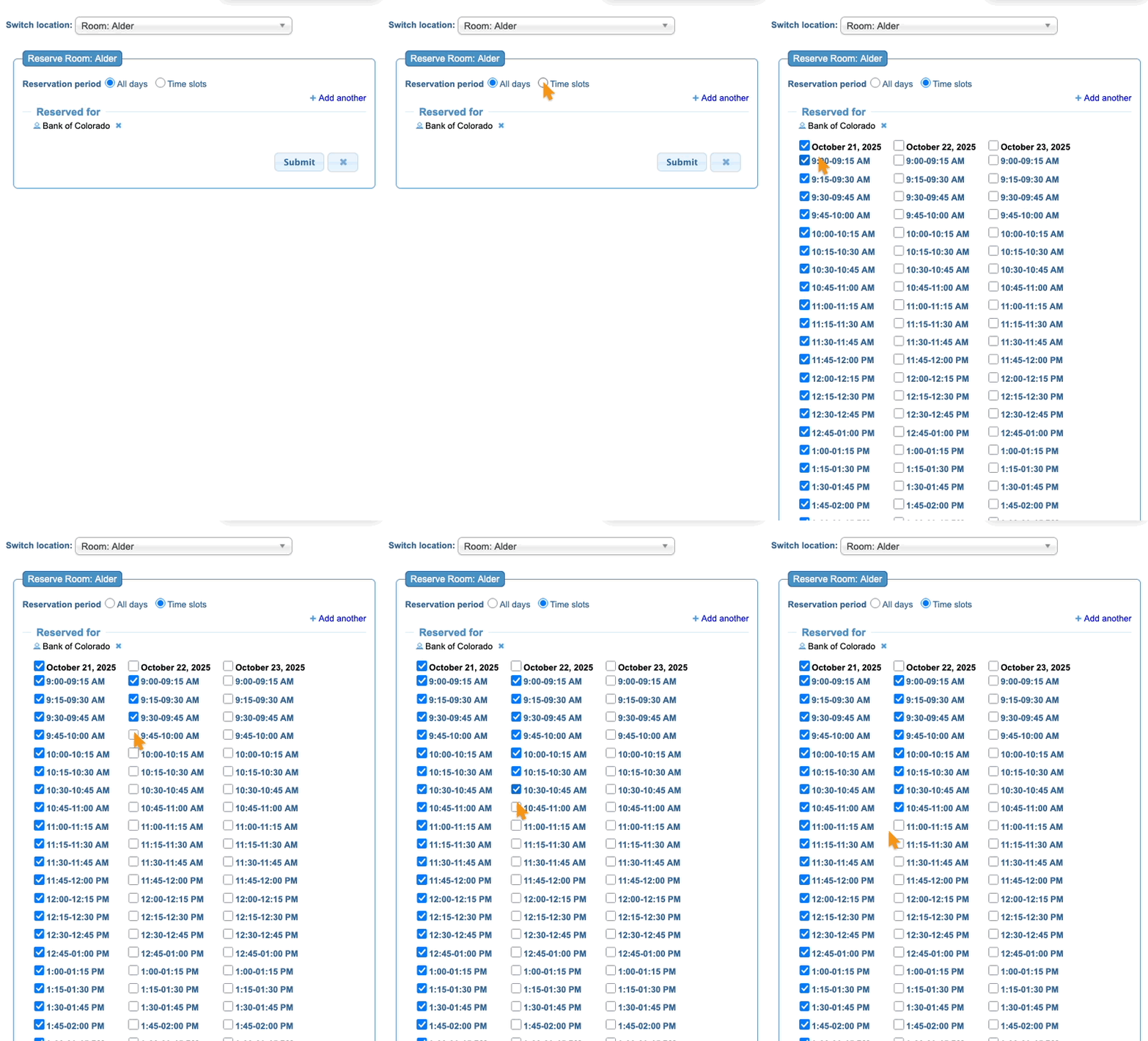
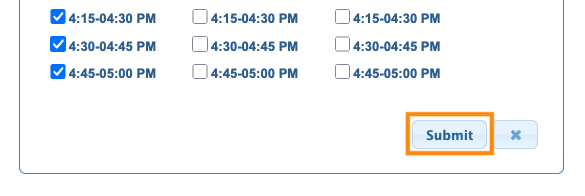
- Step 2. Scroll down and click the Submit button:
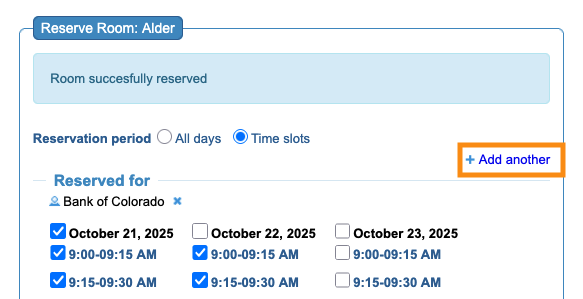
- Step 3. Now, click the Add another link:
- Step 4. Start typing the name of the second Company, then select it when it appears.
- Scroll down, and you’ll see a new set of time slots for this second Company. Click the times they’ll be using the location:
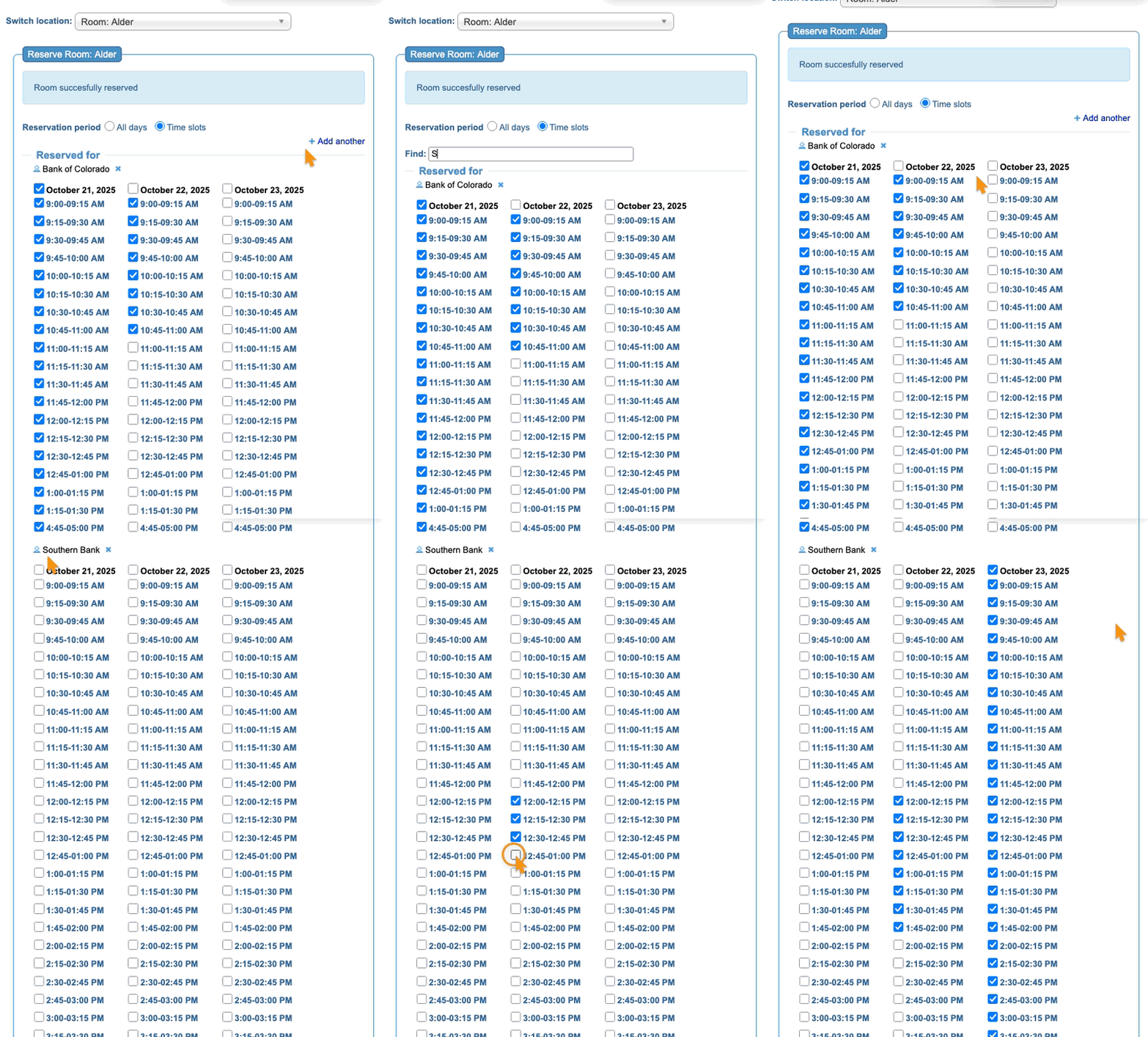
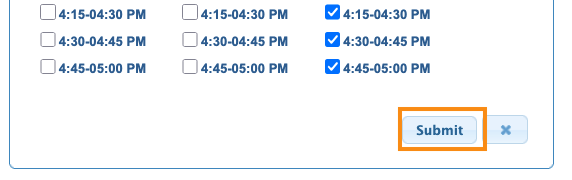
- Step 5. Scroll down and click Submit for this set of time slots:
- Each Company now has assigned times for this location.
- When you schedule meetings in this location, MeetMax will show you only the time slots each Company has reserved.
Shared reservation with concurrent meetings
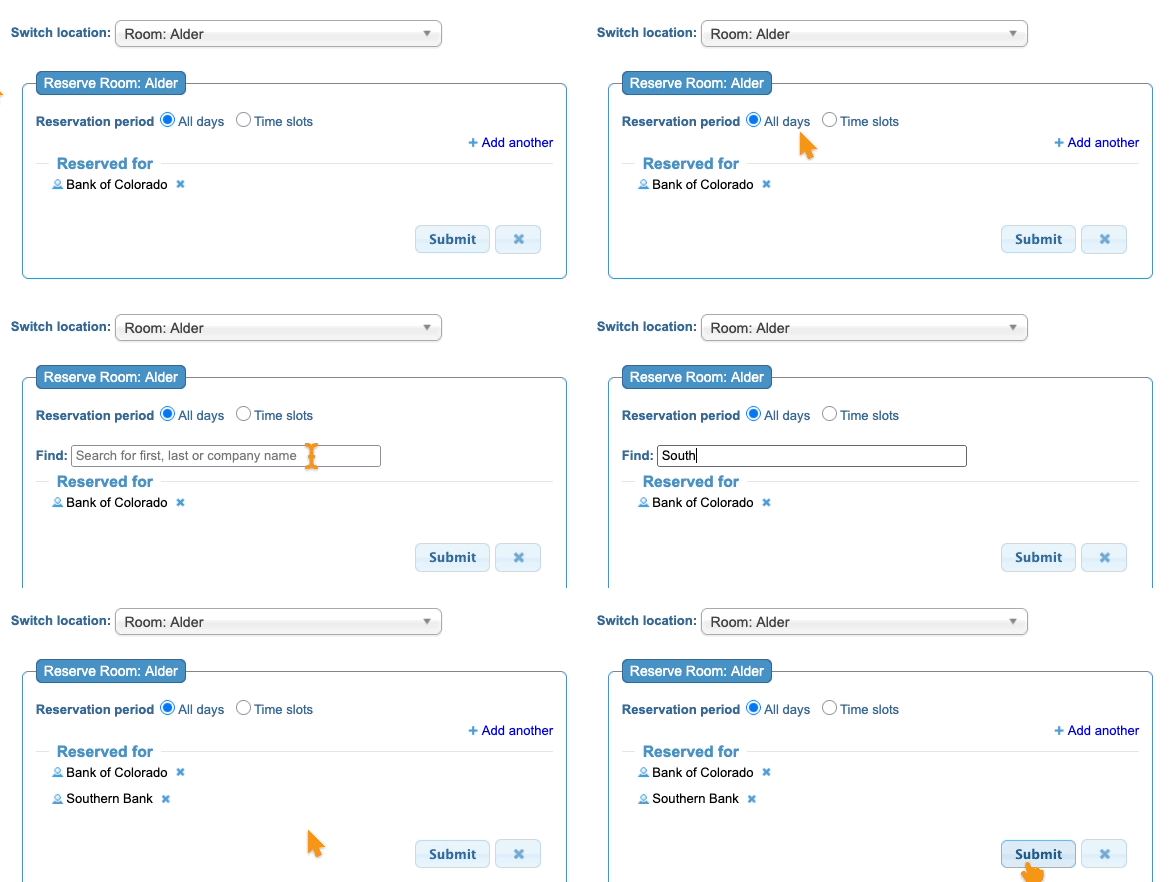
In some cases, you might have more than one Company sharing a reserved location, and they can conduct meetings simultaneously.
- Step 1. Make sure the location’s Capacity is set for the correct number of simultaneous meetings.
- Step 2. Head to the reservation, using the steps in the section above.
- Leave the Reservation period set to All days.
- Step 3. Click Add another, then start typing in the name of the second Company. Click on it when it appears.
- Click Submit to save: