


In this article:
- Where is it?
- What participants can access before paying
- Managing Pending registrations
- Sending payment reminders
- Making balance adjustments
- Looking up payment transactions
- Updating a paid registration
Where is it?
Before a registrant completes their payment, you’ll find them in the Pending Registrations lists:
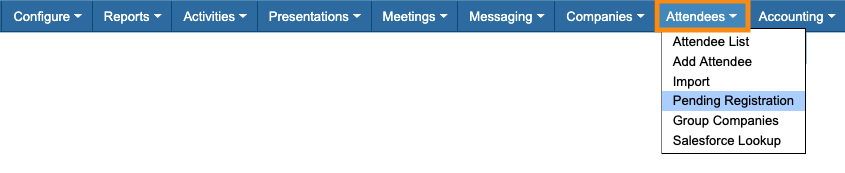

After registrants complete payment, you’ll see them in the Attendee List and Company List:


| We’ll show a general registration and payment flow here, but payment options in MeetMax are very customizable. Our Support team is happy to help you set things up. | |
| Want to see the participant's paid registration process? Check out this article. |
What participants can access before paying
Once the participant has completed registration, they’re taken to their MeetMax account. What they can see there before paying is up to you.
In the Menu Editor, you can set any menu item to be shown or hidden before payment:
In this example, the Attendee has registered but not paid. They currently have limited access to MeetMax features - just the tabs they use to pay, and the ones they use to set up their profile:

After paying, this Attendee has access to more features - in this case a Welcome page, meeting requests, and their schedule:

| No matter what access your participants have, as an Admin you have backend access to all MeetMax features. So before a participant pays, you can schedule their meetings, sign them up for presentations and activities, and more. |
Managing Pending Registrations
Paid registration is a two-step process in MeetMax:
- Fill out the event registration form
- Once in MeetMax, choose payment options and process payment
When a participant has completed registration but not yet paid, they’re considered a Pending registration.
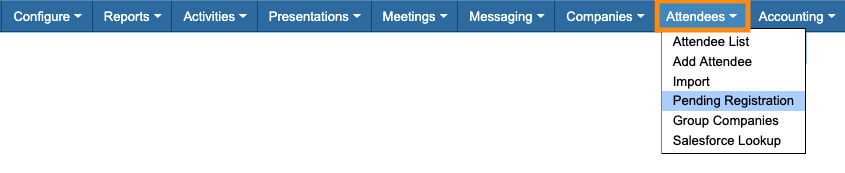
You’ll find them in either the Attendee or Company Pending Registration lists:

Sending payment reminders
MeetMax gives you two ways to reach out to participants who haven’t completed their payment step.
Sending an individual reminder
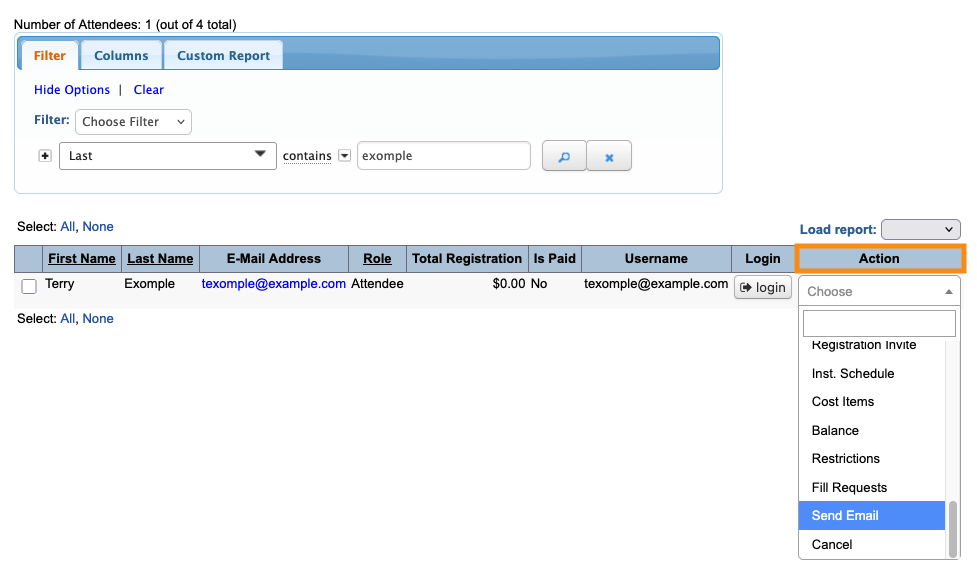
If you only need to email one participant, head to the Pending Registration list where they appear.
Use the Action menu to choose Send Email:
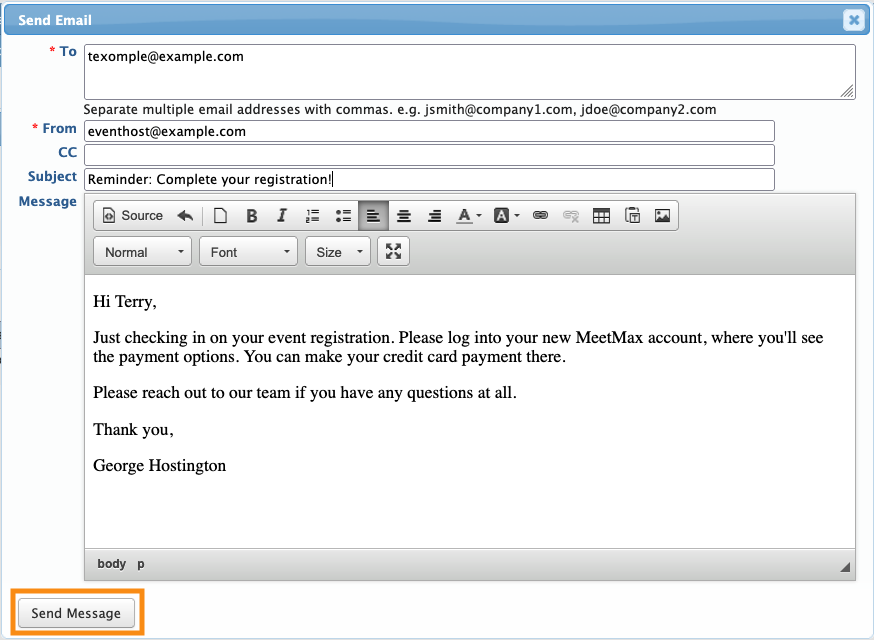
Type in your message and click Send Message. MeetMax will send your message to the participant’s account email address:
Sending a batch of reminders
If you need to remind a group of participants to pay, you can send a batch email instead.
Filter the Pending Registrations list to show the participants you want to remind. Then head to the top right corner of the page and click the Batch link:
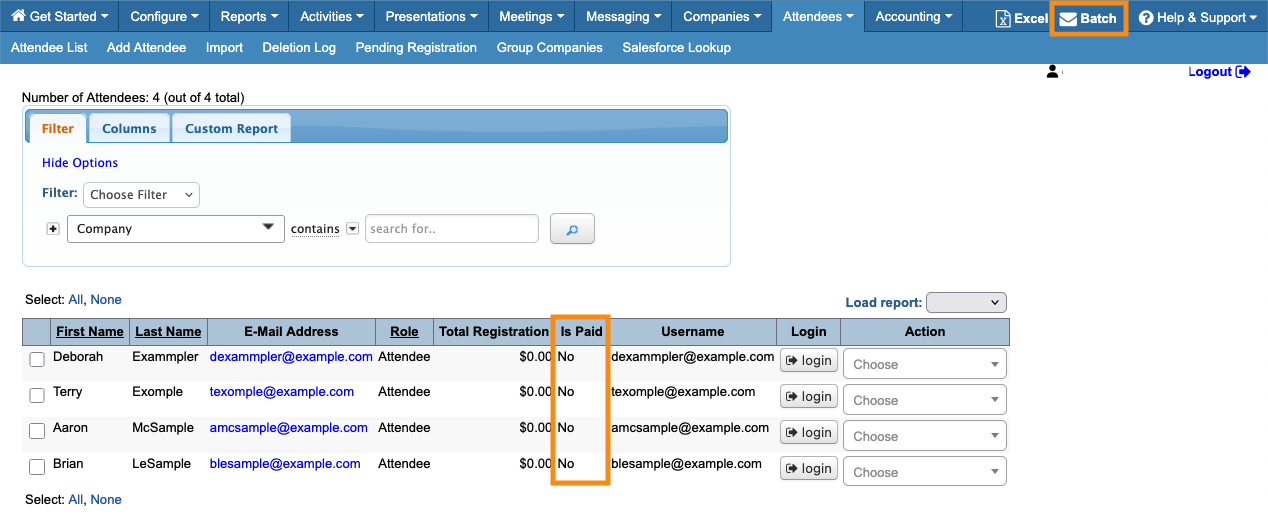
You’ll be taken to the batch emailer to compose and send your message.
Making balance adjustments
If you need to change the amount a participant owes or has paid, check out these articles:
- Processing check or money order payments
- Refunding a credit card payment
- Manually adjusting a participant’s balance
Looking up payment transactions
The Transactions List shows you details of each payment transaction posted in MeetMax. This includes credit card payments, refunds, checks or money orders, and manual balance adjustments.
Learn more about the Transactions List here:
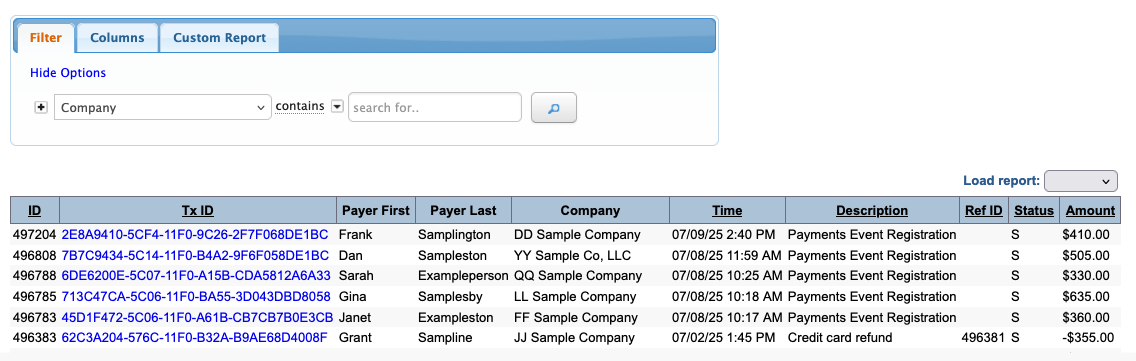
MeetMax also adds a Transaction ID to every transaction, and then transmits it to your payment processor. That way, you can reference this ID to help locate transactions in your payment processor account.
| MeetMax doesn’t store any credit card information, only general transaction data. That data is subject to our data storage policy and data privacy policy. |
Updating a paid registration
If a participant has completed their paid registration, they’ll gain access to all of your event’s MeetMax features, as we discussed above.
If you need to remove their payment later to make adjustments, that will revert the participant to a pre-paid state, with limited MeetMax access.
Reach out to our Support team if you need to make an update like this. They’ll help you maintain the participant’s access while resolving the registration update.

