


Importing Invitees

Need to invite a large number of participants to register for your event? Want to use data exported from your CRM? Imports make it fast and easy.
In this article:
- Where is it?
- Formatting your spreadsheet
- Working with Required fields
- Uploading your CSV
- Notifying the imported Invitees
Where is it?
You’ll start an Invitee import from the Invitees tab:
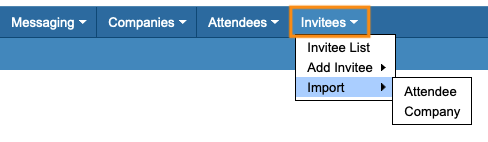
| You can also import Attendees, Company Reps, Companies, Client Reps (Admins), and meeting locations and presentations to MeetMax. |
Formatting your spreadsheet
You can use any spreadsheet software, and then export a CSV file to import to MeetMax.
| You can also export data from your CRM, using a CSV format. Then you can open it in a spreadsheet program and use the steps below to prepare it for import to MeetMax. |
- Step 1. First, we need to know what columns to add to our spreadsheet.
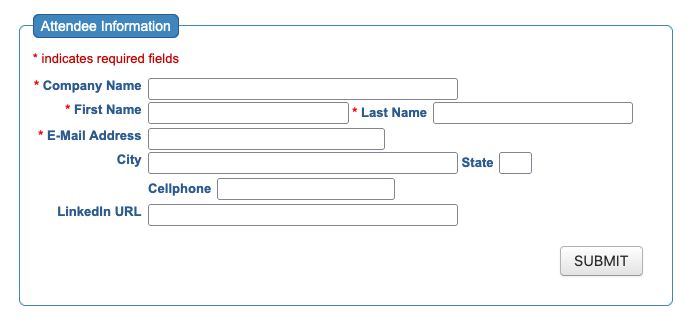
- Head to the Invitee tab. Then choose Add Invitee. We’ll use the Attendee Invitee form in this example, but the Company Invitee process works the same way:

- Step 2. On this page, you’ll see the current Invitee registration form.
- For every field you see here, you’ll need a separate column on your spreadsheet:
-
First Name and Last Name are always separate fields, and require separate columns. First Name, Last Name, and Company Name are always required fields in the registration form. - Step 3. Every Invitee name needs a separate row on your spreadsheet.
- You can leave some cells in your spreadsheet empty, and add that data later. The only exception is with Required form fields (see below).
Working with Required fields
If the registration form you’re working from has required fields, the matching columns in your spreadsheet should have data in every cell:
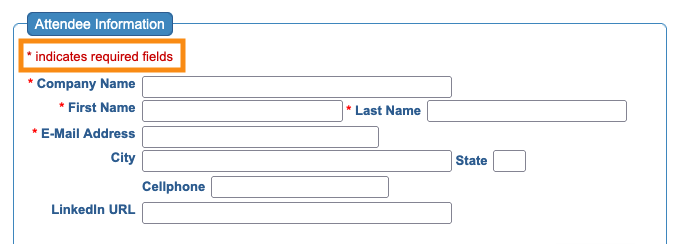
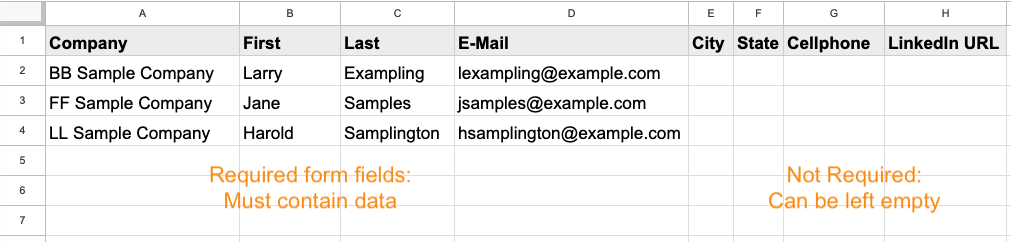
| If you leave a required cell empty, the import will fail unless you remove that requirement. See below for a quick way to remove it as you’re importing. |
Uploading your CSV
- Step 1. Export a CSV file from your spreadsheet software.
- Step 2. In MeetMax, head to the Invitees tab. Choose Import, then select the user role for this import:

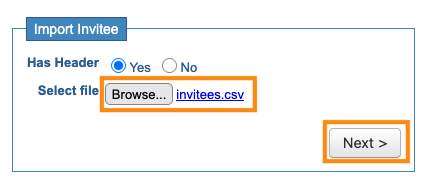
- Step 3. Indicate whether your spreadsheet has a Header row or not. Then click Browse to choose the CSV file from your computer.
- Once you’ve added your CSV, click Next:
- Step 4. Now, you’ll make sure the columns of your CSV are mapped to the correct fields in the MeetMax form. If you built your spreadsheet columns to match the fields of the registration form, you shouldn’t need to do much here.
- Anywhere you see Do not map this field, use the drop down menu to choose the field that matches your header cell:
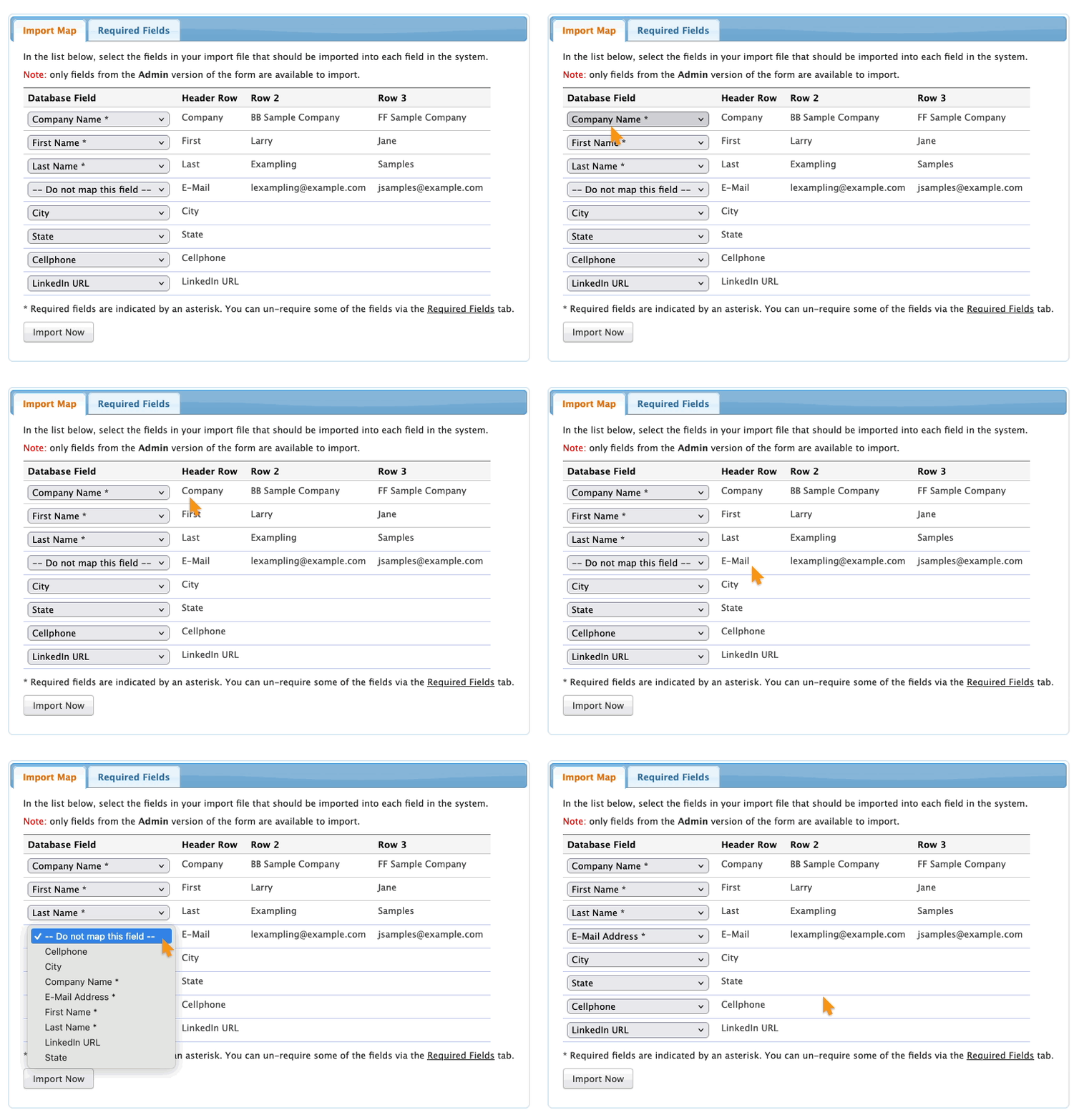
- MeetMax will also display two sample columns of your data, so you can make sure all of the fields are mapped correctly.
- Step 5. Next, click on the Required Fields tab. All of the required fields in your registration form will be checked here. You can uncheck any of the boxes to remove that requirement during this import.
- This comes in handy if you have a required field but you don’t currently have this information for all Invitees:
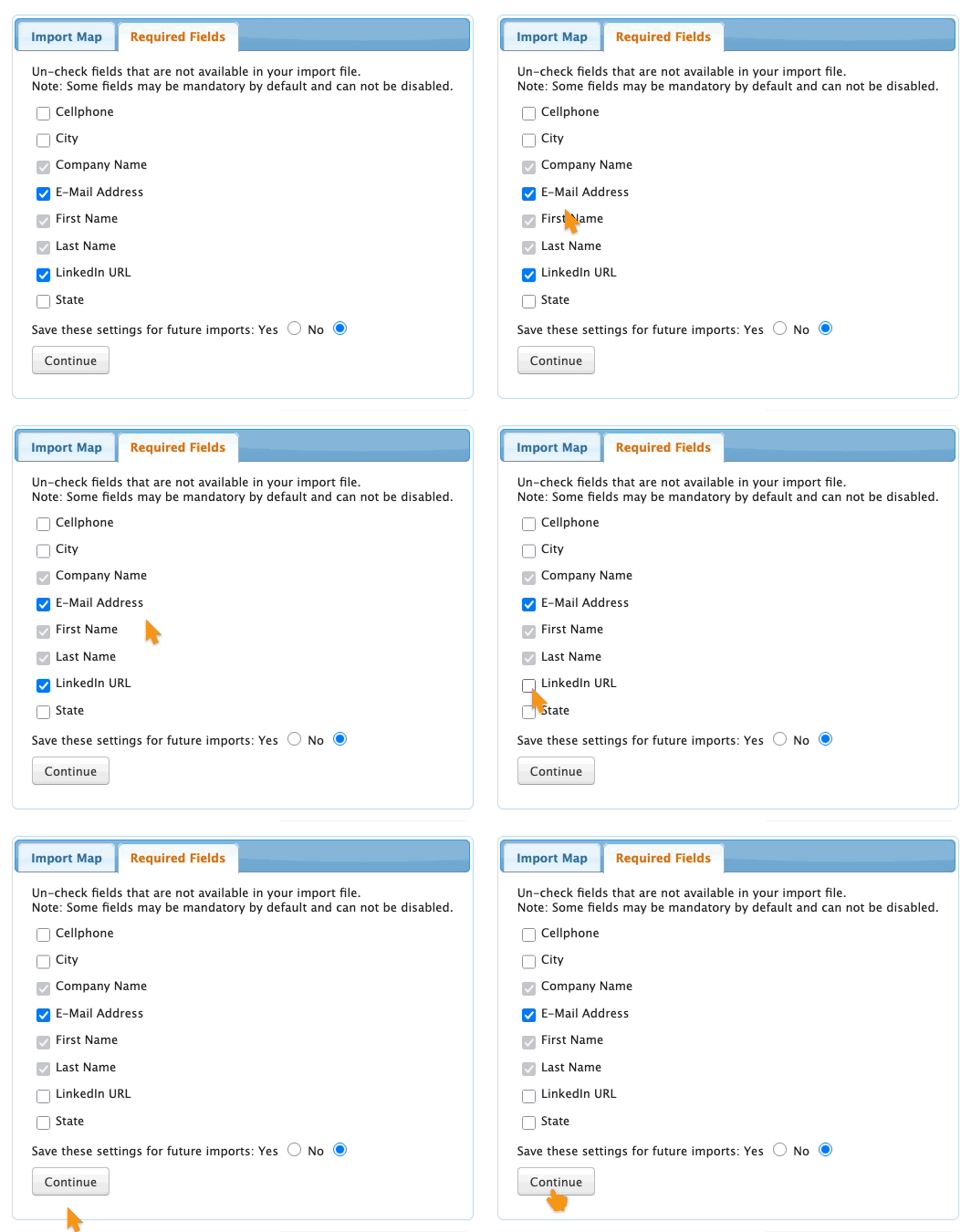
- Click Continue to move to the next step.
- Step 5. When all looks correct, click Import Now:

- The import process can take up to a few minutes, depending on the size of your CSV.
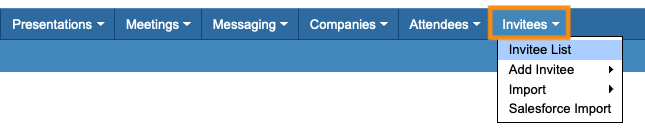
- Step 6. When you see the success message, you can head to the Invitee List to see your imported data:
-
If you need to import an updated CSV later, reach out to our Support team.
Notifying the imported Invitees
Once you've imported your list, you'll send email invitations. Learn about the two ways to do that in this article.

