


Sending broadcast messages to logged-in participants

To make real-time communication easier at virtual events, you can message participants - either to one individual, or to everyone who’s currently logged into MeetMax.
In this article:
- Where is it?
- When is this useful?
- Enabling broadcast messages
- Messaging all logged-in participants
- Messaging an individual
Where is it?
Once this feature is enabled, you’ll message all participants from the Messaging tab:

You’ll message individual participants from either the Attendee List or Company List:


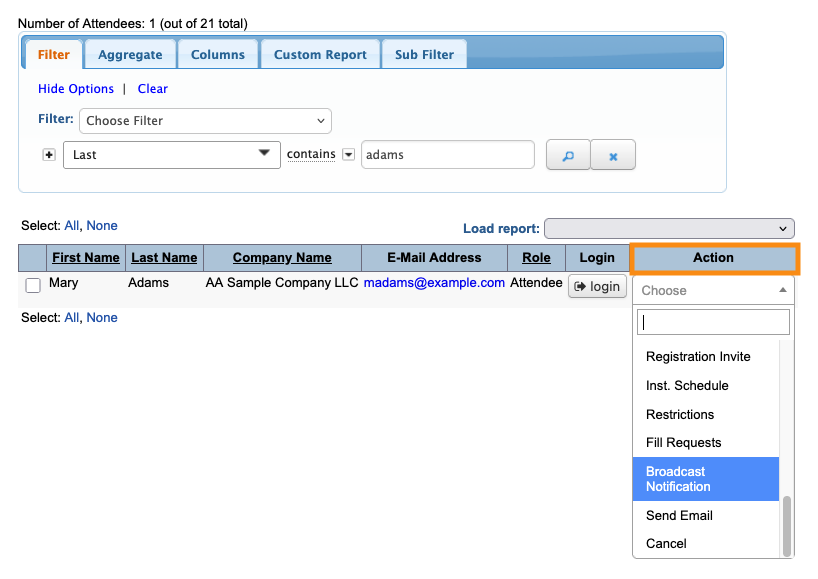
Use the Action menu to choose Broadcast Notification:
When is this useful?
This feature is primarily designed for virtual events. It’s a great way to communicate important details to your participants in real time.
You can send a broadcast to every logged-in user, or choose one Attendee or Company, and send a message only to them.
| When you send a message this way, it will only reach people who are currently logged into MeetMax. MeetMax doesn’t save these notifications to show people who log in later. | |
| See the bottom of this article for other ways to send notifications. |
Enabling broadcast messages
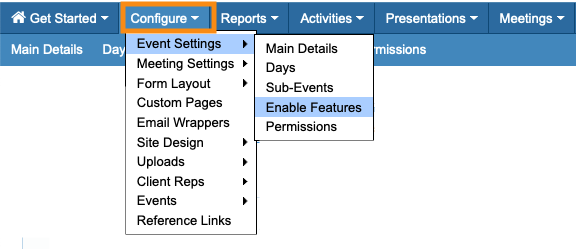
- Step 1. Head to the Configure tab. Choose Event Settings, then Enable Features:
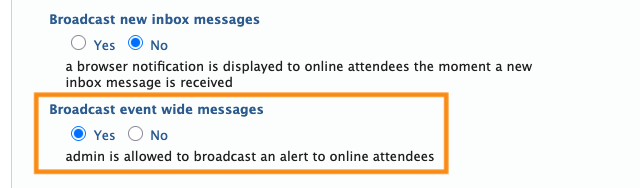
- Step 2. Scroll down to the Notifications section. Under Broadcast event wide messages, choose Yes:
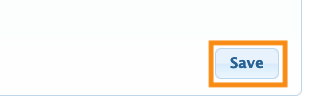
- Step 3. Scroll to the bottom of the page and click Save:
Messaging all logged-in participants
Use these steps if you need to send a message to everyone who’s logged in right now.
- Step 1. Head to the Messaging tab. Choose Broadcast Messages:

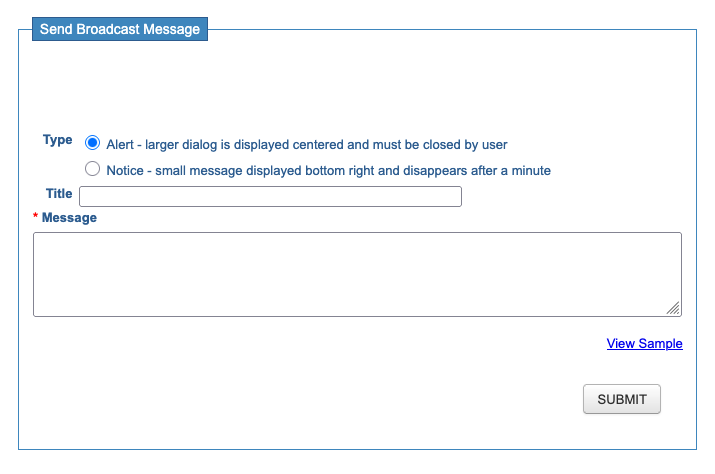
- Step 2. The first time you you visit this page, you’ll see the message form:
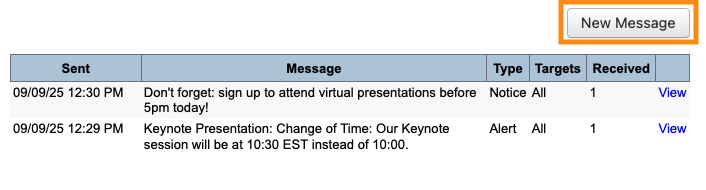
- In subsequent visits, you’ll see a list of previously-sent messages, along with the New Message button:
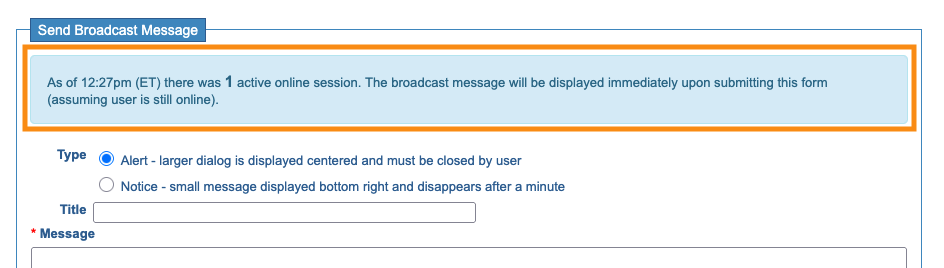
- Step 3. When you start a new message, MeetMax will show you how many users are currently logged in to receive it:
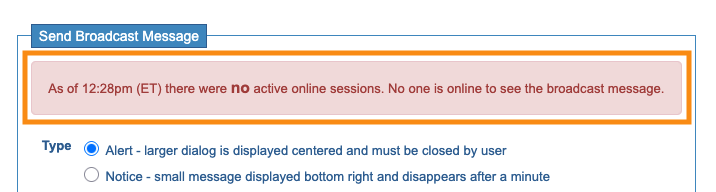
- If no one is currently logged in, you’ll see that information. Send this message another time, when people are logged in to receive it:
- Step 4. MeetMax offers two types of broadcast messages:
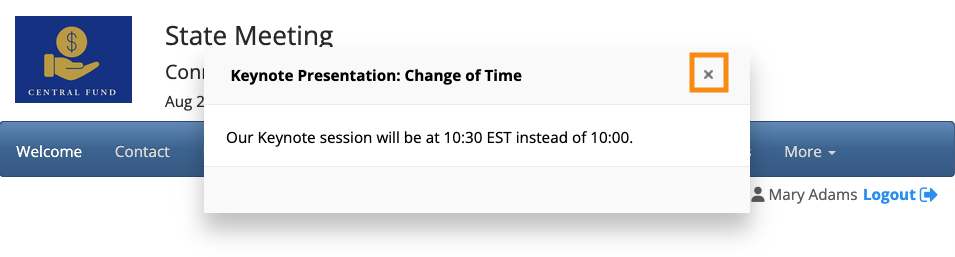
- • Alert: Displays as a pop-up notification at the top of the page. The recipient has to dismiss the message by clicking the X:
-
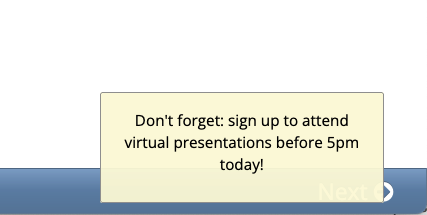
- • Notification: Displays as a smaller pop-up, at the bottom of the page. It automatically dismisses after one minute:
-
- Choose the style you need. Then fill out the form:
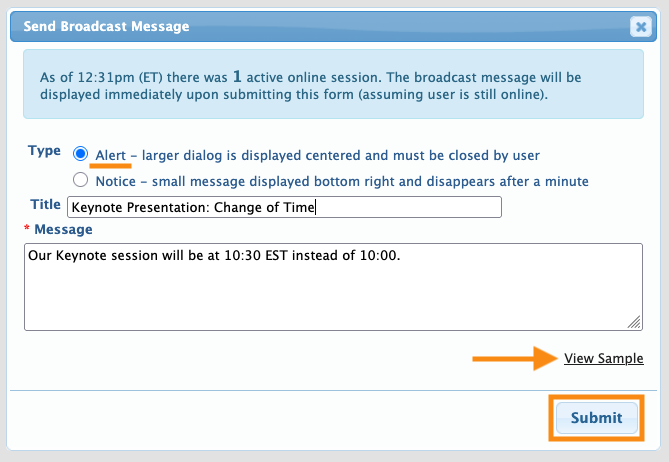
-
This form supports Markdown language, if you want to add formatting. Preview the message any time by clicking the View Sample link. - Step 5. When the message is ready, click Submit to send it instantly.
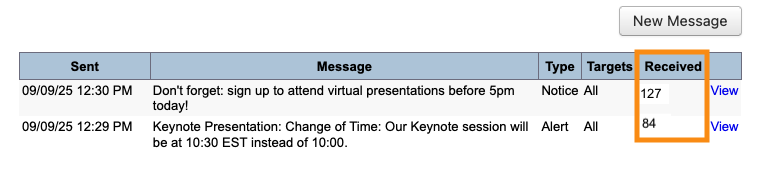
- The Broadcast Messages page will show you how many logged-in users received each message:
Messaging an individual
- Step 1. Head to the Attendee List:

-
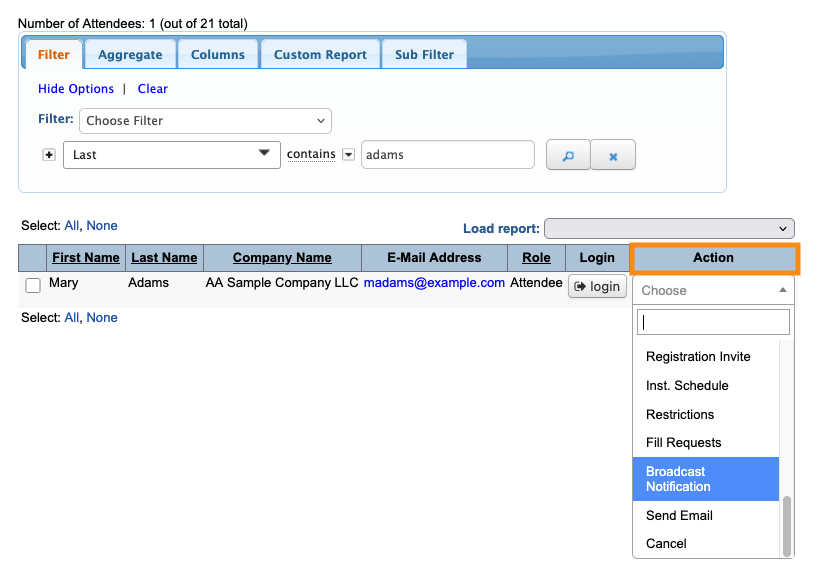
You can also message individual Companies. Use these same steps, starting from the Company List. - Step 2. Filter the list to find the person you need. Use the Action menu to choose Broadcast Notification:
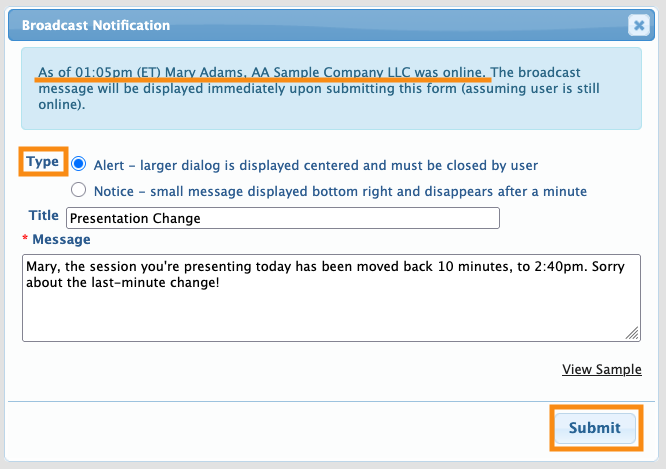
- Step 3. Check the top of the message form to make sure this participant is currently logged into MeetMax.
- Then choose the Type of notification (see the samples in the section above).
- Add the message, and click Submit to send it:
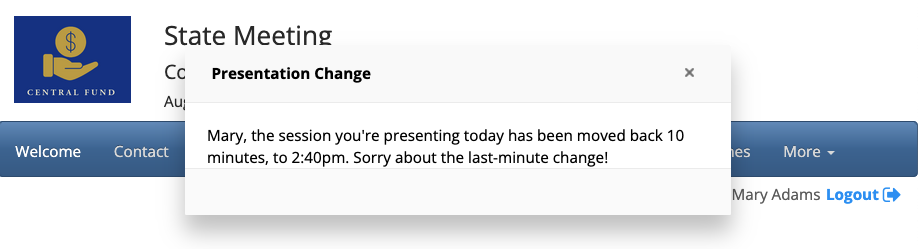
- Step 4. The participant receives the message instantly:
-
Remember, the participant must be logged into MeetMax at the time you send the message. MeetMax doesn’t save these messages to display later.
Other notification options:
MeetMax offers these other ways to reach participants:

