


Schedule Setting: New meeting created since

| We’ll show the Admin view of an Attendee schedule here. Remember, you can also preview what the Attendee sees in their account. |
When to use this setting
This setting is useful if:
- You’ve already sent out Attendee schedules, but there were last-minute changes.
- You want to make it clear to everyone exactly which meetings have changed.
How it works
This feature takes into account the date and time you last sent a batch email with a schedule attachment.
Once that’s happened, this setting will highlight any meetings that were added or changed since that point.
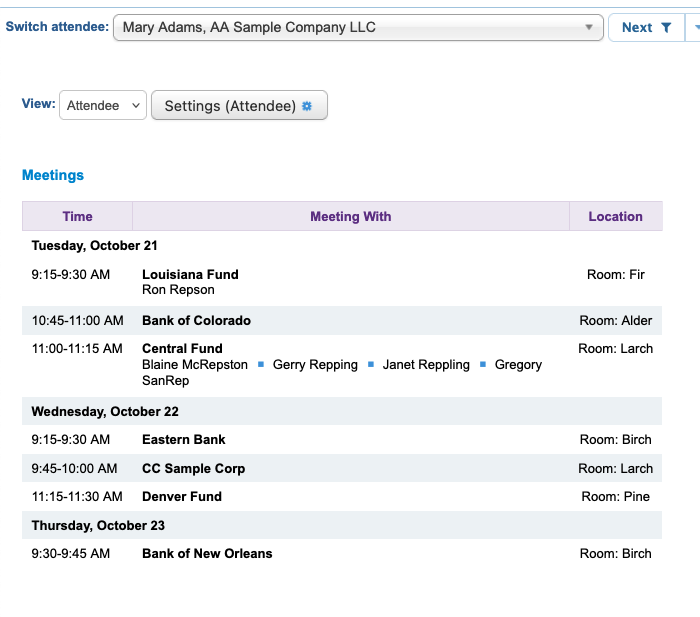
Here’s a default schedule:
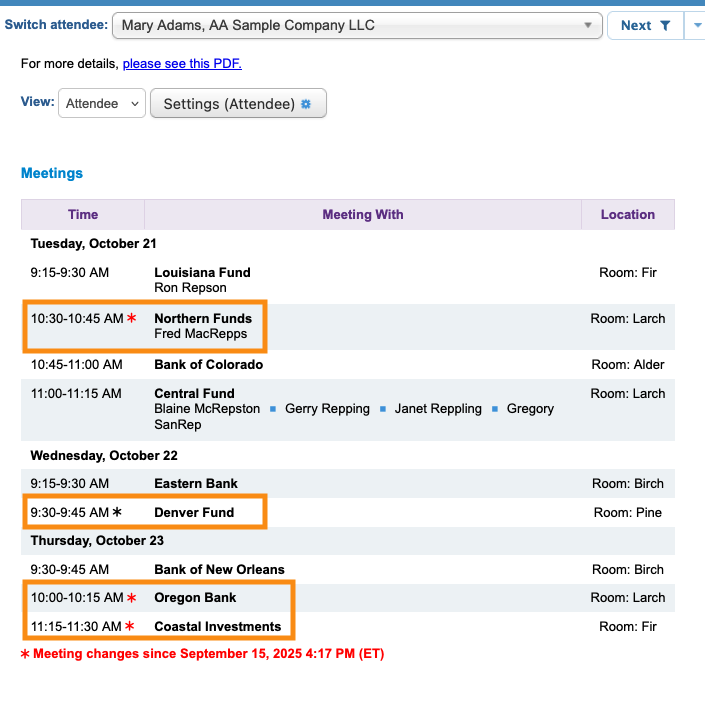
Here’s the same Attendee’s schedule, with recent changes highlighted:
- New meetings have a red mark.
- Rescheduled meetings have a green mark.
Changing the setting
Remember, with this setting in place, meeting changes will only appear once you’ve batch emailed schedules.
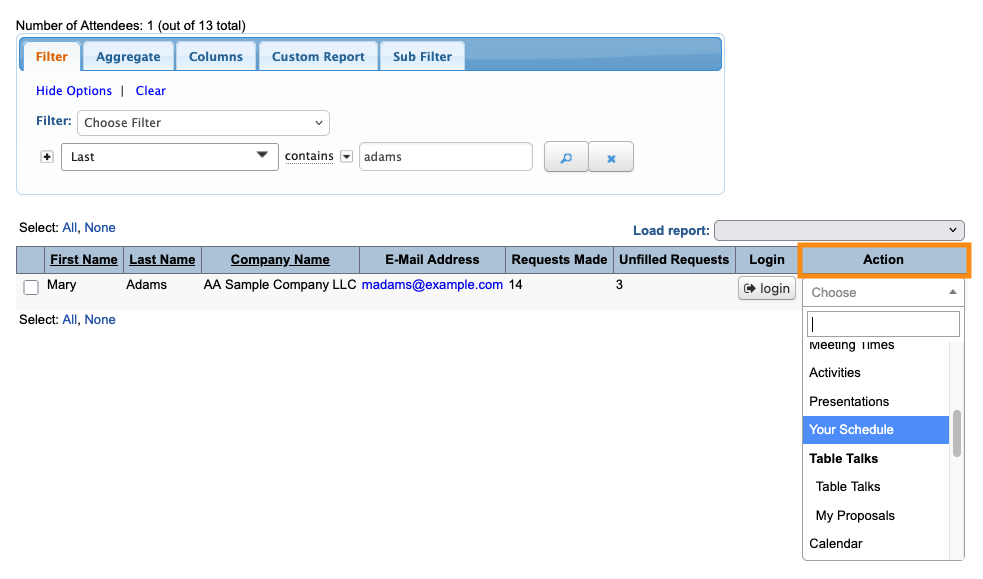
- Step 1. Head to the Attendee List:

- Step 2. You can use any Attendee’s record. Changes you save there will apply to all Attendees.
- Use the Action menu to choose Your Schedule:
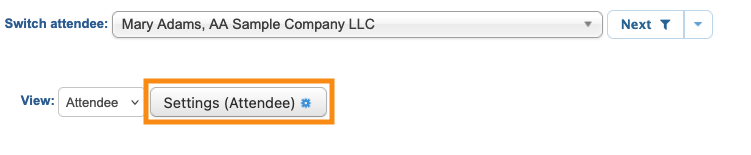
- Step 3. Click the Settings button:
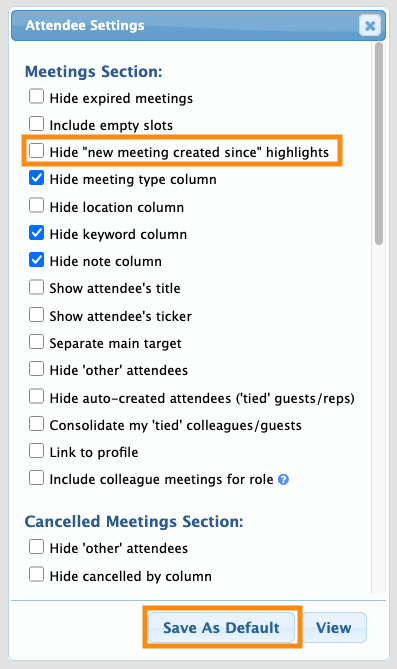
- Step 4. In the Attendee Settings pop-up, make sure Hide “new meeting created since” highlights is unchecked.
- Then click Save as Default:
-
You can use this setting in Moderated and Unmoderated meeting programs. This setting will update each time you send a new batch email of schedules. Each time you access the schedule, MeetMax will reference the date and time of your most recent send, and highlight changes since then.

