


There are two methods, depending on the type of event you’re looking for.
Switching to a different current or future event
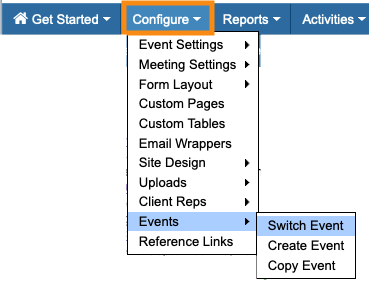
While you’re in any event, head to the Configure tab. Choose Events, then Switch Event:
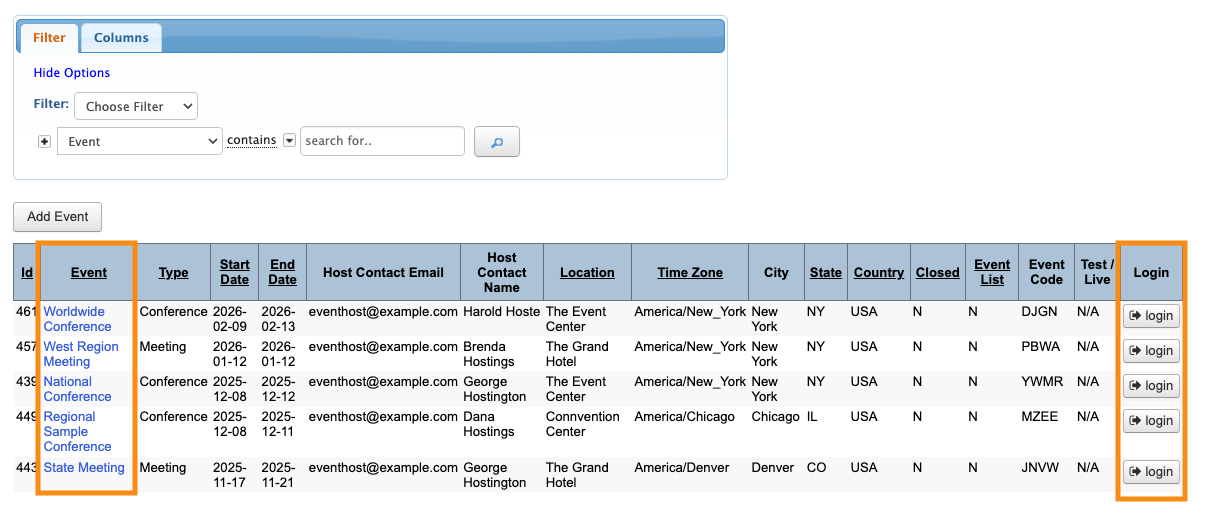
That takes you to your main list of events. Click the title or Login button of any other event to open it:
Learn more about working with your list of events here.
Switching to a past event
By default, your list of events is filtered to show only current and future events. You can change the filter to see past events.
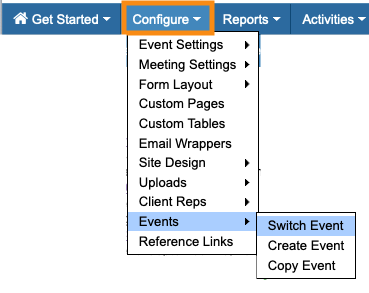
While you’re in any event, head to the Configure tab. Choose Events, then Switch Event:
On your main list of events, head to the Filter section.
Change the filter to Expired Events. Then click the magnifying glass icon:
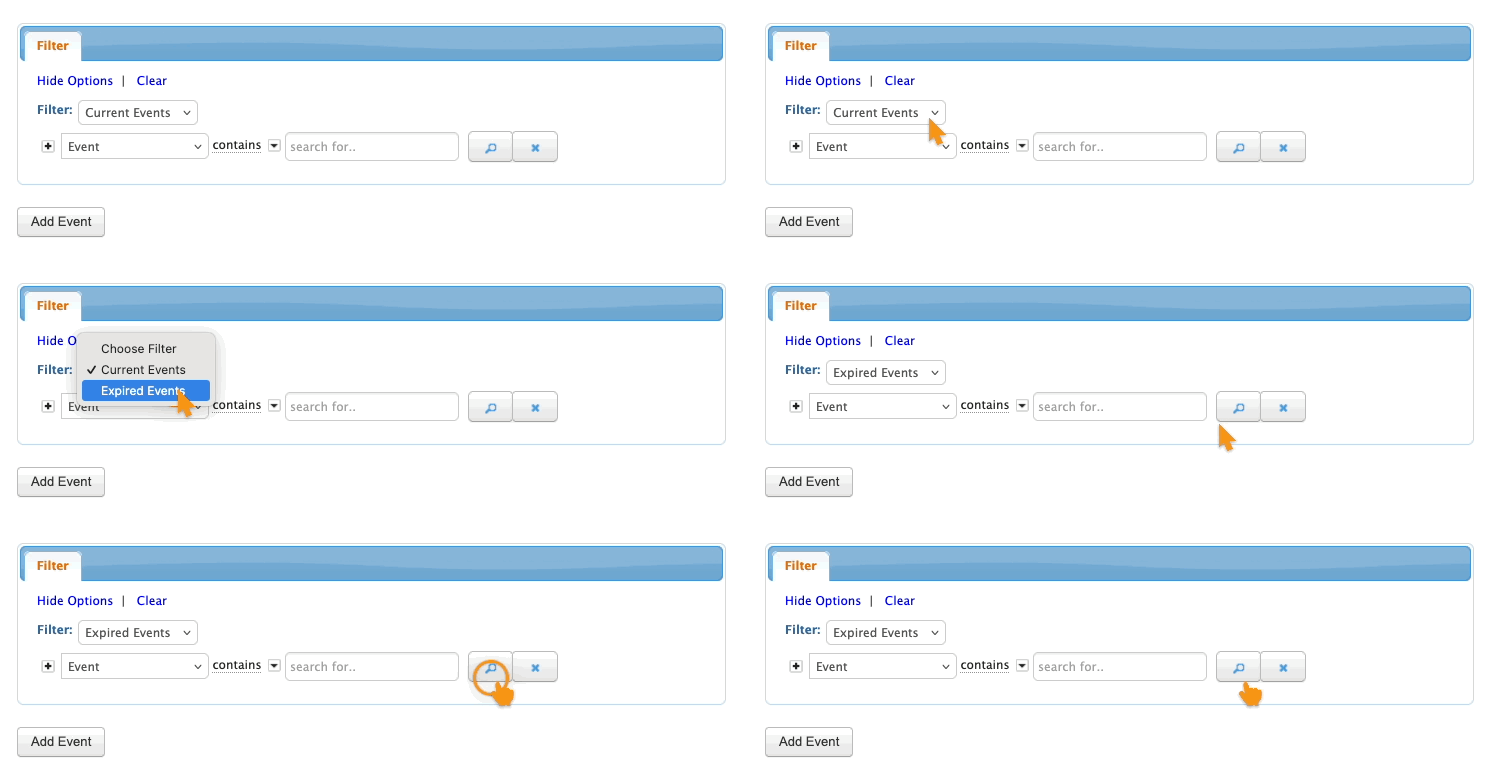
You’ll now see a list of your past events. Click any event’s title or Login button to open it, as shown in the section above.
| MeetMax stores expired events for 15 months after they end. At that point we delete them, unless you’re using our Event Data Archive service. Learn how to access archived events here. |

