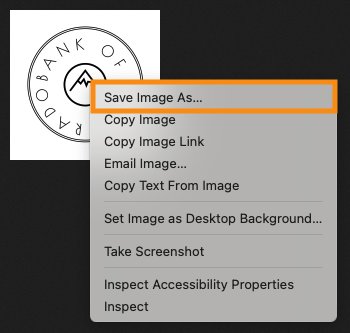
How do I download a logo or headshot from MeetMax?

There are two ways to download a Company logo or Attendee headshot.
| If you need to download an uploaded document file, see this article instead. |
From your browser
This is an easy, general method. You can download this way from any web page that’s displaying the logo or headshot.
Below is a quick route to Profile images.
- Step 1. Head to the Company List or Attendee List (depending on who you need to grab the image from):


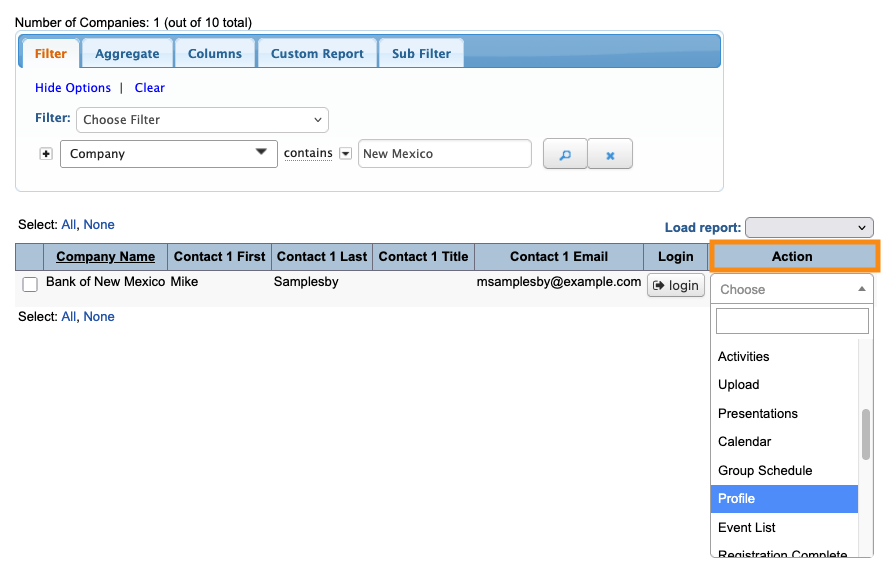
- Step 2. Filter either list to locate the Company or Attendee you need. Use the Action menu to choose Profile:
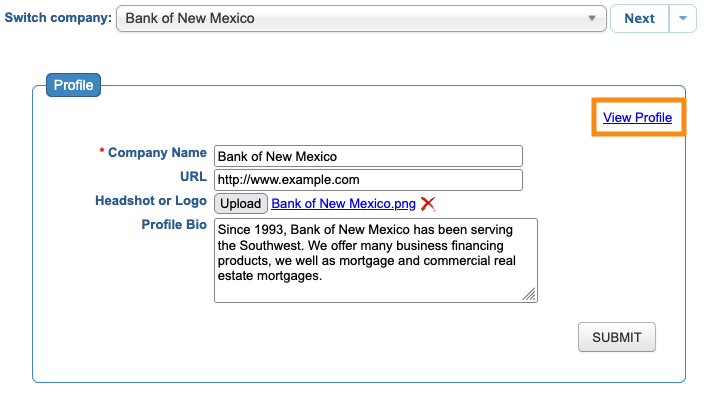
- Step 3. On the Profile form, click the View Profile link to display the logo/headshot:
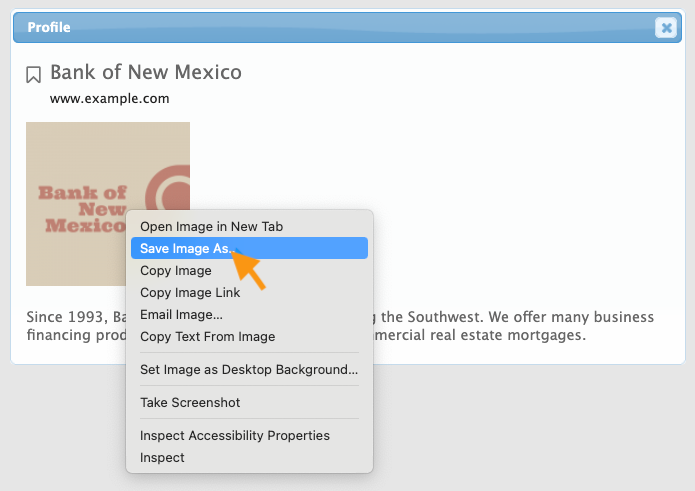
- Step 4. In the pop-up, right-click on the image. Your browser will display a menu where you can save it to your own computer:
From the Uploads page
If your event has Companies log into MeetMax and upload their own logos, you can retrieve those images from the Uploads page.
| If Companies are uploading image files to their registration or Profile forms, this method won’t work. Use the browser method above instead. |
- Step 1. Head to the Company List:

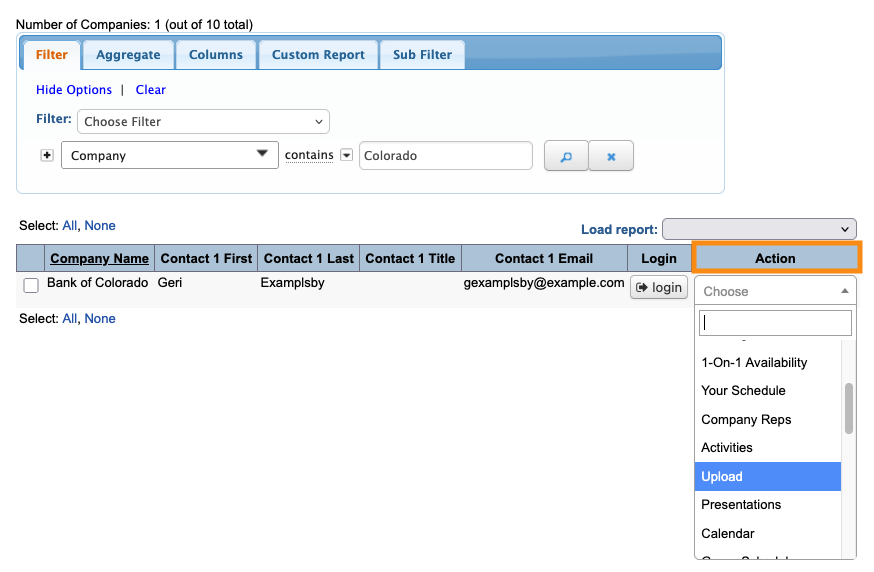
- Step 2. Filter the list to find the Company you need. Use the Action menu to choose Upload:
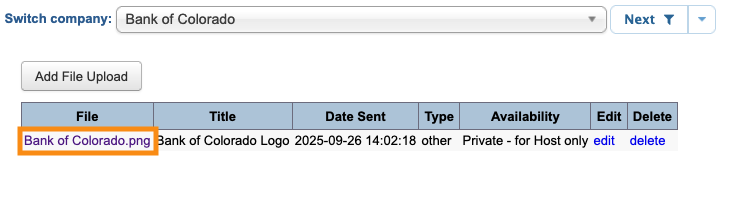
- Step 3. On the Company’s Upload page, click on the name of the logo file:
- Step 4. The image will open in a new browser tab. Right click on it, and your browser will display a menu where you can save the file to your own computer: