Can I download a file I’ve previously uploaded to MeetMax?
Once a file is uploaded to MeetMax, you can download a copy any time.
- As an Admin, you can download any file your team or a participating Company has uploaded during your event.
- If a participating Company uploads files to MeetMax, they can download their own files.
In this article:
- Downloading a file an Admin uploaded
- Downloading a file a Company uploaded
- How a Company downloads its own files
Downloading a file an Admin uploaded
This is a handy way to get a copy of a list you’ve imported to MeetMax, or to collect all files for your post-event records.
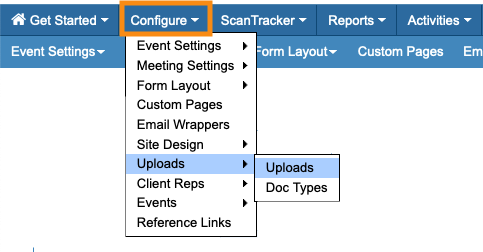
- Step 1. In your Admin account, head to the Configure tab. Choose Uploads:
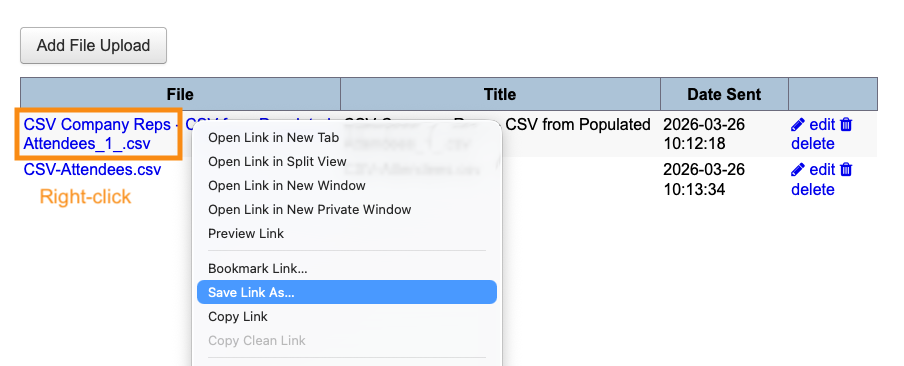
- Step 2. You’ll see a list of all files your Admin team has uploaded.
-
If your team imported Attendees, Companies, meeting locations, or any other list, they’ll see the original file here. - Right click on any file name. Your browser will display a menu where you can download that file.
- Your browser’s menu might look a bit different from this example:
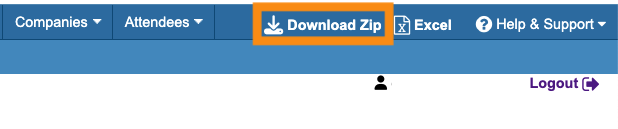
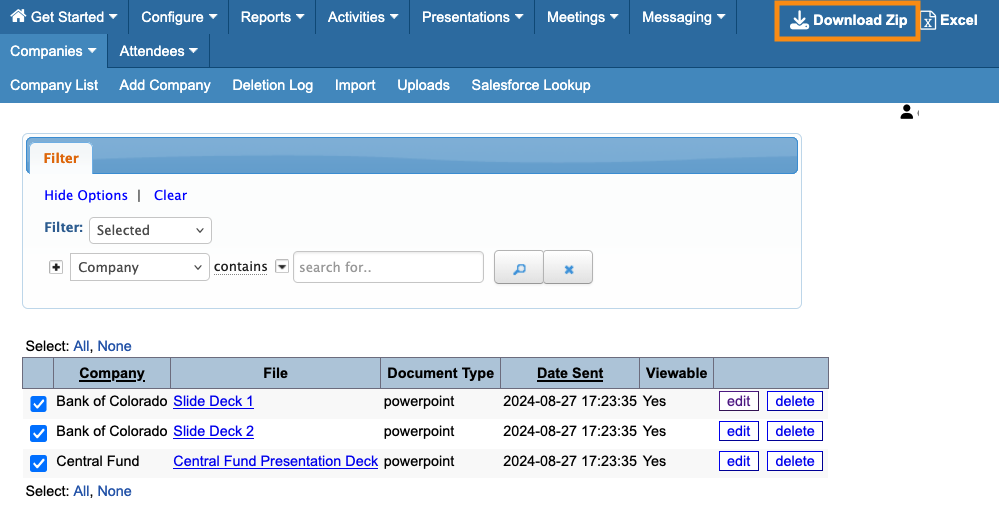
- Step 3. Want to download all of the uploaded files at once? Head to the top right corner of the page and click Download Zip:
-
When you download a copy of a CSV file you’ve previously imported, it’s a good template for importing participants to a new event.
Keep in mind, however, that if you updated your event’s registration form after importing, you might need to update your original spreadsheet to match.
Downloading a file a Company uploaded
In your Admin account, head to the Companies tab, then choose Uploads:

- To download one file, right-click on its file name, as shown in the section above.
- If you want to download all of the files at once, head to the top right corner of the page. Click Download Zip, as shown above.
Downloading a group of files
The Company Uploads page also lets you choose a specific set of files to download.
- Step 1. Click the checkbox for each file you want to download.
- Step 2. Then, set the Filter to Selected. Click the magnifying glass icon:
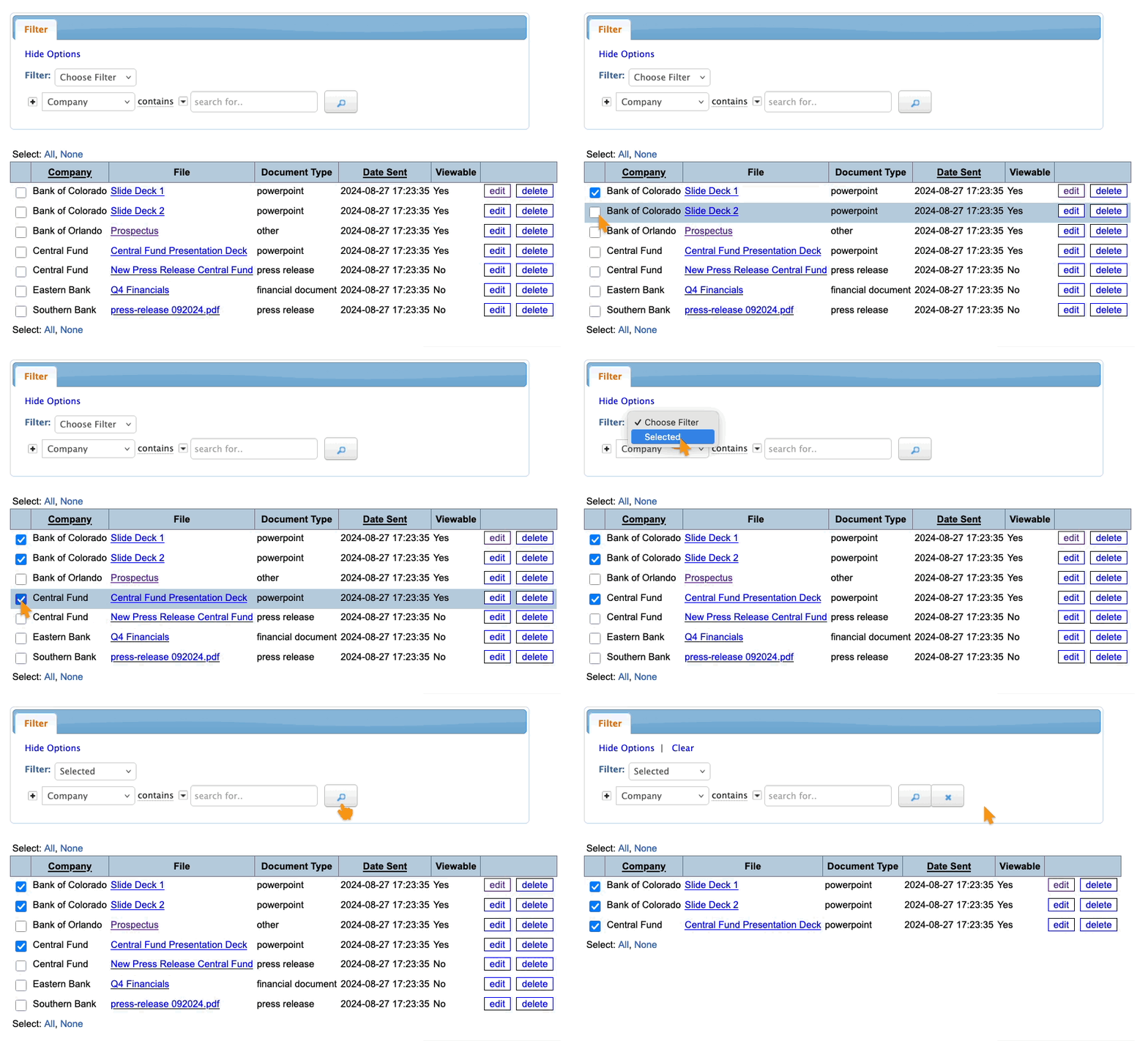
- Step 3. The Uploads list now only displays your selected files. Head to the top right corner of the page and click Download ZIP:
-
If you want to download company logos or headshots from MeetMax, the process might be different.
If participants add an image file via their registration or Profile form, it won’t appear on the Uploads pages. You can still download headshots and logos from your browser, however.
How a Company downloads its own files
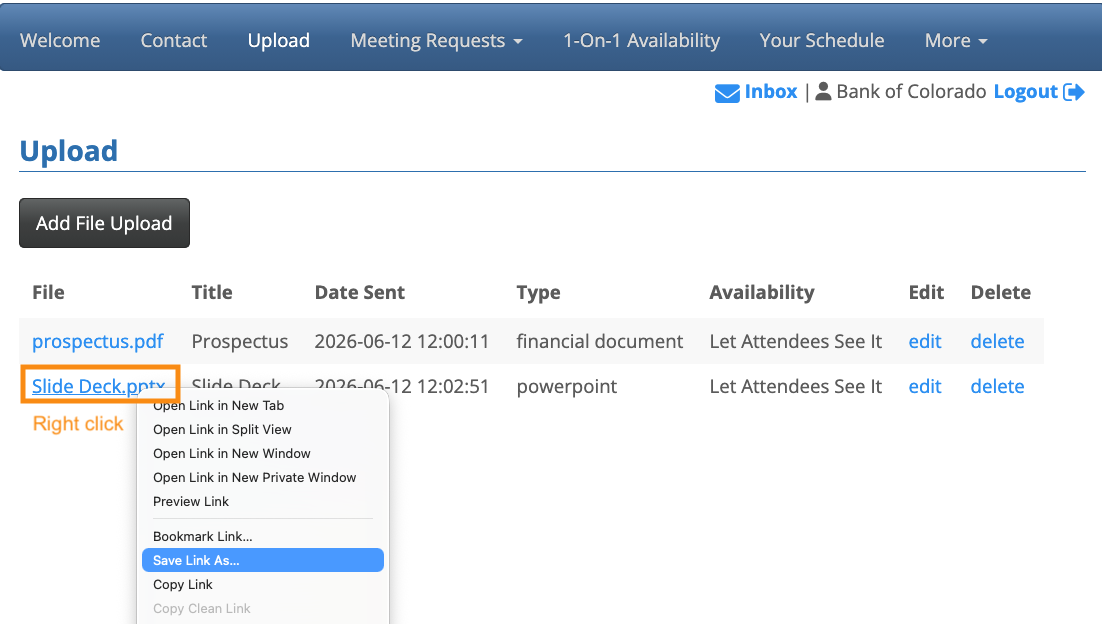
Any Company that’s uploaded files to MeetMax can log in, and head to their own Uploads page.
There, they can right click on any file name to download a copy: