How can I see why a participant isn’t available to meet?

While you’re scheduling meetings for your event, you might want to add a participant to a particular meeting, but find they’re not available at that time.
Here’s how to see why they aren’t available.
| This feature works from a meeting request, so one must be present in the Meeting Times page. | |
| In MeetMax, the Source is the person who sent the meeting request. The Target is the person who received it. |
- Step 1. You can start this process from either the Source’s Meeting Times page, or the Target’s.
- Head to either the Attendee List or Company List:


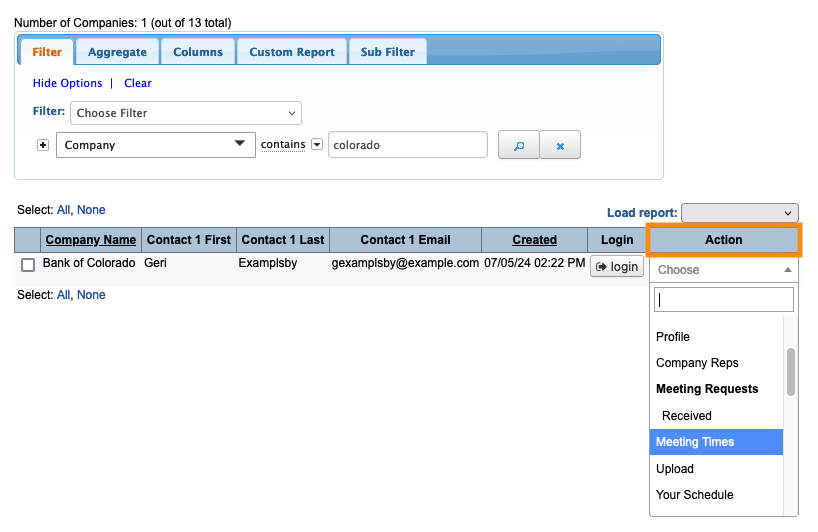
- Step 2. Filter the list to locate the participant you need. Use the Action menu to choose Meeting Times:
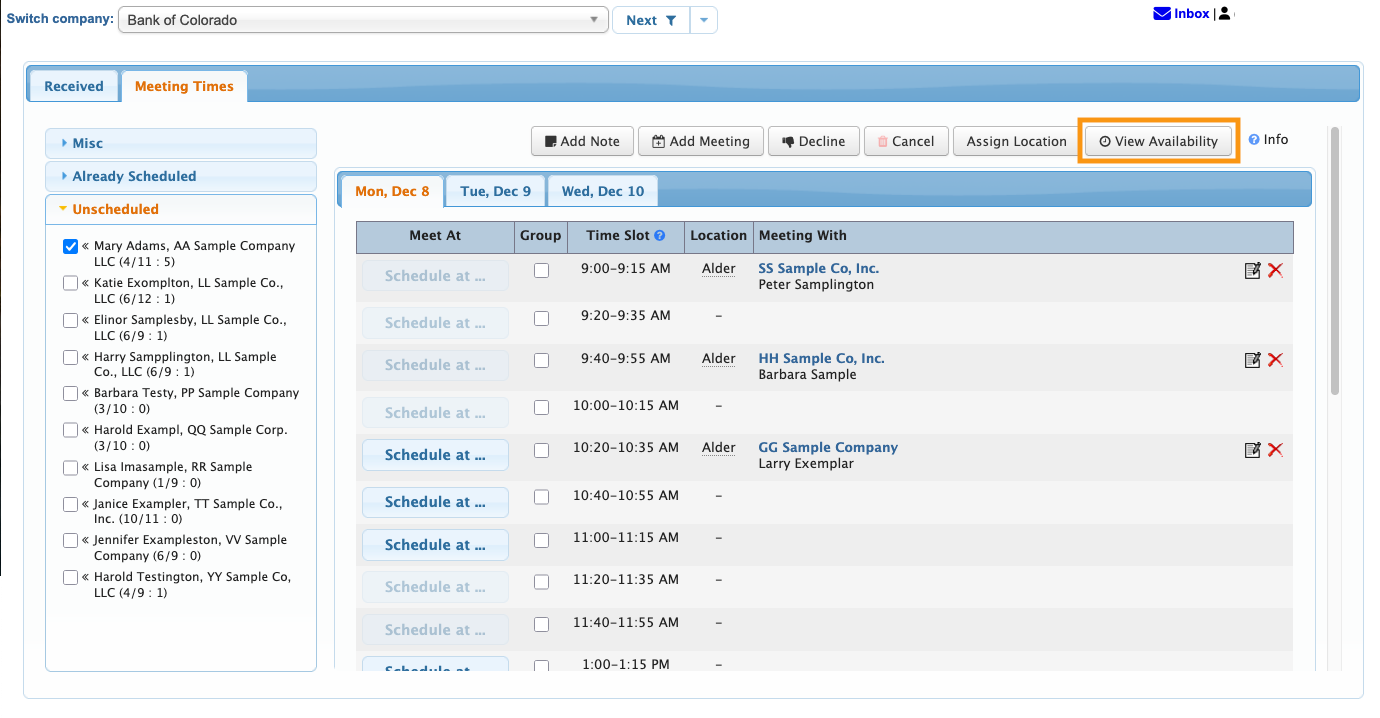
- Step 3. In this example, we’re in the Meeting Times page for a Company, Bank of Colorado.
- Mary Adams has requested a meeting with this Company, but when we try to schedule it, we notice that she has limited availability. (Below, you can see that very few Schedule At buttons are clickable.)
- To find out why Mary’s not available, click the View Availability button:
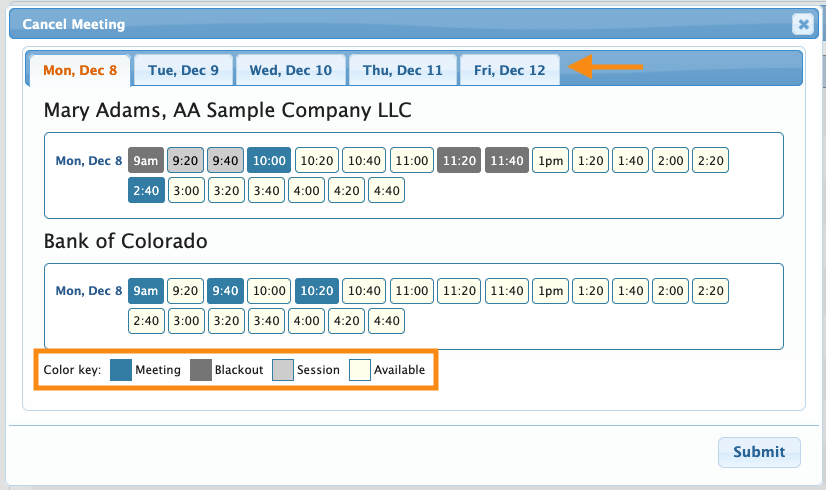
- Step 4. You’ll see a pop-up, which details availability for both the Source and Target of this request.
- The color key along the bottom tells you what’s happening in the unavailable time slots. (Session indicates that Mary has either a presentation or an activity at that time. More on this below.)
-
If you’ve enabled conflict management for your event, you’ll see Sessions marked here. If your event isn’t using the conflict management feature, you’ll only see Blackouts and Meetings.
Investigating existing meetings
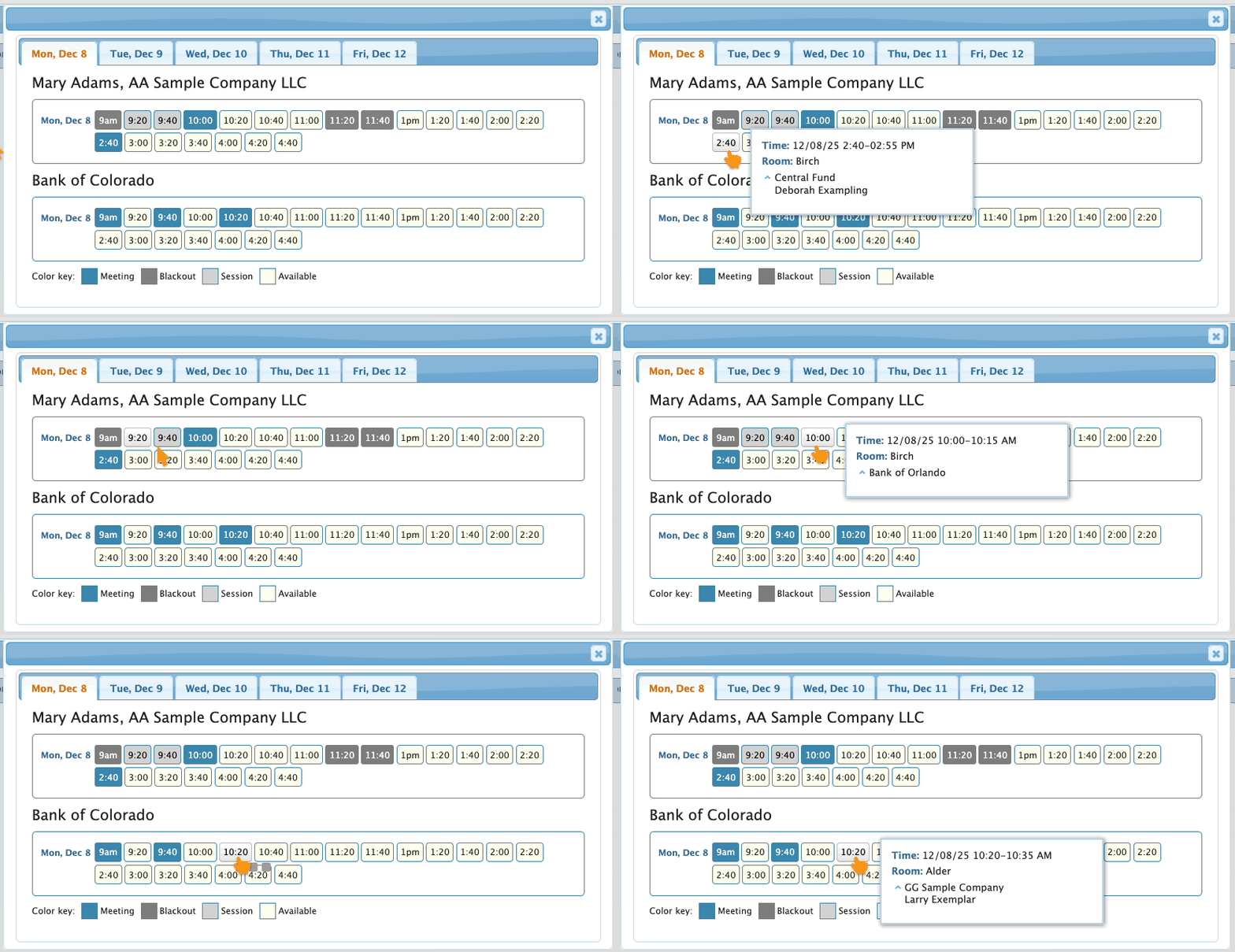
Hover over any time slot with a meeting scheduled, and see who’s participating in that meeting:
Investigating existing Sessions
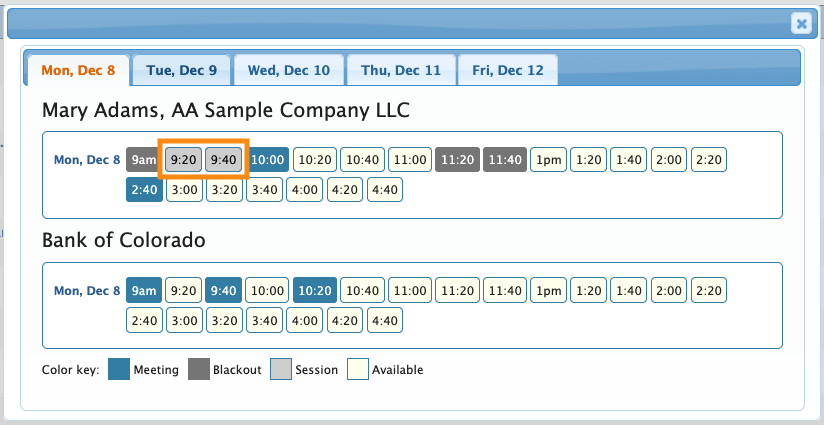
In this example, Mary Adams has a Session scheduled in these two time slots:
Let’s find out what this session is. Dismiss the pop-up. Then click on Mary Adams’ name as shown below. That links you to her record:
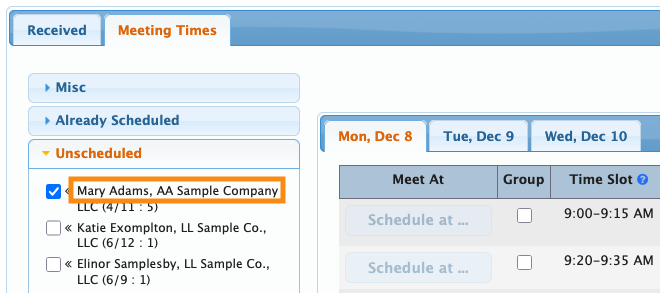
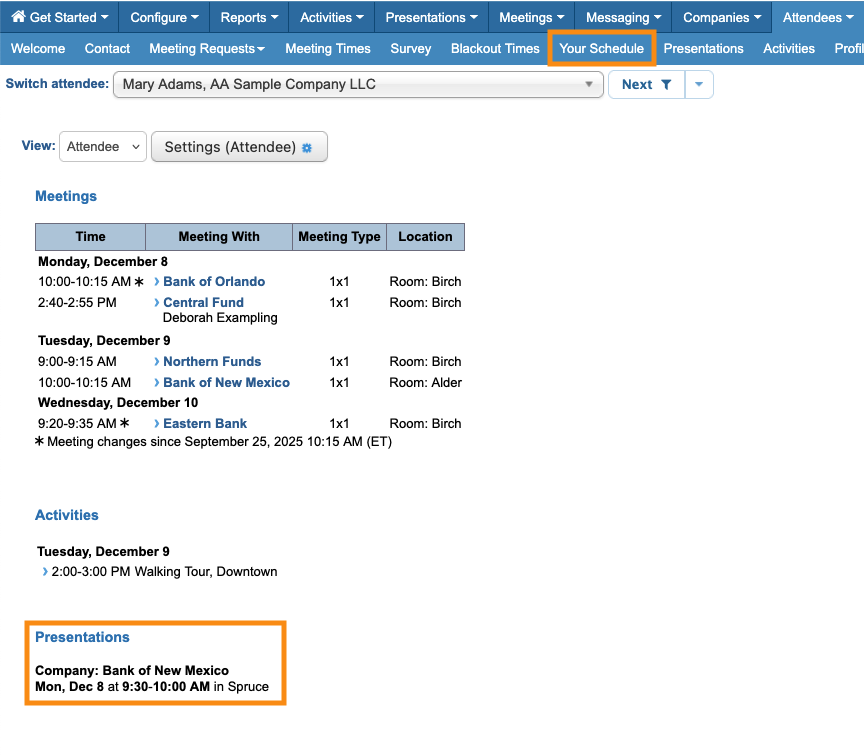
Once in Mary’s record, click the Your Schedule tab. On her schedule, we can see that the occupied time slots are scheduled in a presentation: