


In this article:
- Where is it?
- When is it useful?
- Enabling time zone conversion
- Setting your event’s time zone
- How participant time zones are set
- What participants see in MeetMax
- Admin view: Important notes
Where is it?
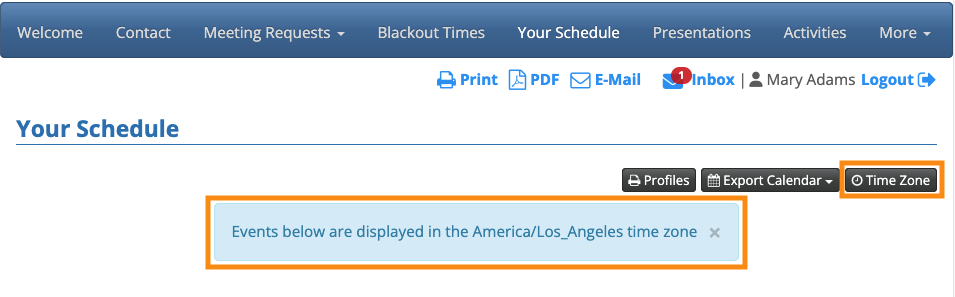
Once you’ve enabled time zone conversion for your event, logged-in participants will see a banner showing their current time zone.
They’ll also see a button they can use to adjust that time zone:
When is it useful?
For most in-person events, you won’t need this feature. Since all participants will physically be at the same location, they’ll use the event’s local time.
For virtual events (or hybrid events with some virtual participants), you’ll want to use time zone conversion. That way, participants who live in different time zones can see their local time on event schedules.
| You and your team will always see the event’s time zone in Admin pages. Only logged-in Attendees and Companies will see converted times.. | |
| If your event has more complex time zone needs, reach out to our Support team. |
Enabling time zone conversions
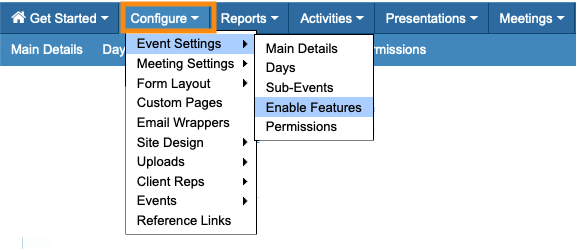
- Step 1. Head to the Configure tab. Choose Event Settings, then Enable Features:
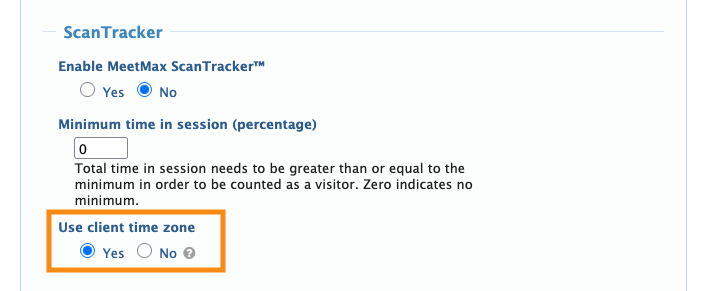
- Step 2. Scroll to the ScanTracker section. Under Use client time zone, choose Yes:
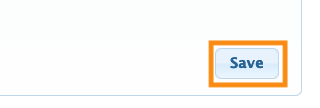
- Step 3. Scroll to the bottom of the page and click the Save button:
Setting your event’s time zone
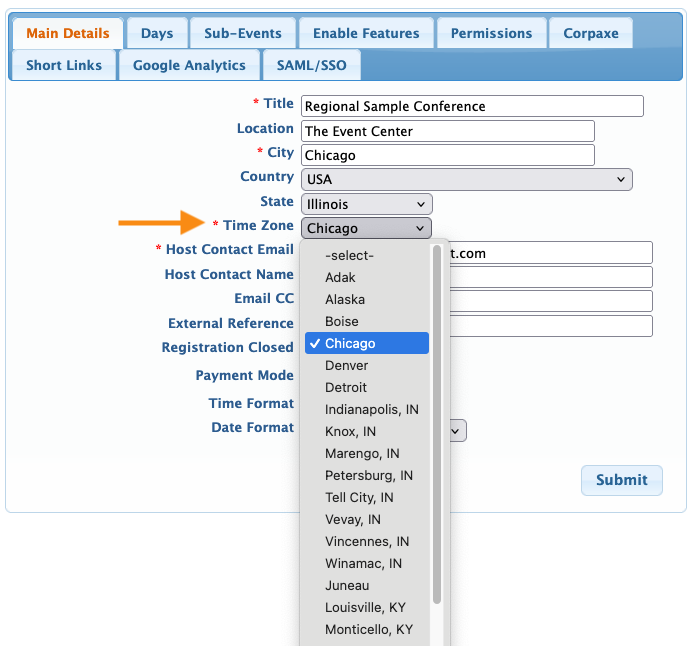
When you create a new event, you’ll choose its location and time zone.
This setting is the basis MeetMax uses for time zone conversions.
The Time Zone menu lists cities. Choose the one closest to your event’s location:
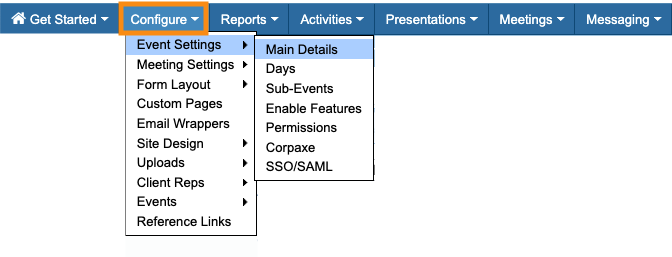
If you need to update the event’s time zone at any point, head to the Configure tab. Choose Event Settings, then Main Details:
How participant time zones are set
When a participant logs into MeetMax, we detect the time zone their browser is currently set to.
MeetMax compares this to the event’s time zone, and converts scheduled events to the participant’s local time.
Why the browser time can be wrong
Keep in mind that any of these things can affect a browser’s time setting:
- System time settings for the device
- Using a Virtual Private Network (VPN) to access the internet, and choosing a server in a different location
- Carrying a laptop to a different time zone
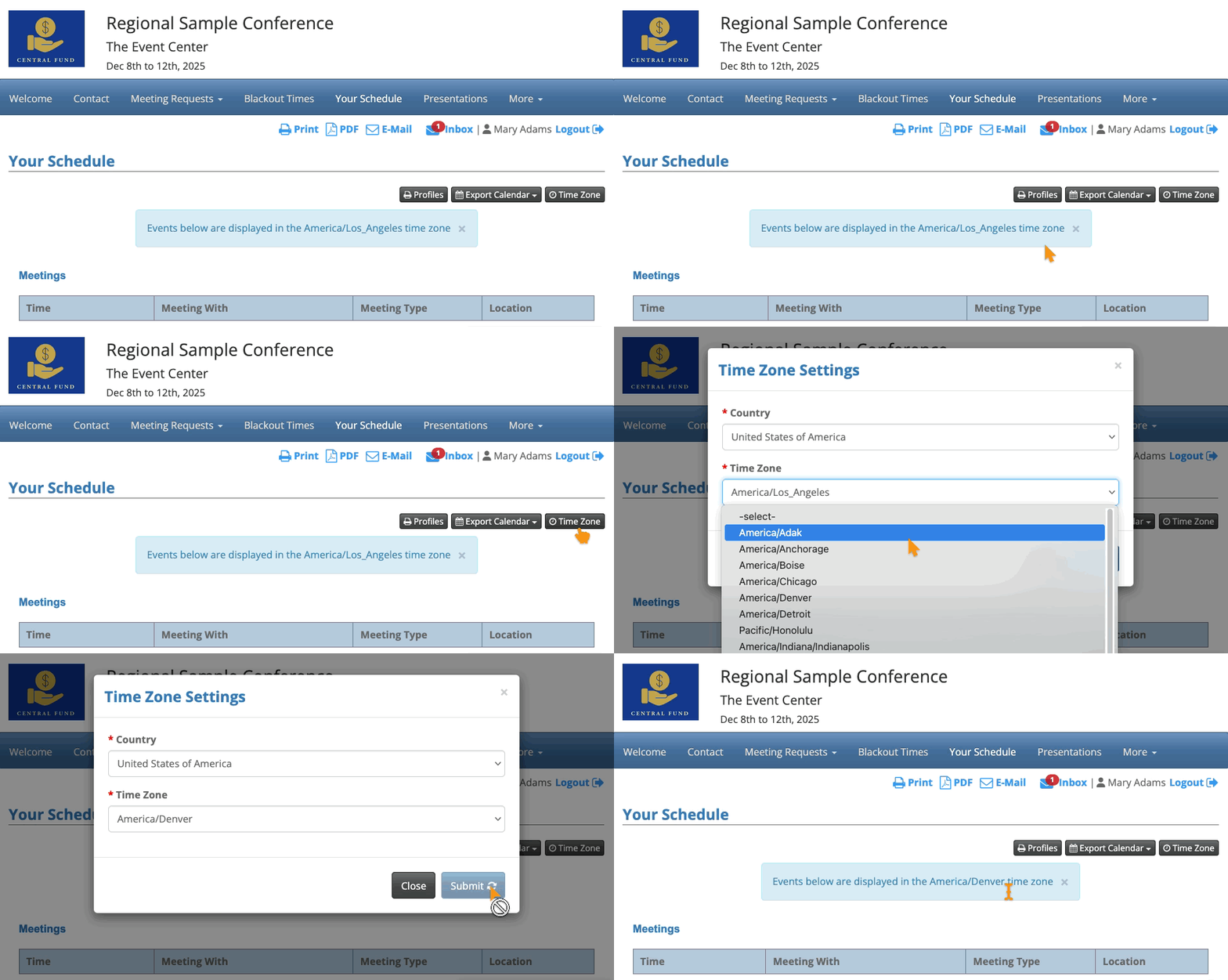
Since there are always variables, MeetMax allows each participant to update the time zone we’re displaying for them.
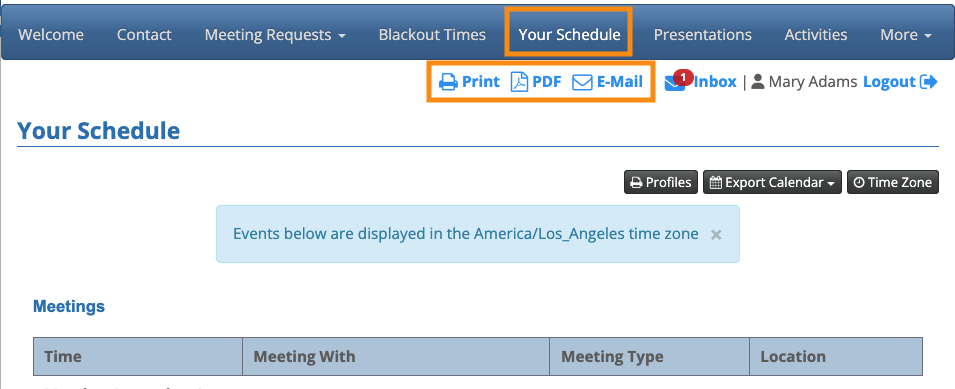
The Time Zone button appears on the Your Schedule page:
| Participant pages are always branded for your event, and contain the menu options you’ve enabled. |
What participants see in MeetMax
When a participant logs in, these pages of MeetMax display their local time:
- Blackout Times page (for Attendees)
- 1-on-1 Availability page (for Companies)
- Your Schedule page (including both in-person and virtual meetings)
- Presentations page
- Activities page
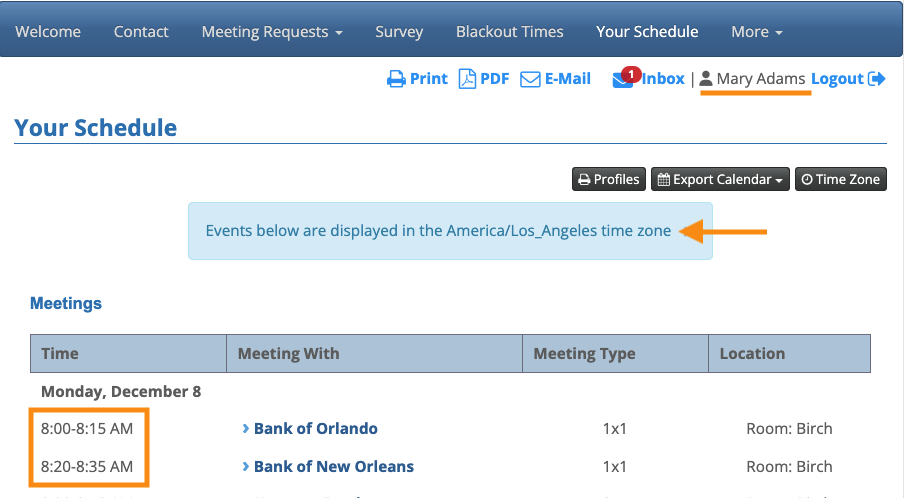
The sample event above is set to U.S. Central time. For comparison, here’s the event Admin’s view of the same meetings:
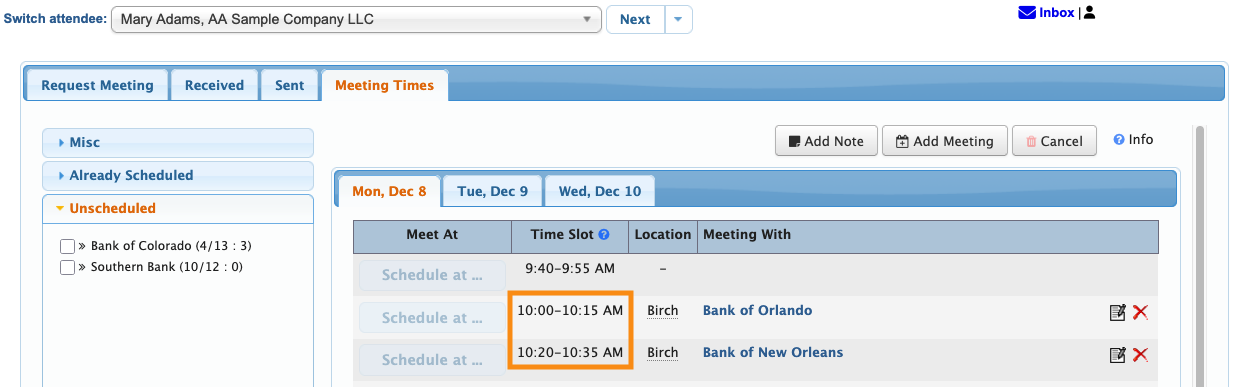
In addition, the participant will see their local times if they:
- Export their event schedule to their personal calendar
- Print, email, or save a PDF copy of their schedule from MeetMax:
Admin view: Important notes
As a reminder, your Admin view always shows your event’s time zone. (Here’s the U.S. Central time example again.)
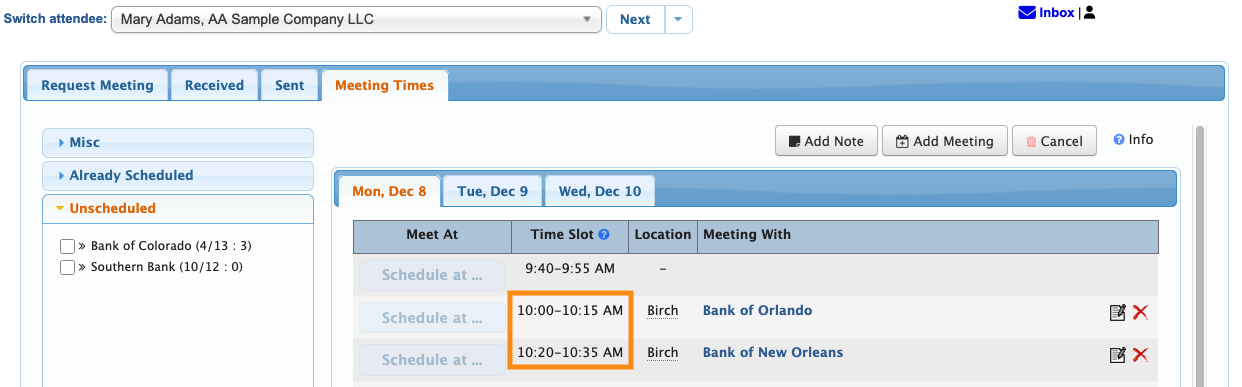
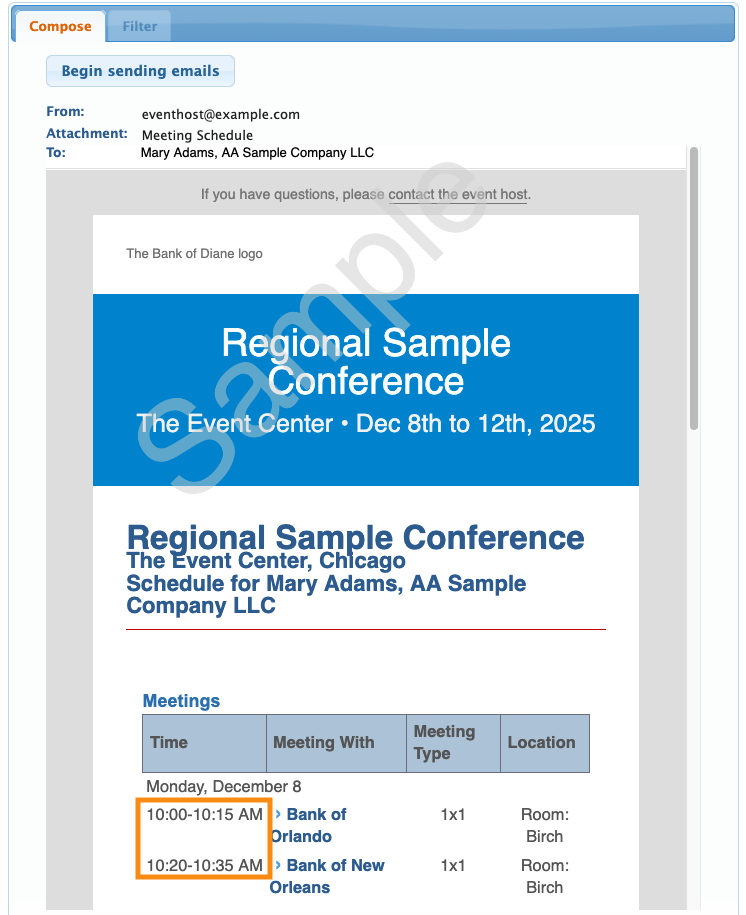
This means that, if you export or email participant schedules from your Admin pages, those schedules reflect the event time zone - not any converted times.
In our example, Mary Adams is in U.S. Pacific time. But if an Admin batch emails her schedule, it’s displayed in the event’s time zone – not Mary’s time zone:
For this type of event, it’s usually best to instruct your participants to access their own schedules in MeetMax. That way they’ll see their local times.
| If you need to handle schedule delivery differently for different groups of participants, you can use a form field to divide your participants into groups. |
These items are always in MeetMax system time:
- The Email Log and Batch Log will always show U.S. Eastern times, regardless of your event time zone. These logs reflect the time zone of our email server.
- On the Attendee List and Company List, you can add columns to show time stamps for important events – like when someone registered, last logged in, or last updated their account. These time stamps are always in U.S. Eastern time:


