


In this article:
- Where is it?
- Inbox messages for meetings
- Inbox messages between participants
- Ways to notify participants of new messages
Where is it?
When a participant logs into MeetMax, they’ll see their Inbox in the top right corner. It appears as soon as the participant has either sent or received their first message.
If there are any new, actionable messages, MeetMax adds a highlight:
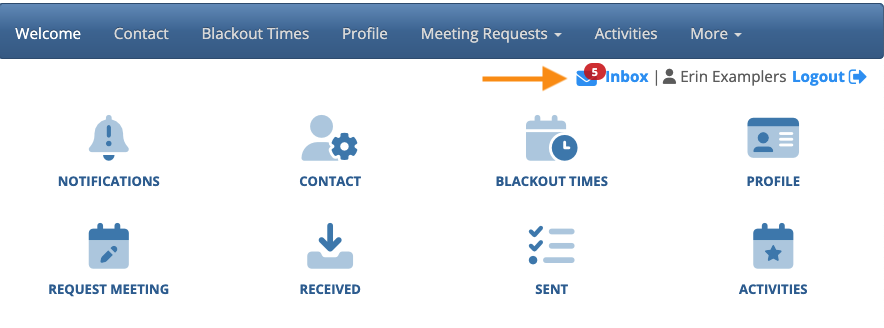
| The Inbox is part of all participant accounts by default. If you want to hide it for any or all, you can do this in the Menu Editor. | |
| If our team has customized Inbox messaging for your event, your Inbox might look a bit different. |
Inbox messages for meetings
By default, all messaging happens in the context of a meeting request:
- MeetMax sends automated notifications when a meeting is requested, and when it’s confirmed.
- During that process, the participants can send each other attached messages.
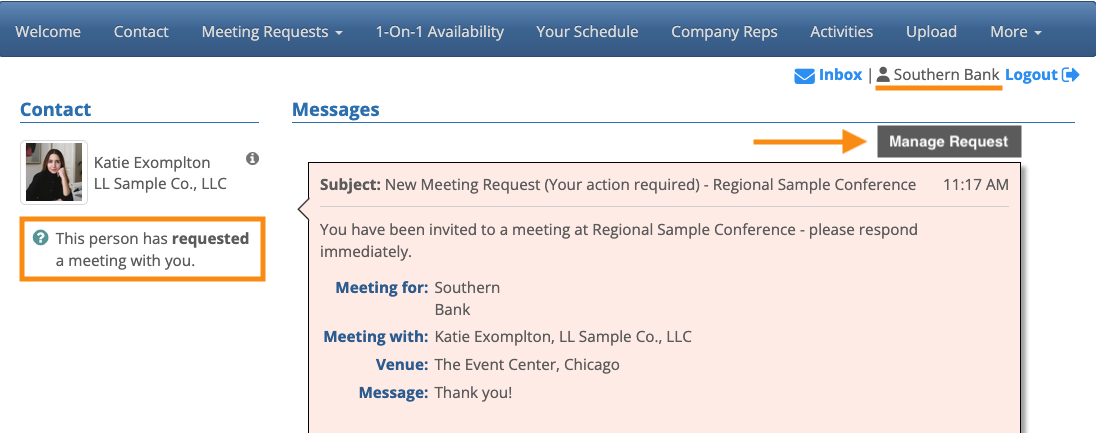
In this example, Katie Exompleton has requested a meeting with Southern Bank. When Southern Bank logs into MeetMax, they’ll see the incoming meeting request in their Inbox:
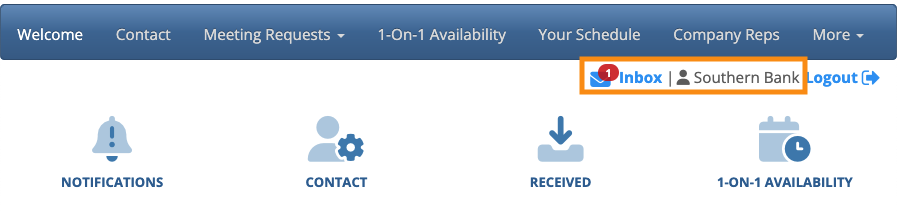
The Inbox message shows all the details of the request. The Contact column has information about the requestor.
Southern Bank would click the Manage Request button to approve or decline this request:
In this example, they’ve approved the request. Katie can see the current status in her own Inbox.
In every Inbox message, the Contact column displays the current meeting status:
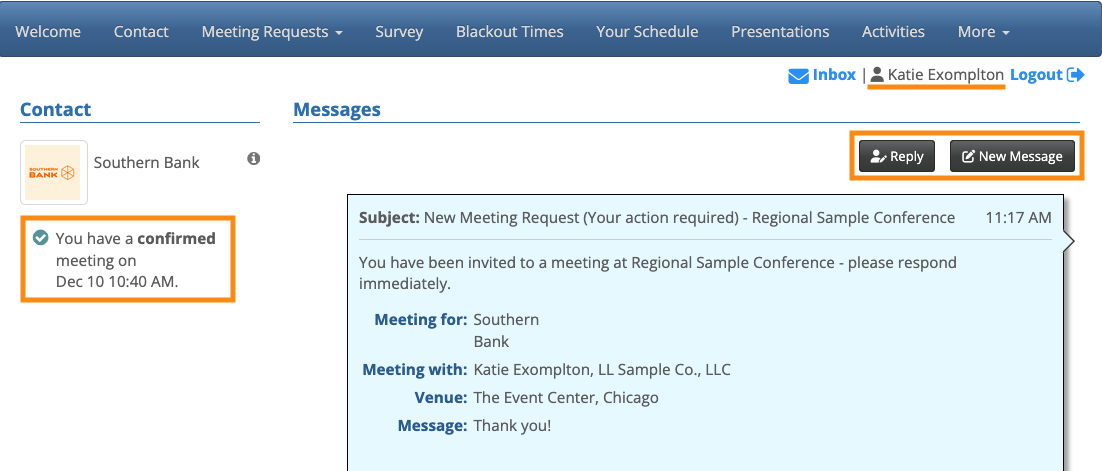
| MeetMax doesn’t add a “new message” highlight on the Inbox for a confirmed request. This is because the message requires no action. Instead, we place it in the Inbox for reference. |
Above, you can see that Katie has two options:
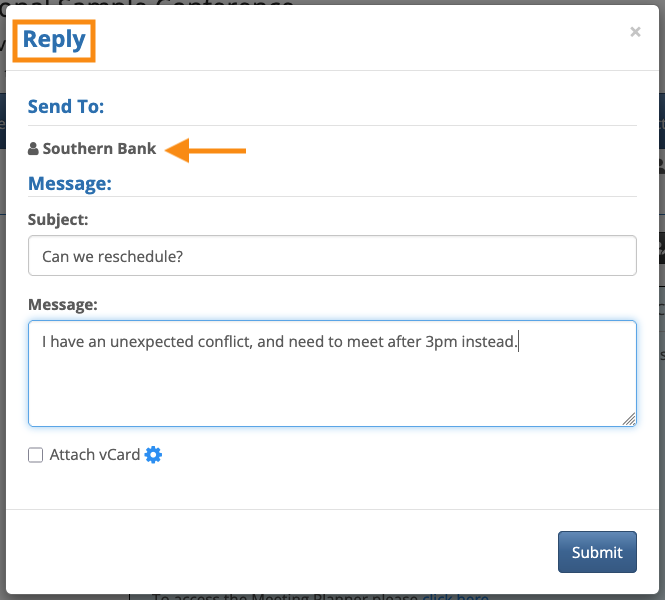
- Reply: Katie can send a message to Southern Bank about the meeting:
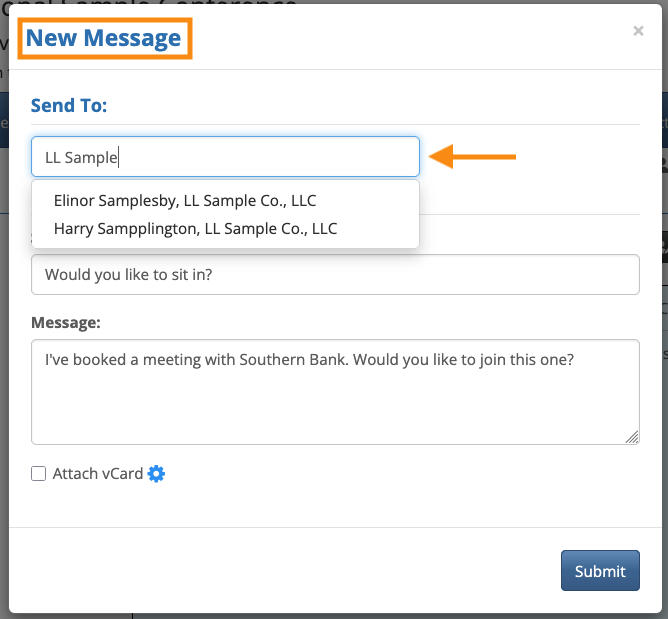
- New Message: Katie can send a message to a different Attendee about this meeting. Here, she’s reached out to one of her Colleagues, to see if they want to sit in on the meeting:
Inboxes are organized by meeting
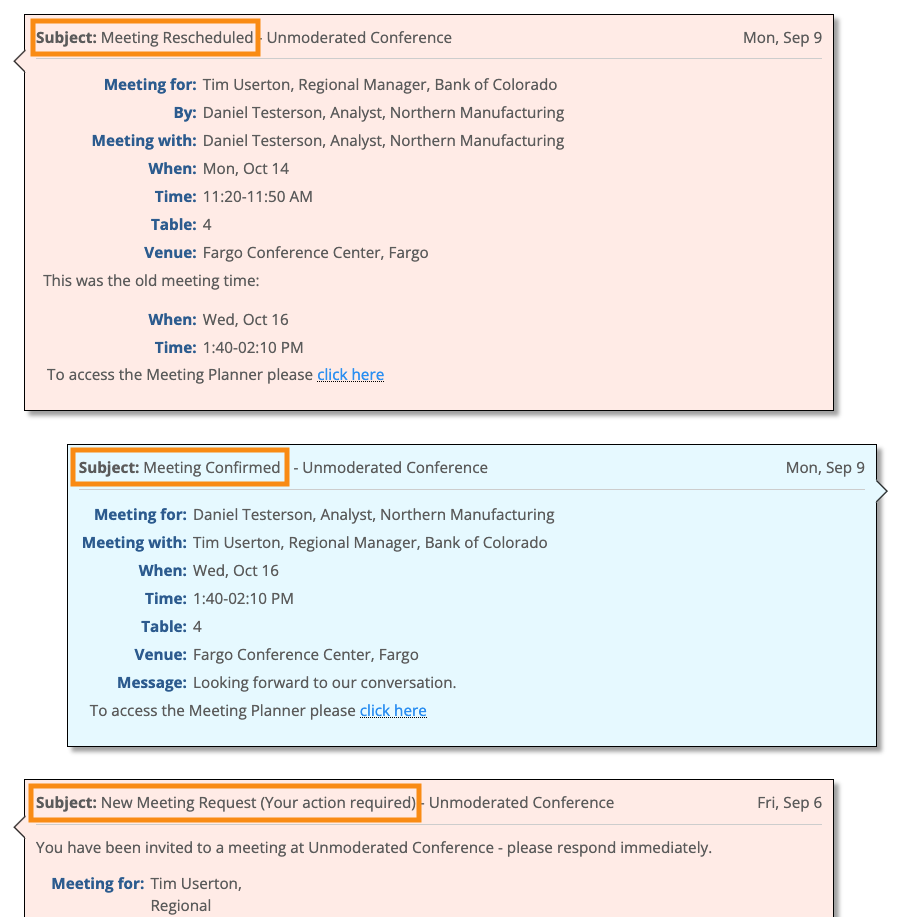
As your event progresses and changes happen to meetings, MeetMax threads all Inbox messages under their attached meeting.
Here’s an example of a meeting that was requested, confirmed, and rescheduled. MeetMax has grouped all of those updates in one Inbox message, most recent first:
Inbox messages between participants
As an option, you can also give participants access to send each other messages in MeetMax, without a meeting request being present.
If you’ve enabled this feature, everyone will have a New Message button in their Inboxes:
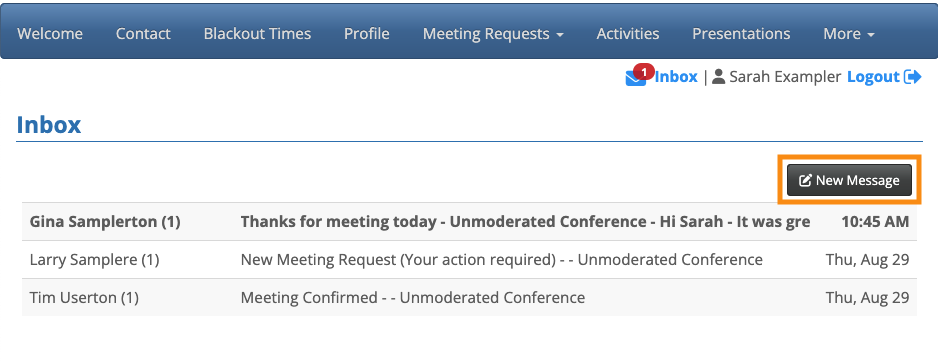
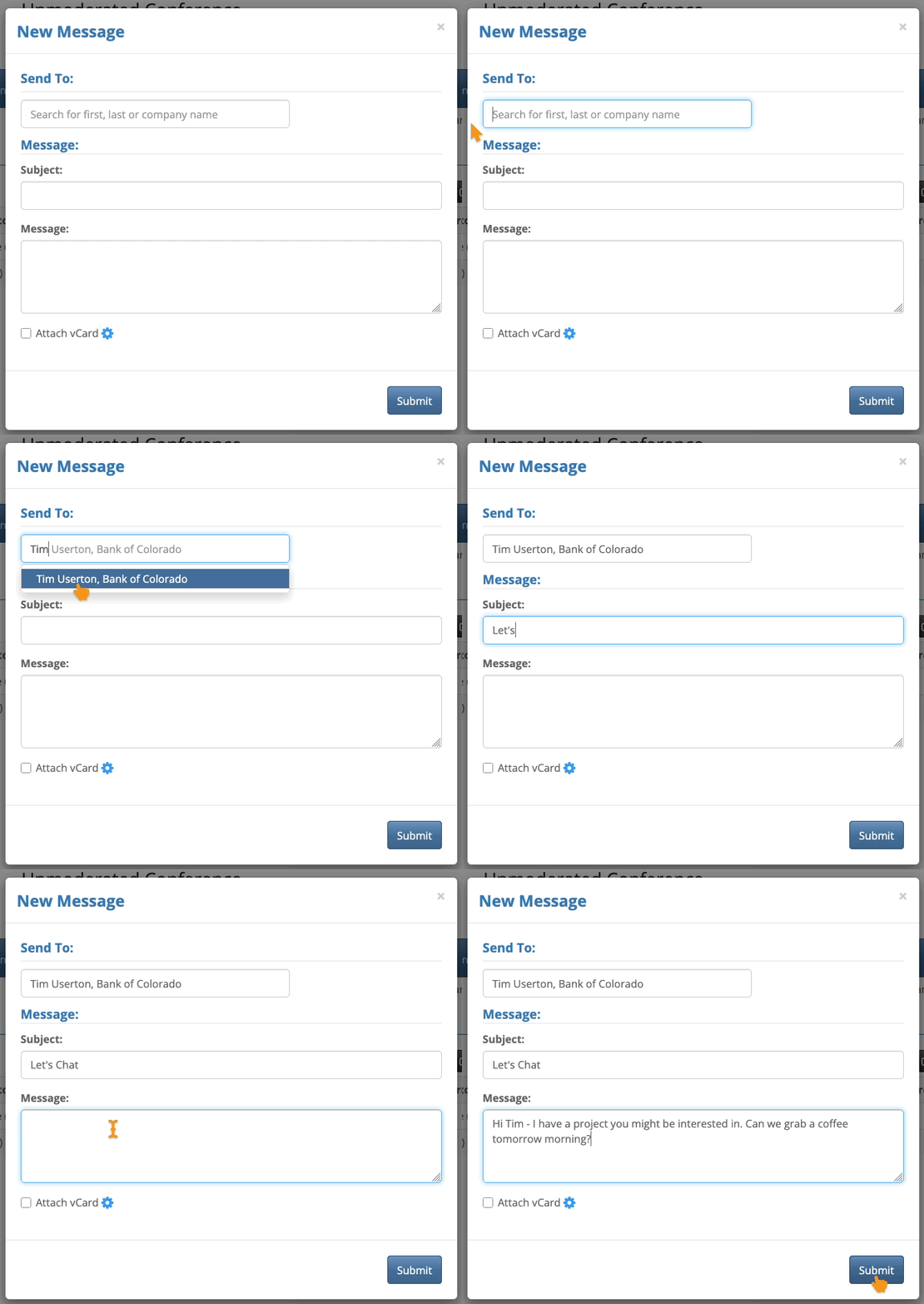
When a participant clicks that button, they’ll see the message form.
They can type in any participant name or company name to locate the person they want to send a message to:
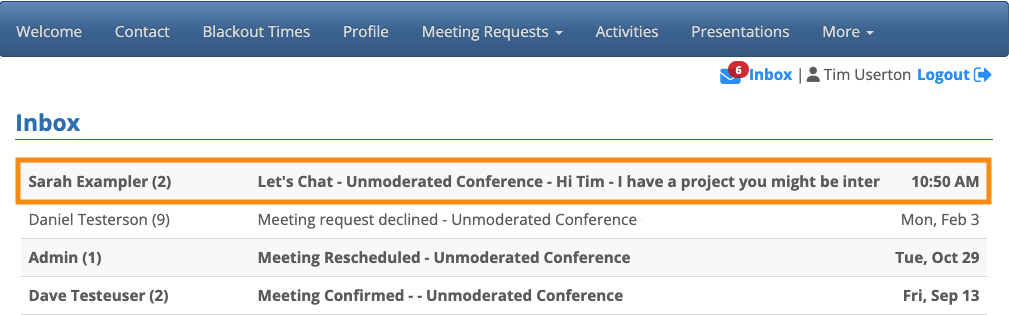
This message appears in the Inbox alongside the automated meeting-status messages:
Attaching a vCard
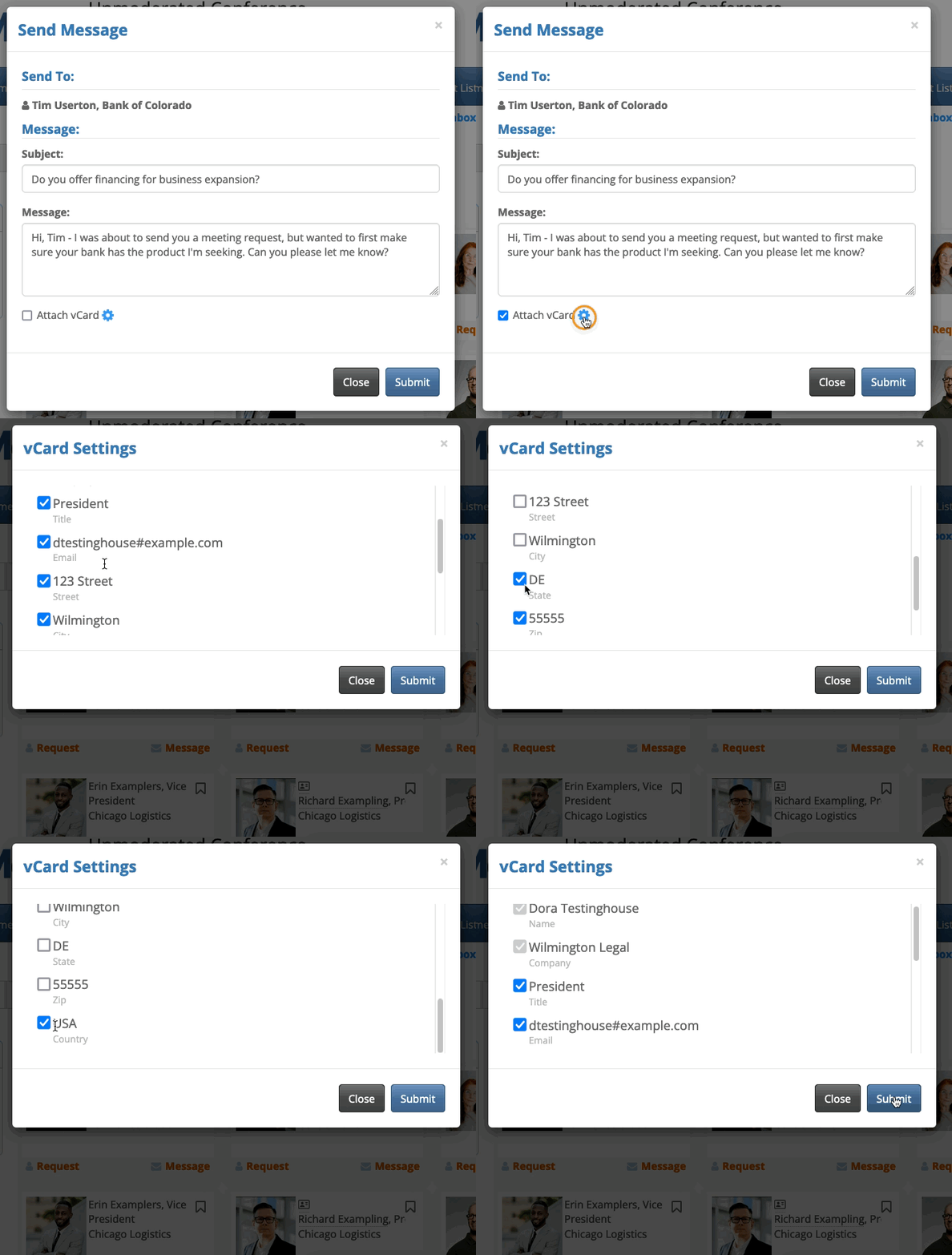
While sending a message, participants can check the Attach vCard box. That adds a virtual card with the sender’s contact details.
They can even customize what’s included on that card:
Ways to notify participants of new messages
If you want to have more prominent notifications when there’s a new Inbox message, MeetMax offers these options:
- By default, participants always get an email notification of new Inbox messages.
- You can also have new Inbox messages appear in a pop-up when participants are logged in.
- If you’re using our mobile apps at your event, you can send mobile notifications of new Inbox messages.

