

Mobile notifications of inbox messages
If your event is using one of our mobile apps, this feature makes new Inbox messages more noticeable.
In this article:
| You can use this feature with our Container app or our Branded Standalone app. | |
| This feature makes participants aware of new messages in their MeetMax Inbox. |
Enabling the notification
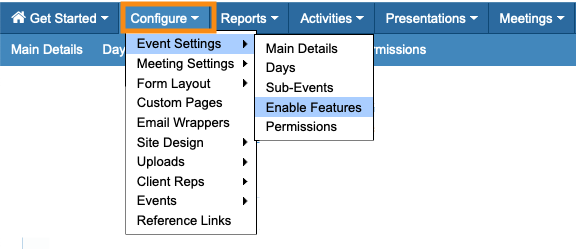
- Step 1. Head to the Configure tab. Choose Event Settings, then Enable Features:
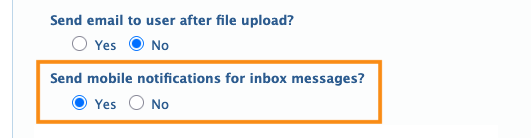
- Step 2. Under Send mobile notifications for inbox messages, choose Yes:
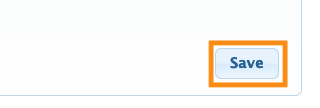
- Step 3. Scroll to the bottom of the page and click Save:
|
MeetMax treats mobile notifications and browser-based notifications separately. On mobile, you can also send batch SMS notifications and text meeting reminders. |
What participants see
To start receiving mobile notifications, a participant must have:
- Installed the MeetMax app and logged in once.
- Allowed notifications from MeetMax on their device.
| Once a participant takes these steps, their device will hold any mobile notifications that come in while they’re offline. |
By default, participants will see mobile notifications when:
- Someone requests a meeting
- Someone has confirmed a meeting they’ve requested
- Someone reschedules the meeting
- If you enable your participants to send each other messages outside of meeting coordination, those messages will also have mobile notifications.
| If you're running an Unmoderated meeting program, keep in mind that this feature can result in a lot of notifications. Our Support team can help you customize which messages are and are not sent. |

