


How do I see who viewed a webcast presentation?

In this article:
From the Presentation List
If you just need a general snapshot of attendance, use this method.
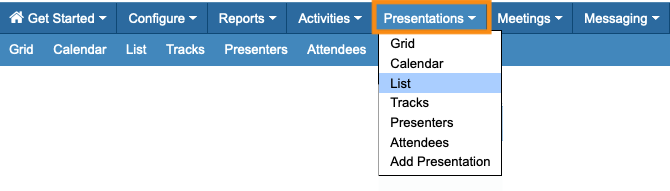
- Step 1. Head to the Presentations tab. Then choose List:
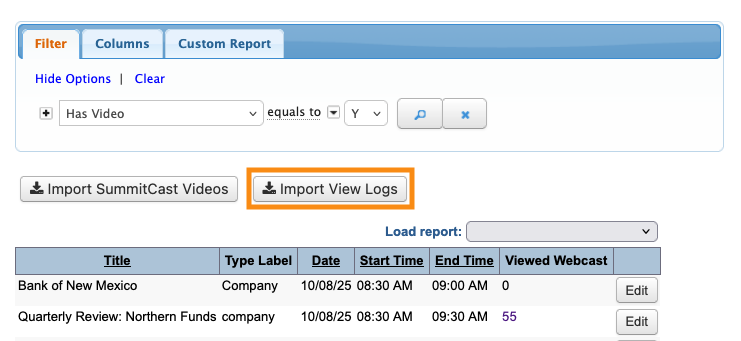
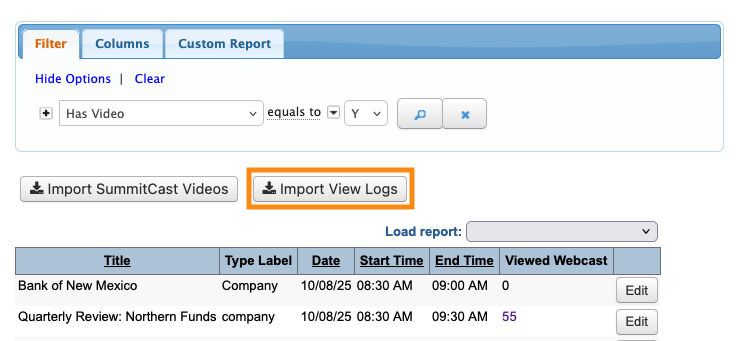
- Step 2. On the Presentations List, click the Import View Logs button. That imports the most recent viewing data into MeetMax:
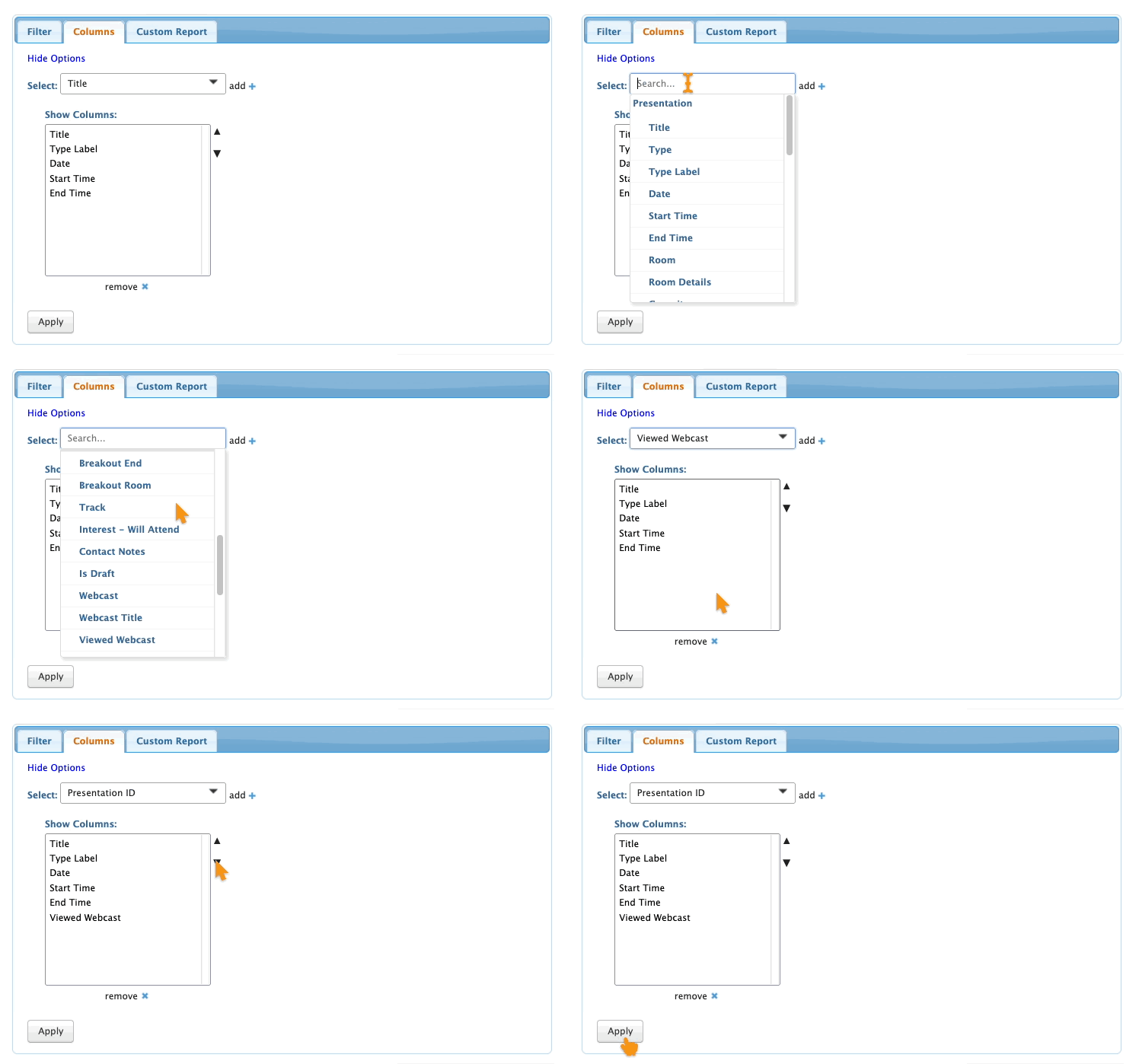
- Step 3. Now, click on the Columns tab. Add the Viewed Webcast column.
- Be sure to click Apply:
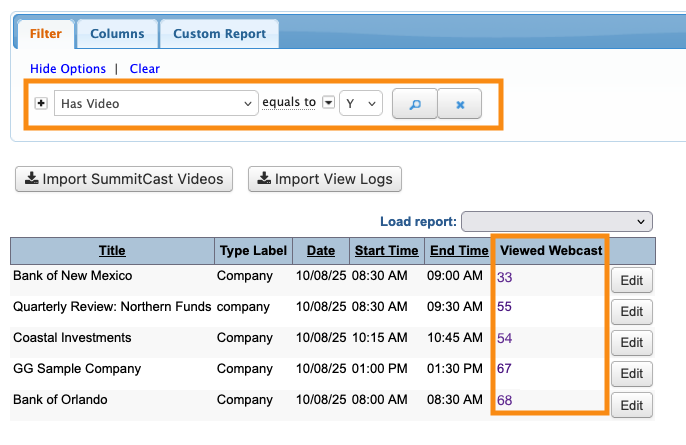
- Step 4. Go back to the Filter tab. If your event has both in-person presentations and webcasts, it’s helpful to set the Filter to Has Video, equals to Y, as shown below.
- On this page, you’ll see the total viewer count for each webcast:
- Step 5. You can export the resulting list, or save it as a custom report.
-
If you want to see which Attendees make up any total, click on the number. That will take you to the Attendee List report shown below.
From the Attendee List
If you want to see which Attendees viewed a webcast, use this method.
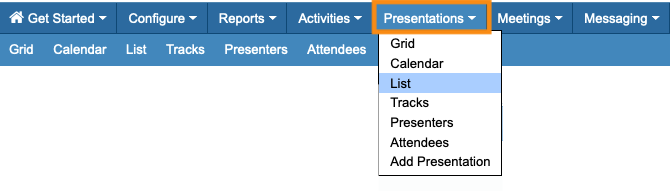
- Step 1. First, head to the Presentation List:
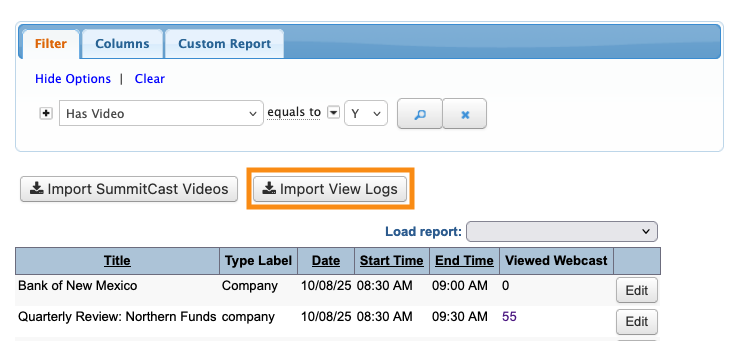
- Step 2. Click the Import View Logs button. That imports the most recent viewing data into MeetMax:
- Step 3. Now, head to the Attendee List:

-
You can add any columns you need to this list view. - Step 4. Set the Filter to Viewed Webcast. Then choose which webcast you want to see:
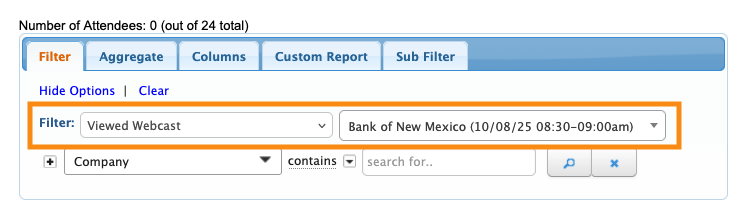
- Step 5. You’ll now see a list of all Attendees who attended this webcast.
- You can export the resulting list, or save it as a custom report.
From the Presentation Reports page
This is a good option if you want all viewer data from all webcasts in a single spreadsheet.
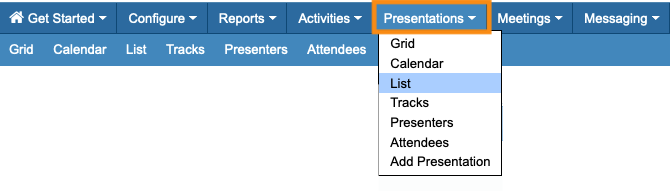
- Step 1. First, head to the Presentations List:
- Step 2. Click the Import View Logs button. That imports the most recent viewing data into MeetMax:
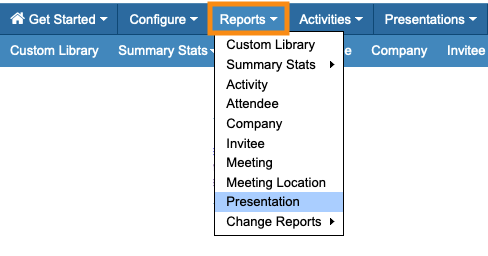
- Step 3. Now, head to the Reports tab. Choose Presentation:
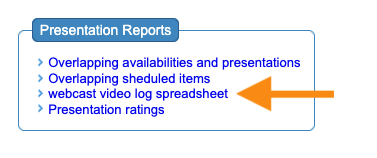
- Step 4. Click the Webcast Video Log Spreadsheet link:
- Step 5. The report downloads automatically to your computer. It contains all webcasts and all viewers:


