


If your event is made up of Sub-events, you can still import participants to those Sub-events.
Importing to a Sub-event is nearly the same as any other import you can do in MeetMax. You’ll just be adding an extra column to your spreadsheet.
For the base import instructions, use the links at the bottom of this article.
Getting the Sub-event ID number
| We’re assuming here that you’ve already set up your Sub-events. |
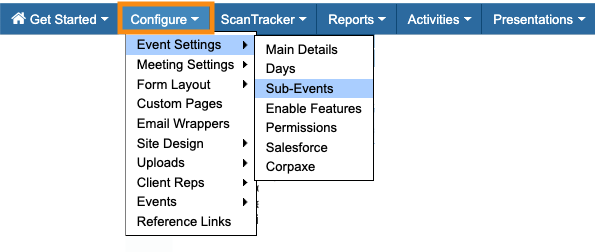
- Step 1. Head to the Configure tab. Choose Event Settings, then Sub-Events:
- Step 2. On the Sub-Events page, you’ll see your existing list of Sub-events. Locate one that you need to import to. Hover over the Edit link as shown below.
- Step 3. While hovering, look at the bottom edge of your window. You should see the URL for the Sub-event. The Sub-event ID is part of that URL:
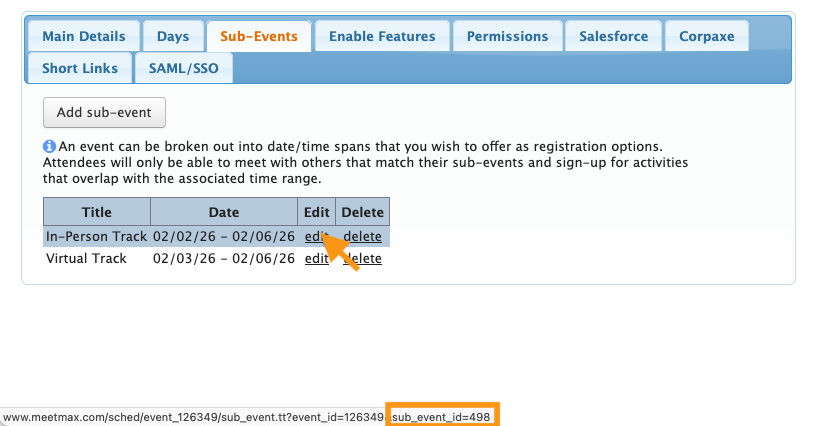
- Make note of the Sub-event ID number and name. If you need to include other Sub-events in this import, repeat these steps to locate those ID numbers.
Formatting the spreadsheet for import
As with any other import, your spreadsheet should include all of the fields in your registration form.
Add a Subevents column to your spreadsheet, and include the ID number for each participant. (You don't need a matching field in your registration form.)
| This column must be the last column, as shown below. |

Sometimes, you’ll have participants who register for more than one Sub-event. You can import them to multiple Sub-events. Include each ID number, separated by a vertical bar (Shift-backslash).
Export your spreadsheet as a CSV. Be sure to use UTF-8 encoding.
Mapping the Sub-Events field
During the mapping stage of your import, be sure to map the Sub-Events field to match the column in your CSV:
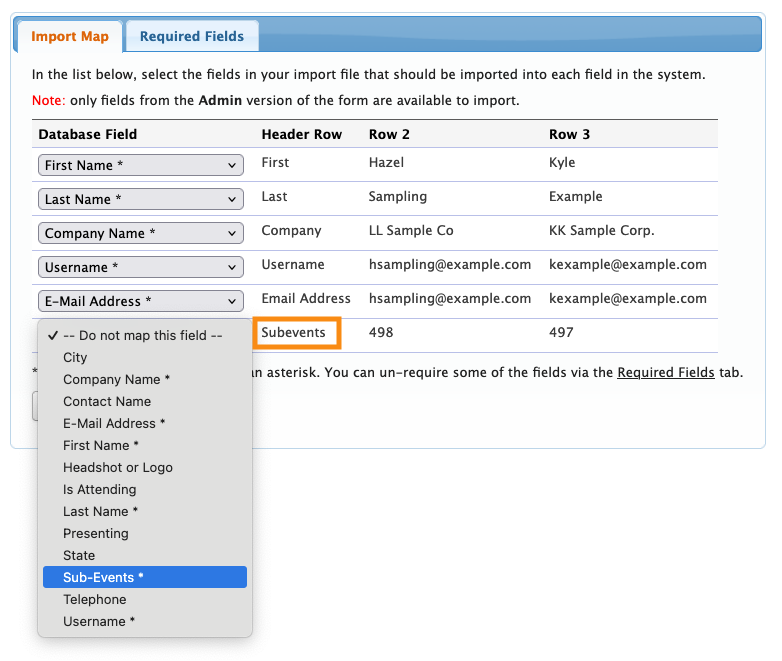
| The Sub-Events field is automatically a required field. | |
| If you add a Sub-event ID to your spreadsheet, but that ID doesn’t exist in MeetMax, we’ll skip that part of the import. |
Proceed with your import, using any of the linked articles below.
Seeing the result
You can add the Sub-Events column to either the Attendee List or Company List. MeetMax will list your Sub-events by name, matching the ID numbers you imported:
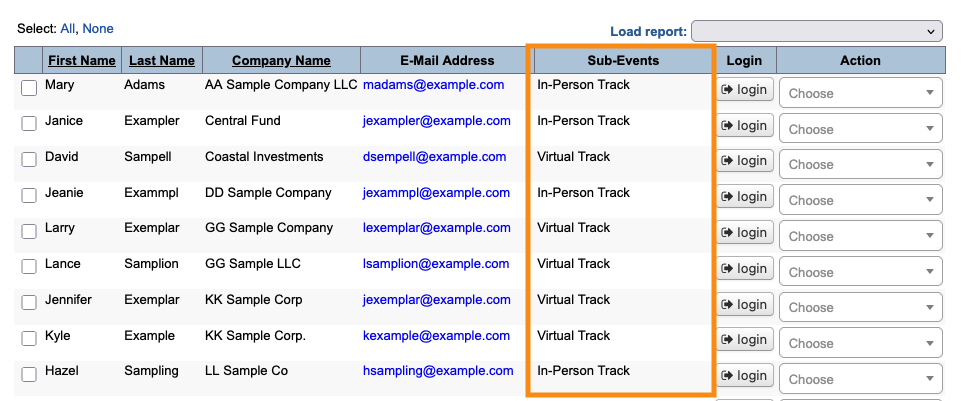
Here’s the participant we imported to two Sub-events:

| If you need to do a supplemental import with updated data, reach out to our Support team. |

