


How do I edit an existing presentation?

Whether you’ve added a presentation individually or imported it, here’s how to add updates later.
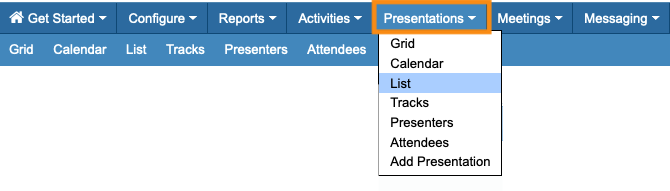
- Step 1. Head to the Presentations tab. Choose List:
- Step 2. Locate the presentation you need to update. Then click the Edit button:

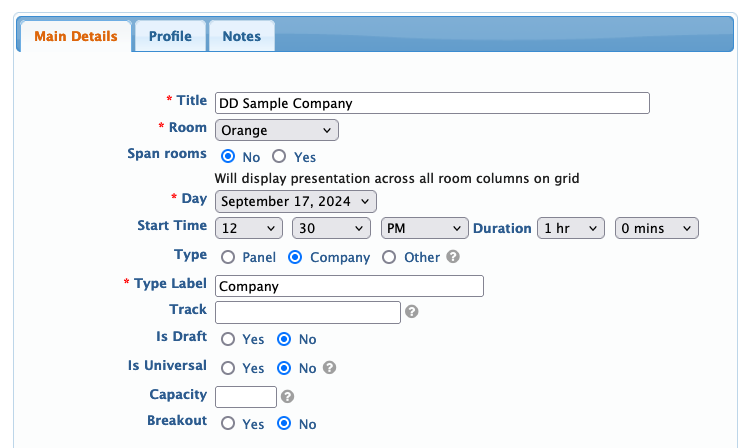
- Step 3. This places you on the presentation form. Here, you can:
- • Change the date, time, or location
- • Add or remove presenters and moderators
- • Add or update the presentation description
- Step 4. Click Submit to save the changes:

