


How do I copy time slots from one event to another?

Once you’ve saved a batch of time slots in one event, you can copy them to new events any time.
- Step 1. First, create the new event. You can build it from scratch, or clone it from one of your Template Events.
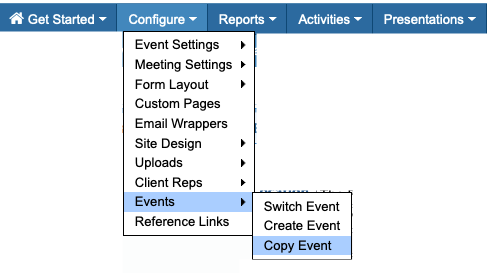
- Step 2. Once you’ve created the new event, head to its Configure tab. Choose Events, then Copy Event:
- Step 3. You’ll now see a list of copy-able settings.
- At the top, use the Copy From menu to choose the event where your Time Slots are located:
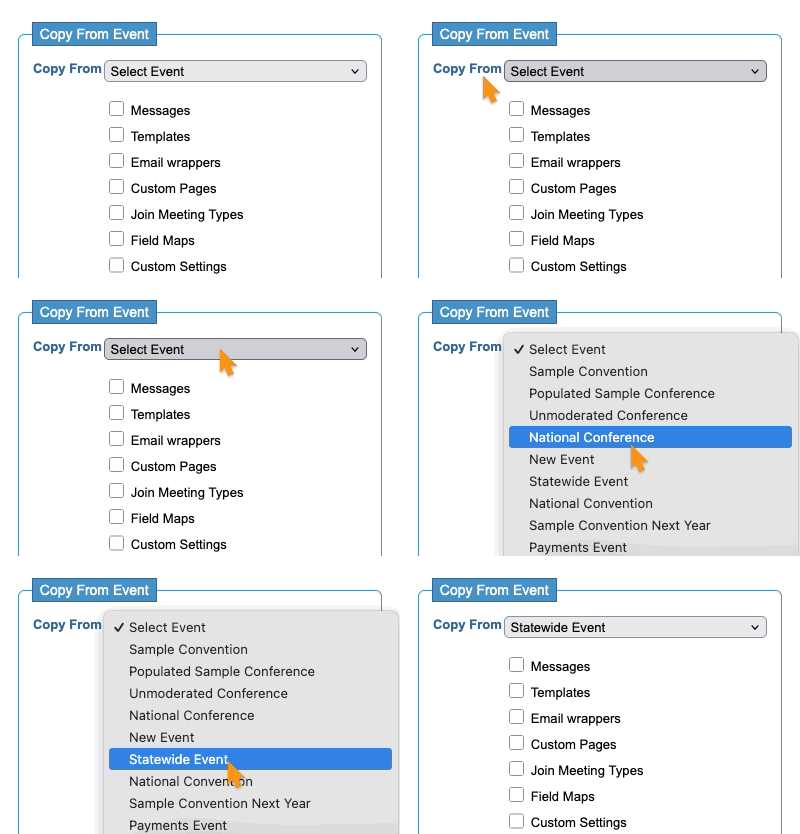
- Step 4. Once you choose a Copy From event, you can select the elements to copy into your new event.
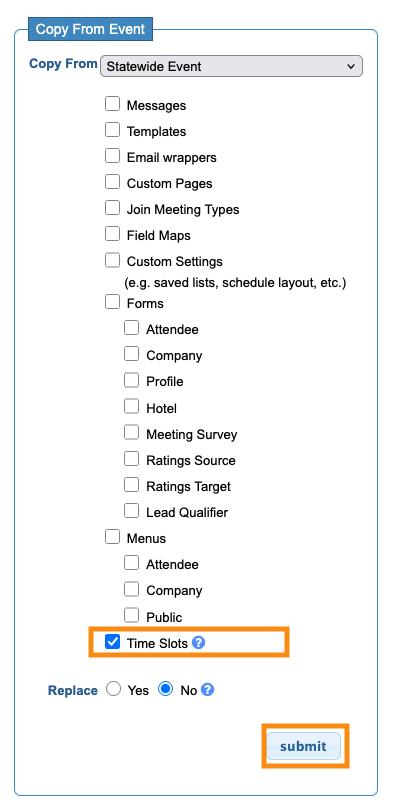
- For this example, we’re only copying the Time Slots, but you can click the checkboxes to copy any of the other listed settings at the same time.
- Step 5. Click Submit to start the copying process:
-
if you’re not seeing the Time Slots option here, it’s because your new event already has some Time Slots. Delete those, and you can return here to copy from another event.

