


In this article:
- Where is it?
- Before you import
- Formatting your spreadsheet
- Uploading your CSV
- How MeetMax checks your data
- Adding presenters in a supplemental import
Where is it?
You’ll import presentations from the Presentations tab:

You can either import presentations to MeetMax as shown here, or add them individually. These methods are interchangeable.
| Things you can do: | Importing presentations | Adding presentations individually |
|---|---|---|
| Creating new presentations | Yes | Yes |
| Making changes to existing presentations | No | Yes |
| Organize presentations into tracks | No | Yes |
| Adding presenters to existing presentations | Yes | Yes |
Before you import
| This feature is designed to help you create many basic presentations quickly. You’ll be importing the main details of each presentation. You can then edit individual presentations to add descriptions, change locations, or update dates/times. |
Before you prepare your spreadsheet for import:
- All presenting Companies must be added to your event.
- Any Company Reps or Attendees as who’ll be presenters must also be added to your event. (Our Support team also needs to enable Attendees as presenters for your event.)
- Be sure to enable conflict management for both presenters and presentation attendees.
If you’re not yet ready to add presenters to your presentations, you can just add the Companies to your event for now. Then you can do a supplemental import later to add presenters. (More on that below.)
Formatting your spreadsheet
As with all imports to MeetMax, you’ll first set up a spreadsheet of presentation details. It’s based on the form you use to add a single presentation.
For importing, MeetMax uses these fields of that form:
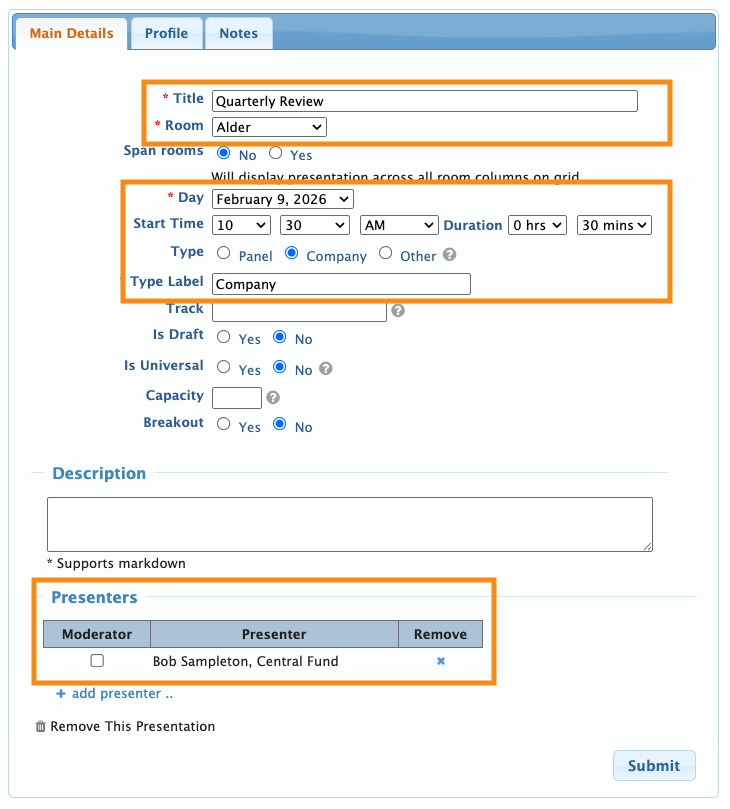
| Currently, the other fields in this form aren’t available for importing. If any of these would be useful to you as import fields, please let our Support team know. |
Downloading a sample spreadsheet
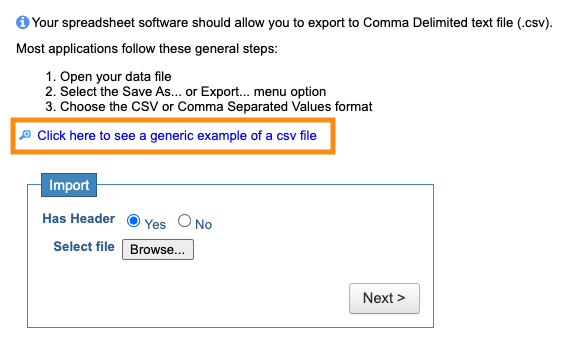
MeetMax has a sample CSV you can download to use as a basis for your own spreadsheet.
- Step 1. Head to the Import Presentations page:

- Step 2. Click the link to download the sample:
- Step 3. Open this sample file in your spreadsheet software, and add your own data in the existing columns.
Date/Time formatting
For importing, each presentation requires:
- A starting date and time
- An ending date and time (The start and end date will always be the same day.)
In your spreadsheet, include the date in both your Start Time and End Time columns, as shown below:

| In your spreadsheet software, we recommend using its default Date/Time cell format. | |
|
If your spreadsheet has separate columns for the date and time, the import won’t work. Learn how to combine these columns into one here. |
Type and Type Label
These are designations that help you sort your Presentation List, and communicate to participants.
Learn more about Types and Type Labels here.
Including presenters, or not
If your event has only Companies as presenters, or you’re not sure who your presenters will be yet, your spreadsheet would only list the presenting Companies, like this:

| At minimum, each presentation must have one Company name attached to it. You can always add a presenter (or more Companies) to any presentation later. (More on that below.) |
If you’re ready to include presenters in your import, you’d add separate columns for their first and last names, as shown below:

Presentations with multiple presenters
For any presentation with more than one presenter, you’ll add a separate row for each person or Company.
Here’s an example of a panel discussion, where several Companies are participating:

| Every other detail of the presentation must be identical in all rows. If there’s any difference, MeetMax will create a new presentation for that row. | |
| When you’re formatting multiple presenters, you can add a Moderator column to your spreadsheet, as shown above. That way you can designate moderators with a Y. |
Here’s a more complex example, where two of the participating Companies will have more than one Company Rep in the presentation:

Using CRM IDs
If you’ve imported participants to MeetMax from your CRM, you can include a CRM ID column in your spreadsheet.
Add the record ID numbers from your CRM here. We’ll match these to the CRM ID numbers on existing MeetMax records. That helps prevent duplicates.
Uploading your CSV
- Step 1. Once your spreadsheet is complete, export it as a CSV file.
- Step 2. Head to the Import Presentations page:

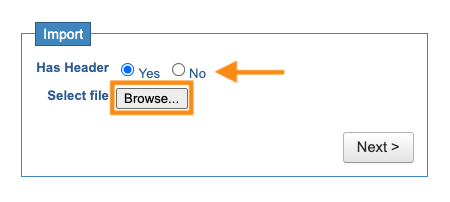
- Step 3. Indicate whether your CSV has a header row or not. Then click Browse to choose it from your computer:
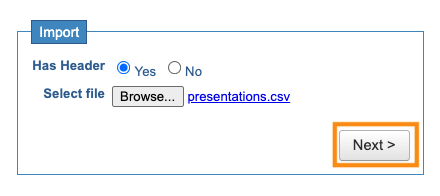
- Step 4. Once you’ve added your CSV, click Next:
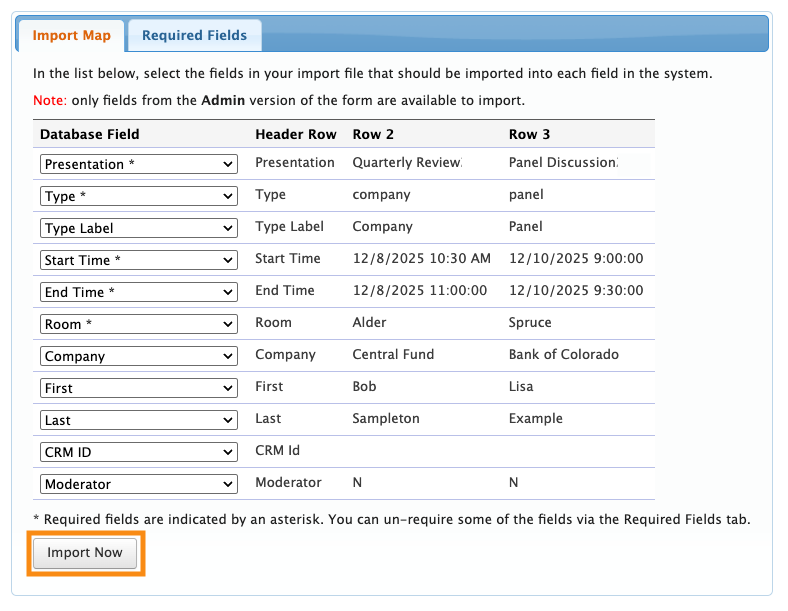
- Step 5. You’ll now see a list of MeetMax’s form fields, along with two rows of sample data from your CSV.
- This is where you can make sure the right fields from your CSV are mapped to the right fields in MeetMax. If you see an error, use the drop down menu to choose a different MeetMax field.
- When you’re done mapping, click Import Now:
-
Imported presentations can’t be deleted in bulk.
How MeetMax checks your data
Because imported presentations can affect your whole event schedule, MeetMax runs multiple verifications to prevent you from creating conflicts.
When you start an import, MeetMax performs two data checks:
- Record validity: Checking that all presentations have all required fields
- Scheduling conflicts: Checking that the presentation dates and times don’t conflict with any existing meetings, activities, or other presentations
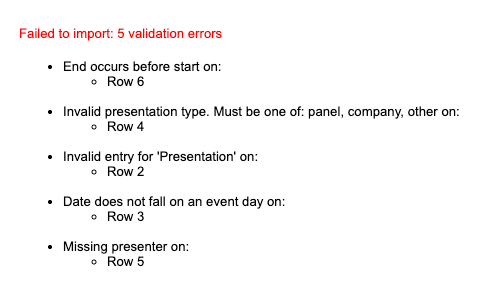
If the Record Validity check fails, the whole import will fail. We do this as a caution against creating multiple incorrect presentations.
When an import fails, MeetMax will report all the details so you can correct your spreadsheet. Here’s an example:
Adding presenters in a supplemental import
Once you’ve imported a set of presentations, you can do a later import to add their presenters.
| Keep in mind that all details of your originally-imported presentation must exactly match your supplemental import. If they don’t match, MeetMax creates a new presentation. |
If you still have your original CSV, and you haven’t changed any of those imported presentations in MeetMax, you can use it for your supplemental import.
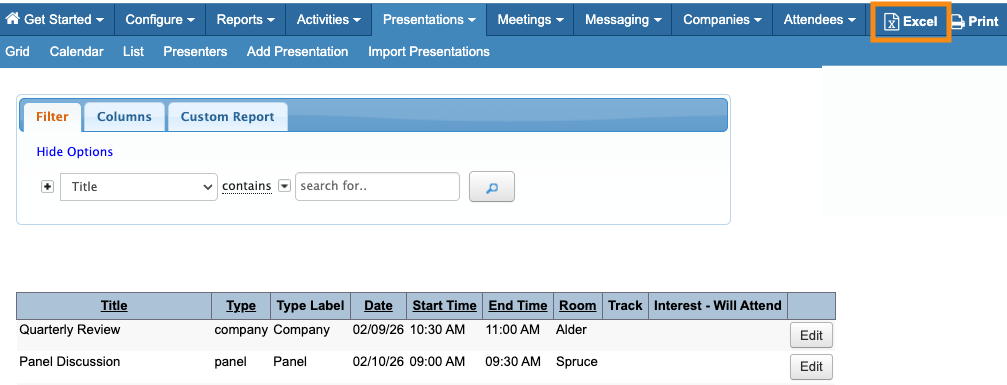
If you’ve made some changes in MeetMax, it’s better to export a new Presentations List as follows.
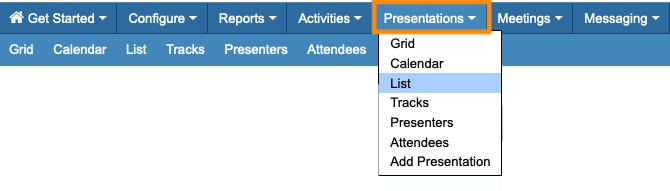
- Step 1. Head to the Presentations List page:
- Step 2. With the list displaying, head to the top right corner of the page. Click Excel to export:
- Step 3. Once you have the exported spreadsheet, you can:
- • Add separate columns for the presenters’ First and Last names.
- • Add a Moderator column, if any of the presenters will be moderating. Designate each person as Y or N:

- Step 4. When you’ve finished updating the spreadsheet, export it as a CSV file.
- Then use the steps in the section above to import to MeetMax. We’ll match the existing presentation records to the added presenters, and make the updates.
What’s next?
With your presentations imported, you can:

