


Schedule setting: Show Presenter Dashboard links

| We’ll show the Admin view of an Attendee schedule here. Remember, you can also preview what the Attendee sees in their account. |
When to use this setting
This setting is useful if:
- Your event includes webcast presentations.
- You need to give webcast presenters access to the Presenter Dashboards for their sessions.
How it works
This setting only affects the schedules of webcast presenters.
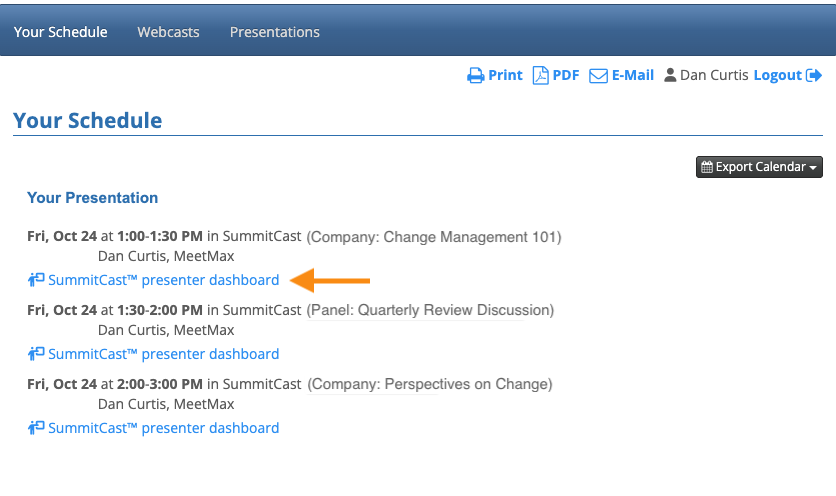
For each session they’re presenting, they’ll see a unique link to the SummitCast Presenter Dashboard. That’s where they can start the session, handle Q&A, and monitor viewer activity. Learn more here.
Here’s what a presenter sees in their schedule:
Changing the setting
We’ll show the process for Attendee schedules here, but the process is exactly the same for Company schedules. You’d just start in the Company List instead.
(Your starting point depends on whether Companies or Attendees are presenters at your event.)
- Step 1. Head to the Attendee List:

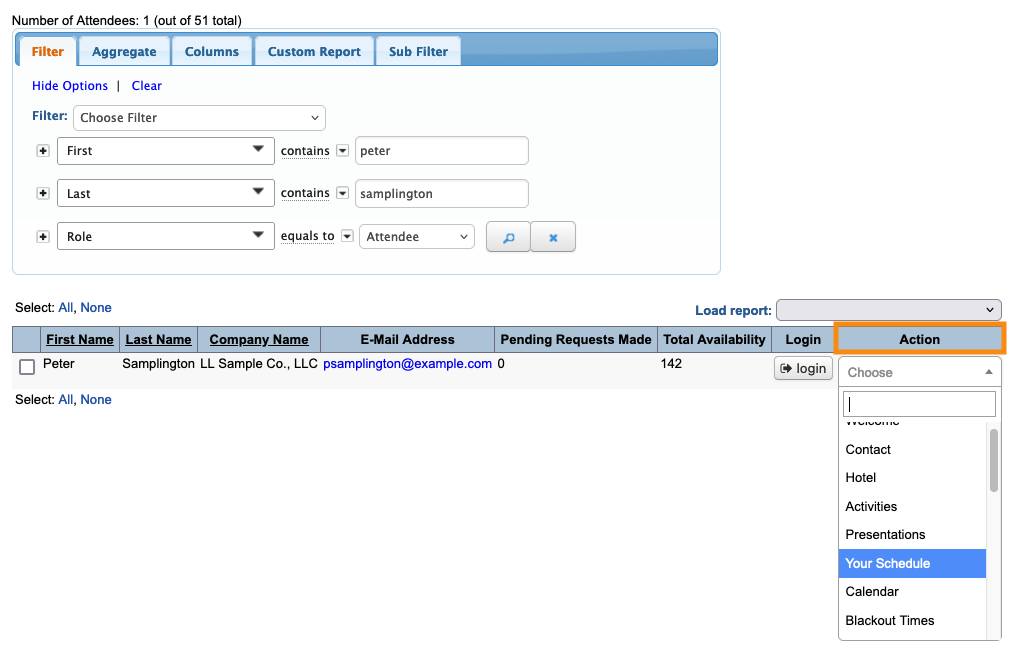
- Step 2. Filter the list to locate any of your presenters. Changes you save in that record will apply to all presenters.
- Use the Action menu to choose Your Schedule:
- Step 3. Click the Settings button:

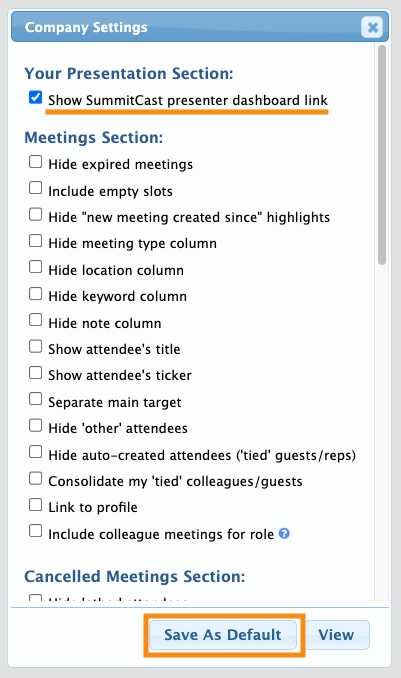
- Step 4. In the Attendee Settings pop-up, check the box for Show SummitCast presenter dashboard link.
- Then click Save as Default:
-
You can use this setting in Moderated and Unmoderated meeting programs. - If you’re not seeing this setting, our Support team may need to enable Attendees to be presenters for your event.

