

Enabling MeetMax webinars
If you’re ready to start creating your own webinars in MeetMax, here’s how to enable our integration with SummitCast.
In this article:
- How it works
- Webcast vs. Webinar
- Setting up the integration
- Key settings for webinars
- What happens next?
How it works
This integration gives you access to easily create new webinar sessions any time.
Once enabled, the integration automatically connects your MeetMax presentation to the SummitCast webcasting platform.
You’ll be able to use MeetMax’s invitation and registration tools to:
- Sign people up to attend
- See who attended and for how long
Webcast vs. Webinar
MeetMax supports two kinds of virtual session:
- Webinars are a simpler, self-service option.
- Webcasts are fully supported by our colleagues at SummitCast. Learn more about webcasts here.
Setting up the integration
This integration is a premium add-on feature in MeetMax.
- Step 1. Contact TWST Events Sales
- Reach out to your TWST Sales Rep. We’ll help you set up a user license for the integration.
- Step 2. Contact MeetMax Support
- Our Support team will then set up an initial Template Event based on your preferences. You’ll clone this template to create future webinars.
- Step 3. Provide branding assets to SummitCast
- Our partners at SummitCast provide the webcast player. They’ll establish overall branding that applies to all of your future webinars.
- To get started, give these assets to MeetMax Support:
- • Your company logo: This logo appears on all webinars.
- • 1 - 3 brand color hex codes: Designate which ones are your primary and secondary colors
-
You’re now ready to start creating your own webinars in MeetMax!
Key settings for webinars
Your webinars are housed in a MeetMax event. In that event, add these important settings.
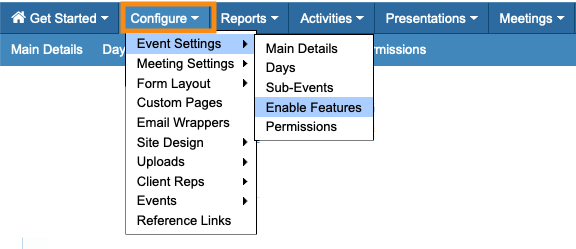
- Step 1. In your new event, head to the Configure tab. Choose Event Settings, then Enable Features:
- Step 2. Scroll to the SummitCast section:
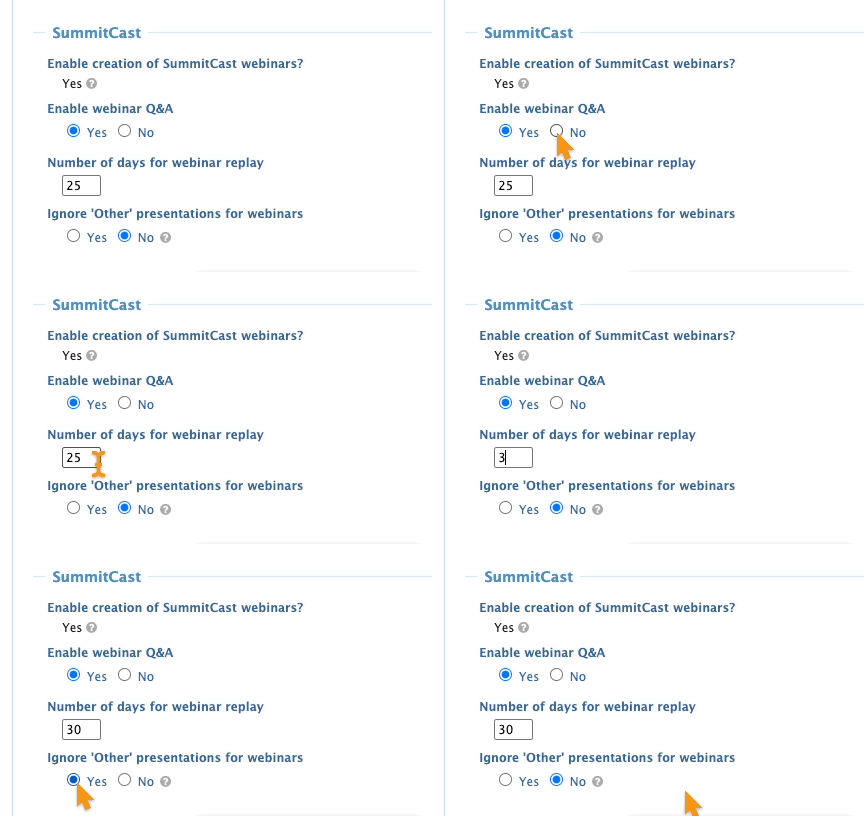
- • Enable creation of SummitCast webinars: You can enable or disable webinars up to the point when you first connect a webinar to SummitCast (see below). After that, this setting is fixed.
- • Enable webinar Q&A: Choose whether you want webinar attendees to submit questions. (See how this works here.)
- • Number of days for webinar replay: Choose how long you’d like the webinar video to be available to attendees. To disable replays, enter zero.
- • Ignore ‘Other’ presentations for webinars: If your event will host webinars alongside other presentations, this setting lets you separate those types on presenter and attendee schedules. If you’re hosting only webinars, leave this set to No.
- Step 3. Scroll to the bottom of the page and click Save:

What happens next?
Once you’re set up for self-service webinars, here are the steps to create a new one:
- Create a new event in MeetMax, by cloning your Template Event.
- Register the presenters to this event.
- Create the webinar and add those presenters to it.
- Give presenters access to their Dashboard links.
- Invite attendees to register for the webinar.

