


Sending presentation attendance to Corpaxe

As an option, you can publish attendance numbers for your event’s presentations. It’s a great way to demonstrate engagement at your events.
In this article:
- Where is it?
- How MeetMax shares presentation attendance with Corpaxe
- Setting up for data sharing
- Sending presentation attendance to Corpaxe
Where is it?
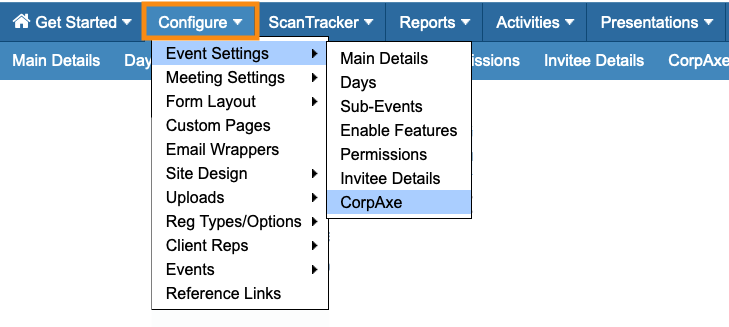
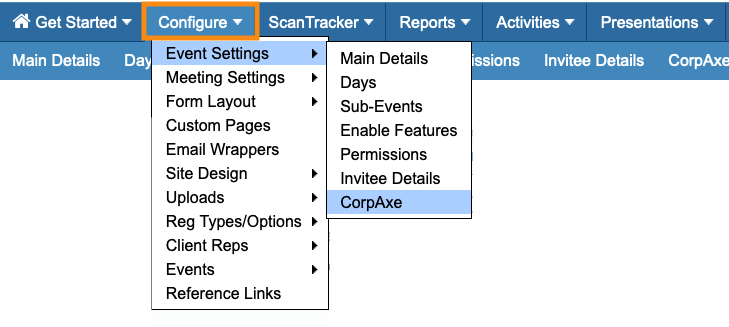
The Corpaxe integration settings are in the Configure tab:
| We’re assuming here that you’ve already set up the integration, and have enabled your event to publish to Corpaxe. |
How MeetMax shares presentation attendance with Corpaxe
This integration shares presentation attendance, as we’re covering here. You can also publish general attendance at your event, and meeting attendance.
To share presentation attendance, you’ll need to be using TWST Events Attendance Tracking services. As participants arrive at a presentation, a scan of their event badge marks them as present.
| Reach out to your TWST Sales representative for details on these services. |
Setting up for data sharing
Before you can share an event’s attendance data, you’ll need to create an Institution Map.
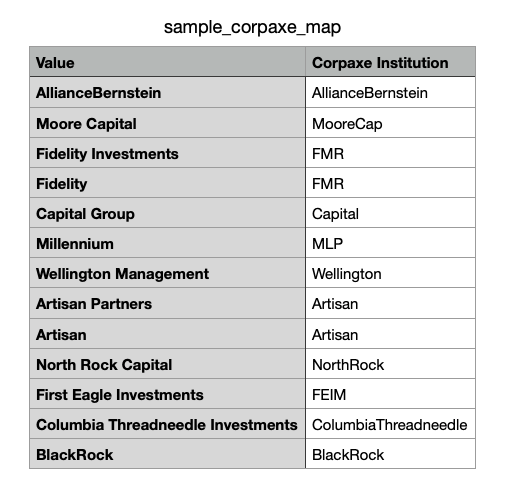
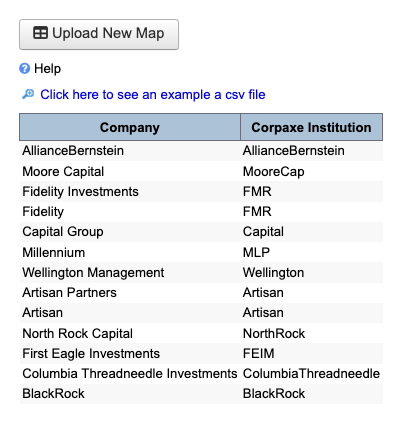
This map is a spreadsheet, listing your Company Names in MeetMax alongside their matching Institutions in Corpaxe. Below is an example.
- The Value column shows MeetMax Company names.
- The Corpaxe Institution column shows the corresponding information in Corpaxe.
| Our Support team is happy to work with you on preparing your spreadsheet. |
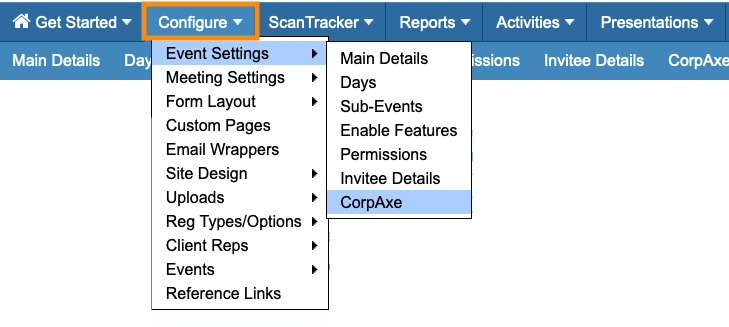
- Step 1. Head to the Configure tab. Choose Event Settings, then Corpaxe:
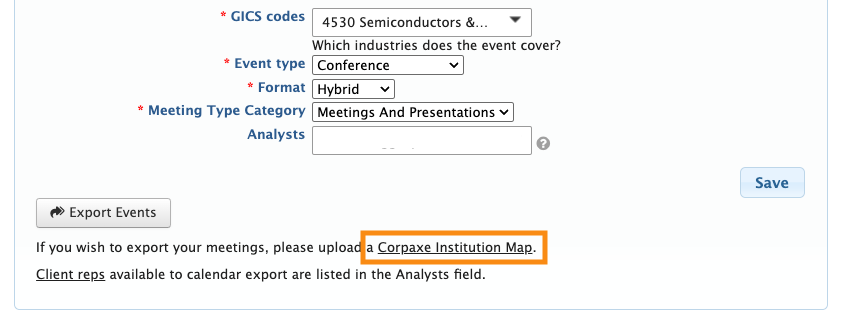
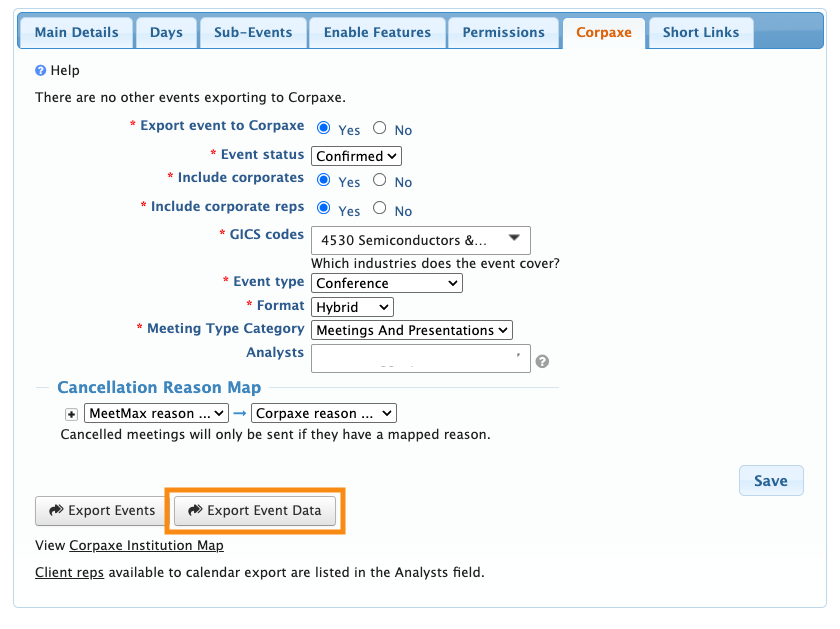
- Step 2. At the bottom of the Corpaxe form, click the Corpaxe Institution Map link:
- Step 3. If you’d like to download a sample CSV file to work from, click the link.
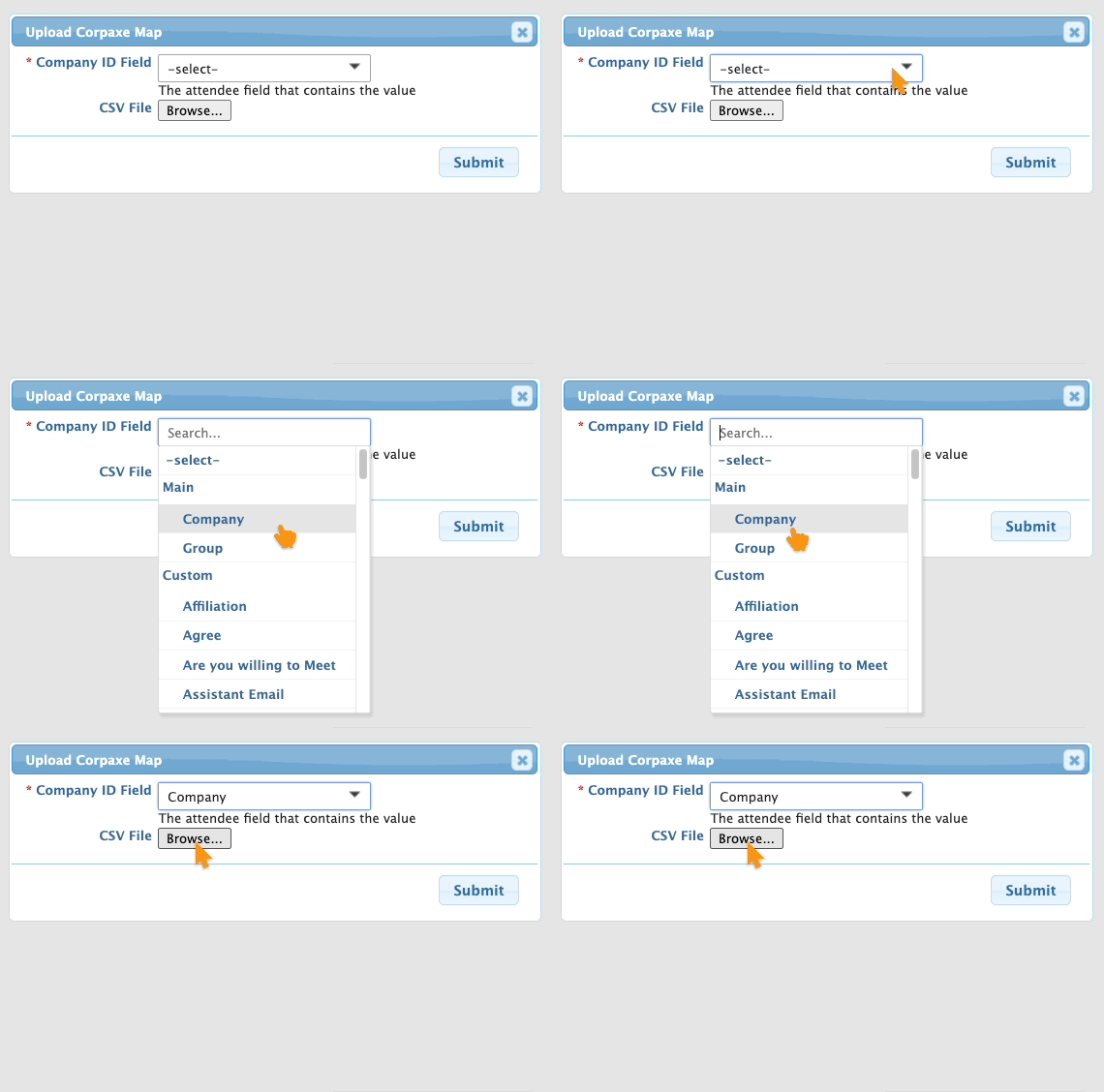
- If you already have your CSV ready, click the Upload New Map button:

- Step 4. Choose the form field in your MeetMax event that contains company name data. In this case, we’re choosing the default Company field, but your event might be using a custom field:
-
Reach out to our Support team if you’re not sure which field to use here. - Step 5. After you choose the field, click the Browse button to find your CSV file on your computer.
- Click Submit to start the import.
- Step 6. After import, you’ll see your spreadsheet on the page:
- Step 7. Return to the Corpaxe settings page:
- Step 8. You’ll now see a new button: Export Event Data. This is the button you’ll be using to publish attendance (see the section below):
-
You’ll also see a new Cancellation Reason Map section on this page. You only need it if you’re exporting your event’s meetings to Corpaxe. If not, you can ignore it.
Sending presentation attendance to Corpaxe
MeetMax now has two buttons for publishing:
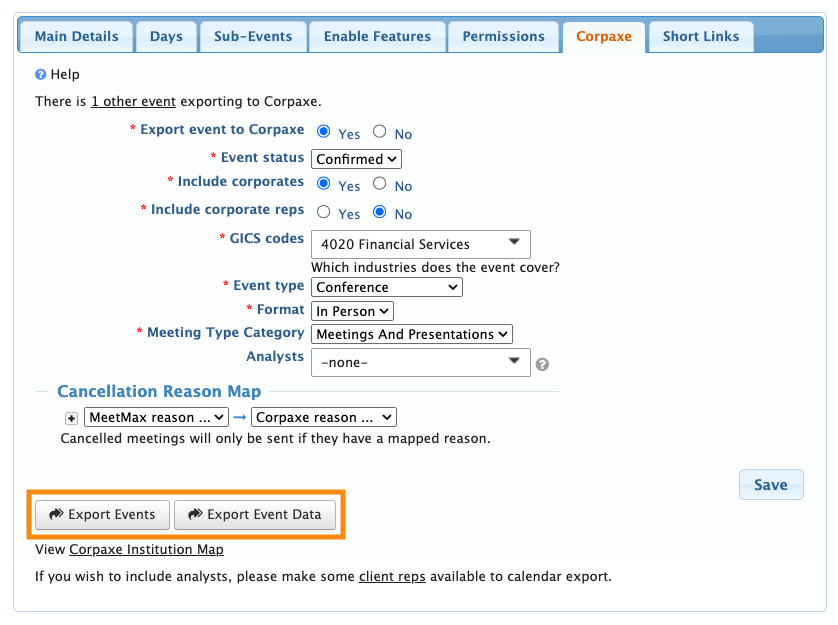
- Export Events: Sends the general event details you’ve configured in the form above. You’ll use this button first, to list your event on the Corpaxe Calendar.
- Send Event Data: Sends general attendance data for your event, as well as meeting and presentation attendance (assuming you’ve done the set-up recommended in the How MeetMax shares data section above).
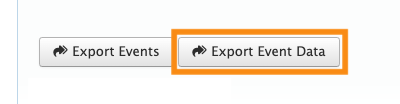
- Step 1. When you’re ready to publish presentation attendance, click the Export Event Data button:
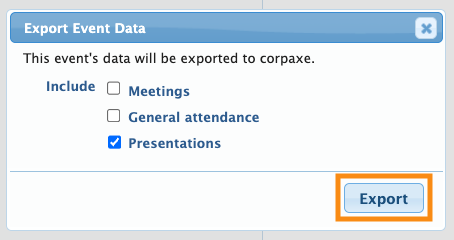
- Step 2. In the pop-up, choose Presentations. Then click Export:
- You can send data to Corpaxe multiple times. Details change throughout your event, so you can export any time you need to update Corpaxe. Each export overrides the previous one.

