In this article:
Where is it?
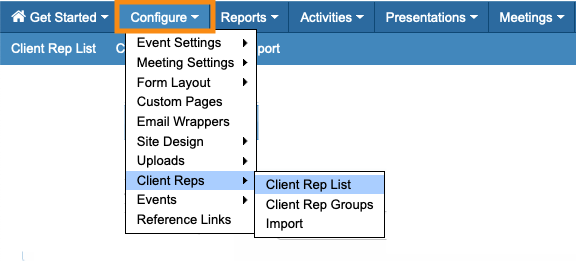
You’ll add and manage Client Reps from the Configure tab:
| Learn how to add a single Client Rep to MeetMax here. | |
| When you host an event, your team has different tasks to do in MeetMax. You can choose from a range of different permissions, to give everyone the access they need for their role. |
Every event is unique. In this article, we’ll talk about three broad Client Rep functions and how they relate to using MeetMax.
At your event, these jobs might be done by the same person or different people. MeetMax has a flexible structure for Client Reps.
Client Reps as event Admins
While every Client Rep is technically an Admin of something, many events have a core team who oversees the event in general, including:
- Designing the event registration process and forms
- Making sure MeetMax pages have the correct branding
- Adding event content to MeetMax, like presentations and activities
- Setting up the foundations of your meeting program, like time slots and locations
- Writing and updating official email communications
- Handling meeting requests and scheduling
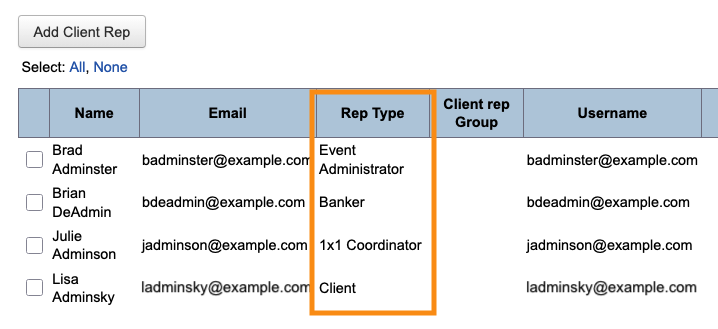
For general admin Client Reps, you might use any of these permission sets:
- Event Administrator (an all-access permission set, best for those who initially create the event)
- 1x1 Coordinator (focused on admin for your meeting program)
- Banker (focused on admin for Companies)
- Client (focused on admin for Attendees)
Client Reps as Sales teams
Your event might have certain Client Reps who take care of an assigned group of Attendees, much like a sales territory. These Reps might do things like:
- Make sure their Attendees put in meeting requests.
- Schedule meetings from those requests.
- Communicate with their Attendees about meeting updates.
- Deliver their Attendees’ event schedules.
- Monitor their Attendees’ participation in meetings.
MeetMax lets you assign groups of Attendees to a single Client Rep, or to a team of Client Reps.
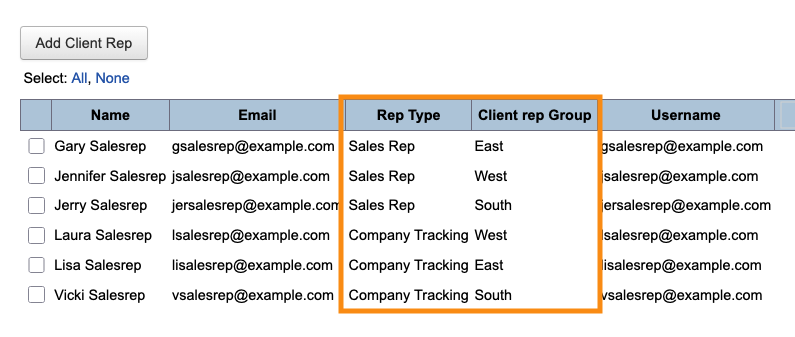
For this type of Client Rep, you might use these permission sets:
- Sales Rep (for assigned Attendees)
- Company Tracking (for assigned Companies)
|
In the example above, each of these Client Reps is a Sales Manager. We’ve assigned each one to a Client Rep Group. Now we can add their individual sales teams as Client Reps as well, and add them to their groups. |
Client Reps as event support
Your event might also have certain Client Reps who focus on specific aspects of your event, like:
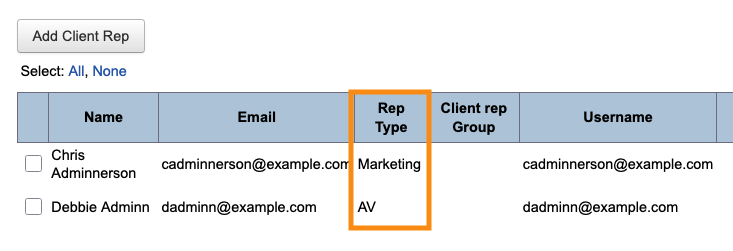
- A/V support for presenters (use the AV permissions in MeetMax).
- Coordination for special activities (use the Marketing permissions).