


How do I schedule a batch email to send in the future?

Sometimes you want to send a batch email immediately, and sometimes you want to delay it for a while.
While you’re creating your batch email, use the Delay sending for menus. Choose how long you want to delay this batch send. (You can schedule up to 72 hours in the future.)
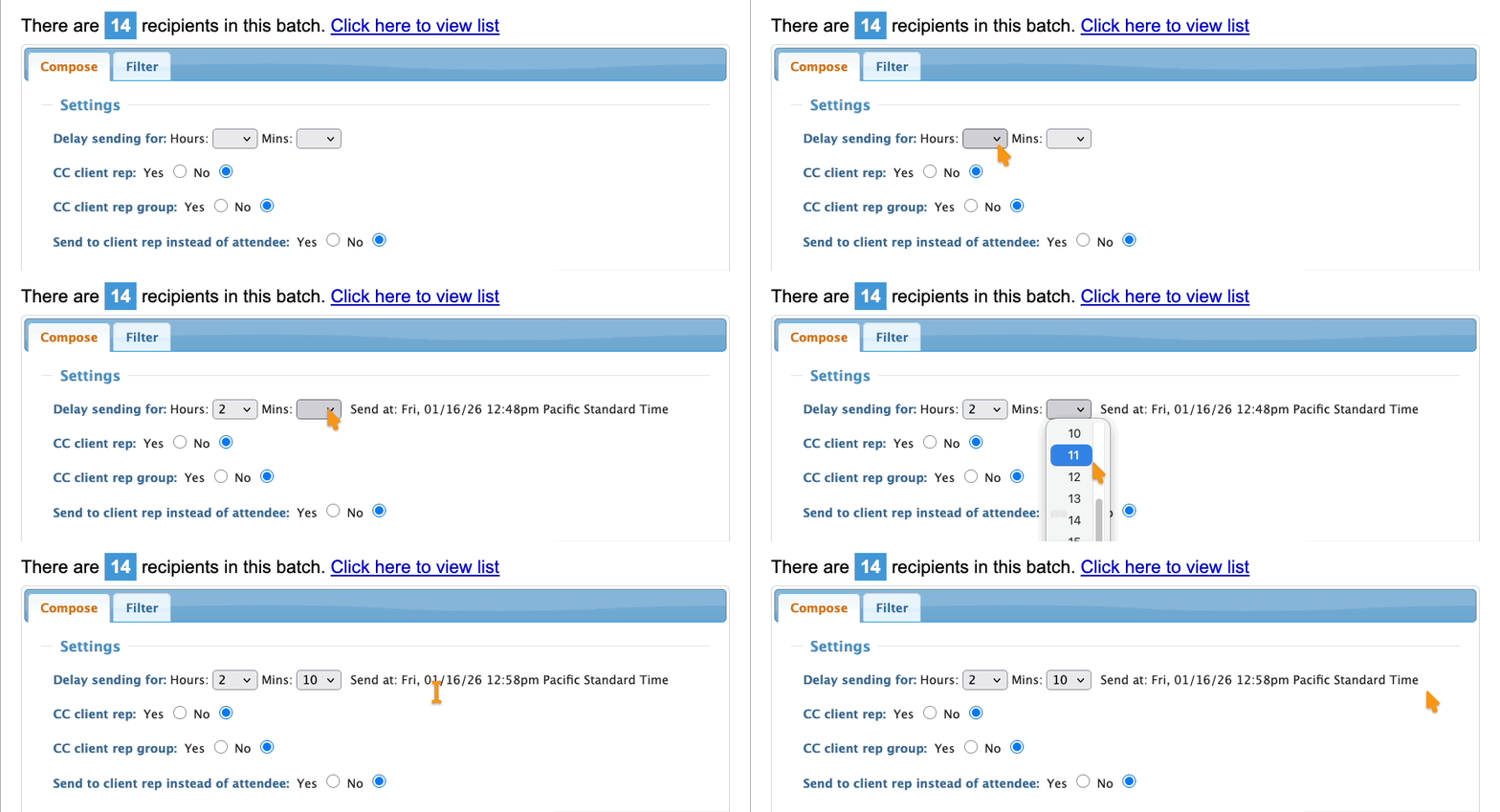
| The send time here matches your event’s time zone. |
Managing a scheduled batch
To see your scheduled email batches, head to the Batch Email Log:

Keep an eye on these two columns:
- Date Sent: The date/time you created the batch.
- Send At: If you’ve scheduled a batch to send later, that send date/time appears here.
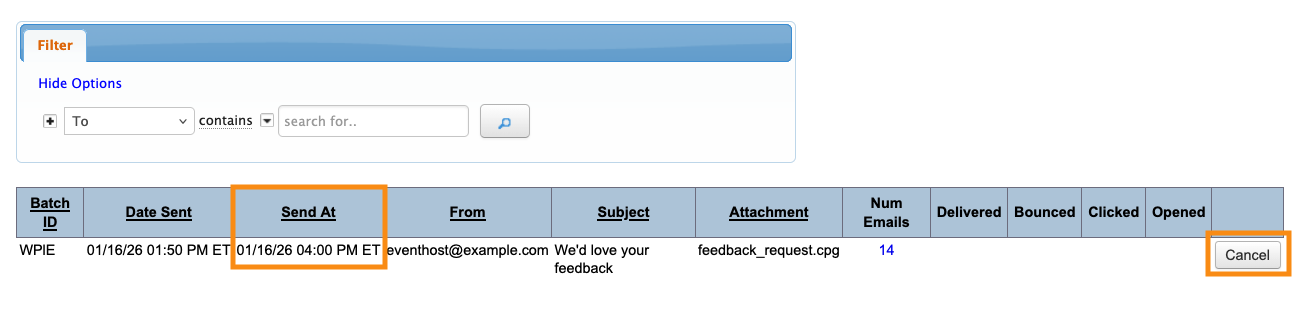
| Here in the Batch Log, times are expressed in U.S. Eastern Time (MeetMax’s system time). |
Changing the scheduled send time
Once you’ve scheduled a batch, the send time can’t be changed.
Instead, you can cancel the scheduled batch send (as long as the send time is more than an hour in the future).
Then head back to the batch emailer to create a new batch. The Re-use previous email menu lets you copy all of the content and settings from the original batch:
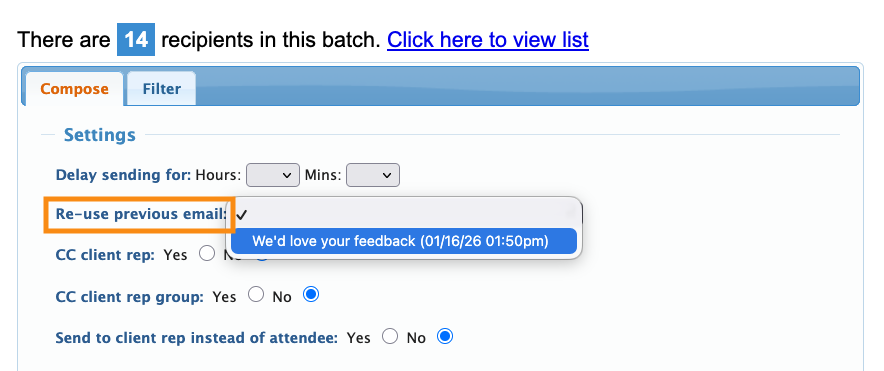
Finally, set a delay for the new batch email.

